
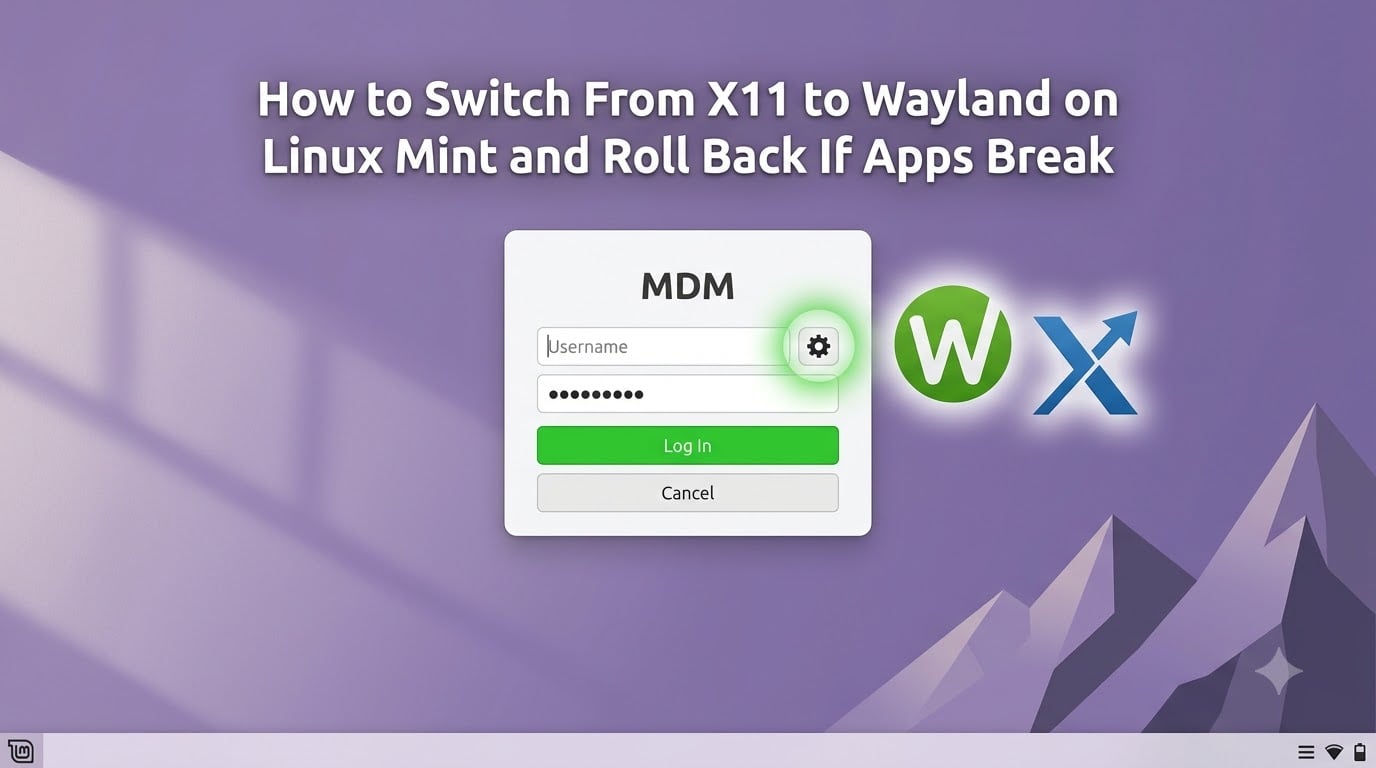
Switching from X11 to Wayland on Linux Mint sounds intimidating, but the actual process takes about 30 seconds once you know where to click. The harder part is knowing what to do when an app misbehaves after the change. I have rolled back more times than I can count across my own test machines, and this guide walks you through the exact procedure I use, including the safety net for getting back to X11 fast.
Linux Mint only started shipping Wayland as an option in 2026, which is why you may have heard mixed reports about stability. The good news is that Cinnamon now offers a clean way to pick your session at the login screen, and your old X11 desktop is still one click away. Below is the full how-to, the warning signs to watch for, and the rollback path if anything breaks.
Table of Contents
What Is X11 and What Is Wayland?
Before you change anything, it helps to understand the two systems you are choosing between. Linux Mint gives you the option because both are real, supported display servers, and each one has trade-offs.
What Is X11 (The Classic Display Server)
X11, also called Xorg, has been the default display server on Linux since the 1980s. It controls how windows are drawn, how your mouse and keyboard talk to apps, and how screens are arranged. Almost every Linux app in the last 30 years was built with X11 in mind, which is why X11 still feels bulletproof for compatibility.
What Is Wayland (The Modern Replacement)
Wayland is a newer display protocol designed to fix security and performance gaps left by X11. Each app talks directly to the compositor instead of routing everything through a central server, which reduces screen tearing, improves HiDPI handling, and locks down screen capture by default. Linux Mint uses a tool called Xwayland to keep your old X11 apps working in the background.
Why Linux Mint Kept X11 as Default for So Long
The Linux Mint team deliberately held off on making Wayland the default because Cinnamon depends on a few features that took years to stabilize under Wayland. Lock screen flow, multi-monitor placement, and screen capture were the big ones. Mint finally enabled Wayland as an option in version 22, and the team still keeps X11 as a fallback because, in their own words, “choice gives users a working escape hatch.”
Should You Switch to Wayland on Linux Mint in 2026
There is no single right answer for everyone. I run Wayland on my main laptop and X11 on my older desktop, because the trade-offs land differently depending on what you do.
Reasons to Switch to Wayland
You get smoother animation on 144Hz and 180Hz monitors.
HiDPI scaling on 4K displays looks cleaner out of the box.
Screen sharing in browsers like Firefox and Chromium works without extra flags.
Your screen is more secure because apps cannot snoop on each other.
Touch and gesture support is more responsive on modern hardware.
Reasons to Stay on X11
You use KiCad, certain CAD tools, or remote desktop apps that misbehave on Wayland.
You rely on automation tools like xdotool or screen recorders that have not been updated.
Your NVIDIA setup is older than the 555 driver series and you want zero issues.
You use KVM switches or specialty peripherals that need legacy X11 input.
If you are still on the fence, my recommendation is to keep X11 as your daily driver for a couple more months and test Wayland on a non-critical machine until 2026 is over. That way you build muscle memory without risking your workflow.
How to Switch From X11 to Wayland on Linux Mint?
The switch itself is a five-step process that takes less than a minute. The key is that you do this at the login screen, not from inside your current session.
Step 1: Check if Your System Supports Wayland
Open a terminal and run echo $XDG_SESSION_TYPE. If it prints “x11,” you are currently on X11. To confirm Wayland is even installed, check that the file /usr/bin/cinnamon-session exists and run ls /usr/share/xsessions/ to see which sessions are available. You should see at least “Cinnamon” and, on Linux Mint 22.2 or newer, a “Cinnamon (Wayland)” entry.
Step 2: Log Out of Your Current Session
Click the system menu in the bottom-right corner of your panel, pick your username, and choose “Log Out.” Wait for the MDM login screen to appear. Do not shut down the computer, because you need the login screen to see the session picker.
Step 3: Select Wayland at the Login Screen
On the MDM login screen, you should see a small gear icon next to the Sign In button. Click the gear icon and a menu will pop up listing available sessions. Pick “Cinnamon on Wayland” (or whatever your distribution calls it). Then click your username and enter your password.
Step 4: Verify the Switch Worked
Once the desktop loads, open a terminal again and run echo $XDG_SESSION_TYPE. This time it should print “wayland.” You can also open System Settings and look at the “About” section, where the windowing system will now read “Wayland.”
How to Test Wayland Without Fully Committing
If you want to dip your toes in, log into Wayland for a single session and try the apps you use most. Keep a list of any that break, freeze, or render weird. If everything works, keep that session as your default. If not, you have a 30-second rollback path waiting at the login screen.
Warning Signs That Apps Are Breaking on Wayland
Not every glitch is a Wayland problem, but the symptoms below almost always point to the display server. Recognizing them early saves you hours of debugging.
Common Symptoms of Wayland Compatibility Issues
Windows refuse to resize, or resize to the wrong size after you let go of the mouse.
Window positions are forgotten after you close and reopen an app.
Screen captures come out black or capture the wrong monitor.
Remote desktop tools like AnyDesk or NoMachine cannot connect.
xdotool scripts silently fail or only work on the focused window.
Games drop frame rate or show input lag that did not exist on X11.
Apps Known to Have Problems on Wayland
Based on Linux Mint forum posts and community reports, these apps have the highest chance of misbehaving on Wayland today:
KiCad: window resizing causes UI artifacts and the canvas occasionally freezes.
Some CAD tools: maximize/restore cycles break window state.
Specific screen recorders: legacy tools that depend on X11 for capture.
Older KVM switcher utilities: input mapping sometimes fails.
Certain automation tools: xdotool-based scripts and macro recorders.
Apps That Work Well on Wayland
The list of well-behaved apps is much longer, but here are the ones users consistently report success with: Firefox, Chromium, LibreOffice, GIMP, VLC, Zoom, OBS (with PipeWire), Blender, Steam, and most GNOME and KDE apps via Xwayland.
How to Roll Back From Wayland to X11 on Linux Mint?
Rolling back is even faster than the forward switch. The MDM login screen keeps both sessions available, so you can flip back without touching a single config file.
Step 1: Log Out of the Wayland Session
Open the system menu, click your username, and choose “Log Out.” Confirm the dialog if asked. Wait for the login screen to fully load before continuing.
Step 2: Click the Gear Icon at the Login Screen
The same gear icon that let you enter Wayland will now let you leave. Click it to see the list of available sessions.
Step 3: Select the X11 Session Option
Pick the plain “Cinnamon” entry (no Wayland in the name). Then type your password and press Enter. This loads the classic X11 session you have been using for years.
Step 4: Confirm X11 Is Restored
Open a terminal and run echo $XDG_SESSION_TYPE. It should now read “x11” again. If you want to make X11 the default for every login, you can use the MDM config tool, but normally the choice you make at the login screen is remembered for that session only.
When to Consider a Fresh Install
If Wayland left your desktop in a state where MDM itself refuses to load, boot into recovery mode from the GRUB menu, drop to a root shell, and run apt install --reinstall mdm cinnamon. That restores the default session without wiping your files. A full fresh install is only needed if you also changed drivers or kernels during the experiment and they will not boot.
Troubleshooting Wayland Issues on Linux Mint
If you want to stick with Wayland but one or two apps are misbehaving, these steps usually solve the problem without a full rollback.
Check Your Wayland Session Type
Run loginctl show-session $(loginctl | grep $(whoami) | awk '{print $1}') -p Type to confirm you are actually in a Wayland session. If it says X11, you defaulted back to X11 and the app bug is unrelated.
Force Xwayland for Problem Apps
Most X11 apps already run through Xwayland automatically on a Wayland session. If one still misbehaves, launch it with the environment variable GDK_BACKEND=x11 to force the X11 backend. For example: GDK_BACKEND=x11 kicad.
Update Drivers and Mesa
Outdated graphics drivers are the single biggest source of Wayland bugs. Run sudo apt update && sudo apt upgrade, then make sure your NVIDIA driver is version 555 or newer (or use the open-source nvidia-open package). On AMD and Intel, the Mesa packages included in Linux Mint 22.x already support Wayland well.
Report Bugs to the Right Project
If an app breaks in a Wayland-only way, file the bug against the app itself, not against Cinnamon. Include the output of echo $XDG_SESSION_TYPE, the app version, and steps to reproduce. The Linux Mint team tracks Wayland issues on GitHub and the community forums, and clear reports help them fix the next set of edge cases.
Frequently Asked Questions
How do I switch from X11 to Wayland on Linux Mint?
Log out of your current session, click the gear icon next to the Sign In button on the MDM login screen, and pick the Cinnamon on Wayland option. After you log in, run echo $XDG_SESSION_TYPE in a terminal to confirm it now reads wayland.
Can I roll back from Wayland to X11 if something breaks?
Yes. Log out, click the same gear icon at the MDM login screen, and choose the plain Cinnamon (X11) session. Your X11 desktop is preserved as a fallback, so the rollback takes about 30 seconds.
Is Wayland stable enough on Linux Mint in 2026?
Wayland in Linux Mint is stable for daily use on most modern hardware in 2026, especially with AMD or Intel graphics and NVIDIA 555+ drivers. App-specific bugs still exist, so keep X11 as a backup until you have tested your full workflow.
What apps break on Wayland?
Apps that frequently show issues on Wayland include KiCad, some CAD tools, certain screen recorders, xdotool-based automation scripts, and older remote desktop utilities. Most modern apps like Firefox, LibreOffice, GIMP, and Steam work fine.
Why is Wayland controversial?
Wayland is controversial because the transition broke a few long-standing workflows, including window-position memory and some legacy X11 input devices. Supporters argue the security and performance gains are worth the short-term pain, while critics want a slower, opt-in rollout like Linux Mint chose.
Final Thoughts on Switching From X11 to Wayland on Linux Mint
Switching from X11 to Wayland on Linux Mint is one of the lowest-risk major changes you can make to your desktop, because the rollback is one click away. Use the login screen gear icon to try Wayland on a non-critical day, keep a short list of any apps that misbehave, and roll back to X11 in seconds if the trade-offs are not worth it for your workflow. As Linux Mint continues to mature Wayland through 2026 and beyond, that safety net will keep getting better, and so will the experience.