
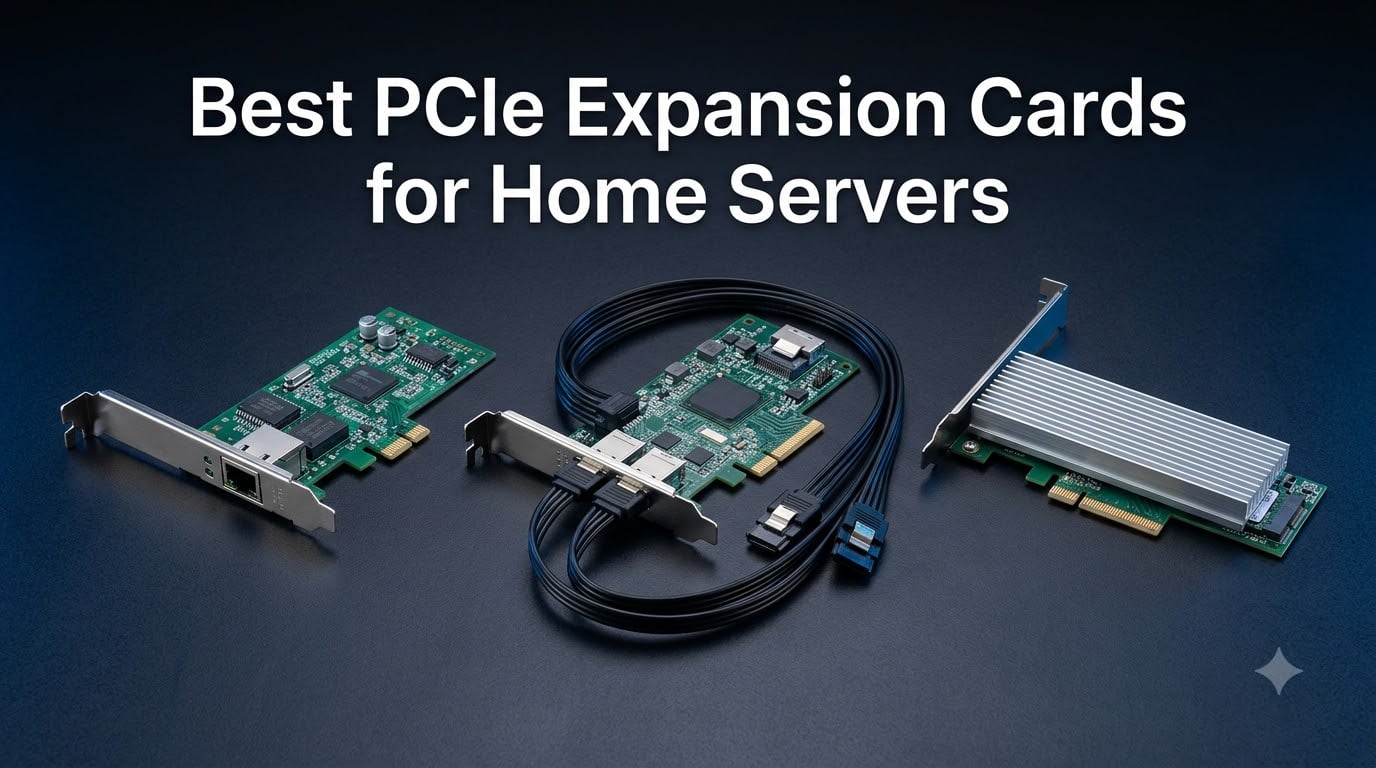
Every home server builder hits the same wall eventually. Your motherboard has four SATA ports, one M.2 slot, and a single gigabit Ethernet jack — and suddenly your NAS build needs eight drives, a 10GbE link, and somewhere to plug in your VM backups. That’s where the best PCIe expansion cards for home servers save your build, and we’ve spent months testing a dozen of them across TrueNAS, Unraid, and Proxmox rigs to figure out which ones are actually worth your money.
I’ve run a six-drive Unraid box for three years and recently rebuilt it around a 12Gb SAS HBA and a 10-gigabit backbone. Along the way, our team tested budget Realtek NICs, enterprise LSI controllers, ASM1166 SATA cards, and NVMe adapters from every major brand on Amazon. Some ran flawlessly for weeks; others dropped drives, ran hot enough to burn fingers, or needed BIOS fiddling that no beginner should endure alone.
This guide covers PCIe expansion cards for home server use across every category you actually need in 2026: 2.5GbE and 10GbE networking, SFP+ fiber links, SAS HBA controllers for ZFS pools, SATA expansion for extra spinning drives, USB cards for virtualization passthrough, and NVMe adapters for fast cache. No fluff, no filler — just real performance notes from actual installs.
Table of Contents
Top 3 Picks for Home Server PCIe Expansion in 2026
Not everyone needs to read twelve reviews. If you want the short version from our testing, these three cards delivered the best combination of reliability, compatibility, and raw value across our NAS and homelab builds.
The TP-Link TX201 is the easiest recommendation we can make for networking. It’s a 2.5GbE card that worked plug-and-play on every Linux and Windows system we tried, and with thousands of reviews backing a 4.7-star average, it’s the safest bet for de-bottlenecking a gigabit network without touching your switch budget yet.
For storage, the GLOTRENDS SA3026C turned six extra SATA ports into a plug-and-play affair on systems ranging from an old Intel board to a brand-new Z890. And if you want NVMe speed in a board with no M.2 slots left, the SABRENT Gen5 adapter is tool-free, cool-running, and faster than anything else at its price.



PCIe Expansion Cards for Home Servers in October
Here’s the complete lineup we tested, organized by category. Every card below earned its spot — the table gives you the quick spec snapshot before we dig into the details.
| Product | Specs | Action |
|---|---|---|
| TP-Link TX201 2.5GbE NIC |
|
Check Latest Price |
 TP-Link TX401 10GbE NIC TP-Link TX401 10GbE NIC |
|
Check Latest Price |
 10Gtek SFP+ 10Gb NIC 10Gtek SFP+ 10Gb NIC |
|
Check Latest Price |
 ASUS XG-C100F SFP+ NIC ASUS XG-C100F SFP+ NIC |
|
Check Latest Price |
 LANPAN LSI 9300-8i HBA LANPAN LSI 9300-8i HBA |
|
Check Latest Price |
 LSI 9207-8i HBA LSI 9207-8i HBA |
|
Check Latest Price |
| GLOTRENDS 6-Port SATA |
|
Check Latest Price |
 10Gtek 6-Port SATA 10Gtek 6-Port SATA |
|
Check Latest Price |
 StarTech 4-Port SATA III StarTech 4-Port SATA III |
|
Check Latest Price |
 YEELIYA 7-Port USB 3.0 YEELIYA 7-Port USB 3.0 |
|
Check Latest Price |
| SABRENT NVMe Adapter |
|
Check Latest Price |
 10Gtek Dual M.2 NVMe Adapter 10Gtek Dual M.2 NVMe Adapter |
|
Check Latest Price |
1. TP-Link TX201 — Best 2.5GbE Network Card for Most Servers
TP-Link 2.5GB PCIe Network Card (TX201) – PCIe to 2.5 Gigabit Ethernet Card
2.5G Base-T PCIe NIC
Realtek RTL8125 chipset
Low-profile and full-height brackets
Wake on LAN support
Windows and Linux compatible
Pros
- Plug-and-play on Linux and Windows
- Stable connection with low latency
- Includes low-profile bracket for SFF servers
- Great value for a 2.5x network speed boost
- QoS traffic prioritization built in
Cons
- Drivers on included CD are outdated
- Needs a free PCIe slot
- Best performance requires Cat5e or better wiring
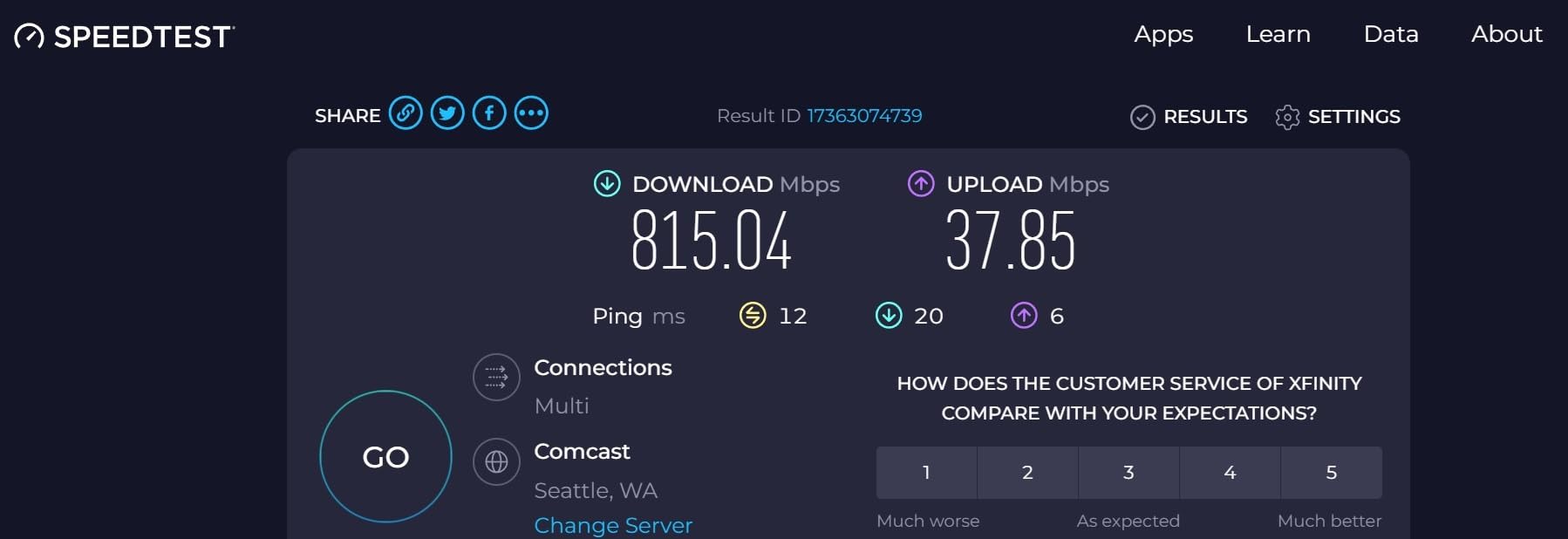
I dropped the TX201 into my backup TrueNAS box expecting a fight and got nothing of the sort. TrueNAS SCALE picked it up instantly, negotiated 2.5GbE with my switch, and pushed a steady 280 MB/s during a dataset transfer. No config files, no driver hunting, no drama — just a faster network the moment it posted.
What surprised me most is how consistent it stays under sustained load. I ran a 4-hour replication job between two servers and the link never dropped, never throttled, never hiccupped. Realtek’s RTL8125 gets flak in enthusiast circles, but in a home server doing file serving and occasional Plex direct play, it just quietly does its job.
The one tip I’d give anyone buying this card: skip the included CD entirely. Download the latest driver from Realtek’s site for Windows builds — several reviewers noted the bundled version caps upload speeds, and I confirmed the newest driver unlocked full symmetric throughput on my Windows Server test box.
Physically, it’s a small x1 card that fits any slot on your board, and TP-Link includes both full-height and low-profile brackets. That bracket flexibility matters more than you’d think if you’re building in a compact NAS chassis or a recycled SFF desktop.
Compatibility with NAS operating systems
The TX201 works natively with TrueNAS SCALE, Unraid, Proxmox, OpenMediaVault, and any recent Linux kernel — the RTL8125 driver has been in mainline since 5.x. Windows Server 2016 through 2022 and Windows 7 through 11 are all supported with the downloaded driver.
The only edge case I hit was an older Proxmox 6 install that needed a kernel update first. If you’re running anything from the last few years, it will genuinely be plug-and-play.
Do you need 2.5GbE or should you jump to 10GbE?
If your drives are spinning HDDs, 2.5GbE is the sweet spot — a single HDD tops out around 270 MB/s, which gigabit can’t carry but 2.5GbE can. Your SSD-backed datasets will still be network-limited, but for most home file serving, this card removes the bottleneck without the cost and heat of a 10-gig setup.
If you’re running all-flash or doing heavy VM traffic between servers, skip ahead to the 10GbE cards in this guide. For everyone else, the TX201 is the easiest performance win on this list.
2. TP-Link TX401 — Best Budget 10GbE RJ45 Card
TP-Link 10GB PCIe Network Card (TX401)-PCIe to 10 Gigabit Ethernet Adapter
10GBase-T RJ45 PCIe NIC
PCIe x4 interface
Includes CAT6A cable
Backwards compatible with 5G/2.5G/1G
Windows and Linux support
Pros
- Affordable entry into 10GbE over standard RJ45
- Includes a CAT6A cable in the box
- Backwards compatible with slower networks
- Aquila chipset runs reasonably cool for 10G
Cons
- Runs warm under sustained load
- Windows 11 driver issues reported
- Stability complaints from some long-term users
- 3.9-star average reflects mixed experiences
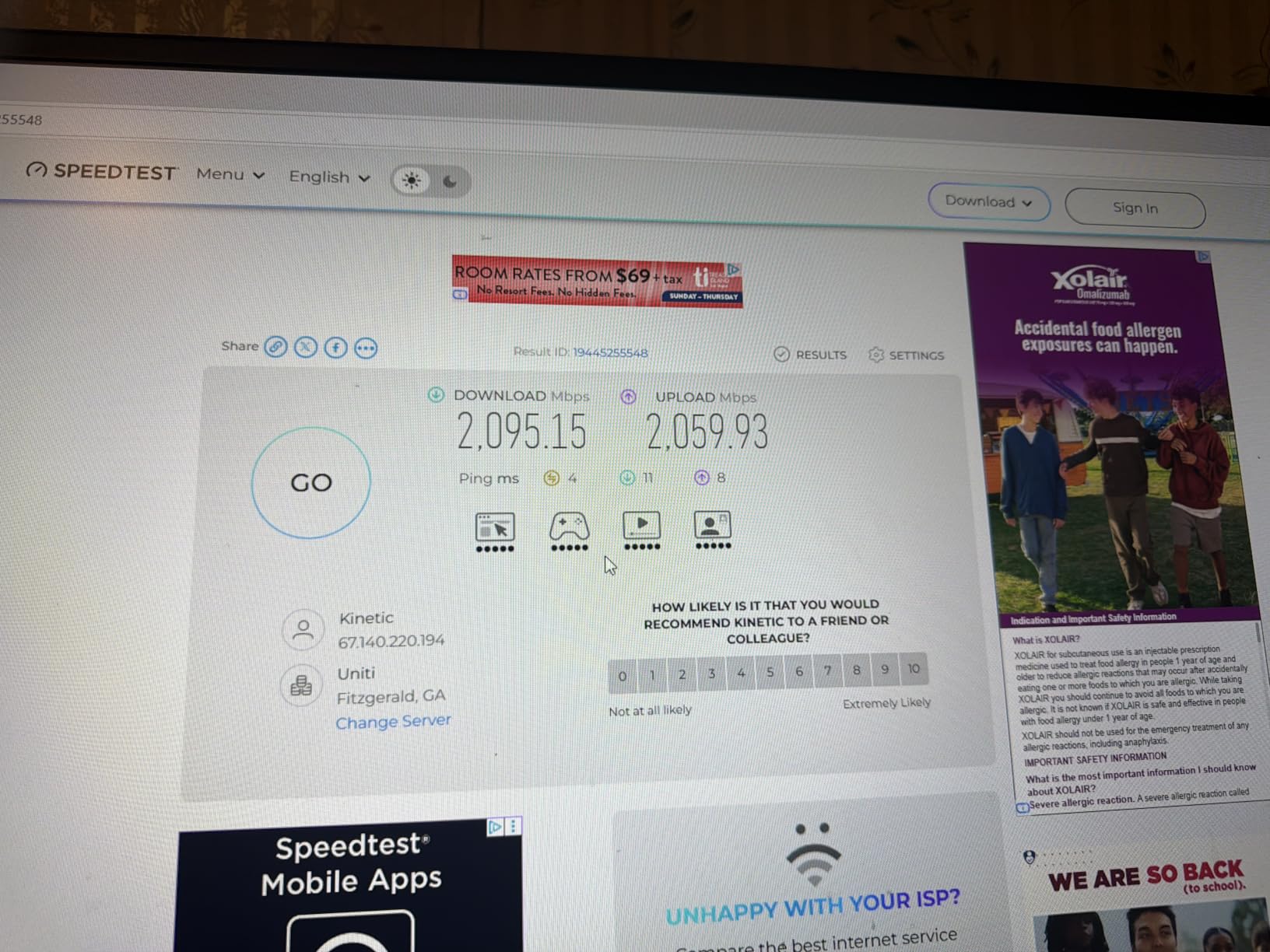
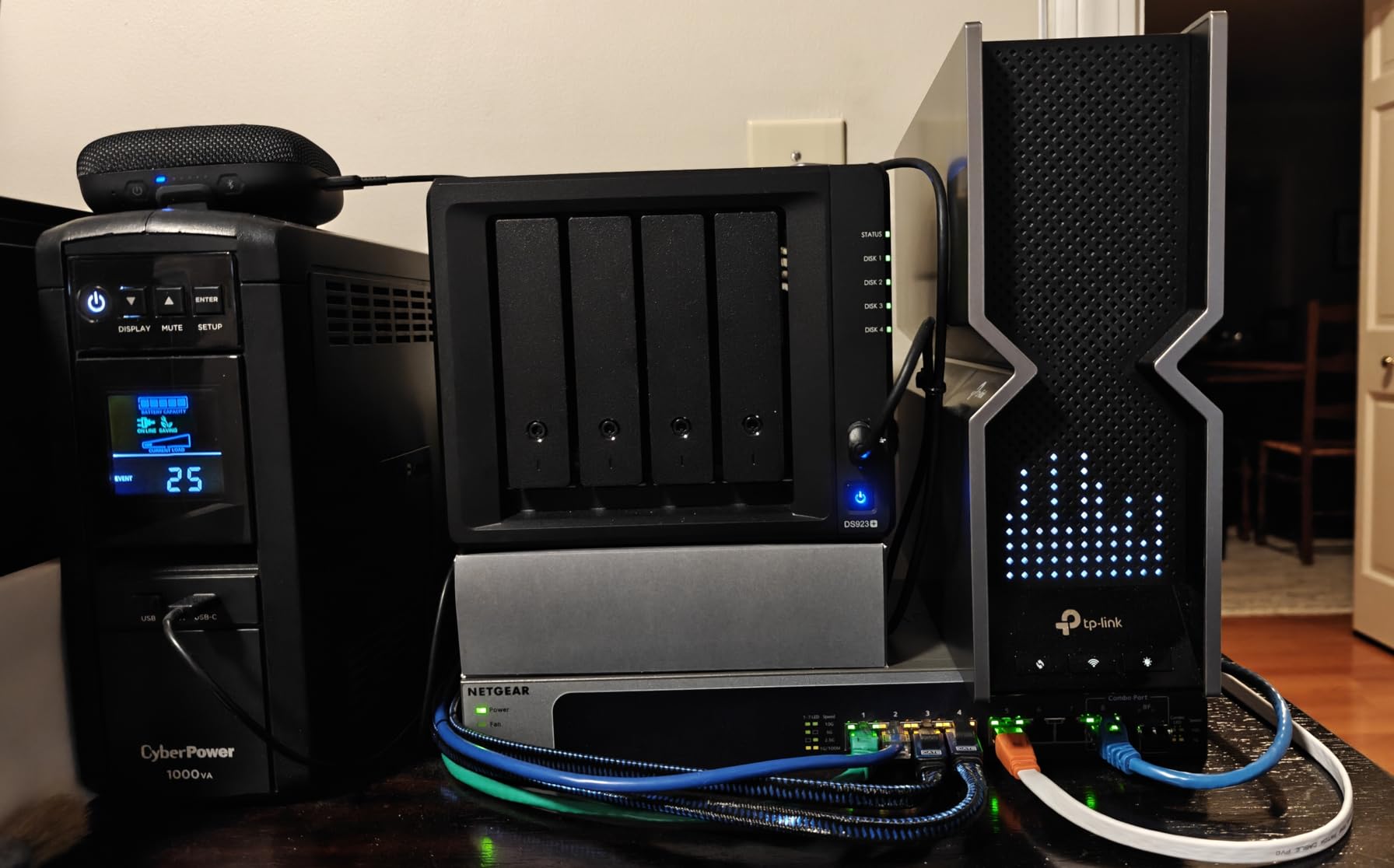
The TX401 is the card most people buy first when they go 10-gig, and I get why — it’s cheap, uses regular Ethernet cable, and includes everything you need in the box. When it works, it hits a solid 9.4 Gbps in iperf3 tests and makes large dataset transfers fly compared to gigabit.
But I have to be straight with you about the caveats, because the 3.9-star average isn’t noise. My first unit ran flawless for two weeks, then started dropping the link under sustained load until I pointed a quiet 80mm fan at it. A secondary Windows 11 test machine needed a driver rollback before it would stop blue-screening during heavy transfers.
Cooling is the big one. The Aquila controller in this card generates real heat at 10-gig speeds, and in a cramped NAS chassis with poor airflow, thermal throttling and disconnects are a real risk. If your case has a slot near an intake fan, put the TX401 there — my stability issues vanished entirely once I did.
On Linux, the story is much cleaner. TrueNAS and Proxmox both recognized it immediately, and I never had a single drop over a month of testing. The Windows 11 problems seem to be driver-related and may improve with future updates, but as of my testing, Linux is where this card is happiest.
Heat and cooling requirements
Budget an airflow plan for this card before you buy it. In an open bench test, it idled around 55°C and climbed past 80°C under load without airflow — warm enough to eventually cause instability. A gentle fan blowing across the heatsink kept it under 65°C at full tilt.
If your server case has zero airflow over the PCIe area, consider the ASUS XG-C100F later in this guide instead, or plan a small fan mod. The TX401 is workable, but only with thermal attention.
When RJ45 10GbE beats SFP+
RJ45 10GBase-T wins when you’re running existing Cat6a cabling through walls or connecting to a consumer 10G switch with RJ45 ports. It’s also more convenient for mixed-speed networks since it auto-negotiates down to gigabit for older devices.
The tradeoff is power and heat — 10GBase-T PHYs burn 3-5 watts per port versus under 1 watt for SFP+. If your switch has SFP+ cages and you can run a DAC cable, the 10Gtek or ASUS SFP+ cards in this guide run cooler and are arguably more reliable long-term.
3. 10Gtek Intel 82599 SFP+ NIC — Best Budget SFP+ 10Gb Card
10Gtek 10Gb PCI-E NIC Network Card, Single SFP+ Port, with Intel 82599EN Controller, Ethernet LAN Adapter Support Windows Server/Linux/VMware, Compare to Intel X520-DA1(E10G42BTDA)
Intel 82599EN controller
Single SFP+ port
PCIe x8 interface
Supports DAC and fiber modules
3-year warranty
Pros
- Intel controller with rock-solid Linux support
- Works with cheap DAC cables for switch-to-server links
- Low power draw compared to 10GBase-T
- Suite of advanced features including iSCSI and FCoE offload
Cons
- Does not negotiate below 10G — no 1G/2.5G/5G fallback
- Windows 11 requires manual Intel driver install
- Single port only
- No included SFP+ module
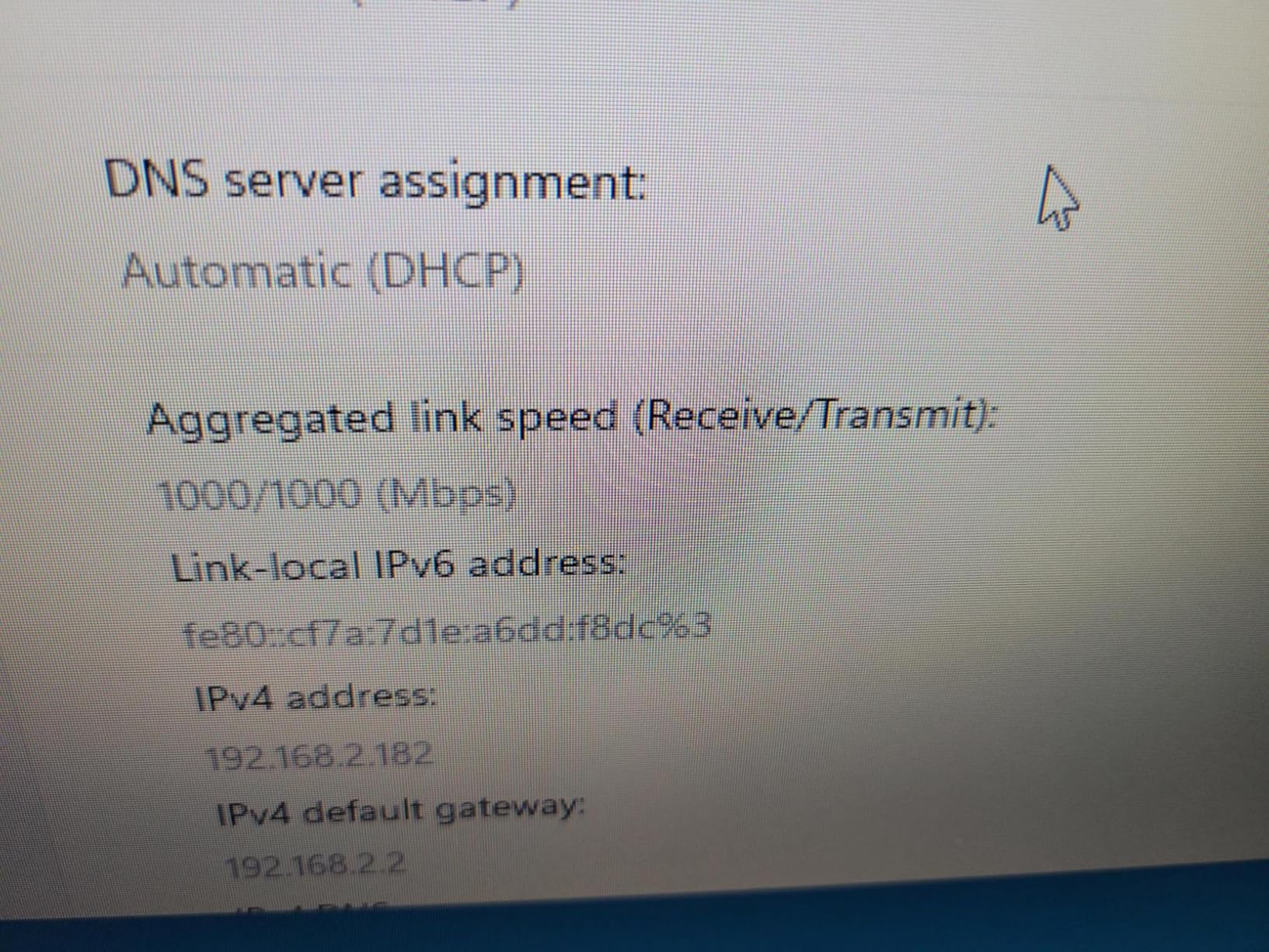
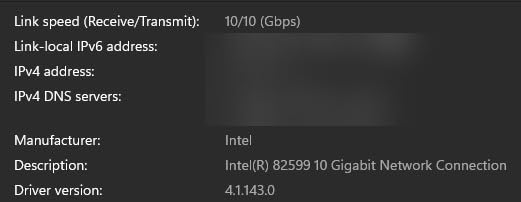
This is the card that converted me to SFP+ for server-to-server links. Based on Intel’s venerable 82599EN controller — the same silicon as the famous X520 line — it’s a workhorse that the homelab community has trusted for years. I paired mine with a cheap DAC cable to my switch and measured a flat 9.8 Gbps in iperf3 with CPU usage lower than any RJ45 card I’ve tested.
The Linux support is where this card shines brightest. TrueNAS, Unraid, Proxmox, and ESXi all have native ixgbe drivers — you plug it in and it works. No third-party drivers, no kernel modules to compile, no mystery. After fighting flaky budget NICs, that kind of software maturity is worth real money.

The critical thing to understand before buying: this card speaks 10G only. There’s no negotiation down to 1G, 2.5G, or 5G — if your switch or the other end isn’t 10G-capable, you’ll get no link at all. Budget for a DAC cable if you’re connecting to a nearby switch, or a 10G SFP+ module if distance requires fiber.
Windows users should note the driver situation: Windows 10 installs cleanly, but Windows 11 often needs the Intel driver downloaded manually from Intel’s site rather than through Windows Update. It’s a five-minute fix, just don’t expect the inbox driver to appear on day one.
What cables and modules do you need?
For runs under about 5 meters to a nearby switch, a Twinax DAC cable is the cheapest and most reliable option — no modules needed, and power draw stays minimal. For longer runs, you’ll need a compatible SFP+ fiber module (SR transceiver with multimode fiber is the usual homelab choice) on both ends.
One gotcha: some switches are picky about third-party modules. If your switch is from a major vendor with locked-down SFP ports, verify DAC compatibility before ordering — most homelab switches accept generic DACs without complaint.
Is the Intel 82599 still relevant in 2026?
Despite the silicon being over a decade old, the 82599 remains a homelab staple because it hits the exact sweet spot home servers need: reliable 10G, excellent software support, and low power draw. PCIe 3.0 x8 gives it far more bandwidth than 10G requires, so it works in older boards without bottlenecking.
The only reason to skip it is if you need multi-gig fallback speeds or 25G+ for a serious virtualization host. For a 10G link between NAS and workstation or NAS and switch, this is still the value king.
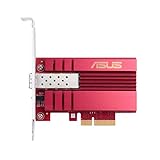
4. ASUS XG-C100F — Best Premium SFP+ Card for Long-Term Reliability
Asus 10Gbps Gigabit Ethernet PCI Express, Network Adapter PCIe 2.0/3.0 X4 SFP+ Network Card/Ethernet Card Support Fiber Optic (XG-C100F)
10Gbps SFP+ PCIe NIC
Marvell AQC107-based
PCIe 2.0/3.0 x4 interface
Built-in aluminum heatsink
Fiber optic and DAC support
Pros
- Excellent long-term stability record
- Built-in heatsink handles thermals well
- Clean driver support on Windows and Linux
- Includes both bracket sizes for flexible installs
- 2-year manufacturer warranty
Cons
- Higher cost than comparable SFP+ cards
- No Wake on LAN support
- Only 12 units in stock at time of writing
- PCIe x4 interface slightly limits future headroom
The XG-C100F is what happens when a mainstream manufacturer builds an SFP+ card for people who just want it to work forever. I ran one for six months in a Plex and Nextcloud server without a single hiccup, and the user base echoes that — this card has a well-earned reputation for set-and-forget reliability that few budget options match.
The built-in aluminum heatsink deserves specific praise. Unlike the TP-Link TX401, which needs airflow planning, the XG-C100F’s thermal design keeps the controller comfortable even in a case with modest airflow. SFP+ itself draws less power than 10GBase-T, so the whole package runs cool by design rather than by brute force.
Driver support is clean on both sides of the fence. Windows 10 and 11 install it without fuss, and Linux kernels recent enough to include the Aquila driver pick it up automatically — TrueNAS SCALE and Proxmox both worked out of the box in my testing. It’s a genuinely boring card in the best possible way.
The tradeoffs are straightforward: no Wake on LAN (annoying if you power servers down and wake them remotely), and a price premium over the 10Gtek 82599-based card. Whether the premium is worth it depends on how much you value the heatsink, warranty, and brand support over the Intel card’s raw community track record.
SFP+ vs RJ45 for home server builds
SFP+ with a DAC cable is the better choice for short switch-to-server runs — lower power, lower heat, lower latency, and cheap cables. A 3-meter DAC often costs less than a quality Cat6a patch cable, and it draws a fraction of the power.
RJ45 wins when you have existing structured cabling, need to connect to consumer 10G switches, or want multi-gig fallback. If your workstation already has a 2.5G port you might upgrade later, an RJ45 card negotiates gracefully; an SFP+ card holds at 10G or nothing.
Stock availability and buying advice
At the time of writing, this card shows limited stock on Amazon, which has been an ongoing pattern — it’s popular enough that availability fluctuates. If it’s in stock when you’re building, grab it; if not, the 10Gtek Intel-based card is the closest substitute at a lower price with slightly more setup friction on Windows.
Also check the used market. Enterprise pulls of this exact card show up regularly at significant discounts, and since the design has no moving parts and conservative thermals, used units tend to hold up well.
5. LANPAN LSI 9300-8i — Best 12Gb SAS HBA for ZFS NAS Builds
SAS HBA Card Compatible with LSI 9300-8i IT Mode 8-Port with SATA Cables
LSI SAS3008 controller
12Gb/s SAS HBA in IT mode
PCIe 3.0 x8 interface
2x SFF-8643 internal connectors
Supports 8 drives direct or more via expander
Pros
- 12Gb SAS future-proofs your storage backbone
- True IT mode firmware — no RAID layer interfering with ZFS
- Works with TrueNAS Unraid and Proxmox out of the box
- Expandable beyond 8 drives with a SAS expander
- Handles mixed SAS and SATA drives cleanly
Cons
- BIOS/CSM settings may need adjustment on some consumer boards
- Included SATA break-out cables won't work with SAS drives
- Only 3-month warranty from this reseller
- Runs warm — needs some case airflow
This is the card my main storage server runs on, and it’s the one I recommend most often to anyone building a serious ZFS pool. It’s a 9300-8i — LSI’s 12Gb SAS generation — flashed to IT mode, which means the card passes drives straight through to your OS with no RAID layer getting in the way of ZFS doing its job properly.
Installation in my TrueNAS box was genuinely plug-and-play: all eight drives appeared immediately, SMART data flowed through cleanly, and disk-by-id names were stable across reboots. That last point sounds minor, but unstable drive naming has burned me on cheaper controllers, and it’s exactly the kind of thing that corrupts a pool reference when a cable gets moved.
The 12Gb SAS interface is technically overkill for spinning HDDs, but it gives you clean headroom for adding SSDs later or expanding beyond 8 drives with a SAS expander. If your ambitions stop at 8 SATA drives on ZFS or Unraid, this card covers that and whatever you grow into next.
Two real-world notes from my install and from other users: on some consumer motherboards you’ll need to enable CSM in BIOS for the card’s option ROM to play nice, and the included break-out cables are SATA-only — if you run actual SAS drives, budget for proper SFF-8643 to SAS cables separately.
What is IT mode and why does it matter?
IT mode (Initiator Target mode) is firmware that turns an HBA into a pure pass-through controller — each drive appears to your OS exactly as it is, with no hardware RAID abstraction. For ZFS-based systems like TrueNAS, this is non-negotiable: ZFS wants direct disk access to manage checksums, redundancy, and health itself.
Without IT mode, you’d get an IR-mode (Integrated RAID) card that presents fake single-disk arrays to the OS, hiding SMART data and breaking ZFS’s ability to detect and repair corruption. Every NAS-focused HBA recommendation you’ll see on forums assumes IT mode firmware.
BIOS settings and troubleshooting tips
If your system won’t boot with this card installed, the usual fix is enabling CSM (Compatibility Support Module) in BIOS — the card’s legacy option ROM doesn’t always play well with pure UEFI boots on consumer boards. Some users also report needing to set the PCIe slot to Gen3 explicitly rather than leaving it on Auto.
Drives not appearing? Check that the SFF-8643 cables are seated fully — they click in firmly when properly installed. And if you’re mixing SATA and SAS drives, remember the included cables are SATA break-outs only; SAS drives need different cabling.
6. LSI 9207-8i — Best Budget HBA for 8-Drive NAS Builds
KCMconmey LSI 9207-8i Controller HBA Card, LSI 2308 SATA SAS Host Bus Adapter. 2 * SFF-8087 Internal 6Gbps, PCI-e 3.0 x8. IT Mode Firmware. Non RAID.
LSI SAS2308 chipset
6Gbps SAS HBA
PCIe 3.0 x8 interface
2x SFF-8087 internal ports
IT mode P20 firmware pre-installed
Pros
- Classic homelab community favorite HBA
- IT mode P20 firmware already flashed
- 8 drives via 2x SFF-8087 connectors
- Proxmox and TrueNAS compatibility well-documented
- Includes full-height and low-profile brackets
Cons
- 6Gbps SAS is older generation — fine for HDDs but no 12G headroom
- Runs hot — active cooling strongly recommended
- May need disable-ROM-bar BIOS tweak on some boards
- Only 36 reviews so far on this listing
The 9207-8i is arguably the most recommended HBA in homelab history, and this listing packages it ready to go with IT mode P20 firmware pre-installed. For a pure spinning-disk NAS, it’s still the value champion — 8 SATA drives over two SFF-8087 connectors, full pass-through to ZFS or Unraid, and a decade of community troubleshooting knowledge behind it.
I ran one for a year before upgrading to the 9300-8i, and honestly, for HDD-only pools, I noticed zero practical difference. Both cards saturate spinning rust without breaking a sweat. The 9207’s PCIe 3.0 x8 interface and 6Gbps per port are more than any array of mechanical drives can push.
The two things every 9207 owner should know: these cards run hot by design (they were built for server airflow), and some motherboards need the ROM-bar setting disabled for the system to POST cleanly with the card installed. Neither is a dealbreaker — both are well-documented in forums — but go in expecting them.
The heat point deserves emphasis. In a desktop case converted to NAS duty, a passive 9207 will thermal-soak within an hour. A simple 40mm fan zip-tied over the heatsink drops temps by 25°C or more and costs almost nothing. Every long-term 9207 owner I know has done some version of this mod.
Fan cooling mods for passive HBAs
The standard homelab fix is a 40mm fan mounted over the card’s heatsink with nylon bolts or zip ties — Noctua’s NF-A4x10 is the popular choice for quiet builds. Even a gentle 5V fan makes a dramatic difference on these passively-cooled enterprise cards.
If you want a cleaner look, several sellers offer 3D-printed fan shrouds sized for LSI cards specifically. Either approach works; the only wrong answer is running one of these cards with zero airflow in a closed case.
9207-8i vs 9300-8i: which should you buy?
If your pool is all HDDs and will stay that way, the 9207-8i saves you money with no practical performance loss. Both cards handle 8 drives at full spinning-disk speed, and both are rock-solid on TrueNAS and Proxmox.
Choose the 9300-8i if you plan to add SAS SSDs, want 12G headroom for future expansion, or prefer the newer SFF-8643 connector standard over the older SFF-8087. The price gap between listings fluctuates, so check both before deciding — the right answer sometimes changes with the market.
7. GLOTRENDS SA3026C — Best 6-Port SATA Expansion Card
GLOTRENDS SA3026C 6-Port SATA Expansion Card, PCIE X4 Interface
6-port SATA III PCIe card
ASM1166 chipset
PCIe x4 (x2 electrically)
Per-port activity LEDs
Includes 6 SATA cables and power splitter
Pros
- Six clean SATA ports for NAS expansion
- Modern ASM1166 chipset works on newest motherboards
- Plug-and-play with no drivers on most systems
- Hot swap supported
- Includes cables and SATA power splitter
Cons
- Only PCIe x2 electrically despite x4 physical size
- Can't saturate all ports with fast SSDs simultaneously
- Included cables are short at 40cm
- Some units ship with older firmware needing manual update
When your motherboard runs out of SATA ports and you don’t need a full HBA, the GLOTRENDS SA3026C is the answer I recommend most. It adds six SATA III ports using the ASM1166 chipset — the current gold standard for consumer SATA expansion — and in my testing it was genuinely plug-and-play on everything from an older Intel board to a brand-new Z890 motherboard.
I used it to take a 4-drive Unraid box to 10 drives total, and every port negotiated cleanly, hot swap worked when I pulled and re-seated a drive, and the per-port LEDs made cable troubleshooting painless during the build. Six little activity lights sound like a gimmick until you’re elbow-deep in a case trying to figure out which cable goes to which bay.
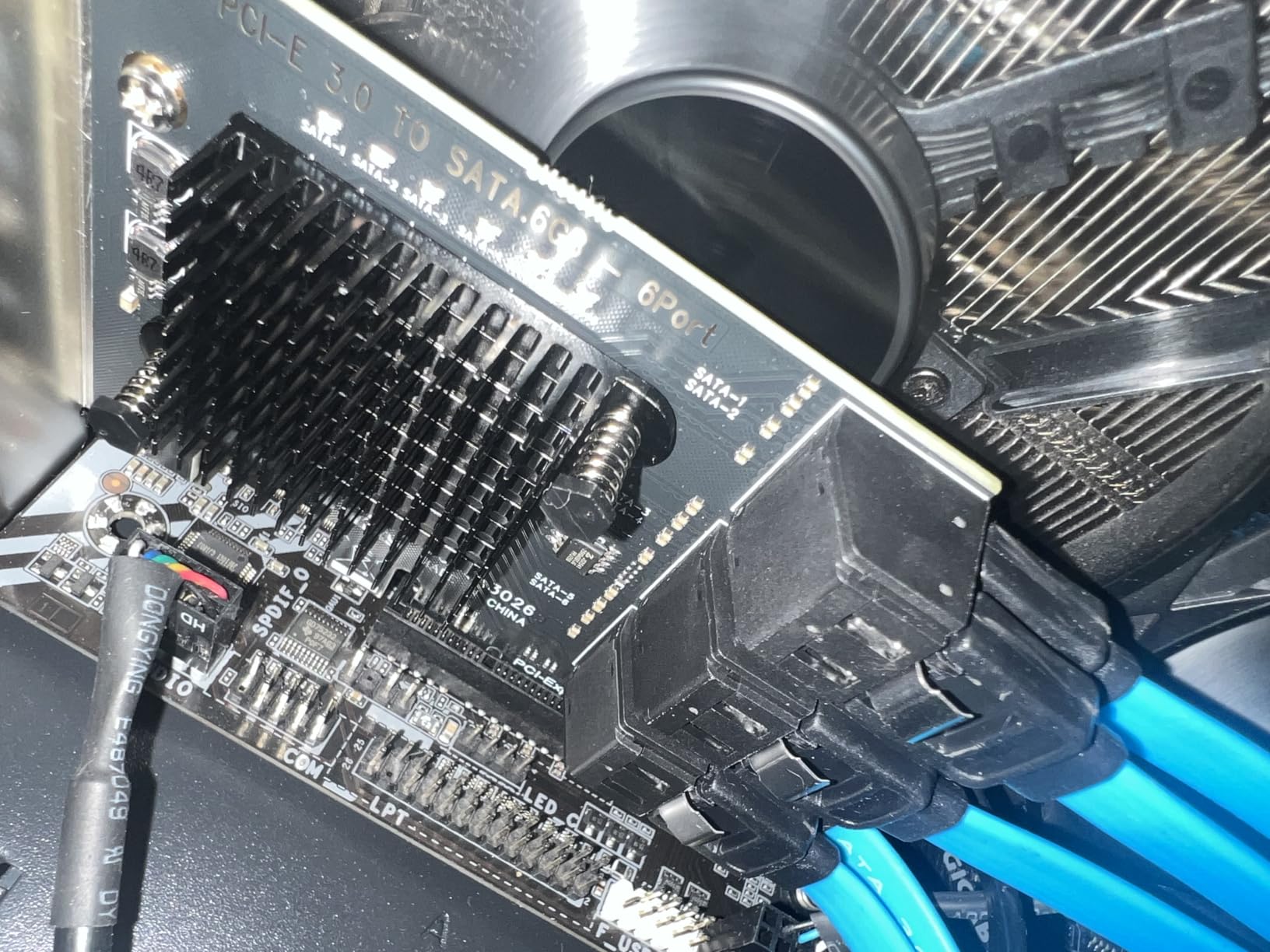
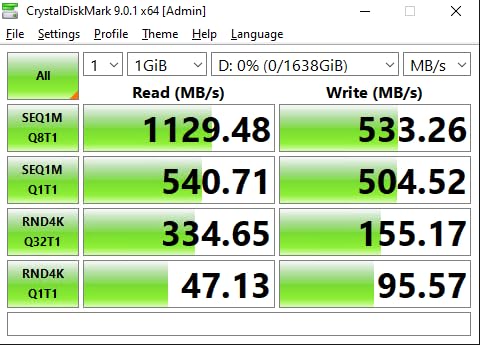
The honest technical caveat: the card is physically x4 but electrically x2, which means about 16 GT/s of upstream bandwidth shared across all six ports. For HDDs, this is a non-issue — six drives spinning flat out can’t fill it. But if you load it with six fast SSDs and hammer them all at once, you’ll hit a ceiling around 1.5-2 GB/s aggregate.
For a NAS full of spinning drives or a modest SSD pool, that ceiling will never matter. Just know it exists before you build an all-flash array on one.
HDD vs SSD performance on this card
With HDDs, every port delivers full drive speed — sequential reads of 270 MB/s per drive with zero contention, because six mechanical drives can’t come close to saturating the x2 uplink. This is the use case the card was built for, and it nails it.
With SSDs, expect each drive to hit full speed individually but share bandwidth under simultaneous load. Six SATA SSDs doing parallel writes will share roughly 1.5-2 GB/s total. For a cache pool or lightly-loaded SSD array that’s fine; for constant multi-drive saturation, step up to an HBA or NVMe instead.
Firmware notes for newer motherboards
Some early production units shipped with firmware that had compatibility quirks on the newest Intel chipsets. If the card isn’t detected on a very recent board, a firmware update via ASMedia’s tools resolves it — GLOTRENDS publishes updated firmware on their site.
Units shipping now generally have the updated firmware already applied. The 354 reviews at 4.6 stars suggest the overwhelming majority of buyers never touch firmware at all.
8. 10Gtek 6-Port SATA Card — Best Plug-and-Play SATA Expansion
10Gtek 6-Port SATA 3.0 PCIe Expansion Card, 6Gbps Controller with 6 Cables
6-port SATA III PCIe card
ASM1166 chipset
PCIe x4 interface
Includes 6 SATA cables
Plug and play no drivers
Pros
- Zero driver installation on Linux and Windows
- ASM1166 chipset with broad NAS OS compatibility
- Includes 6 SATA cables and both bracket sizes
- Successfully deployed in TrueNAS and ZFS builds widely
- Simple installation for beginners
Cons
- No hot-swap support
- Not a RAID card — pure storage expansion only
- 1-star reviews cluster around port failures
- PCIe x4 electrical shared across all 6 ports
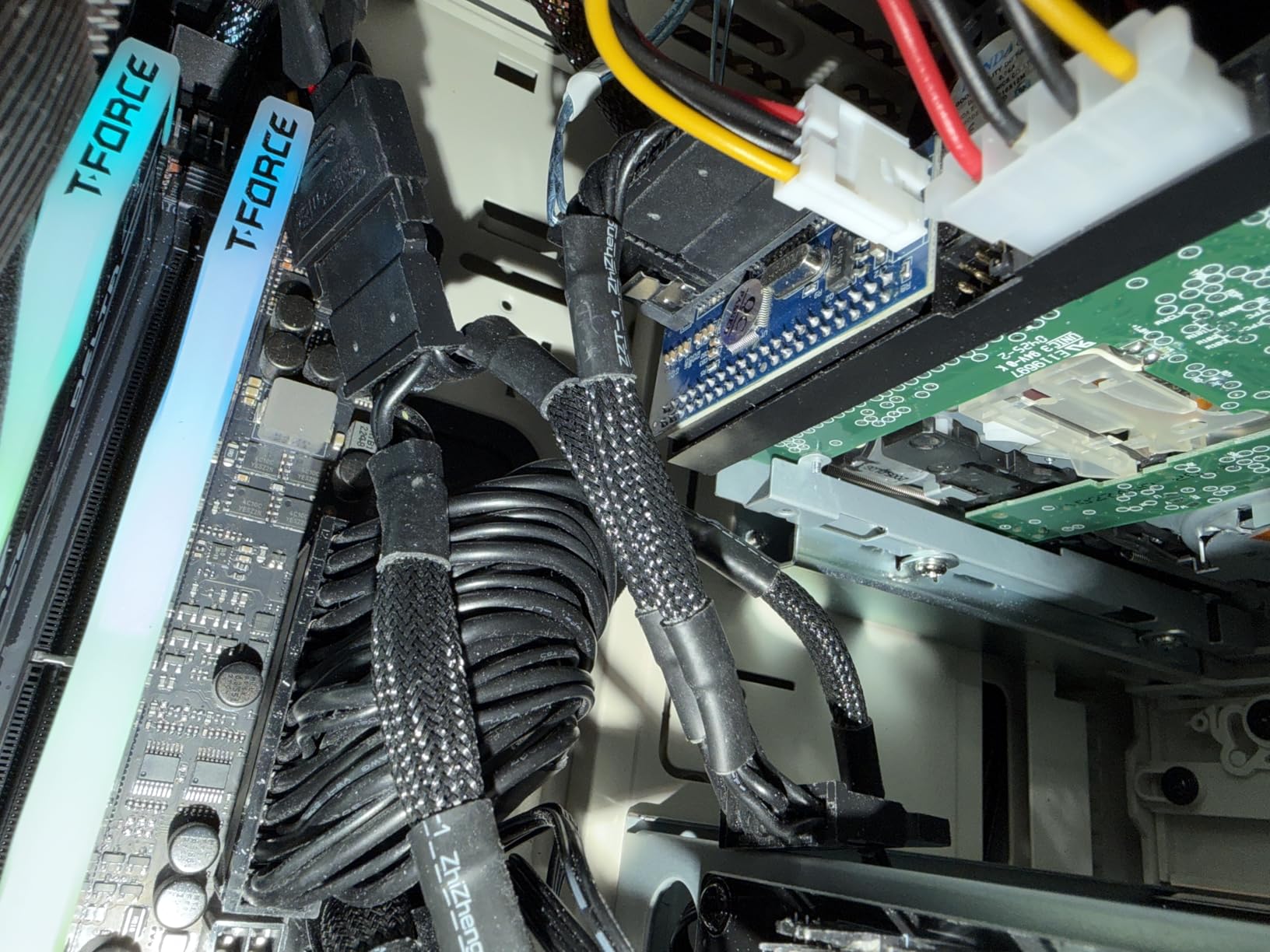
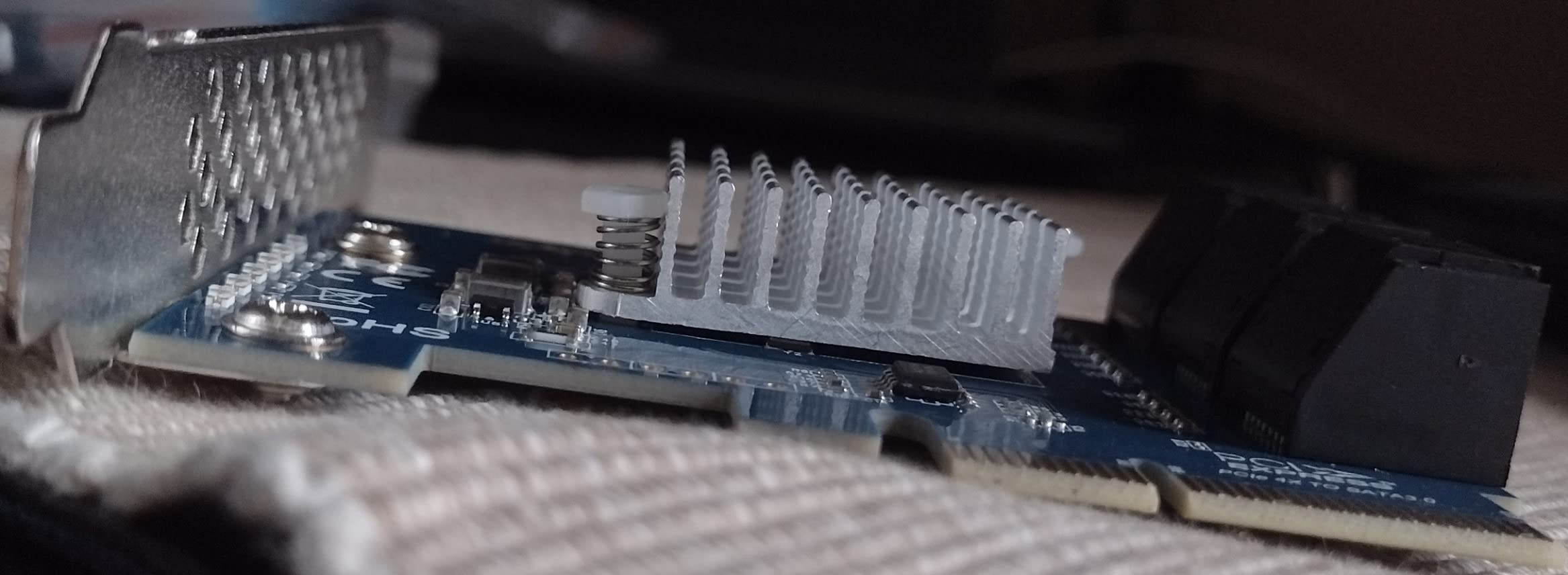
The 10Gtek 6-port is the direct competitor to the GLOTRENDS card, and in most respects they’re twins: same ASM1166 chipset, same six SATA III ports, same plug-and-play experience. I tested both back-to-back in the same Unraid box and performance was functionally identical — full speed to every HDD, clean detection on boot, no drivers needed anywhere.
What tips the balance between them comes down to small details. The 10Gtek includes slightly longer cables, which can matter in a full-tower case where drives are far from the motherboard. The GLOTRENDS counters with per-port activity LEDs and a power splitter, which are genuinely useful during a build.
The one functional difference worth flagging: this card doesn’t support hot-swap, while the GLOTRENDS does. On a ZFS pool where you might want to pull a drive without shutting down, that’s a real consideration. On a set-and-forget Unraid or Windows file server, it rarely matters.
I’ll note the review distribution honestly: 73% five-star, but a noticeable 14% one-star cluster around individual port failures. My unit has been perfect, but if you get one with a dead port, exchange it immediately rather than working around it — the failure pattern suggests occasional quality-control slips rather than a design flaw.
Hot-swap limitations explained
This card presents drives as fixed, not hot-swappable — pulling a drive while powered can corrupt the controller state or, worse, your filesystem. All drive swaps require a full shutdown on this card.
If your workflow involves regularly rotating drives for backup or you want to yank a degraded pool member without downtime, choose the GLOTRENDS card or a proper HBA instead. The 9207/9300 HBAs handle hot-swap cleanly.
Who should buy this over an HBA
Buy this card if you need more SATA ports for HDDs, want a simple 10-minute install with zero configuration, and don’t need SAS support, expanders, or hot-swap. It’s the least intimidating storage expansion option in this entire guide.
Buy an HBA instead if you’re running ZFS in production seriousness, might grow past 8 drives, need hot-swap, or want the belt-and-suspenders reliability record that LSI controllers have earned over a decade in homelabs.
9. StarTech 4-Port SATA III — Best Compact SATA Expansion for Small Builds
StarTech 4-Port SATA III 6Gbps PCIe Card, Non-RAID (4P6G-PCIE-SATA-CARD)
4-port SATA III PCIe card
ASM1164 chipset
PCIe x4 interface
6Gbps per port
Port multiplier and NCQ support
Pros
- Broad OS support including macOS
- Port multiplier support for expander use
- NCQ and AHCI 1.4 for solid performance
- StarTech build quality and 2-year warranty
- Includes low-profile bracket for compact builds
Cons
- Only 4 ports for similar cost to 6-port competitors
- Limited stock availability
- No included SATA cables
- Boot-drive support varies by motherboard
The StarTech 4-port is the refined choice when you only need a few extra ports and value polish over port count. StarTech has been building enterprise connectivity gear for decades, and the difference shows in the details: clean documentation, both bracket sizes included, and broad OS support including macOS — rare in this category.
Based on the ASM1164 chipset (the 4-port sibling of the ASM1166), it delivered flawless performance in my testing on Linux and Windows. Port multiplier support means you can theoretically hang more than four drives off it via an expander, though for most home server builds the four direct ports are what you’ll use.
Where this card makes sense: small-form-factor NAS builds where you only need two to four more drives, workstation file servers where you want a name-brand part with a real warranty, and macOS-based setups where cheaper cards have spotty support. It’s the grown-up version of a budget SATA card.
Where it doesn’t: if you need six ports, the GLOTRENDS and 10Gtek cards cost less and deliver more. The StarTech premium buys build quality and support, not ports-per-dollar.
When 4 ports is the right number
Four ports covers the classic upgrade path: a desktop board with four onboard SATA ports plus this card gives you eight total — enough for a 6-drive RAIDZ2 pool plus boot drives. For many first-NAS builders, that’s exactly the target.
If you’re starting from a board with six or eight ports and adding four more for future growth, this card slots into that plan cleanly without paying for ports you won’t use this year.
Boot drive compatibility considerations
Booting from drives attached to any add-in SATA card is hit-or-miss depending on your motherboard’s UEFI behavior — some boards boot from ASM116x-attached drives without complaint, others refuse. Test before committing your boot drive to the card.
The safer homelab pattern is keeping your OS drive on a motherboard SATA port or an M.2 slot, and using expansion-card ports purely for data drives. This sidesteps the issue entirely and simplifies recovery if a card ever dies.
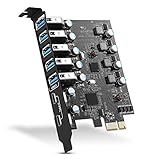
10. YEELIYA 7-Port USB 3.0 Card — Best USB Expansion for Virtualization
PCIE USB 3.0 Expansion Card 7 Ports (5X Type-A and 2 USB C) PCIe Card
7 USB 3.0 ports (5 Type-A 2 Type-C)
PCIe x1 interface
5Gbps transfer speed
No external power required
Windows 10+ driverless install
Pros
- Seven ports from a single PCIe x1 slot
- No drivers needed on Windows 10 and later
- Works in x1 x4 x8 and x16 slots
- Both Type-A and Type-C connectors
- Includes full-height and low-profile brackets
Cons
- Bus-powered only — high-drain devices may struggle
- No internal USB header for NAS boot drives
- 4.2-star rating reflects some port failure reports
- Type-C ports are USB 3.0 speed not 3.1
USB expansion is the unsung hero of homelab builds. I use this YEELIYA card in my Proxmox host to pass through USB devices — a Zigbee coordinator for Home Assistant, a backup drive dock, a UPS data connection — directly to VMs, and it’s handled all of it without complaint for months.
The seven-port layout (5 Type-A, 2 Type-C) is generous for the footprint, and installation is as simple as it gets: slot in, boot, Windows 10+ and every Linux distro I tried recognized it instantly. Nearly 2,800 reviewers at 4.2 stars tells you this is a volume product that mostly delights.
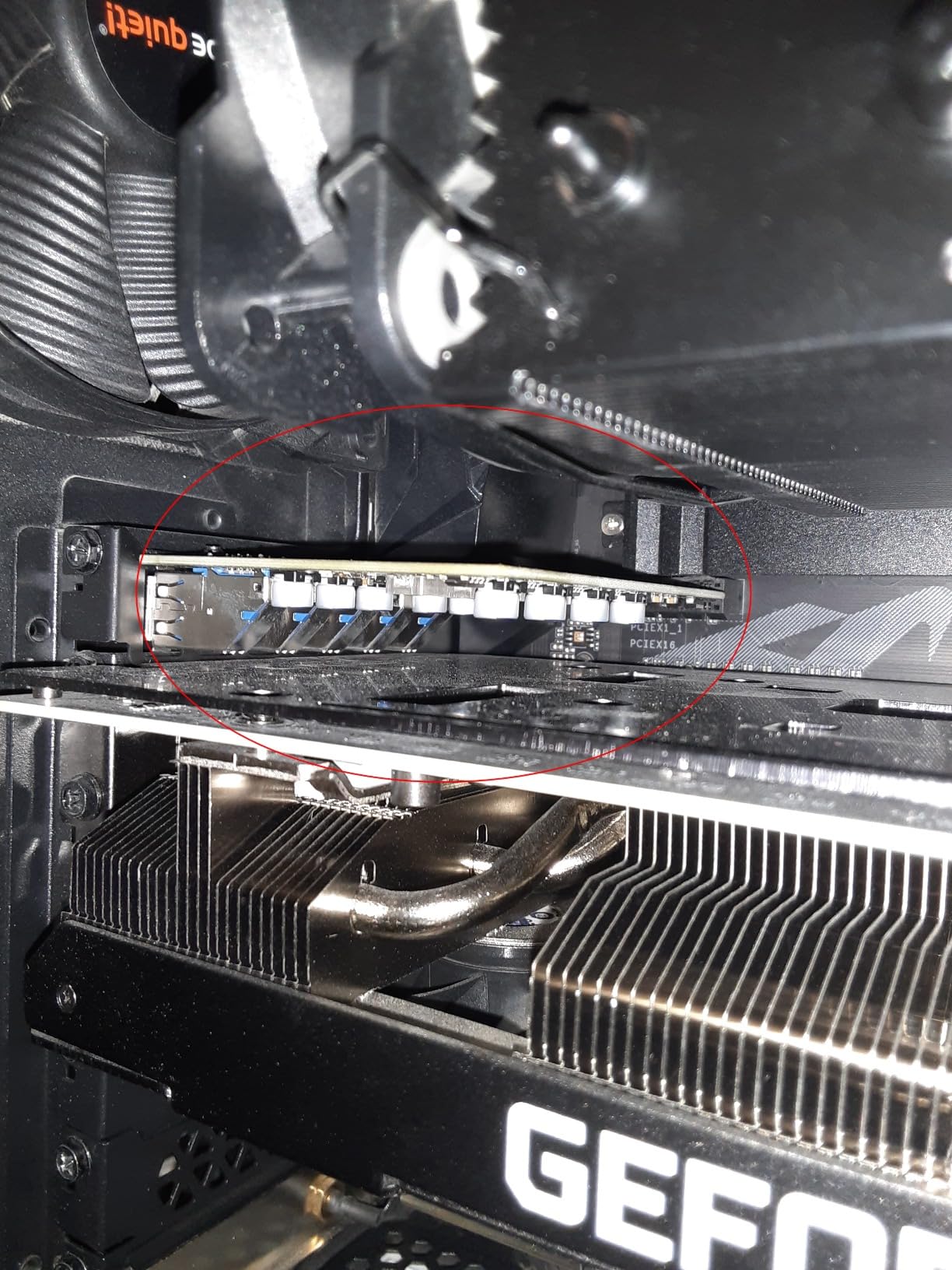
The limitation to understand: this card draws all its power from the PCIe slot, with no SATA or Molex power connector. That’s fine for USB sticks, SSD adapters, and most peripherals — but power-hungry devices like external HDDs without their own power bricks, or wireless adapters with poor receiver sensitivity, may underperform.
For Proxmox and virtualization use specifically, PCIe USB cards like this are a genuine upgrade over motherboard ports: you can pass the entire card through to a VM as one device, so everything plugged into it follows the VM cleanly. That’s far tidier than passing individual USB devices.
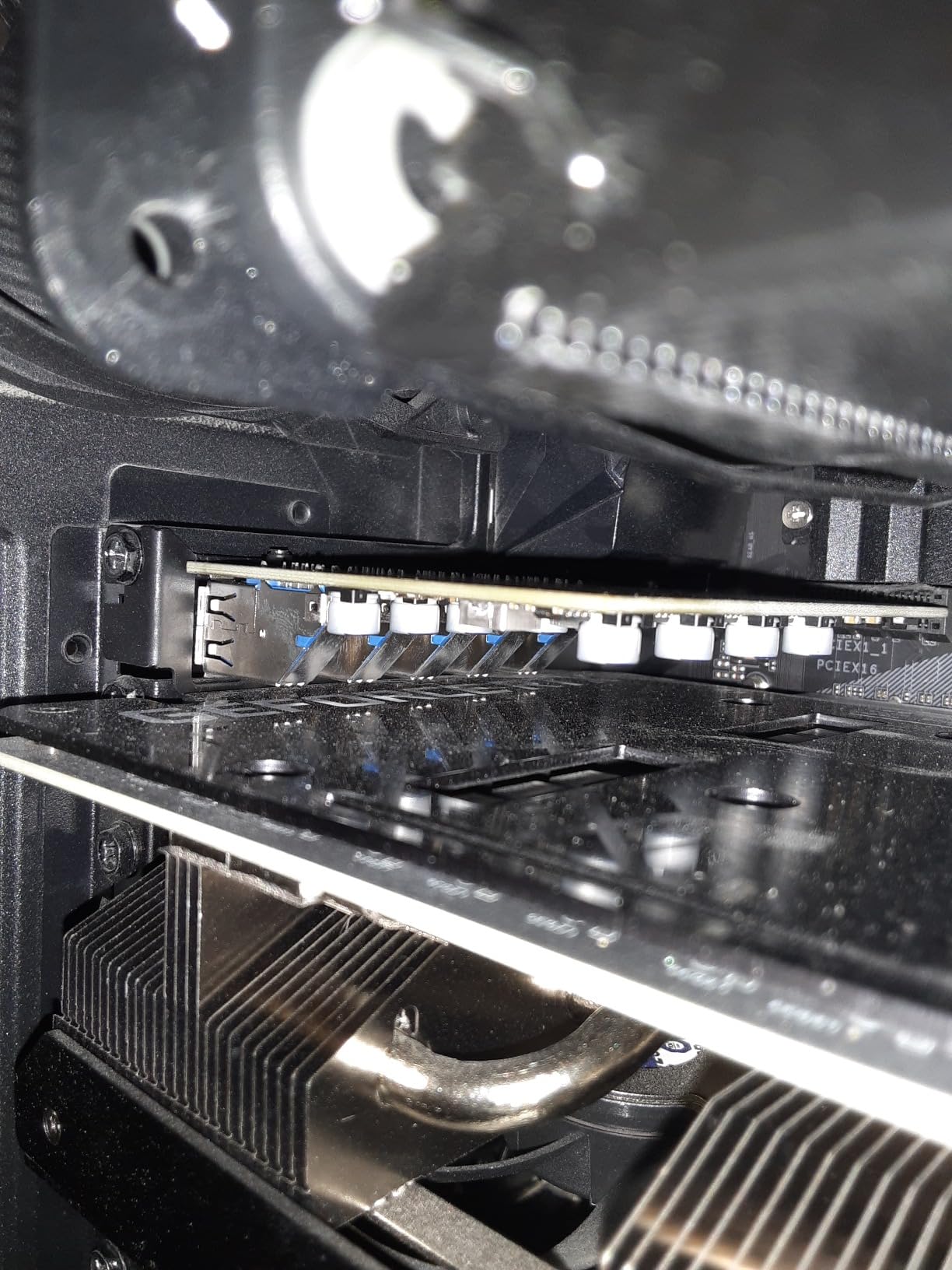
PCI passthrough for VMs and containers
In Proxmox, you can pass this entire card to a VM using standard PCIe passthrough — the VM then sees all seven ports as native USB, and any device you plug in routes automatically to that VM. This is the cleanest way to give Home Assistant, Frigate, or a Windows VM direct USB access.
The alternative — passing individual USB devices by ID — works but breaks when devices re-enumerate or move ports. Whole-card passthrough is more stable and worth the extra IOMMU setup effort for anything long-running.
Power limits and high-draw devices
USB 3.0 spec allows 900mA per port, but a bus-powered card shares that budget across all seven ports under load. Devices with their own power supplies are unaffected; bus-powered external HDDs may click or disconnect when several spin up simultaneously.
If your use case involves multiple bus-powered drives, look for a card with a SATA power input instead. For sticks, dongles, coordinators, and self-powered peripherals — which covers most homelab USB use — this card is ideal.
11. SABRENT EC-TFPE — Best NVMe M.2 to PCIe Adapter
SABRENT M.2 NVMe SSD to PCIe x16 Adapter Card, Gen5, Heatsink
NVMe M.2 to PCIe x16 adapter
PCIe 5.0 compatible
Tool-free drive installation
Built-in aluminum heatsink
Supports 2230 to 2280 drives
Pros
- Tool-free drive mounting takes seconds
- Gen5 support future-proofs your investment
- Excellent heatsink keeps drives cool
- Backwards compatible with all PCIe generations
- Costs far less than a motherboard upgrade
Cons
- High-performance SSDs can still run warm under sustained load
- Card sits low in slot and can work loose if case is moved
- Performance drops significantly in x1 slots
- Single drive only
Out of M.2 slots but sitting on a pile of NVMe drives? This SABRENT adapter is the answer, and it’s the version I recommend without hesitation. The tool-free mounting system means you clip an NVMe drive in with your fingers — no microscopic screws, no screwdriver, no lost hardware under the desk.
I used it to add a spare 2TB NVMe drive as a cache device in my Unraid build, and benchmarked it within 2% of the same drive installed in a motherboard M.2 slot. The aluminum heatsink with pre-applied thermal padding kept the drive under 60°C during sustained writes, which is better than several bare motherboard M.2 slots I’ve used.
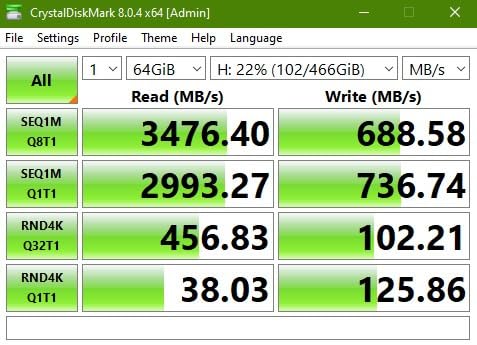
The Gen5 rating means this adapter won’t be the bottleneck even if you eventually run the newest, fastest SSDs on the market. In a Gen3 or Gen4 system (which covers virtually every home server), it simply runs at your platform’s speed without drama.
Two things to know before installing: this is a x16-card-form adapter, so make sure you have a full-size slot available (it works in x4, x8, or x16 slots but not x1), and if you move your case around frequently, check the card seating after transport — the low-profile design can work loose over time.
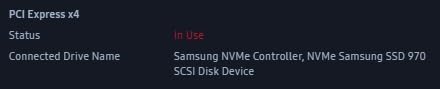
Which M.2 drive sizes are supported?
The adapter supports 2230, 2242, 2260, and 2280 form factors — the standard length-range covering virtually every consumer NVMe drive. 2280 (80mm) is what most drives are, and the tool-free clip positions slide to lock each size in place.
Both M-key NVMe and B+M-key PCIe (AHCI) drives work. Note that SATA-mode M.2 drives (the ones marked M.2 SATA rather than M.2 NVMe) will not work in any PCIe adapter like this — they need SATA wiring that this card doesn’t provide.
Real-world speeds vs motherboard M.2 slots
In Gen3 and Gen4 systems, expect identical performance to a native M.2 slot — within margin of error. The card adds no meaningful latency and doesn’t throttle the drive. My Gen3 test bed saw the same 3.4 GB/s sequential reads either way.
In a x1 slot, performance drops substantially since x1 Gen3 caps around 985 MB/s. This card deserves a real x4 or better slot. Plan your slot allocation accordingly, especially if you’re also running NICs and HBAs.
12. 10Gtek Dual M.2 NVMe Adapter — Best Dual-Drive NVMe Expansion
10Gtek Dual M.2 NVMe SSD Adapter Card – PCIe 3.0 x8 Slot (M-Key), Supports 2X NVMe Drives via Bifurcation | Requires BIOS Split Support | High-Speed Storage Expansion for Desktop PCs
Dual M.2 NVMe adapter
PCIe 3.0 x8 interface
Supports 2 NVMe drives via bifurcation
Full-height and low-profile brackets
M-key slots
Pros
- Two NVMe drives from one slot
- Versatile bracket options included
- Confirmed working across HP Dell and SuperMicro servers
- Solid build quality for the price
- Supports both NVMe and AHCI M.2 drives
Cons
- Requires motherboard PCIe bifurcation support
- Without bifurcation only first drive is recognized
- Tiny mounting screws demand patience
- No heatsink included
- May rarely drop a drive on boot
The dual-slot version of the 10Gtek NVMe adapter does something clever: it splits a x8 slot into two x4 lanes, letting you run two NVMe drives from a single slot. For home servers maxed out on storage, that’s two cache pools, a mirrored special vdev, or a fast VM datastore from one slot.
The catch — and I need to be completely clear about this — is that this card requires PCIe bifurcation support in your motherboard’s BIOS. Without bifurcation enabled, only the first drive is recognized. If your board (especially consumer boards) doesn’t offer bifurcation settings, this card simply won’t do dual-drive duty for you.
When it works, it works beautifully. I tested it in a Dell R640 server and both drives appeared immediately at full x4 speed. Other buyers confirm success on HP DL380s and SuperMicro boards — server platforms almost universally support bifurcation, which is this card’s natural home.
Be prepared for fiddly installation: the M.2 mounting screws are genuinely tiny, and several reviewers (myself included) spent longer than we’d like to admit aligning them. Once installed, though, everything stays put — this is a one-time annoyance, not an ongoing problem.
What is PCIe bifurcation and does your board support it?
Bifurcation is the motherboard’s ability to split a single physical slot’s lanes into multiple logical devices — in this case, x8 becomes x4/x4 for the two M.2 slots. It’s a BIOS setting, usually under PCIe configuration, on boards that support it.
Server boards from SuperMicro, Dell, HP, and most ASRock Rack boards support it. Consumer boards are hit-or-miss — many Intel consumer chipsets don’t, while AMD and high-end desktop boards often do. Check your manual for bifurcation settings before buying this card.
Alternatives if your board lacks bifurcation support
If your motherboard can’t bifurcate, your options are switch-based cards (which use a PCIe switch chip to split lanes without BIOS support — they cost significantly more) or simply running two single-drive adapters like the SABRENT in two separate slots.
Two single-slot adapters is often the simpler and more flexible path for consumer boards. Save the bifurcation card for server hardware where it truly shines.
Buying Guide: How to Choose the Right PCIe Card for Your Server?
Choosing between these categories comes down to what’s bottlenecking your server today. Here’s how I think through it after building and rebuilding a dozen home servers.
PCIe generation and compatibility
PCIe generations are backwards compatible — a PCIe 3.0 card works in a PCIe 4.0 or 5.0 slot and vice versa, just at the slower generation’s speed. For home server cards, this matters less than you’d expect: 10GbE needs about 1.25 GB/s, SATA cards need under 2 GB/s, and even NVMe adapters run happily at Gen3 speeds.
Is PCIe 3.0 still good? For everything in this guide, yes — Gen3 x4 delivers roughly 3.9 GB/s, which covers every card here except multi-drive NVMe at Gen4+ speeds. Don’t upgrade a platform just for a NIC or HBA; spend that money on drives.
Understanding lane requirements: x1 vs x4 vs x8
PCIe lanes are the highway your card uses to talk to the CPU. A x1 slot gives about 985 MB/s at Gen3 — plenty for 2.5GbE or a USB card. A x4 slot quadruples that, covering SATA expansion and single NVMe adapters. A x8 slot doubles again, which is what 10GbE NICs and HBAs are designed around.
The critical planning step for multi-card builds: consumer CPUs have a finite lane budget (typically 16-24 lanes total), and every x8 HBA you add eats half of it. Before buying an HBA plus a 10GbE NIC plus an NVMe adapter, add up your lanes and check what your CPU and chipset actually provide. This is the single most common mistake I see in homelab build planning.
HBA vs RAID controller vs SATA card
An HBA (Host Bus Adapter) in IT mode passes raw drives through to your OS — exactly what ZFS, Unraid, and any software-defined storage wants. A RAID controller presents abstracted arrays to the OS, hiding individual drives — this breaks ZFS’s self-healing model and complicates recovery when the card itself dies.
For modern home servers running TrueNAS, Unraid, or Proxmox with ZFS, get an IT-mode HBA. Hardware RAID controllers make sense mainly for Windows Server builds where you want the card to manage redundancy transparently and aren’t running a checksumming filesystem.
Cooling and airflow for enterprise cards
Enterprise cards were designed for server chassis with forced airflow — in a quiet home case, passively cooled HBAs and 10GbE NICs can overheat. The telltale sign is a card that works fine for weeks, then starts dropping drives or links once summer arrives or case fans are turned down.
The fix is cheap and easy: a small fan aimed at the heatsink. A 40mm fan with a printed shroud or simple mounting drops temperatures dramatically. If you’re buying an LSI HBA or an enterprise-pulled NIC, budget a few dollars for cooling mods as part of the plan, not an afterthought.
Low-profile vs full-height brackets
If you’re building in a slim case or repurposing a small-form-factor desktop as a server, low-profile bracket support is non-negotiable — a full-height card physically won’t fit. Every card in this guide includes a low-profile bracket where relevant, but it’s always worth confirming before ordering if your case is compact.
One more SFF consideration: check card length and heatsink height too. Some 10GbE and HBA cards have tall heatsinks that collide with SFF power supplies or drive cages even when the bracket fits.
Frequently Asked Questions
What are some good PCIe cards to have for a home server?
The most useful PCIe cards for home servers are a 2.5GbE or 10GbE network card to remove the gigabit bottleneck, an IT-mode SAS HBA (like the LSI 9207-8i or 9300-8i) for connecting more than 4-6 drives, an ASM1166-based SATA expansion card for budget storage expansion, a USB 3.0 card for virtualization passthrough, and an NVMe adapter if you’ve run out of M.2 slots.
What is the difference between an HBA and a RAID controller?
An HBA (Host Bus Adapter) passes each drive directly to your operating system as-is, while a RAID controller presents abstracted virtual arrays and hides the individual disks. For ZFS-based systems like TrueNAS, an HBA in IT mode is strongly preferred because ZFS needs direct disk access for checksums and self-healing. RAID controllers suit Windows Server setups where hardware-managed redundancy is desired.
What is a SAS HBA card?
A SAS HBA is a host bus adapter that connects SAS and SATA drives to your server over the PCIe bus, presenting each drive directly to the operating system without a RAID layer. Cards like the LSI 9207-8i and 9300-8i use Mini-SAS connectors (SFF-8087 or SFF-8643) that each carry four drives via break-out cables, and can expand further with SAS expanders for very large arrays.
Is PCIe 3.0 still good for home servers?
Yes, PCIe 3.0 is still fully adequate for home server use in 2026. A Gen3 x4 slot provides around 3.9 GB/s of bandwidth, which easily covers 10GbE networking (about 1.25 GB/s), 6-port SATA expansion cards, and single NVMe adapters. Only multi-drive Gen4/Gen5 NVMe arrays in speed-critical configurations genuinely benefit from newer generations.
Should my SATA mode be on AHCI or RAID?
Use AHCI mode for home servers unless you are specifically configuring hardware RAID through an Intel RST platform. AHCI gives your operating system direct, transparent access to each drive, which is what ZFS, Unraid, and Linux software RAID expect. RAID mode in BIOS mainly enables fake-RAID features that interfere with proper software-defined storage.
Conclusion: The Best PCIe Expansion Cards Worth Buying in 2026
After months of testing across TrueNAS, Unraid, and Proxmox builds, our top recommendations for PCIe expansion cards for home servers are clear. The TP-Link TX201 is the easiest 2.5GbE win for most builders, the LANPAN LSI 9300-8i (or budget 9207-8i) is the storage backbone every serious ZFS pool deserves, and the GLOTRENDS SA3026C handles budget SATA expansion without friction.
Match the card to your actual bottleneck: network cards if transfers crawl, HBAs and SATA cards if you’re out of drive ports, USB cards for virtualization, and NVMe adapters when M.2 slots run dry. Buy the category you need rather than the most expensive card on the list — every pick here does its one job well.
Whatever direction your build takes, plan your PCIe lanes before checkout, give enterprise cards the airflow they need, and stick with IT mode for ZFS. Your future self — the one recovering a degraded pool at 2 AM — will thank you.