
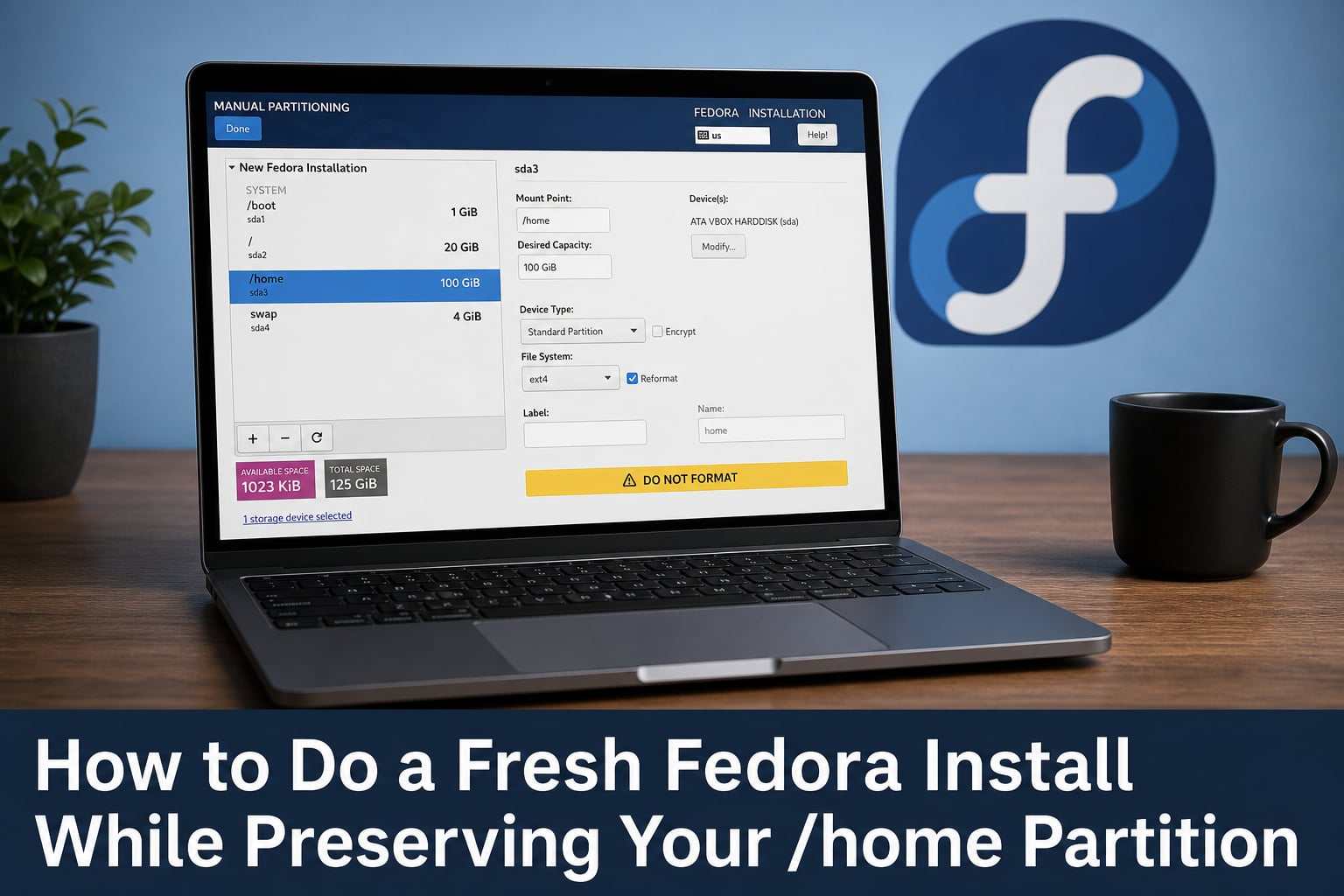
Doing a fresh Fedora install while preserving your /home partition lets you wipe and rebuild the operating system without touching your personal files, browser bookmarks, dotfiles, or application configurations. That single concept saves hours of backup-and-restore work every time you need to clean reinstall Fedora.
I have done this exact procedure on my own Fedora workstations and laptops multiple times over the years, and the process is genuinely reliable once you understand the core rule. The rule is simple: use manual partitioning in the Anaconda installer, select your existing /home partition, set its mount point to /home, and never mark it for formatting. Everything else on the root device gets wiped and rebuilt, but /home stays untouched.
In this guide I will walk you through the complete process for a fresh Fedora install preserving home partition setup, including the pre-install backup, every Anaconda installer step, btrfs subvolume handling, user account recreation with correct UID/GID ownership, and post-install package restoration. Whether you are doing a clean reinstall to fix corruption or upgrading to a new Fedora release the traditional way, this tutorial covers the entire procedure from start to finish.
Table of Contents
Why a Separate /home Partition Matters for Fedora Users?
Having /home on its own partition is what makes data preservation possible during a reinstall. When /home lives separately from the root filesystem (/), you can wipe root and reinstall the OS without ever touching your personal data.
Fedora defaults to btrfs with subvolumes, which means /home is often a subvolume of the root filesystem rather than a physically separate partition. The good news is that btrfs subvolumes can also be preserved during a reinstall, though the steps differ slightly from traditional ext4 partition setups.
I highly recommend separating /home when you first install Fedora. Even if you are currently running a default layout with everything under one btrfs filesystem, I will show you how to preserve your data either way.
The practical benefits go beyond reinstall convenience. A separate /home means you can experiment with different distributions, roll back broken system updates, and recover quickly when something goes wrong. I have seen cases where a user accidentally ran destructive commands on root files but their documents, photos, and project files in /home survived unscathed because they were on a separate partition.
Before You Start: Backup, Tools, and Prerequisites
Even though preserving /home is the goal, always make a full backup before reinstalling any operating system. The Fedora installer is powerful and one wrong click can format the wrong partition. Treat /home preservation as a convenience, not a substitute for backups.
Here is what you need before starting the reinstall:
A backup of your important /home data on an external drive or cloud storage
A list of installed packages so you can restore them afterward (run
dnf list --installed > installed-packages.txtand save the file off the machine)A Fedora Live USB created with Fedora Media Writer
Your disk’s current partition layout noted down (run
lsblkandsudo fdisk -lto record what you see)Your username, since you will need to recreate the account with the exact same name
To create the installation media, download the Fedora ISO from the official Fedora website and use Fedora Media Writer to flash it onto a USB drive. Fedora Media Writer is available for Linux, Windows, and macOS. Once the USB is ready, you are set to begin the reinstall.
One more thing: record your current user’s UID and GID before wiping root. Run id in the terminal and write down the numbers. By default Fedora assigns UID 1000 to the first user, and matching this number after reinstall is what keeps file ownership correct.
How to Do a Fresh Fedora Install While Preserving Your /home Partition?
Here is the complete step-by-step process for a fresh Fedora install preserving home partition data. Follow each step in order and do not skip the backup verification in Step 1.
The core principle across all steps is this: format root, leave /home alone. Every action in the Anaconda installer that involves formatting should target only the root partition or root subvolume.
Step 1: Boot From the Fedora Live USB
Insert your Fedora Live USB and reboot the machine. Enter your BIOS or UEFI boot menu (usually by pressing F2, F12, Esc, or Del during startup) and select the USB drive as the boot device.
Choose the option to boot Fedora in live mode. You will land on the Fedora desktop without installing anything yet. This is a good moment to open a terminal and run lsblk to confirm your /home partition or subvolume is visible and note its device name, such as /dev/sda3 or /dev/nvme0n1p3.
Double-check that your /home data is accessible from the live environment. If you can see your files by mounting the partition or navigating the subvolume, your data is intact and ready to be preserved.
Step 2: Launch the Installer and Choose Custom Partitioning
Double-click the Install to Hard Drive icon on the live desktop to launch the Anaconda installer. Select your language and keyboard layout.
When you reach the Installation Summary screen, click on Installation Destination and select the disk where Fedora is currently installed. Then, critically, scroll down to the Storage Configuration section and select Custom instead of Automatic. Click Done.
This is the most important decision in the entire process. Choosing Automatic lets Anaconda repartition the disk as it sees fit, which will likely destroy your /home data. Custom partitioning gives you full control over which partitions to format and which to preserve.
The custom partitioning screen uses blivet-gui, which shows a visual map and tree of your existing partitions and subvolumes. Take a moment to study the layout before making any changes.
Step 3: Identify and Configure Your /home Partition
Locate your existing /home partition or subvolume in the blivet-gui tree view. If you have a traditional ext4 setup, it will appear as a separate partition with an ext4 filesystem mounted or previously mounted at /home. If you are using btrfs, your /home is likely a subvolume within the root btrfs filesystem.
Select the existing /home partition. Under Mount Point, type /home. This tells the new system to mount this partition at /home when it boots.
Now the most critical action in the entire guide: do NOT check the Format box or Reformat box for this partition. The format checkbox must remain unchecked. If Anaconda warns you that the partition already has a filesystem and asks whether to reformat, choose to keep it as-is. Formatting /home will erase everything on it.
Let me say that one more time for emphasis: DO NOT format /home. The entire goal of this procedure depends on leaving that format checkbox unchecked. Every forum thread and community guide on this topic repeats this instruction because it is the one step where mistakes happen.
Step 4: Recreate the Root Partition Without Touching /home
Fedora’s installer requires a fresh filesystem on the root device. You will see an error if you try to proceed without reformatting root, because Anaconda refuses to install onto an existing root filesystem that has not been reformatted.
Select your root partition or root subvolume. For a standard ext4 layout, this is the partition currently mounted at /. For btrfs, this is the root subvolume, usually named something like root within the btrfs pool.
Mark the root partition for formatting. Set the filesystem type to ext4 or btrfs depending on your preference, and set the mount point to /. This wipes the old system files and prepares the partition for the fresh Fedora install.
If you are using btrfs with subvolumes, you can delete the old root subvolume and create a new one while keeping the /home subvolume intact. The btrfs pool itself stays in place, and only the root subvolume gets replaced. I cover the btrfs-specific details in the next section.
Also verify that your EFI System Partition (usually around 600 MB, formatted as FAT32, mounted at /boot/efi) and your /boot partition are configured. These can typically be reformatted or reused, but keeping the EFI partition intact preserves your existing bootloader entries.
Step 5: Complete Installation and Reconnect Your Home
Review your partition configuration one final time. Confirm that /home is set to mount at /home with format unchecked, and that root is set to mount at / with format checked. Click Done and accept the summary of changes.
Proceed through the rest of the Anaconda installer normally. Set your root password and create a user account. When creating the user, use the exact same username as before so that /home/yourusername matches your preserved data directory.
Wait for the installation to complete. Once finished, reboot the system, remove the USB drive, and boot into your fresh Fedora installation. Log in with your recreated user account and open your home directory. Your files, configurations, and dotfiles should all be present.
Handling btrfs Subvolumes on Fedora
Fedora has defaulted to btrfs with subvolumes since Fedora 33, so most users installing or reinstalling today are working with btrfs rather than separate ext4 partitions. Preserving /home on btrfs requires understanding how subvolumes work within the installer.
In a default Fedora btrfs layout, the entire disk or a large partition contains a single btrfs filesystem. Within that filesystem, subvolumes act like separate directories but can be managed independently. Fedora typically creates a root subvolume mounted at / and a home subvolume mounted at /home.
To preserve your /home subvolume during reinstall, do not delete the btrfs pool or the home subvolume. In the blivet-gui custom partitioning screen, navigate to the btrfs container. You will see the existing subvolumes listed within it.
Delete only the root subvolume. Create a new root subvolume in the same btrfs container and set its mount point to /. Then select the existing home subvolume and set its mount point to /home without formatting it. The btrfs pool itself remains intact, and only the root subvolume content is replaced.
One common confusion: blivet-gui may not immediately show subvolume mount points. You may need to click into the btrfs container and select each subvolume individually to set mount points. Take your time here, as this is the step where forum users report the most difficulty navigating the interface.
If you use LUKS encryption with btrfs, the encrypted container stays in place across the reinstall. Unlock it during installation by providing your passphrase, then configure subvolumes as described above.
Recreating User Accounts with the Correct UID and GID
One of the most overlooked issues after a fresh Fedora install preserving home partition data is file ownership. If your new user account gets a different UID (user ID) than the original, your preserved files in /home may be owned by the wrong user, causing permission errors and application crashes.
Fedora assigns UID 1000 to the first user created during installation by default. If your previous user was also the first user and had UID 1000, the ownership should match automatically. But if you had multiple users or a non-standard setup, the UIDs may not align.
To check ownership after reinstalling, open a terminal and run ls -ln /home/yourusername. If you see a numeric owner that is not 1000 or does not match your new user’s UID, run this command to fix it:
sudo chown -R yourusername:yourusername /home/yourusername
This recursively changes ownership of all files in your home directory to the current user. It may take a minute or two if you have a large home directory.
To prevent this issue entirely, create your user account during installation with a specific UID. In the Anaconda installer, you can use the Advanced options when creating a user to manually set the UID to match your previous installation.
Post-Install: Verifying Your /home and Restoring Packages
After logging into your fresh Fedora system, the first thing to do is verify that your /home data is intact. Open your file manager and browse through your documents, downloads, pictures, and hidden configuration files (press Ctrl+H to see dotfiles). Confirm that your browser profiles, SSH keys, and application settings are all present.
Next, check that file ownership is correct by opening a terminal and running ls -la ~. All files should show your username as the owner, not a numeric ID. If anything looks wrong, run the chown command from the previous section.
Now comes the part forum users describe as the real chore: restoring your installed applications. A fresh install means you start with only the default Fedora packages. To reinstall everything you had before, use the package list you exported before reinstalling.
Here is the fastest way to restore packages:
Update the new system first:
sudo dnf upgrade --refreshInstall your previous packages:
sudo dnf install $(cat installed-packages.txt | awk '{print $1}')Install any third-party repositories you used (RPM Fusion, Flathub, etc.) before reinstalling packages from those sources
Reinstall Flatpak applications: check your previous flatpak list if you saved it, or browse Flathub for your commonly used apps
Alternatively, many users enable Fedora’s Silverblue or Kinoite image-based variants which handle system rollback and package layering more gracefully. But for standard Fedora Workstation, the dnf reinstall approach works well.
Troubleshooting Common Issues
If the Anaconda installer displays an error saying you must create a new file system on the root device, this is expected behavior. Fedora requires a freshly formatted root partition. Mark the root partition or root subvolume for formatting and the error will resolve.
If you accidentally formatted /home despite the warnings, stop using the drive immediately. Data recovery tools like TestDisk and PhotoRec can sometimes recover files from a reformatted partition, especially on ext4 where deleted inodes may still exist. Boot from a live USB and run recovery from there without writing anything to the affected drive.
If your system boots to a black screen or emergency shell after reinstall, the most likely cause is an incorrect /etc/fstab entry or a missing mount point. Boot from the live USB, mount the root partition, and check /etc/fstab to ensure the /home mount point and UUID are correct. Run blkid to verify partition UUIDs.
If the installer does not show your btrfs subvolumes, try clicking the refresh button in blivet-gui or selecting the btrfs container to expand it. The subvolumes should appear as child entries beneath the main btrfs device.
Frequently Asked Questions
Can I reinstall Fedora without losing data?
Yes. By using manual partitioning in the Anaconda installer, selecting your existing /home partition, setting its mount point to /home, and leaving the format checkbox unchecked, you can reinstall Fedora while keeping all personal files and settings in /home intact. Always make a backup first as a safety net.
What to do after a fresh Fedora install?
After a fresh Fedora install, verify that your /home data and file ownership are correct, update the system with sudo dnf upgrade u002du002drefresh, reinstall your applications from a saved package list, re-add any third-party repositories like RPM Fusion or Flathub, and reconfigure Flatpak apps.
Can I install Fedora alongside Windows?
Yes, Fedora supports dual boot installations alongside Windows. During installation, choose custom partitioning and select free space or shrink an existing partition to make room for Fedora. The Fedora installer can also handle this automatically if you select the dual boot option.
Is Linus Torvalds still using Fedora?
Linus Torvalds has used Fedora as his primary distribution for many years. He has mentioned using Fedora Workstation in various interviews and conference talks, though he occasionally experiments with other distributions. His preference for Fedora is well documented in the Linux community.
How do I preserve btrfs subvolumes during a Fedora reinstall?
In the Anaconda installer custom partitioning screen, select the btrfs container containing your subvolumes. Delete only the root subvolume and create a new one with mount point set to /. Select the existing home subvolume, set its mount point to /home, and do not format it. The btrfs pool and home subvolume data stay intact.
What happens if my UID changes after reinstalling Fedora?
If your new user account gets a different UID than the original, files in your preserved /home directory may show incorrect ownership. Fix this by running sudo chown -R yourusername:yourusername /home/yourusername to recursively correct ownership of all files.
Conclusion
A fresh Fedora install preserving home partition data is one of the most practical skills a Fedora user can learn. The entire process comes down to one rule: use custom partitioning, mount your existing /home partition at /home, and never format it. Everything else gets rebuilt fresh while your files, configurations, and dotfiles remain untouched.
I have walked you through the backup, the Anaconda installer steps, btrfs subvolume handling, UID/GID ownership fixes, and package restoration so you can approach your reinstall with confidence. Whether you are recovering from system corruption or simply want a clean Fedora setup, preserving /home saves you hours of reconfiguration work.
Before you begin, make that backup, write down your partition layout, and export your package list. Those three preparatory steps are what separate a smooth reinstall from a stressful one. Good luck with your fresh Fedora installation.
1 thought on “Fresh Fedora Install While Preserving /home Partition 2026”