
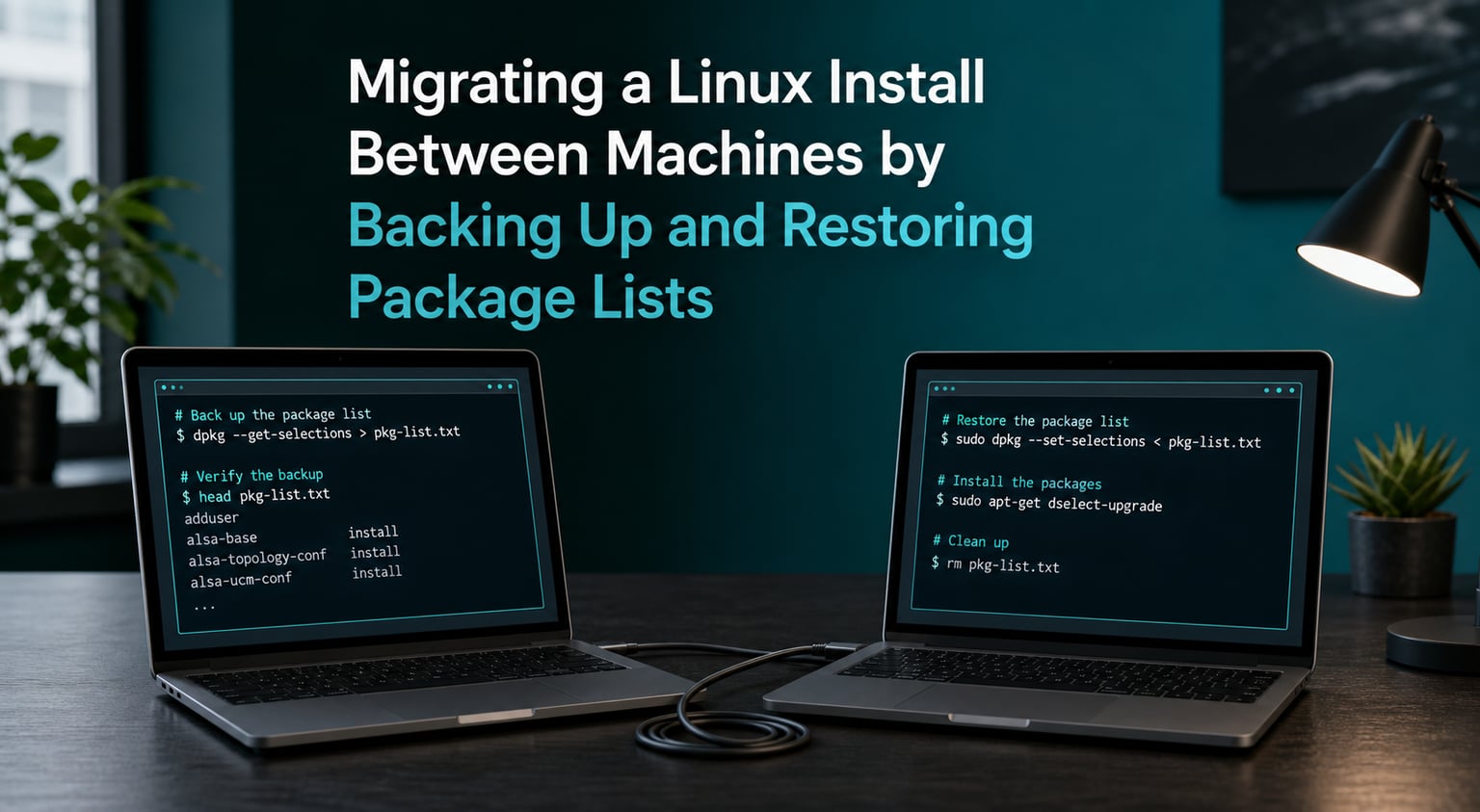
Migrating a Linux install between machines by backing up and restoring package lists is the fastest way to reproduce a working system on new hardware without manually re-downloading every tool you rely on. I have migrated Ubuntu servers, Arch workstations, and Debian laptops over the years, and the package list method beats disk cloning for portability, scripted provisioning, and version control.
This guide covers every practical approach I have tested: dpkg –get-selections for Debian-based systems, apt-mark for separating manually installed packages from automatic dependencies, apt-clone as a one-shot tool, and pacman -Qqen for Arch Linux. You will also learn how to back up repository sources, GPG keys, dotfiles, and configuration files so the new machine feels identical to the old one.
Table of Contents
Why Migrate Package Lists Instead of Cloning the Drive?
Disk cloning tools like Clonezilla and Rescuezilla copy every byte, including partition tables, kernel modules, and driver firmware. That works when hardware is identical, but breaks when you swap a graphics card, change motherboards, or replace a disk with an NVMe SSD.
Package list migration solves a different problem: you want the same software on the new machine, with the right packages installed for the new hardware. A fresh install of your distro, followed by replaying a package list, gives you hardware-correct drivers and a clean filesystem while preserving every application you had configured.
I use package list migration whenever I am provisioning a fleet of similar machines, recovering from a failed disk, or moving between generations of hardware. It is also how I keep my development environment under version control, with the package list committed to a Git repo next to my dotfiles.
Comparing Package List Backup Methods
Not every backup method fits every job. Here is a quick comparison of the main approaches covered in this guide, so you can pick the right one for your distribution and use case.
dpkg –get-selections: Built into every Debian-based distro. Captures install state and package hold flags. Best for full system restoration where the same distro version is available on the target machine.
apt-mark showauto / showmanual: Separates automatic dependencies from packages you installed intentionally. Lets you reinstall only what you actually use, without dragging in decades of stale library dependencies.
apt-clone: Single-command tool that bundles the package list, sources.list, and apt keys into a tar archive. Ideal for one-shot migrations and disaster recovery scenarios.
pacman -Qqen / -Qqem: Arch Linux equivalent. Splits official repository packages from AUR packages so each can be restored correctly.
Method 1: Backing Up Packages with dpkg –get-selections
The dpkg –get-selections approach is the original Debian method and still works reliably on every Ubuntu release, Debian stable, and downstream distro like Linux Mint or Pop!_OS. The command dumps a list of every installed package along with its desired state (install, hold, deinstall, purge).
Step 1: Export the Package List on the Source Machine
Run this command on the machine you want to migrate from. Save the output to a file you can copy to the new machine.
dpkg --get-selections > /tmp/package-list.txtThe file will contain one line per package in the format package_name install. For example: curl install or vim install. Most packages will be marked install, with hold reserved for packages you do not want apt to upgrade automatically.
Step 2: Clean the Output for Restoration
This is the step most guides skip, and it trips people up. The install suffix on every line is the desired state for dpkg, but if you ever want to feed the list back into apt directly, you need to strip that suffix. A simple perl one-liner does the job:
perl -pe 's/tinstall//' /tmp/package-list.txt > /tmp/packages-clean.txtYou now have a clean list of bare package names, one per line, ready for any tool that expects a simple list. I usually keep both files around: the original package-list.txt for full state restoration, and packages-clean.txt for scripting and filtering.
Step 3: Restore on the New Machine
After installing the same distro version on the target machine, copy the package list over and run these commands:
sudo dpkg --set-selections < /tmp/package-list.txt
sudo apt-get dselect-upgrade
The dselect-upgrade step reads the selections file and tells apt-get to perform the actions needed to match those states. apt-get will resolve dependencies, download packages, and install everything. This step takes time on a large system, so I usually run it inside a tmux session to avoid losing progress if my SSH connection drops.
Method 2: Using apt-mark to Separate Manual and Auto Packages
The dpkg method installs everything, including libraries pulled in as dependencies years ago. apt-mark gives you a cleaner approach by splitting the list into packages you installed yourself versus packages that arrived as automatic dependencies.
What Auto and Manual Mean
When you run apt install vlc, vlc is marked manual. Libraries it depends on, like libavcodec, are marked auto. apt-mark lets you export each set separately, so when you restore on a new machine you install only the manual set, and apt marks the rest as auto again.
Backup Commands
Run these on the source machine:
apt-mark showmanual > /tmp/manual-packages.txt
apt-mark showauto > /tmp/auto-packages.txt
I keep both files but only ever use the manual list for restoration. The auto list is helpful for auditing what is on your system but does not need to be replayed.
Restore Commands
On the new machine, install only the manual packages:
xargs -a /tmp/manual-packages.txt sudo apt install -yThis approach is what I use for daily provisioning because it produces a cleaner system. The new machine ends up with the same applications installed but lets apt sort out the dependencies fresh, which avoids carrying over deprecated packages from the old system.
Method 3: Simplifying Migration with apt-clone
apt-clone is a purpose-built tool that bundles everything you need into a single tar archive: the package list, the sources.list file, the apt cache state, and the trusted GPG keys. For a one-time migration, this is the fastest path.
Installing apt-clone
It is available in the standard repositories on Debian and Ubuntu:
sudo apt install apt-cloneCreating a Clone Archive
Run this on the source machine:
sudo apt-clone clone /tmp/my-clone.tar.gzCopy the archive to the new machine and restore with a single command:
sudo apt-clone restore /tmp/my-clone.tar.gzapt-clone reinstalls packages, restores sources.list, and reinstalls trusted keys in one pass. The main downside is that it works best when the target machine runs the same distro version. If you are migrating between Ubuntu releases, run do-release-upgrade after the restore.
Arch Linux: Backing Up Packages with pacman
Arch Linux does not have dpkg or apt, but its own package manager pacman handles package list backup just as cleanly. The trick is to split official repository packages from AUR packages, since AUR packages need to be reinstalled via an AUR helper like yay or paru.
Exporting Official Repository Packages
The -Qqen flags ask for packages that are explicitly installed, come from the official repositories, and are not from AUR:
pacman -Qqen > /tmp/official-packages.txtTo capture AUR packages:
pacman -Qqem > /tmp/aur-packages.txtRestoring on the New Machine
Install official packages from the saved list:
sudo pacman -S --needed - < /tmp/official-packages.txtFor AUR packages, feed the list to your AUR helper:
yay -S --needed - < /tmp/aur-packages.txtThe --needed flag tells pacman to skip packages that are already installed, which makes repeat runs safe. I run both commands inside a script after a fresh Arch install; the official package restore is quick, and the AUR step takes longer because each AUR package is rebuilt from source.
Backing Up Repository Sources and GPG Keys
A package list alone is not enough. If your custom repositories, PPAs, or signing keys are not also backed up, apt will fail to find packages that came from third-party sources. I have watched restores fail on this exact issue more times than I care to admit.
Backing Up APT Sources
Copy the entire sources directory:
sudo tar czf /tmp/apt-sources.tar.gz /etc/apt/sources.list /etc/apt/sources.list.d/Restore on the new machine by extracting the archive into the same location, then refreshing the package cache:
sudo tar xzf /tmp/apt-sources.tar.gz -C /
sudo apt update
Exporting Trusted GPG Keys
Older Ubuntu and Debian releases stored trusted keys in /etc/apt/trusted.gpg.d/. Modern releases use individual keyring files in /etc/apt/keyrings/ or inside each sources.list.d file. The simple approach is to back up both directories:
sudo tar czf /tmp/apt-keys.tar.gz /etc/apt/trusted.gpg /etc/apt/trusted.gpg.d/ /etc/apt/keyrings/Restore by extracting the archive into the same paths. The apt update step will then verify signatures against the restored keys.
Preserving Configuration Files and Dotfiles
Restored packages install the application, but the configuration that makes them yours lives in your home directory. Without it, the new machine has the same software but behaves like a clean install.
I back up dotfiles by syncing the home directory to an encrypted offsite location with rsync, then keeping a curated subset in a Git repository. The Git approach works well for the files I edit, like bashrc, vimrc, tmux.conf, and i3 config, while rsync handles everything else, including SSH keys and browser profiles.
Tools like GNU Stow turn dotfile management into a reproducible system. Each application gets its own directory in a git repo, and Stow creates the right symlinks in your home directory. This is how I keep my config files version-controlled and easy to replay on a new machine after the package list has been restored.
Cross-Distribution Migration Considerations
Migrating between distros is the hardest case, because package names differ. apache2 on Debian is httpd on Fedora, and libreoffice on Ubuntu is libreoffice-core on Arch. A raw package list replayed on a different distro will produce broken installs.
For cross-distro moves, the practical approach is to translate your package list manually using a lookup table or a tool like distro-checker. The script reads your list from distro A, queries the equivalent package names in distro B, and produces a new list you can install natively.
Snap and Flatpak offer a universal escape hatch. Because both package formats bundle their dependencies, the same snap or flatpak runs on Ubuntu, Fedora, Arch, and openSUSE without translation. For desktop apps that exist as snaps or flatpaks, this is by far the cleanest way to keep software consistent across distributions.
Common Pitfalls and Troubleshooting
Most migration problems fall into a handful of predictable categories. Here are the ones I have hit and how to recover from each.
The install suffix parsing error is the most common issue with the dpkg method. If you cat package-list.txt and see curl install, that file is meant for --set-selections, not for direct install. Use the perl one-liner shown earlier to strip the suffix, or pipe through awk '{print $1}' for a quick fix.
Architecture mismatches happen when migrating a 32-bit install to a 64-bit machine. Filter your list first:
dpkg --get-selections | grep ':i386' > /tmp/i386-packages.txtThen skip those lines when restoring on a fresh 64-bit install. Doing it this way means multilib packages can still be reinstalled deliberately with dpkg --add-architecture i386.
Conflicting services show up when you install packages that bind to the same port. Apache and Nginx both want port 80, so the package restore stops on conflict. Run the restore in non-interactive mode with apt-get -y set, then manually uninstall the conflicting package after the restore completes.
Hardware-specific drivers differ between machines. If the old laptop has an Intel Wi-Fi card and the new one has a Realtek, the package list will install firmware the new machine does not need and miss firmware the new machine does need. Run lspci and lsusb on the new machine first to identify the actual hardware, then install the matching firmware packages after the package list restore.
Frequently Asked Questions
How do I transfer installed packages from one Linux distro to another?
Translate package names using a lookup between distros, because the same software is named differently in Debian versus Fedora versus Arch. Tools like distro-checker help. Alternatively, prefer Snap or Flatpak packages, which run unchanged across distributions because they bundle their own dependencies.
How to backup settings and list of installed packages in Ubuntu?
On Ubuntu, run dpkg u002du002dget-selections to capture the full package list and state file, then back up /etc/apt/sources.list and /etc/apt/sources.list.d/ for repositories. For a one-shot migration, install apt-clone and run sudo apt-clone clone to create a single tar archive that contains packages, sources, and GPG keys.
How to restore packages after a fresh install?
After installing the same distro version on the target machine, copy the package list over and run sudo dpkg u002du002dset-selections u0026lt; package-list.txt followed by sudo apt-get dselect-upgrade. If you used apt-mark, install only the manual package list with xargs -a manual-packages.txt sudo apt install -y.
Should I use dpkg or apt-mark for backup?
Use dpkg u002du002dget-selections when you want a faithful state file including held packages, especially for full system restores on identical distros. Use apt-mark showmanual when you want a cleaner installation that lets apt re-resolve dependencies from scratch, which is preferred for fresh installs and provisioning many similar machines.
How do I handle packages not in apt repositories?
Back up your sources.list.d directory and trusted GPG keys alongside the package list, then restore them before running apt-get dselect-upgrade. For Ubuntu, this preserves PPAs. For software installed from outside the package manager, like binaries in /opt or scripts downloaded directly, handle those separately with rsync.
Wrapping Up: Migrating a Linux Install Between Machines by Backing Up and Restoring Package Lists
Migrating a Linux install between machines by backing up and restoring package lists is a workflow that pays off immediately the first time you need a fresh install on new hardware. Pick the method that matches your distro, capture both packages and sources, and back up your dotfiles separately. The result is a reproducible system you can deploy in minutes, not hours.
Start with apt-mark showmanual if you are unsure which method to use, then graduate to apt-clone or pacman scripts as your fleet of machines grows. The whole pipeline scripts cleanly into provisioning tools like Ansible, which is how I now manage every Linux box I own without ever reinstalling by hand.