
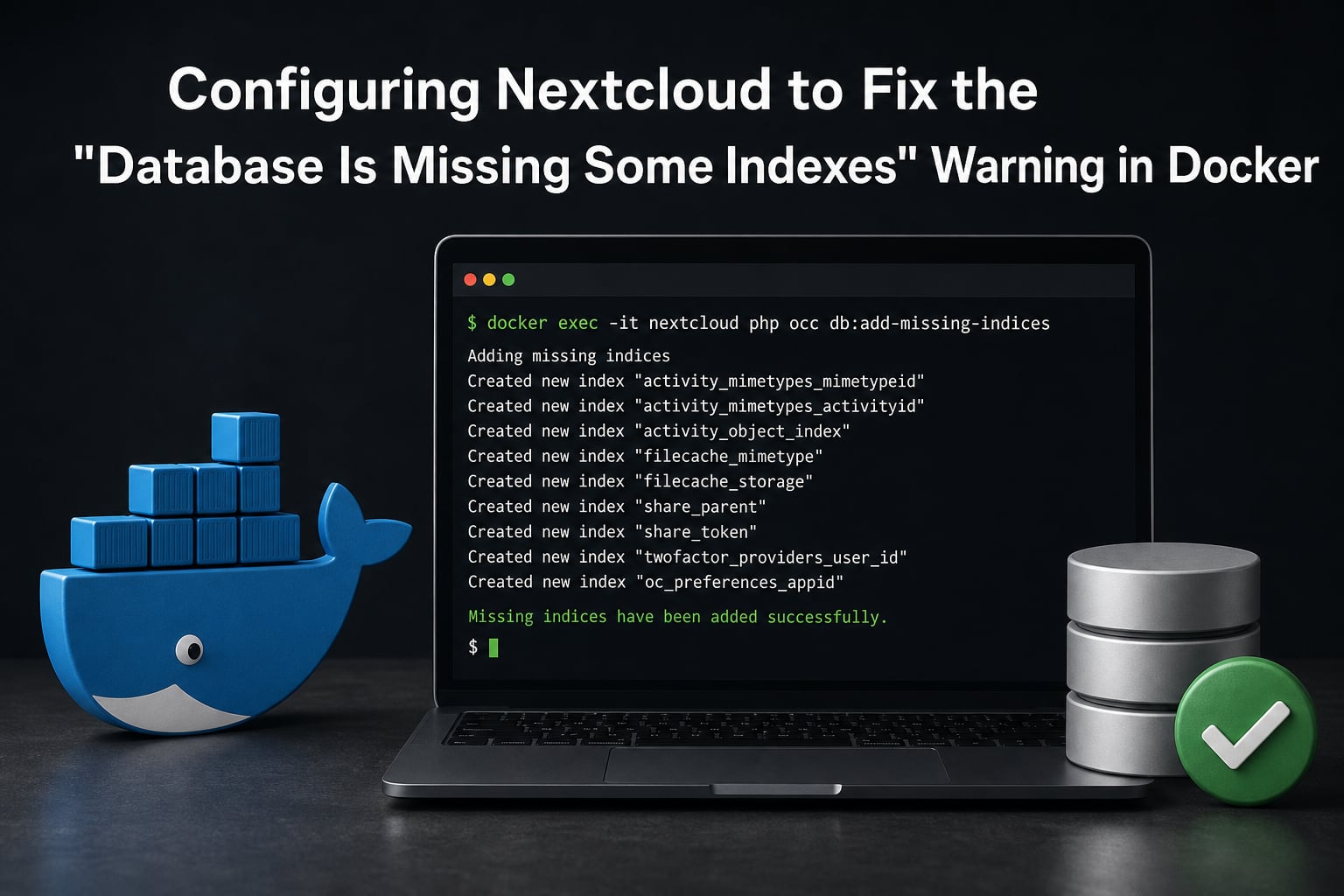
If you manage a Nextcloud instance in Docker, you have probably seen a yellow banner in your administration overview that reads “The database is missing some indexes.” This warning is common after upgrades and it is easy to fix once you understand what Nextcloud is asking for. In this guide I will walk you through exactly how to resolve the Nextcloud database is missing some indexes Docker warning, why it appears, and how to prevent it from coming back.
The fix comes down to running a single occ command inside your container with the correct user. Most of the confusion comes from getting the Docker user flag and container name right, which is where many administrators get stuck. I will cover plain Docker, Docker Compose, and Nextcloud AIO so you can match your setup.
By the end of this article you will know how to run the command, verify the warning is gone, troubleshoot common permission errors, and keep your database healthy going forward.
Table of Contents
Quick Summary: The Fix in One Command
If you just want the answer, here it is. Run this command against your Nextcloud Docker container, replacing nextcloud with your actual container name:
docker exec --user www-data nextcloud php occ db:add-missing-indices
That single line handles the Nextcloud database is missing some indexes Docker fix for the majority of installations. Nextcloud will scan each table, report which optional indexes are missing, and create them one by one. You will see output listing each index as it is added.
If you are on Docker Compose or Nextcloud AIO, the syntax changes slightly. I cover both variations in the step-by-step section below.
Why Nextcloud Does Not Add Indexes Automatically?
This is the question almost no competitor answers, and it is the key to understanding the whole situation. Nextcloud deliberately skips adding certain database indexes during updates and upgrades.
The reason is simple: adding an index on a large table locks that table while the index is built. On a production instance with millions of rows in oc_filecache or oc_systemtag_object_mapping, that lock could freeze the server for minutes or longer.
Instead of risking that during an automated update, Nextcloud adds the schema definition but leaves index creation to you. The administration overview detects the gap and shows the warning. You decide when to run it, ideally during a low-traffic window.
So the warning is not a bug or a sign something broke. It is Nextcloud handing you control over a potentially expensive operation.
How to Fix the “Database Is Missing Some Indexes” Warning in Docker
Here is the full step-by-step process for each Docker setup. Follow the section that matches how you run Nextcloud.
Step 1: Find Your Container Name
First, identify the exact name of your Nextcloud container. Container names are case-sensitive, so copy it exactly. Run:
docker ps
Look for the container running the Nextcloud image. Common names are nextcloud, nextcloud-app, or nextcloud-aio-nextcloud if you use Nextcloud AIO. Note the name in the last column.
Step 2: Run the Fix Command (Plain Docker)
For a standard Docker installation, run the command with the www-data user. The --user www-data flag is required because the config/config.php file must be owned by that user:
docker exec --user www-data nextcloud php occ db:add-missing-indices
Replace nextcloud with your container name from Step 1. You should see output like “Adding missing index to the table…” for each index that gets created.
Step 3: Run the Fix Command (Docker Compose)
If you use Docker Compose, navigate to the directory containing your docker-compose.yml file and run the command through docker compose exec instead:
docker compose exec --user www-data nextcloud php occ db:add-missing-indices
Here nextcloud refers to the service name defined in your docker-compose.yml, not the container name. Check your compose file for the exact service name under the services: key.
Step 4: Run the Fix Command (Nextcloud AIO)
Nextcloud AIO uses a specific container name. The correct command is:
sudo docker exec --user www-data nextcloud-aio-nextcloud php occ db:add-missing-indices
The AIO container is always named nextcloud-aio-nextcloud. Many users try nextcloud and get a “No such container” error because of this difference.
Step 5: Use the Numeric User ID as an Alternative
In some setups, the www-data username does not resolve correctly inside the container. The numeric UID for www-data in the official Nextcloud image is 33. You can use either form:
docker exec -u 33 nextcloud php occ db:add-missing-indices
On Unraid, where user IDs differ, I have seen users succeed with --user 99 instead. Check what UID owns your config.php if neither 33 nor www-data works.
How to Check Which Indexes Are Missing Before Running the Fix?
Running occ db:add-missing-indices with no missing indexes does no harm, but you may want to see exactly what is missing first. The command itself reports the situation before making changes.
When you run it, the output lists each table and the specific index name that is missing, such as systag_by_objectid in oc_systemtag_object_mapping or notifications_pushhash in oc_notifications. If nothing is missing, you get no output and the command exits cleanly.
You can also check the administration overview page in your Nextcloud web interface. The warning lists the specific indexes Nextcloud expects. Common ones include dav_shares, schedulingobjects, and various filecache indexes that appear after major version upgrades.
Running db:convert-filecache-bigint Alongside Missing Indexes
Many administrators see two warnings at once: missing indexes and a suggestion to convert some columns to BigInt. GitHub issue #690 in the Nextcloud Docker repo confirms these two often appear together after upgrades.
The BigInt conversion changes column types on large tables like oc_filecache to support more rows and improve compatibility. Run it with:
docker exec --user www-data nextcloud php occ db:convert-filecache-bigint
Nextcloud will prompt you with a yes or no question before converting each table. Answering yes runs the conversion. For large databases this can take several minutes, so run it during a maintenance window just like the index command.
I recommend running db:add-missing-indices first, then db:convert-filecache-bigint second. Both improve database performance and both are safe to run together during the same session.
How to Verify the Fix Worked?
After running the command, verify the warning is gone. The simplest method is to refresh your Nextcloud administration overview page. Navigate to Settings, then Administration, and look at the “Security and setup warnings” section.
If the fix succeeded, the “database is missing some indexes” line disappears entirely. If it remains, there may be additional indexes that need a second run, or you need to wait for the page cache to refresh.
You can also verify by checking the occ status:
docker exec --user www-data nextcloud php occ status
This confirms the instance is healthy. If the warning persists after a confirmed successful run, restart the container and check the overview again. In rare cases, a stale APCu cache holds the old state.
Troubleshooting Common Errors When Adding Indexes in Docker
The command itself is simple, but the errors people hit are remarkably consistent across forum threads. Here are the most common ones and how to solve each.
“Console has to be executed with the user that owns the file config/config.php”
This is the most frequent error. It means you ran occ as root or the wrong user. The fix is to add the --user www-data flag to your docker exec command. If www-data does not work, use the numeric UID -u 33 instead.
“ncc: executable file not found in $PATH”
Some guides reference ncc as a shortcut for occ. That shortcut exists on Unraid installations and some community images, but not in the official Nextcloud Docker image. Use php occ instead of ncc when running inside the standard container.
“No such container: nextcloud”
This means your container has a different name. Run docker ps and copy the exact name from the output. For Nextcloud AIO, the name is nextcloud-aio-nextcloud. Remember that container names are case-sensitive.
The Command Appears to Hang
On large databases, adding an index to a table with millions of rows can take several minutes. The command is not frozen, it is working. Do not interrupt it with Ctrl+C, because a partially created index can cause problems.
Run the fix during a low-traffic period. If your database is very large, consider enabling maintenance mode first with php occ maintenance:mode --on, running the index command, then turning maintenance mode off with --off.
The Warning Persists After Running the Command
Sometimes the administration overview page caches the old state. Wait a few minutes, clear your browser cache, or restart the container. If it still shows after a restart, run the command again to confirm all indexes were created.
Automating Index Maintenance with Nextcloud Cron
If you upgrade Nextcloud regularly, you will see this warning again after each major version. You can reduce manual work by ensuring your cron background jobs are running properly.
Set the background jobs mode to Cron in your Nextcloud administration settings, and make sure the host cron or the built-in cron container executes php cron.php on schedule. Nextcloud automatically runs certain maintenance tasks through cron, and some newer versions handle index checks during scheduled maintenance.
For full automation, you can add a cron job that runs occ db:add-missing-indices monthly during off-hours. This is optional but useful for administrators managing multiple instances.
Frequently Asked Questions
How do I run occ db:add-missing-indices in Docker?
Run docker exec u002du002duser www-data YOUR_CONTAINER php occ db:add-missing-indices, replacing YOUR_CONTAINER with your container name from docker ps. For Docker Compose, use docker compose exec with your service name. For Nextcloud AIO, the container name is nextcloud-aio-nextcloud.
Why does Nextcloud say the database is missing some indexes?
Nextcloud skips adding certain indexes during updates because creating indexes on large tables can lock them for minutes. The warning tells you to run the command manually at a time you choose, protecting your server from unexpected downtime.
How do I fix the config.php owner error in Nextcloud Docker?
The error appears when you run occ as the wrong user. Add the u002du002duser www-data flag to your docker exec command, or use -u 33 for the numeric UID. The user must match whoever owns the config/config.php file inside the container.
Do I also need to run db:convert-filecache-bigint?
If your administration overview shows a BigInt conversion warning alongside the missing indexes warning, yes. Run occ db:add-missing-indices first, then occ db:convert-filecache-bigint. Both improve database performance and are safe to run in the same session.
How long does adding missing indexes take on a large database?
On small databases it completes in seconds. On large databases with millions of rows it can take several minutes per table. Run it during a low-traffic window and do not interrupt the process, as a partially created index can cause issues.
Conclusion
The Nextcloud database is missing some indexes Docker warning is straightforward to fix once you know the correct command and user flag. Run occ db:add-missing-indices with --user www-data, verify the warning clears, and consider running db:convert-filecache-bigint if that warning appears too. Schedule it during low traffic for large databases, and you are set.