
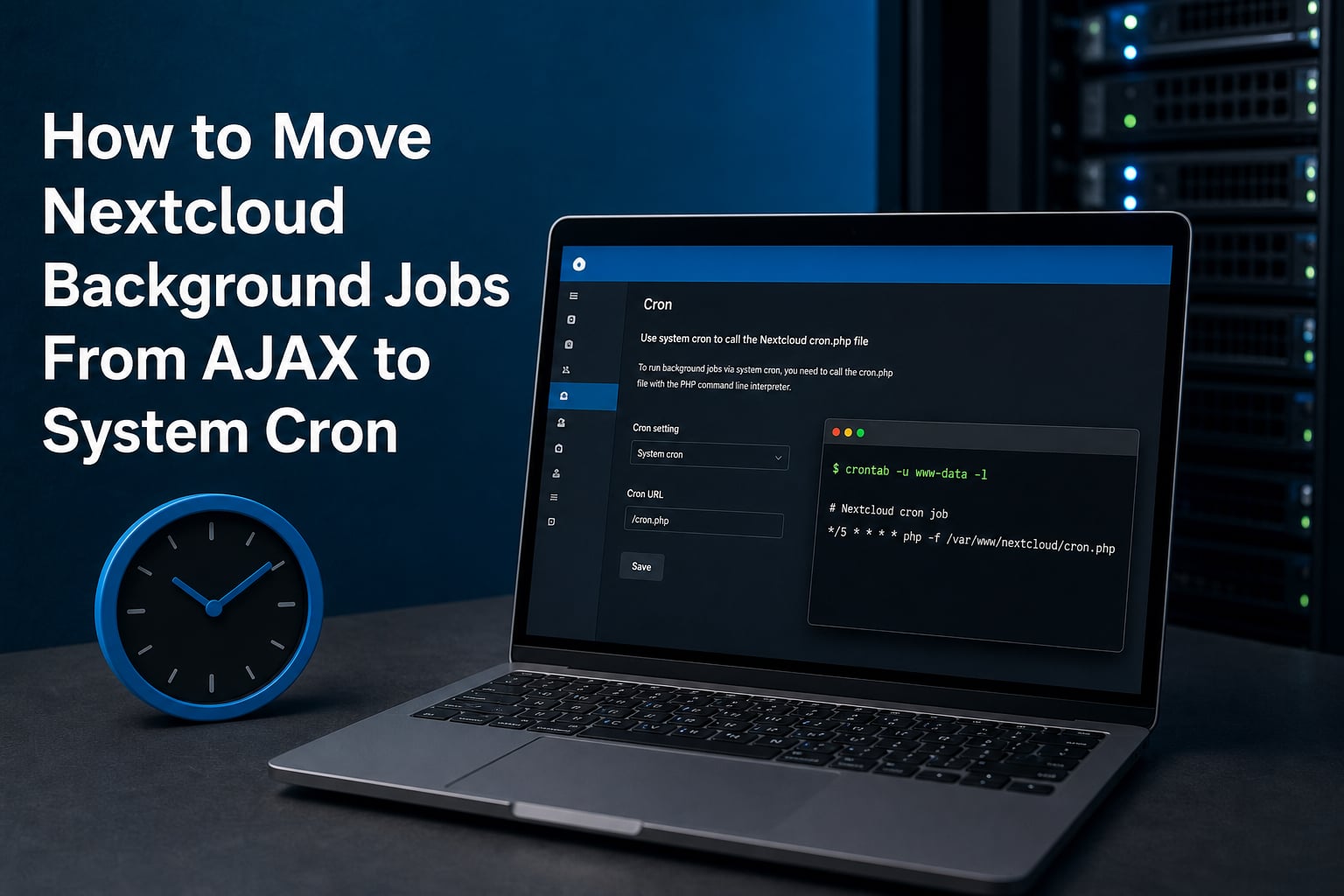
Nextcloud background jobs are automated maintenance tasks that run quietly behind your instance, cleaning up file versions, emptying the trash bin, processing notifications, syncing external storage, and tidying the database. Out of the box, Nextcloud ships three ways to schedule these jobs: AJAX (the default), Webcron, and system cron. If you want to move Nextcloud background jobs from AJAX to system cron, the short version is that you flip one setting in the admin UI (or run occ background:cron), then add a single line to the web server user’s crontab that calls cron.php every five minutes.
I have configured this switch across small single-user Nextcloud boxes and larger multi-tenant installs, and the payoff is the same every time: predictable task execution, snappier page loads, and no more “background jobs haven’t run in three days” warnings. This guide walks through the full migration, including prerequisites, the crontab setup for Ubuntu, Debian, and cPanel, the systemd timer alternative for production servers, shared hosting tradeoffs, and a troubleshooting section covering the issues that come up most often in the Nextcloud community forums.
Table of Contents
Why Switch Nextcloud Background Jobs From AJAX to Cron?
AJAX is the default because it requires zero configuration, but it only fires a single background task each time a user loads a page in the browser. System cron runs the queue on a fixed schedule, independent of whether anyone is clicking around the web interface. Understanding why that difference matters is the foundation of any solid Nextcloud cron setup.
The AJAX Problem: Background Jobs Wait for Visitors
With AJAX mode, no visitors means no background jobs run. I have seen real instances where notifications piled up for months because the admin only accessed the server over WebDAV or a desktop client, never the web UI. The official Nextcloud admin manual notes this clearly, and forum threads are full of admins who only discovered the problem when a warning banner appeared reading “Background jobs didn’t execute since X days.”
The AJAX method also triggers exactly one task per page load, which means a long queue clears slowly even when traffic is steady. On a busy instance this creates a feedback loop: background work slows page loads, slower pages mean fewer AJAX-triggered tasks, and the backlog grows.
The Performance Cost of Delayed Background Jobs
Delayed jobs have real consequences. Trash bins balloon, file versions pile up, activity feed entries lag behind actual file changes, and federated shares stop syncing on time. CPU usage also spikes unpredictably whenever a user finally loads a page and triggers a backlog flush.
System cron decouples housekeeping from web traffic entirely. The operating system calls cron.php at a fixed interval, clears the queue in one pass, and your users get consistently fast page loads. For any instance with more than a couple of users, this is the configuration Nextcloud itself recommends.
AJAX vs Webcron vs Cron: A Quick Comparison
The three scheduling methods differ in how cron.php gets invoked and how much control you have over timing. Here is how they stack up.
| Method | Trigger | Best For | Main Limitation |
|---|---|---|---|
| AJAX (default) | One task per page load by a logged-in user | Tiny single-user instances with no SSH | Stops entirely without web traffic; clears queue slowly |
| Webcron | External service hits cron.php URL on a schedule |
Shared hosting where system cron is unavailable | Depends on a third-party or self-hosted ping; exposes endpoint |
| Cron (recommended) | OS cron daemon runs cron.php via PHP CLI |
Any VPS, dedicated server, or production install | Needs shell access and correct web server user |
For most readers of this guide, the target state is the third row: a system cron entry that runs cron.php as the web server user every five minutes.
Prerequisites Before You Switch Nextcloud to System Cron
Before changing anything, gather a few details that will save you a troubleshooting session later. You need SSH access to the server (or a cron tool in cPanel), the path to your Nextcloud cron.php file, the name of your web server user, and the full path to the PHP CLI binary.
Confirm Your Web Server User and PHP CLI Path
The cron job must run as the same user that owns the Nextcloud files, otherwise you get permission errors. On Ubuntu and Debian with Apache that is usually www-data. On nginx with PHP-FPM it may still be www-data or sometimes nginx. On SUSE and Red Hat-based systems the user is often wwwrun or apache.
Find your PHP CLI path next. On a typical Ubuntu server it is /usr/bin/php. On cPanel shared hosting it is often /usr/local/bin/php. You can confirm with:
which php
Then verify it is the CLI version, not the CGI build:
php -v
Backup Your Nextcloud config.php
This migration is low risk, but I always make a copy of config/config.php before touching background job settings. That file holds your backgroundjobs_mode value and is trivial to restore if something looks off.
cp /var/www/nextcloud/config/config.php /var/www/nextcloud/config/config.php.bak
Adjust the path to match your actual Nextcloud directory.
Step 1: Flip the Setting in the Nextcloud Admin UI
The first half of the move happens inside Nextcloud itself. You need to tell the application to expect the system cron daemon rather than AJAX-triggered execution. There are two ways to do this and both produce the same result.
Option A: Use the web interface. Log in as an administrator, open Administration settings, then go to Basic settings. Under the Background jobs section you will see three radio buttons: AJAX, Webcron, and Cron. Select Cron. The page should show a confirmation that cron is now the active method.
Option B: Use the occ command line tool. If you prefer the terminal or you are scripting the change, run the following as your web server user from the Nextcloud directory. This is the command the Nextcloud documentation references and the one I reach for on headless servers:
sudo -u www-data php occ background:cron
You should see output confirming that the mode has been set. To double-check what Nextcloud thinks the current mode is, run:
sudo -u www-data php occ config:app:get core backgroundjobs_mode
The expected response is cron. If you see ajax, the setting did not stick, which is a known issue covered in the troubleshooting section below.
Note for Snap installs: the path and command differ. Nextcloud Snap users should run sudo nextcloud.occ background:cron instead of the raw occ invocation.
Step 2: Add the System Cron Entry for Nextcloud
With Nextcloud now expecting cron, you need the operating system to actually call cron.php on schedule. This is the step where most migrations break, usually because of a wrong user, a wrong PHP path, or a wrong Nextcloud directory. Take it slowly.
On Ubuntu, Debian, and Most Linux Servers
Open the crontab for the web server user. On Apache-based Ubuntu and Debian installs that user is www-data:
sudo crontab -u www-data -e
Add this single line at the bottom, replacing /var/www/nextcloud with your real Nextcloud document root and /usr/bin/php with your confirmed PHP CLI path:
*/5 * * * * /usr/bin/php -f /var/www/nextcloud/cron.php
This tells cron to run cron.php every five minutes, which is the interval Nextcloud recommends. Save and exit. The cron daemon picks up the change automatically, there is no need to restart anything.
One common mistake is running the job as root instead of www-data. When root runs cron.php, it creates cache files and temporary artifacts owned by root, which the web server then cannot read or delete. Always use the web server user.
On cPanel or Shared Hosting (Full PHP CLI Path)
On shared hosting you usually do not have SSH access to edit a user crontab, but cPanel and similar panels expose a Cron Jobs tool. The mechanics are the same, but the PHP path is almost always different.
In cPanel, open Cron Jobs, set the schedule to every five minutes (common pattern */5 * * * *), and enter the command with the full PHP CLI path:
/usr/local/bin/php -f /home/youruser/public_html/nextcloud/cron.php
Adjust both the PHP binary path and the Nextcloud path to match your account. If you are unsure of the PHP CLI path on cPanel, check the MultiPHP Manager or ask your host. Many shared hosts also offer a terminal in cPanel where which php works.
Forum users report that on some hosts the shorthand php works in the command field, but on others it silently fails because cron runs with a minimal PATH. Always use the absolute path.
How Often Should Nextcloud Cron Run?
The Nextcloud documentation recommends every five minutes, and that is the right target for most VPS and dedicated server installs. On shared hosting, hosts often cap you at 15 minutes or one hour. An hourly cron job is still dramatically better than AJAX for small instances, because it guarantees at least one scheduled run regardless of web traffic. I would not stretch beyond hourly for anything with more than a handful of users, as the backlog between runs can grow large enough to cause CPU spikes when cron.php finally executes.
Step 3: Verify Nextcloud Cron Is Actually Running
Setting the crontab line is not the end of the job. You need to confirm that cron.php is actually executing and that Nextcloud is recording a fresh lastcron timestamp. Verification is the step that catches permission errors, bad PHP paths, and silent failures before they turn into weeks of missed maintenance.
Wait at least five to ten minutes after saving your crontab entry to give the scheduler time to fire, then run this command from the Nextcloud directory as the web server user:
sudo -u www-data php occ config:app:get core lastcron
The response is a Unix timestamp of the last successful cron.php execution. Convert it to a human-readable date to confirm it is recent. If the timestamp updates every five minutes as you re-run the command, your migration is complete and working.
You can also check from the web UI. Go back to Administration settings > Basic settings > Background jobs. When cron is running correctly, the panel shows the last execution time and no warning about overdue jobs. If you still see “Background jobs didn’t execute since X,” the cron entry is not firing.
For deeper confirmation, check the Nextcloud log for cron-related entries:
sudo -u www-data php occ log:tail
Look for entries tagged with cron or core. Repeating errors here usually point to a PHP path mismatch or a permission problem, both covered in the troubleshooting section.
The systemd Timer Alternative for Nextcloud Cron
On modern Linux distributions, systemd timers offer a cleaner alternative to the traditional crontab line for running Nextcloud background jobs. The official Nextcloud documentation includes systemd configuration, and for production servers I prefer it because timers give you logging via journalctl, dependency ordering, and a clear separation between the service definition and the schedule.
When systemd Beats Crontab
Systemd timers shine on production servers where you want observability. Each run shows up in the journal with timing data, exit codes, and output. You also get features crontab lacks, such as ExecCondition to skip runs when the service is in maintenance mode, and KillMode to control how a hung cron.php process is terminated.
For a simple personal install, crontab is perfectly fine and easier to reason about. For anything you would call production-grade, the timer approach is worth the extra two files.
The Timer and Service Files You Need
Create a service unit at /etc/systemd/system/nextcloudcron.service:
[Unit]
Description=Nextcloud cron.php

[Service]
User=www-data
ExecStart=/usr/bin/php -f /var/www/nextcloud/cron.php
KillMode=process

[Install]
WantedBy=multi-user.target
Then create the timer at /etc/systemd/system/nextcloudcron.timer. The settings below match the Nextcloud documentation, firing five minutes after boot and then every five minutes:
[Unit]
Description=Run Nextcloud cron.php every 5 minutes

[Timer]
OnBootSec=5min
OnUnitActiveSec=5min
Unit=nextcloudcron.service

[Install]
WantedBy=timers.target
Enable and start the timer:
sudo systemctl enable --now nextcloudcron.timer
Verify the timer is active and review recent runs:
sudo systemctl list-timers nextcloudcron.timersudo journalctl -u nextcloudcron.service
The journal output makes debugging dramatically easier than digging through cron syslog entries. If cron.php throws a PHP error, you see it immediately in journalctl with a full stack trace.
Nextcloud Cron on Shared Hosting
Not everyone runs Nextcloud on a VPS. A meaningful share of admins are on shared hosting, where SSH access is limited and cron interval restrictions apply. The good news is that the migration still works, you just have different constraints.
Hourly Cron Beats AJAX, Even If It Is Less Frequent
Many shared hosts cap cron jobs at 15-minute or hourly intervals. Community consensus on the forums is clear: hourly cron is still better than AJAX for small instances, because it guarantees a scheduled execution regardless of web traffic. The tradeoff is that background tasks like trash cleanup and notification dispatch may lag up to an hour, which is acceptable for a personal or small-team install.
If your host only allows one cron entry at hourly intervals, set it up through cPanel as described in Step 2 and accept the timing. Do not fall back to AJAX just because you cannot hit the five-minute target.
What If Your Host Only Allows Webcron?
If your host blocks system cron entirely but allows external HTTP requests, Webcron is your fallback. Set the background jobs mode to Webcron in the admin UI (or run occ background:webcron), then configure an external service, or a self-hosted ping script, to hit your cron.php URL on a schedule. The downside is that Webcron exposes the endpoint to the internet and depends on a third party, but it still beats AJAX for reliability on locked-down shared hosting.
Troubleshooting: Nextcloud Background Jobs Not Running
This is the section I wish more guides included. The forum threads on background jobs are dominated by a handful of repeat failures, and most have straightforward fixes once you know what to look for.
The UI Reverts to AJAX After Refresh
This is the single most reported issue. You select Cron in the admin UI, the page confirms the change, but on refresh it has reverted to AJAX. The usual cause is that the config.php file is not writable by the web server user, so Nextcloud cannot persist the setting. Fix the permissions on config.php so the web server user owns or can write to it, then set the mode again using occ background:cron from the command line, which sidesteps the web UI write path entirely.
A less common cause is an opcode cache serving a stale config.php. Restarting PHP-FPM or Apache after the change clears this.
lastcron Is Not Updating
If occ config:app:get core lastcron returns a stale timestamp, the crontab entry is not executing. Work through this checklist:
Confirm the crontab line is saved under the correct user with
sudo crontab -u www-data -l.Check that the PHP CLI path is correct by running the
cron.phpcommand manually:sudo -u www-data /usr/bin/php -f /var/www/nextcloud/cron.php.Look for PHP errors in the Nextcloud log with
occ log:tail.Check the system cron log, usually at
/var/log/syslogor viagrep CRON /var/log/syslog, to confirm the scheduler is even trying to fire.On cPanel, check the cron email output, which captures stderr from the job.
Most lastcron failures trace back to a wrong PHP binary path, a wrong Nextcloud directory, or the job running as root instead of the web server user.
PHP Path Not Found / open_basedir Errors
If cron.php runs manually from your SSH session but fails when called by cron, the problem is usually PATH. Cron runs with a minimal environment, so php is not found. Always use the absolute path like /usr/bin/php or /usr/local/bin/php.
If you see open_basedir restriction errors in the log, your PHP CLI configuration restricts which directories scripts can access. Edit the CLI php.ini (not the web server one) and make sure the Nextcloud directory is inside the open_basedir value, or remove the restriction for the CLI SAPI if appropriate.
Cron Reverts After Nextcloud Upgrade
Some admins report that a major Nextcloud upgrade resets backgroundjobs_mode back to AJAX. This is rare but documented. After any upgrade, re-run occ background:cron and verify with occ config:app:get core backgroundjobs_mode. Adding this check to your upgrade runbook prevents a silent reversion from degrading performance for weeks.
Frequently Asked Questions
How do I switch Nextcloud background jobs from AJAX to cron?
Open Administration settings, go to Basic settings, and select Cron under Background jobs. Alternatively, run sudo -u www-data php occ background:cron from the Nextcloud directory. Then add a crontab entry for the web server user: */5 * * * * /usr/bin/php -f /var/www/nextcloud/cron.php
Why is AJAX bad for Nextcloud background jobs?
AJAX only runs one background task each time a user loads a web page. If no one visits the web UI, jobs do not run at all, which causes delayed notifications, growing trash bins, and missed maintenance. System cron runs on a fixed schedule independent of web traffic.
How often should Nextcloud cron run?
Nextcloud recommends running cron.php every five minutes. On shared hosting where hosts cap intervals, an hourly cron job is still significantly better than AJAX for small instances.
How do I verify Nextcloud cron is working?
Run sudo -u www-data php occ config:app:get core lastcron from the Nextcloud directory. The command returns a Unix timestamp of the last successful cron.php execution. If the timestamp updates every five minutes, cron is working. You can also check the Background jobs panel in Administration settings.
What is the difference between AJAX, Webcron, and cron in Nextcloud?
AJAX triggers one task per page load by a logged-in user. Webcron relies on an external service hitting the cron.php URL on a schedule. Cron uses the operating system cron daemon to run cron.php via PHP CLI on a fixed interval and is the recommended method.
Can I run Nextcloud cron on shared hosting?
Yes. Use the Cron Jobs tool in cPanel with the full PHP CLI path, usually /usr/local/bin/php, and the absolute path to cron.php. If your host limits intervals to hourly, that is acceptable for small instances. If system cron is blocked entirely, Webcron is the fallback.
What user should run the Nextcloud cron job?
The cron job must run as the same user that owns the Nextcloud files, typically www-data on Ubuntu and Debian. Running it as root creates cache and temp files owned by root that the web server cannot read or delete, which causes permission errors.
What is the systemd alternative to cron for Nextcloud?
Create a systemd service unit that runs php -f cron.php as the web server user, and a systemd timer unit with OnBootSec=5min and OnUnitActiveSec=5min. Enable the timer with systemctl enable u002du002dnow nextcloudcron.timer. This gives you journal logging and better control than crontab on production servers.
Wrapping Up the Move to System Cron
Moving Nextcloud background jobs from AJAX to system cron comes down to three actions: set the mode to Cron in the admin UI or with occ background:cron, add the crontab line that calls cron.php as your web server user, and verify that the lastcron timestamp is advancing. The systemd timer route is the cleaner option if your server supports it.
Once you make this switch, background maintenance runs predictably, page loads stop carrying hidden overhead, and the “background jobs didn’t execute” warning stays gone. Add the occ config:app:get core lastcron check to your upgrade runbook so a silent reversion never catches you off guard, and your Nextcloud install will run like it is supposed to.