
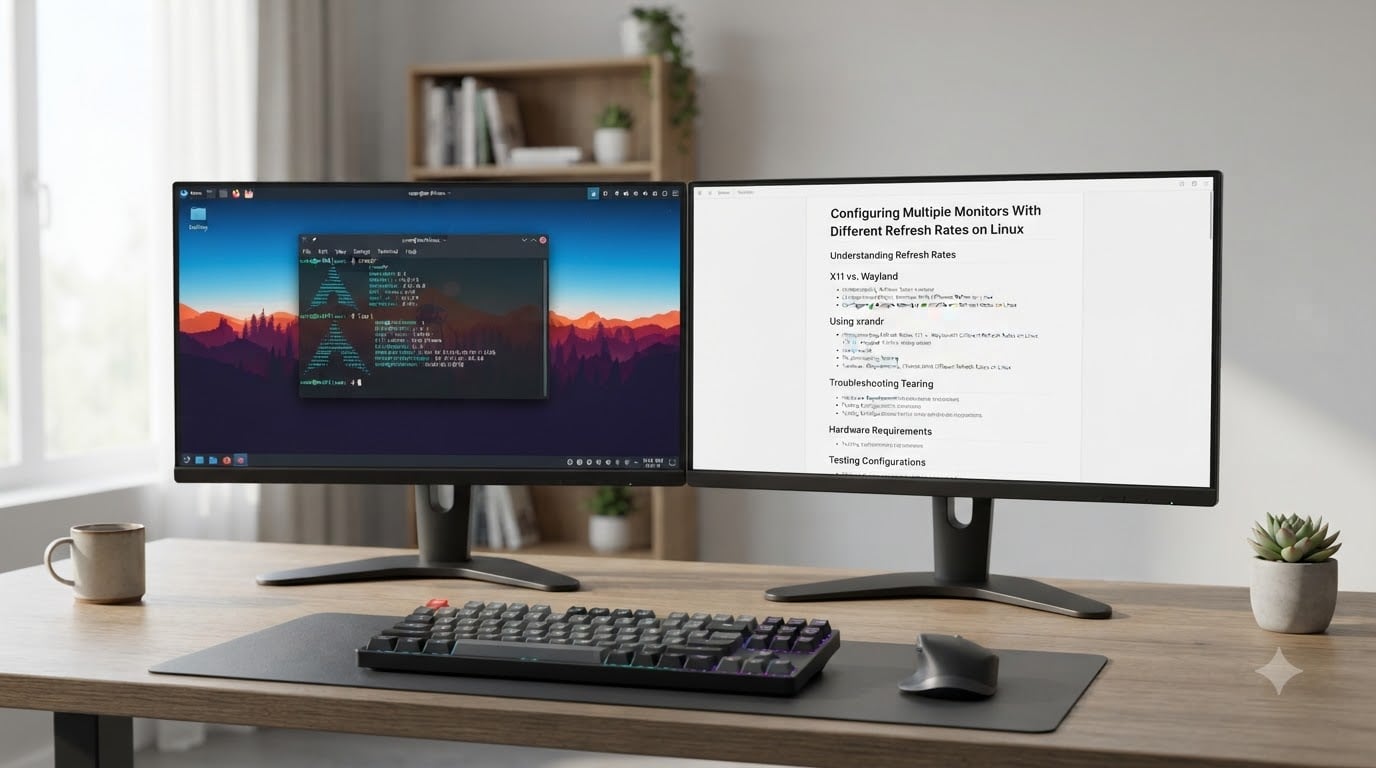
I run a 144Hz primary display next to a 60Hz secondary monitor every day, and I can tell you from years of tweaking: yes, configuring multiple monitors with different refresh rates on Linux absolutely works. The setup takes a bit of patience because behavior varies by display server, GPU vendor, and desktop environment, but the results are smooth once you tune things.
In this guide I will walk through everything I wish someone had told me when I started mixing refresh rates. We will cover how Linux handles per-monitor refresh rates, the exact xrandr commands I use, why mixed setups sometimes stutter, and how the major GPU vendors behave. By the end you will know how to make your mixed refresh setup reliable for both work and play.
Table of Contents
Can Linux Run Multiple Monitors at Different Refresh Rates?
Yes, Linux can run multiple monitors at different refresh rates simultaneously. The catch is that the support is more mature on Wayland than on X11, and the experience depends on your GPU driver.
Modern Wayland compositors like GNOME’s Mutter, KDE’s KWin, and Sway treat each output as independent. They schedule frames per-monitor using the display hardware’s CRTCs (cathode ray tube controllers). On X11 the story is trickier: xrandr can apply different rates to each monitor, but the X server itself was not originally designed to handle multiple CRTCs at different rates cleanly. That gap is what most mixed-refresh pain comes from.
The three configurations you will encounter in the wild are X11 with the open-source drivers, X11 with NVIDIA’s proprietary driver, and Wayland. Each behaves differently when you hand it a 144Hz main panel plus a 60Hz side panel. We will break down what to expect for each.
Understanding How Refresh Rates Work on Linux
A monitor’s refresh rate is the number of times per second the display hardware redraws the screen, measured in hertz. Each cycle is one frame, and Linux paints those frames through the GPU’s display pipeline into the physical panel.
The Linux kernel’s Direct Rendering Manager (DRM) subsystem talks to the GPU and exposes a set of CRTCs. Each CRTC is essentially an independent display controller that can drive one output at one specific mode. If your GPU has two CRTCs (most modern cards do), each one can target a different mode with a different refresh rate.
On top of the kernel sits the display server, which on most distros is either X11 or Wayland. The display server is responsible for taking compositor output and handing it to the right CRTC at the right time. When you ask for 144Hz on one monitor and 60Hz on another, the display server has to negotiate two independent timing chains, which is where things get interesting.
Kernel modesetting (KMS) handles the low-level mode setting. Userspace tools like xrandr or wlr-randr configure modes and rates. The compositor (Mutter, KWin, picom, etc.) then takes application output and delivers it to the right output at the right cadence.
xrandr Commands for Setting Different Refresh Rates per Monitor
The xrandr command line tool is the workhorse for per-monitor configuration on X11. Here is the workflow I use whenever I need to set up mixed refresh rates from scratch.
Step 1: List available outputs and modes.
Run xrandr with no arguments. You will see every detected output (HDMI-1, DP-1, eDP-1, etc.) and every mode the EDID reports. Look for the label of your primary and secondary monitor. Common names are HDMI-A-1, DisplayPort-0, or LVDS-1 on laptops.
Step 2: Confirm the refresh rates you want.
If you don’t see the rate you expect, your cable or monitor might be the bottleneck. A passive HDMI 1.4 cable cannot do 144Hz at 1440p, for example. We will cover this more later.
Step 3: Set each output to its target mode.
The format is:
xrandr --output HDMI-A-1 --mode 1920x1080 --rate 144
xrandr --output DP-1 --mode 2560x1440 --rate 60 --right-of HDMI-A-1
Replace HDMI-A-1 and DP-1 with whatever your system reports. The first line forces a 1080p 144Hz mode on the primary, and the second puts the second screen at 1440p 60Hz to its right.
Step 4: Set the position.
Use --left-of, --right-of, --above, or --below to position. Without one of these flags your second monitor may clone the first instead of extending the desktop.
Step 5: Make it persistent.
Add the commands to ~/.xprofile, ~/.config/autostart/, or your desktop environment’s display settings so they survive a reboot. Many distros also let you set these in the GUI (Settings > Display under GNOME, KDE System Settings).
Common xrandr Command Reference
Here is a quick reference for the flags I use most often:
xrandr --listmonitors— show current configuration.xrandr --output OUTPUT --primary— mark an output as the primary monitor.xrandr --output OUTPUT --off— disable an output without unplugging.xrandr --output OUTPUT --auto— re-enable an output at its preferred mode.xrandr --output OUTPUT --scale 1.5x1.5— HiDPI scaling for one output only.xrandr --addmode OUTPUT "1920x1080_143.85"— add a custom mode using cvt or gtf output.
If a refresh rate you need is missing from xrandr’s list, you can build a modeline with cvt and add it manually. That trick saved me when I wanted a custom 75Hz mode on an older IPS panel.
Setting the Primary Monitor in a Mixed Refresh Setup
Your primary monitor determines where taskbars, login screens, and most window placements land. In a mixed refresh setup it also does something less obvious: it is usually the monitor whose cadence dictates compositor scheduling priority.
To set the primary monitor on X11 with xrandr, run:
xrandr --output HDMI-A-1 --primary
On Wayland there is no explicit primary flag in the protocol. Instead, your compositor picks the primary based on position, naming, or a setting in its config. In GNOME that is Settings > Displays > Primary. In KDE System Settings it is the Displays > Display Configuration panel where you drag the panel indicator to your preferred output.
I always make my high-refresh panel the primary. Most games default to the primary display for fullscreen, and the compositor will prioritize frame delivery to that output. Putting your 144Hz monitor second has cost me several milliseconds of input lag in the past.
Why Mixed Refresh Setups Stutter and How to Fix It
Stutter on mixed refresh setups is usually a frame pacing problem, not a hardware one. Your GPU is producing frames at varying intervals, and the compositor is feeding two displays with different expectations.
Here is the mechanism. Imagine your primary runs at 144Hz (a new frame every 6.94ms) and your secondary runs at 60Hz (a new frame every 16.67ms). The compositor wants to deliver a fresh frame to each output at its own cadence. If the compositor is locked to a single vsync tick, you get uneven delivery, which the eye perceives as microstutter.
On Wayland this is mostly solved at the compositor level. Modern compositors like KWin and Mutter are per-output vsync aware. On X11 the fix is harder, which is why so many users with stutter problems end up switching to Wayland.
Common Causes of Stutter on Mixed Refresh Setups
- Software vsync instead of hardware vsync: disable compositing in the window manager only if you have tested alternatives.
- NVIDIA “Sync to VBlank” off in nvidia-settings: turning this off globally causes tearing and pacing issues on mixed-rate setups.
- Compositor running at a fixed rate: on X11, some compositors (like picom in certain modes) sync to a single refresh rate.
- Heavy application dragging GPU time: when frame times spike, pacing visibly suffers.
Concrete Fixes I Use
- Switch to Wayland if your GPU and distro support it well.
- Enable “Sync to VBlank” in nvidia-settings and leave compositing on.
- Set the high-refresh monitor as primary so the compositor schedules around it.
- Disable compositor briefly only when running a specific fullscreen game that needs raw frames, then re-enable.
- Use Gamescope for windowed or borderless fullscreen games on Wayland.
Wayland vs X11 for Different Refresh Rates per Monitor
Wayland handles different refresh rates per monitor more gracefully than X11 because the protocol was designed around independent outputs. Each wl_output can have its own mode, scale, and transform, and the compositor is responsible for scheduling frames per output.
X11 was designed when most workstations had a single monitor. The server treats the screen as one big virtual surface and uses shared CRTCs to render to physical outputs. xrandr configures the CRTCs, but the render loop is global. That is why some X11 setups stutter or refuse to apply two different refresh rates cleanly.
When Wayland Wins
Wayland is the better choice when you want clean per-output frame delivery, native HiDPI scaling per monitor, modern VRR/Freesync support, and reliable primary monitor semantics.
When X11 Still Wins
X11 is the pragmatic choice when you rely on apps that don’t yet have great Wayland support, you use NVIDIA proprietary drivers on older kernels where Wayland was rough, or you depend on X11-only window managers like i3 or Openbox with custom setups.
I personally default to Wayland on GNOME and KDE for any new install, and I keep an X11 fallback for the rare app that misbehaves. Both work for mixed refresh rates these days, but Wayland does it with less hand-holding.
NVIDIA Driver Configuration for Mixed Refresh Rates
NVIDIA’s proprietary driver has historically been the trickiest part of mixed refresh on Linux. The driver exposes two settings in nvidia-settings that affect everything: Sync to VBlank and Allow Flipping.
For mixed refresh setups, enable Sync to VBlank. That tells the driver to pace frames to the monitor’s vsync signal, which is critical when one monitor is 144Hz and another is 60Hz. Disabling this can cause tearing on the faster monitor or pacing glitches on the slower one.
Allow Flipping controls whether the driver uses direct buffer flips versus blits. Blits cost more performance but work in more situations. With newer NVIDIA drivers on Wayland this setting matters less than it used to, but on X11 you may need to experiment.
If you have an NVIDIA card and run into trouble, the nvidia community recommends using the latest beta or production driver plus Wayland. The open-source Nouveau driver does not yet support per-CRTC modesetting as cleanly, so I do not recommend it for mixed refresh gaming setups.
AMD and Intel GPU Notes for Mixed Refresh Displays
AMD’s open-source amdgpu driver generally handles mixed refresh rates smoothly on both X11 and Wayland. The kernel modesetting support is mature, and both Mutter and KWin schedule frames correctly across mixed outputs. If you want the smoothest path for a mixed refresh setup today, AMD on Wayland is my recommendation.
Intel integrated graphics (the i915 driver) also handles mixed refresh rates well on Linux. Most laptops with Intel GPUs pair a high-refresh internal panel with an external 60Hz monitor, and the i915 driver deals with that without fuss. HiDPI mixing on Intel works well on Wayland and reasonably well on X11 with per-monitor scaling patches.
Where AMD occasionally stumbles is at the EDID level: some older monitors report incomplete mode lists and need manual modelines. Intel is similar but rarely an issue on modern kernels. Both vendors benefit from the standard advice of running a recent kernel (5.15 or newer) and a current Mesa stack.
DisplayPort, HDMI Bandwidth, and VRR/Freesync Considerations
Cable bandwidth matters more than people realize when mixing refresh rates. A 1440p 144Hz signal uses more bandwidth than a 1080p 60Hz signal, and your cable needs to handle the higher-demand monitor.
DisplayPort 1.4 handles 4K 120Hz and 1440p 240Hz comfortably. HDMI 2.1 does similar. Older HDMI 1.4 cables max out at 1080p 60Hz, which is why a 144Hz monitor on the wrong cable often falls back to 60Hz.
VRR (variable refresh rate), sold as AMD FreeSync and NVIDIA G-Sync Compatible, lets the GPU adjust the monitor’s refresh to match frame output. The Linux kernel’s DRM subsystem supports adaptive sync on most modern AMD GPUs and on Intel’s 11th-gen and newer. NVIDIA added VRR support to its proprietary driver in the 510 series and later.
To enable VRR on Wayland under KDE, go to System Settings > Display > Adaptive Sync. Under GNOME the same setting appears in the Mutter config. The catch is that VRR works best when a single fullscreen application has the focus, so it shines during gaming but does little in everyday mixed-window work.
Troubleshooting Checklist for Mixed Refresh Rate Issues
When things go wrong, work through this checklist. It is the order I troubleshoot my own multi-monitor setups.
- Confirm each cable can handle the rate you want. Try a different cable if your monitor falls back to 60Hz.
- Run
xrandrand confirm the desired rate is listed for the output. - If using NVIDIA, run
nvidia-settingsand confirm Sync to VBlank is on. - Test under Wayland if X11 is misbehaving — this solves the majority of mixed-rate problems.
- Update your kernel and Mesa to the latest stable release.
- Make sure your high-refresh monitor is set as primary.
- If your second monitor reverts to 60Hz after reboot, put your xrandr commands in a session startup script.
- Check the EDID with
edid-decodeif a monitor reports weird modes.
If you are still stuck, the Linux hardware subreddit and the distro-specific forums (especially Linux Mint, Fedora, and Arch) have threads that cover almost every mixed refresh scenario I have run into.
Frequently Asked Questions
Is it possible to use multiple monitors with different refresh rates simultaneously?
Yes, Linux supports multiple monitors at different refresh rates simultaneously. The experience is best on Wayland with modern compositors like Mutter and KWin, which schedule frames per output. X11 can do it through xrandr but can stutter on some setups.
Can you run different monitors with different Hz at once?
Yes, you can run different monitors at different Hz at once on Linux. Use xrandr to set each output’s mode and rate, or configure the rates through your desktop’s display settings. Wayland handles this more cleanly than X11.
How to fix mismatched refresh rate on Linux?
First, run xrandr to confirm the desired rate is listed for each output. Then make sure your high-refresh monitor is primary, enable Sync to VBlank in nvidia-settings if using NVIDIA, and try switching to Wayland if X11 is stuttering. Updating your kernel and Mesa often resolves mismatches too.
Why is my second monitor only 60Hz on Linux?
Your second monitor may be capped at 60Hz because the cable or port cannot negotiate higher rates, the EDID does not advertise the rate, or xrandr was never told the new mode. Try a higher-bandwidth DisplayPort or HDMI cable and set the rate explicitly with xrandr u002du002doutput NAME u002du002dmode WIDTHxHEIGHT u002du002drate RATE.
Does Wayland support different refresh rates per monitor?
Yes, Wayland was designed around independent outputs and supports different refresh rates per monitor natively. Compositors like Mutter, KWin, and Sway schedule frames per output, which avoids many of the frame pacing issues X11 has with mixed refresh rates.
How to change refresh rate on monitor in Linux?
On X11, run xrandr u002du002doutput OUTPUT u002du002dmode WIDTHxHEIGHT u002du002drate RATE replacing OUTPUT, the resolution, and the refresh rate. On Wayland, use the desktop environment’s display settings or a tool like wlr-randr for wlroots-based compositors.
Final Thoughts on Mixed Refresh Rate Setups on Linux
Configuring multiple monitors with different refresh rates on Linux has gone from being a forum-thread workaround to a well-supported feature. Run Wayland on AMD or Intel for the smoothest path, keep the proprietary NVIDIA driver up to date if that is your GPU, and lean on xrandr for X11 setups. With your high-refresh panel as the primary monitor and a current kernel under the hood, you can have a productive 60Hz side panel and a buttery 144Hz main display without compromise.
My own daily setup is a 144Hz primary panel on DisplayPort with a 60Hz ultrawide secondary over HDMI, running GNOME Wayland on an AMD GPU. It is the most stress-free multi-monitor configuration I have ever had on Linux — and I am not going back.