
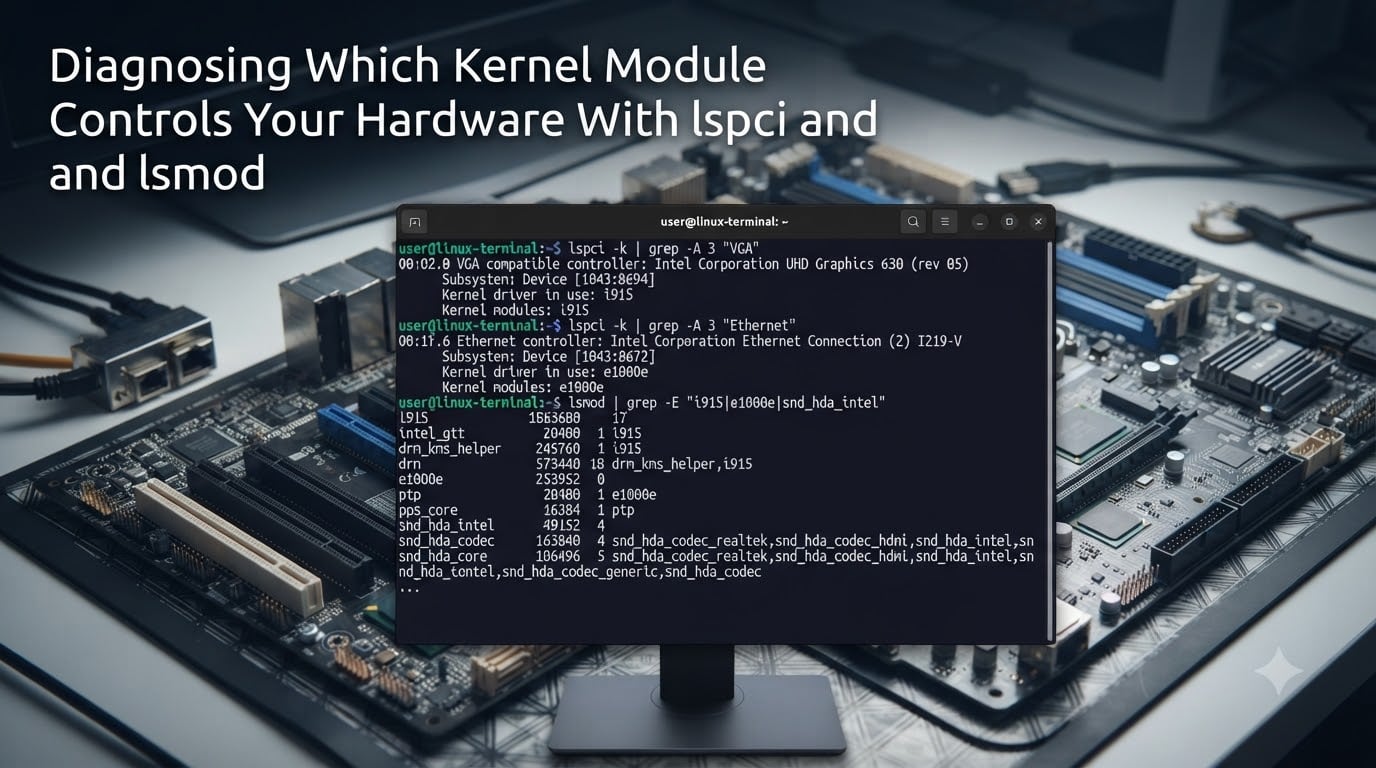
When your wireless card drops, your GPU misbehaves, or a PCIe device goes silent, the first question I always ask is: which kernel module is supposed to be running this thing? Linux exposes that answer through two commands: lspci and lsmod. I use them together almost every time I troubleshoot hardware on a server or laptop.
In this guide, I will walk you through how to identify the kernel module driving any PCI device, how to verify that module is actually loaded, and how to fix common mismatches between what is plugged in and what the kernel has activated.
Table of Contents
Using lspci to Identify PCI Devices
lspci is a command-line utility that displays information about all PCI buses and devices connected to them in Linux. It reads from the kernel’s PCI subsystem and prints one line per device, including the slot ID, vendor, and device class.
Run it without arguments for a quick overview:
sudo lspci
Sample output looks like this:
00:00.0 Host bridge: Intel Corporation Device 9a14

00:02.0 VGA compatible controller: Intel Corporation TigerLake-LP GT2 [Iris Xe Graphics]

01:00.0 Network controller: Intel Corporation Wi-Fi 6 AX200
Each line follows the same pattern: a slot identifier like 00:02.0, a class descriptor, the vendor name, and the device name. The slot identifier is the key piece. It tells you the bus number, device number, and function number, which uniquely locates the hardware on the PCI tree.
If you only care about one type of device, pipe the output through grep:
lspci | grep -i ethernet
This filters out everything except Ethernet-related lines. I find this essential when the full lspci dump runs to 30 or 40 lines and I just need the network controller.
For machine-readable identifiers, use lspci -nn:
lspci -nn
This adds vendor and device IDs in brackets, like [8086:2725]. The first hex value is the vendor ID, and the second is the device ID. These IDs let you search hardware databases when the textual name does not match what you expect.
The -k Flag: Showing Kernel Modules With lspci
Plain lspci only tells you the hardware is present. To see which kernel module is driving it, add the -k flag:
lspci -k
Sample output for a network controller:
01:00.0 Network controller: Intel Corporation Wi-Fi 6 AX200

    Subsystem: Intel Corporation Wi-Fi 6 AX200

    Kernel driver in use: iwlwifi

    Kernel modules: iwlwifi
You will see two important lines: Kernel driver in use and Kernel modules. The first line shows the single module currently bound to and operating the device. The second line lists every module that knows how to drive this hardware. In most cases, these match.
Sometimes they do not. If the Kernel modules line lists several names like nvidia, nouveau, the kernel has two options available. The Kernel driver in use line tells you which option it picked. If Kernel driver in use is blank, no module has claimed the device, which usually means the proper driver is missing or the wrong one was loaded.
When lspci -k shows no module at all for a piece of hardware, the device is detected but unbound. I treat that as the strongest signal that I need to load the correct driver manually or reinstall it.
Using lsmod to List Loaded Kernel Modules
lsmod lists all kernel modules currently loaded into memory. It reads from /proc/modules and prints a three-column table.
Run it directly:
lsmod
Sample output:
Module            Size  Used by

iwlwifi          327680  0

cfg80211         913408  1 iwlwifi
The first column is the module name. The second column is its size in bytes. The third column, Used by, is what I watch most closely. It shows how many other modules depend on this one, followed by the names of those dependents.
For instance, cfg80211 shows 1 iwlwifi, meaning one module (iwlwifi) depends on it. The Used by count for iwlwifi is 0, which is correct: drivers are used by hardware, not by other modules.
To check whether a specific module is loaded, grep the output:
lsmod | grep iwlwifi
If the command returns nothing, the module is not loaded. This is one of the fastest ways to verify driver presence before pulling a device apart.
Cross-Referencing lspci and lsmod Output
The real diagnostic power comes from comparing both commands. Here is the workflow I follow when a device misbehaves.
Step one: find the hardware with lspci -nn and note its slot ID, vendor, and device ID.
Step two: run lspci -k -s <slot> to see the kernel module assigned to that specific slot. The -s flag filters by slot.
Step three: take the module name from Kernel driver in use and run lsmod | grep <name>. If the line appears, the module is loaded. If nothing appears, the module is missing even though lspci -k claimed it was active. That mismatch is a strong clue: the device may have lost its binding at runtime.
A typical example: lspci -k shows Kernel driver in use: e1000e for an Ethernet controller, but lsmod | grep e1000e returns nothing. I have seen this happen after a suspend/resume cycle. The fix is usually to reload the module with sudo modprobe e1000e or to restart the network service.
Another common scenario: lsmod shows the nvidia module is loaded, but lspci -k still shows nouveau as the active driver. This is a driver conflict. You need to blacklist nouveau and reinstall the proprietary nvidia module for the binding to flip.
Step-by-Step Troubleshooting Workflow
When a device does not work, here is the diagnostic sequence I run in order.
Step 1: Confirm the kernel sees the hardware. Run lspci -nn and locate your device. If it does not appear, the problem is at the BIOS/UEFI level or the device is physically broken.
Step 2: Check what driver the kernel thinks is bound. Run lspci -k -s <slot>. Look at Kernel driver in use. If it shows the correct driver, your kernel has the right module for the hardware.
Step 3: Verify the module is actually loaded. Run lsmod | grep <module_name>. Confirm a match. If nothing matches, load it with sudo modprobe <module_name>.
Step 4: Inspect the module details. Run modinfo <module_name>. This shows the filename, version, description, supported hardware aliases, and parameters you can tune. I check the alias field to confirm the module claims the right device ID.
Step 5: Reload if binding is stale. If everything looks right but the device still fails, unload and reload the module:
sudo modprobe -r <module_name>

sudo modprobe <module_name>
This forces the kernel to re-detect the device and rebind the driver.
Common Kernel Module Problems and Solutions
One of the most reported problems on Linux forums is “module loaded but not in use.” The device works in lsmod, but lspci -k shows nothing under Kernel driver in use. This typically points to one of three issues: a module parameter mismatch, a missing firmware file, or a competing driver claiming the hardware first.
Missing firmware is a frequent cause. Run dmesg | grep -i firmware after a failed boot. If you see “firmware failed to load” for your device, the kernel module is loaded but cannot initialize because the firmware blob is missing. Install the firmware package from your distribution and reboot.
Driver conflicts show up when two modules try to handle the same device ID. Nouveau and nvidia are the classic case. The fix is to blacklist the unwanted module by adding its name to /etc/modprobe.d/blacklist.conf, then regenerating the initramfs and rebooting.
For example, to blacklist nouveau:
echo "blacklist nouveau" | sudo tee /etc/modprobe.d/blacklist-nouveau.conf

sudo update-initramfs -u

sudo reboot
After reboot, run lspci -k again. The active driver should now be the one you want.
Frequently Asked Questions
How to check kernel module?
Run lsmod to list every kernel module currently loaded. To check whether a specific module is loaded, pipe the output through grep: lsmod | grep module_name. If a line is returned, the module is active in memory.
What does lspci do in Linux?
lspci is a command-line utility that lists all PCI buses and devices connected to them. It displays the slot ID, vendor, device class, and (with the -k flag) the kernel module currently driving each device.
How to check the hardware in Linux?
Use lspci for PCI and PCIe devices, lsusb for USB devices, and lsmod to see which kernel modules are loaded. Combine lspci -k with lsmod | grep module_name to verify which module controls a specific device.
How to check PCIe devices in Linux?
Run lspci -nn to see all PCIe devices with numeric vendor and device IDs. Add the -k flag to also display the kernel driver in use and available kernel modules for each device.
Conclusion
Diagnosing which kernel module controls your hardware with lspci and lsmod comes down to a simple loop: list the device, identify the bound driver, confirm that driver is loaded, and reload it if anything is off. I run this loop on every server I touch, and it solves most driver-related issues in under five minutes. Practice it on your own machine so the next hardware surprise takes minutes to resolve instead of hours.