
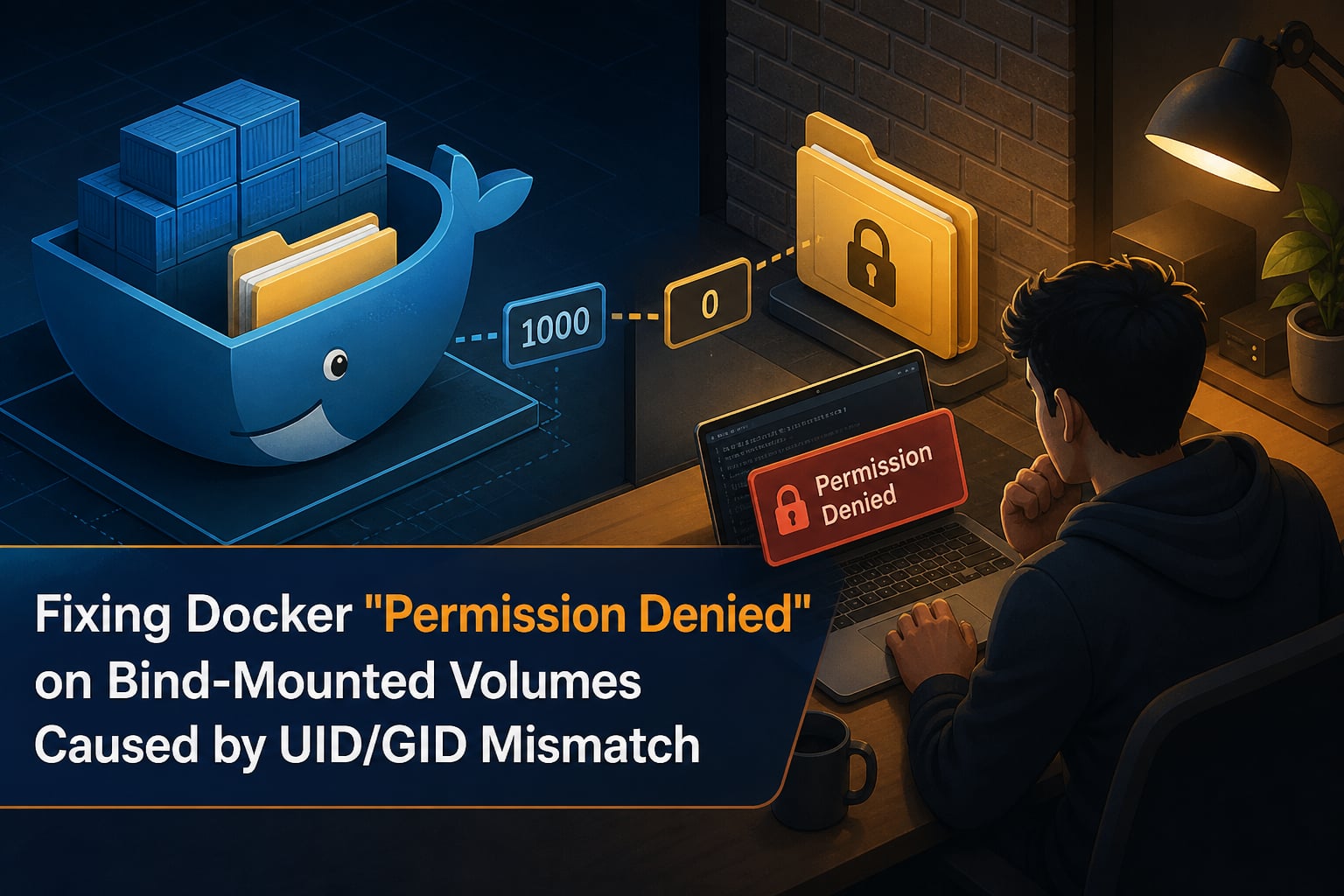
It’s 3 AM. Your deploy script just failed for the third time. The error log screams Permission denied when your container tries to write to a bind-mounted volume. You tested everything on your Mac yesterday – it worked perfectly. Now production is down, your phone is buzzing, and someone in Slack is suggesting chmod 777 as a “temporary fix.”
I have been in that exact seat more times than I want to admit. The culprit is almost always the same: a UID/GID mismatch between your host user and the container process. Linux does not care about usernames – it cares about numeric IDs. When your container writes files as root (UID 0) but your host user is UID 1000, the host kernel denies access because the numeric owner simply does not match.
This guide is the one I wish I had years ago. We will walk through how to diagnose the exact source of the permission denied error in under a minute, then apply the right fix for your specific scenario – whether that is local development, a CI/CD pipeline, a Kubernetes pod, or a production database. By the end you will have a decision tree you can use for any Docker permission denied bind mount UID/GID mismatch fix scenario in 2026 and beyond.
Table of Contents
Frequently Asked Questions
What is the fastest way to fix a Docker permission denied error on a bind mount?
Run docker exec -u 0 your-container id to see who the container runs as, then ls -ln on the host directory to see who owns the files. If the UIDs do not match, either pass u002du002duser u00221000:1000u0022 to docker run, add a USER directive in your Dockerfile, or remount with a named volume. The fastest fix is usually the u002du002duser flag matched to your host UID.
Quick Answer: How to Fix Docker Permission Denied on Bind Mounts
Docker bind mount permission denied errors are caused by a UID/GID mismatch between the host user (who owns the directory) and the container process (which runs as root by default with UID 0). Linux checks numeric IDs, not usernames, so a container running as root cannot read or write a directory owned by UID 1000 on the host.
Here is the fastest fix path in order of effort:
Pass
--user "$(id -u):$(id -g)"todocker runoruser: "${UID}:${GID}"in docker-compose.yml.Add a
USERdirective in your Dockerfile that matches the host UID using a build argument.Switch from a bind mount to a named volume so Docker manages ownership for you.
Add SELinux labels with
:z(shared) or:Z(private) on RHEL, Fedora, and CentOS hosts.Enable user namespace remapping (
userns-remap) for system-wide isolation.Switch to rootless Docker for maximum security with no privileged daemon.
Each of these is explained in detail below with copy-pasteable examples.
Root Cause: Why UID/GID Mismatch Happens
Linux permission checks have nothing to do with names. The kernel stores three numbers for every file: the owner UID, the group GID, and a permission bitmask. When you run ls -l and see drwxr-xr-x 12 alice alice 4096 Aug 8 10:24 data, the string alice is just a friendly lookup – the actual check uses UID 1000.
Docker containers have their own user namespace unless you remap it. Inside the container, the default user is root with UID 0. On the host, your normal user is usually UID 1000 (the first non-system account on Debian, Ubuntu, and macOS-via-Linux). When the container writes a file to a bind mount, the file is stored on the host filesystem with UID 0 – which the host user with UID 1000 cannot modify.
This is also why the same compose file behaves differently on macOS, Windows, and Linux:
On Linux, bind mounts pass through directly to the host filesystem, exposing the UID mismatch immediately.
On macOS and Windows, Docker Desktop runs containers inside a hidden Linux VM. The VM acts as a translation layer, and Docker Desktop automatically syncs file ownership using its gRPC-FUSE or VirtioFS filesystem. That is why your local dev “just works” but production fails on a Linux server.
The same dynamic explains database images. The official postgres image runs as UID 999 inside the container. If you bind-mount ./pgdata on a Linux host and that directory is owned by UID 1000, Postgres will refuse to start because it cannot write to its data directory.
Diagnose in 60 Seconds: 3 Commands That Pinpoint the Problem
Before you reach for any fix, run these three commands. They will tell you exactly where the mismatch lives, saving you from trial and error.
Command 1: Check the Real Owner of the Host Directory
On your Linux host, run ls -ln /path/to/bind/mount. The -n flag forces numeric IDs instead of names. You will see something like drwxr-xr-x 3 1000 1000 4096 Aug 8 10:24 data. The first number, 1000, is the UID. The second, 1000, is the GID. These are the IDs that need to match inside the container.
If you also see SELinux context labels (a long string after the permissions), include -Z as well: ls -lnZ /path/to/bind/mount. An SELinux denial will show the context but no permission bits – that is your second clue.
Command 2: Check the Actual Identity of the Container Process
Run docker exec your-container id. The output shows uid=0(root) gid=0(root) groups=0(root) by default. That UID 0 inside the container is the one that owns any files it writes to the bind mount. Compare it with the UID from Command 1.
If the container needs a TTY, use docker exec -it your-container sh and run id interactively. For docker-compose services, the equivalent is docker compose exec web id.
Command 3: Check the Mount Configuration
Run docker inspect --format '{{json .Mounts}}' your-container | python3 -m json.tool. Look for three flags that often cause silent failures:
"ReadOnly": trueon a mount means the container cannot write even if it owns the files."Type": "bind"with no SELinux option can cause denials on RHEL-family hosts."Source"pointing at a path the container user cannot traverse on the host will trigger EACCES.
One minute of diagnosis saves hours of guesswork. Write these three commands into a shell snippet you can reuse.
Solution 1: Pass –user at Runtime (Fastest Fix)
The quickest docker permission denied bind mount UID/GID mismatch fix is to override the container user at start time. Docker accepts either a username or a numeric UID/GID pair.
For docker run, grab your host UID and GID and pass them directly:
docker run -d
  --name myapp
  -u "$(id -u):$(id -g)"
  -v "$PWD/data:/app/data"
  myapp:latest
The shell substitution $(id -u):$(id -g) reads your current host UID and GID, so the container process runs with the same numeric identity as your shell. Files written by the container are owned by you on the host.
For docker-compose, set the user at the service level and feed it from a .env file so different developers with different UIDs can share the same compose file:
# .env
UID=1000
GID=1000

# docker-compose.yml
services:
  web:
    image: myapp:latest
    user: "${UID}:${GID}"
    volumes:
      - ./data:/app/data
This is portable across Mac, Windows, and Linux. It is also the safest fix for database images – Postgres, MySQL, and Mongo all check ownership of their data directory and refuse to start if it is wrong. Passing user: "999:999" aligns the container user with the database’s expected UID.
Solution 2: Create a Matching User in the Dockerfile
If you build the image yourself, bake the user in with a build argument and a USER directive. This makes the image portable across machines with different host UIDs without needing the runtime flag.
# Dockerfile
FROM node:20-alpine

ARG UID=1000
ARG GID=1000

RUN addgroup -g ${GID} appgroup
 && adduser -u ${UID} -G appgroup -D appuser

WORKDIR /app
COPY --chown=appuser:appgroup . .

USER appuser
CMD ["node", "server.js"]
Build with docker build --build-arg UID=$(id -u) --build-arg GID=$(id -g) -t myapp .. On Debian-based images, swap addgroup/adduser for groupadd/useradd:
RUN groupadd -g ${GID} appgroup
 && useradd -u ${UID} -g appgroup -m appuser
For files you copy in, use COPY --chown=appuser:appgroup so the artifacts are owned by the unprivileged user from the start. Combine this with the --user flag as a defensive fallback: if the image is started without a USER override, it still defaults to the right identity.
Solution 3: Use Named Volumes for Data Directories
Named volumes shift ownership management from you to Docker. When you mount a named volume, Docker creates the volume under its storage driver and copies the UID/GID from the image’s last USER directive into the volume on first use.
For local-only data (cache, build artifacts, database storage), prefer named volumes over bind mounts:
services:
  db:
    image: postgres:16-alpine
    volumes:
      - pgdata:/var/lib/postgresql/data

volumes:
  pgdata:
You lose the ability to inspect files directly on the host (you have to use docker volume inspect pgdata and docker run --rm -v pgdata:/data alpine ls -la /data), but you gain correct ownership with zero configuration. This is the recommended pattern for any data you do not need to edit from your editor.
Many teams use a hybrid approach: named volumes for databases, caches, and node_modules, plus bind mounts for source code that requires live reload. That is exactly what production stacks like Nextcloud, Ghost, and Laravel Sail do by default.
Solution 4: Use an Entrypoint Script with gosu
Some applications need to start as root to perform initialization (writing config files, fixing permissions, binding to low ports) and then drop privileges to run as the application user. Running the whole container as root is risky; running it all as the app user breaks init. The pattern that solves this is a small entrypoint script that uses gosu to step down.
#!/bin/sh
set -e

# Fix ownership of the data directory on every start
chown -R appuser:appgroup /app/data

# Drop privileges and run the application
exec gosu appuser "$@"
The Dockerfile wires it up:
COPY entrypoint.sh /usr/local/bin/entrypoint.sh
RUN chmod +x /usr/local/bin/entrypoint.sh
ENTRYPOINT ["/usr/local/bin/entrypoint.sh"]
CMD ["node", "server.js"]
gosu is preferred over su because it does not fork a TTY and forwards signals cleanly – your app receives SIGTERM directly and shuts down gracefully. The LinuxServer.io community uses this exact pattern with PUID and PGID environment variables, which is why their images “just work” across different host UIDs.
Solution 5: SELinux :z and :Z Flags
On RHEL, Fedora, CentOS Stream, Rocky, and AlmaLinux hosts, SELinux silently blocks container access to bind-mounted directories even when the UID/GID matches. The kernel returns EACCES but the error message looks like a generic permission failure. Run getenforce to confirm – if it returns Enforcing, SELinux is active.
Docker provides two suffix flags on bind mounts:
:zapplies a shared SELinux content label. Multiple containers can read and write the volume. Use this when several pods or services share a directory.:Zapplies a private label tied to that specific container. It is more restrictive but ideal for single-container volumes.
Append the flag to the mount source:
docker run -v /host/data:/app/data:z myapp:latest
docker run -v /host/data:/app/data:Z myapp:latest

# docker-compose
services:
  web:
    volumes:
      - /host/data:/app/data:z
If you do not see the flag at all, SELinux is not your problem and you can move on. For non-RHEL hosts, AppArmor (Ubuntu’s default MAC system) plays a similar role but does not require a special flag – if you are on Ubuntu and still see denials, check journalctl -k | grep DENIED for AppArmor audit messages.
Anti-Pattern: Why chmod 777 Is the Wrong Fix
Every senior engineer I know has typed chmod 777 at least once when they were tired and under pressure. I am not going to pretend I never have. But for the record, here is why it is the wrong answer for production:
It grants write access to every user on the host, including system services. A compromised process in any container can now rewrite files in your bind mount.
It does not survive cleanups. The next
docker volume prune, the nextgit clean, or the next CI job will reset the permissions and the cycle restarts.It hides the real problem. You stop investigating the UID/GID mismatch and the issue resurfaces later in a different environment where 777 is no longer enough (think NFS with root_squash).
Many shared hosts and security scanners flag 777 directories as a compliance violation.
Use the --user flag, the Dockerfile USER directive, or a named volume instead. If you genuinely need a one-time permission reset on a host directory, chown -R 1000:1000 ./data to your UID is safer than 777.
Solution 6: User Namespace Remapping (userns-remap)
For enterprise and multi-tenant environments, Docker can remap the entire UID range so that container root (UID 0) maps to a high-numbered unprivileged user on the host. Configure it in /etc/docker/daemon.json:
{
  "userns-remap": "default"
}
Restart Docker with sudo systemctl restart docker. From now on, container root maps to 165536 (or whatever UID Docker allocates) on the host. Even if an attacker breaks out of the container, they land as a non-root user with no host privileges.
Be aware: userns-remap is global. All containers on the host share the same remapping. Pre-existing bind mounts with files owned by UID 0 will become inaccessible – back them up first. Also, some volume drivers (particularly older NFS drivers) and tools like docker exec may show mapped IDs that surprise you.
Solution 7: Rootless Docker for Maximum Isolation
Rootless Docker takes userns-remap one step further: the Docker daemon itself runs without root. No privileged daemon socket, no host-level escalation, no chance of a container escape gaining root.
Install it with the official dockerd-rootless-setuptool.sh script. After setup, your normal user can run docker commands without sudo. The trade-offs:
No bind mounts of host paths owned by root – bind mounts work, but root-owned paths become read-only for the unprivileged user.
Some kernel features (like
CAP_NET_ADMIN) are not available.Compatible with most standard images; a few that hardcode privileged operations may need adjustments.
Rootless mode is now the default recommendation for CI runners on shared infrastructure, edge devices, and any system where the daemon should not run as root.
Cross-Platform Differences: Linux, macOS, and Windows
The same compose file behaves differently on each host operating system because Docker Desktop hides a Linux VM:
Linux: Bind mounts pass through directly to the host kernel. UID/GID mismatches surface immediately. SELinux and AppArmor add extra checks.
macOS: Docker Desktop uses VirtioFS or gRPC-FUSE to share files between macOS and the Linux VM. It transparently remaps file ownership, so UID 0 in the container appears as your macOS user on the host. Permissions feel “magical” but you still need to set the user correctly when files end up in a Linux production server.
Windows: Docker Desktop uses the same VM-based approach as macOS. Files shared into the WSL2 backend get similar magic remapping. The catch: Windows file paths with backslashes, drive letters, and NTFS ACLs do not map cleanly to POSIX permissions – symlinks and hard links often break.
Practical guidance for teams: never rely on Mac/Windows “magic.” Test the docker-compose stack on a real Linux VM or container before promoting to production. The Linux VM costs nothing in CI and catches 90% of cross-platform bugs.
Kubernetes: securityContext, fsGroup, runAsUser
In Kubernetes, bind mounts become persistent volume claims, but the same UID/GID mismatch applies. The fix lives in the pod spec:
apiVersion: v1
kind: Pod
metadata:
  name: myapp
spec:
  securityContext:
    runAsUser: 1000
    runAsGroup: 1000
    fsGroup: 1000
  containers:
    - name: myapp
      image: myapp:latest
      volumeMounts:
        - name: data
          mountPath: /app/data
  volumes:
    - name: data
      persistentVolumeClaim:
        claimName: myapp-pvc
Three fields matter most:
runAsUser: sets the UID for all processes in the container.runAsGroup: sets the primary GID.fsGroup: ensures the mounted volume is owned by this GID and the kubelet fixes permissions on first mount.
For databases in StatefulSets, set fsGroup to the database image’s UID (Postgres uses 999, MySQL uses 999, Mongo uses 999) and you avoid the “PVC mount failed” cycle that hits many teams the first time they deploy.
Quick Decision Tree: Which Solution Fits Your Case
Use this text-based flowchart to pick the right fix in seconds:
Are you on a local Mac or Windows developer machine and just want to ship code? Start with Solution 1 (
--userflag) and add a.envfile with UID/GID.Is the bind mount for source code that needs live reload? Use Solution 1 plus a bind mount, never a named volume.
Is the bind mount for a database data directory? Use Solution 3 (named volume) whenever possible. If you must bind-mount, use Solution 1 with the database’s UID (999 for Postgres/MySQL/Mongo).
Are you on RHEL, Fedora, or CentOS and still seeing EACCES even with matching UIDs? Add Solution 5 (SELinux
:zor:Zflag).Are you shipping an image to other developers with different host UIDs? Use Solution 2 (Dockerfile
USERwithARG UID) plus Solution 4 (gosuentrypoint) so the image works without a runtime flag.Are you running shared CI runners or production clusters? Use Solution 6 (
userns-remap) or Solution 7 (rootless Docker) for isolation.Are you deploying to Kubernetes? Use the
securityContextblock from the Kubernetes section above.
Docker v25.1 and Later: What Changed
Docker v25.1 (released in 2026) tightened how the daemon handles empty bind mounts. Historically, an empty host directory mounted into a container would let the container set initial ownership. After v25.1, the daemon pre-checks the host UID and refuses to remap root ownership of pre-existing files. Several long-working compose files broke after upgrade because their docker-entrypoint.sh scripts could no longer chown on first boot.
Workarounds: either pre-create files on the host with the right UID, or pass --user on first run so the entrypoint runs as a non-root user with permission to chown. Stack Overflow threads from September 2026 confirm this is now the most common regression after a Docker upgrade.
Common Edge Cases Worth Knowing
Three permission denied scenarios that catch even experienced teams:
First write on empty volume: Some volume drivers fail to set ownership until the first successful write. The fix is to
touch ./data/.placeholderfrom the host with your UID before starting the container.NFS root_squash: On NFS mounts with
root_squashenabled, root from the container maps tonobodyon the host. Either disable root_squash (if you control the NFS server) or use a non-root container user.Docker-in-Docker (DinD): Nested Docker inherits the outer daemon’s UID remapping. If your CI runs DinD inside a Kubernetes pod, the inner containers map to yet another shifted UID. Always run nested containers as non-root and prefer Kaniko or Buildah for builds when possible.
Frequently Asked Questions
Why does Docker say permission denied when the container runs as root?
Linux checks numeric UIDs, not names. Inside a container, root is UID 0 by default. On the host, your user is usually UID 1000. When the container writes files via a bind mount, the host sees them as owned by UID 0, and your host user (UID 1000) cannot read or modify them. The container user is root in its own namespace but a different numeric identity on the host.
How do I diagnose Docker bind mount permission issues in 60 seconds?
Run three commands: (1) ls -ln on the host directory to see the numeric UID/GID owner. (2) docker exec your-container id to see what UID the container process runs as. (3) docker inspect u002du002dformat ‘{{json .Mounts}}’ your-container to confirm ReadOnly is false and the mount source exists. If the UIDs do not match, that is your permission denied error.
Why does chmod 777 not solve Docker permission problems permanently?
chmod 777 grants write access to every user on the host, which is a serious security risk and often violates compliance. It does not survive git clean, docker volume prune, or CI job resets, so the permission denied error returns. Use the u002du002duser flag, a Dockerfile USER directive, or a named volume instead.
How do I fix permissions in docker-compose for a team with different UIDs?
Add UID and GID to a .env file at the project root, then reference them in docker-compose.yml with user: ${UID}:${GID} under each service. Each developer sets their own UID/GID locally, so the same compose file works across machines without code changes.
What is the difference between :z and :Z in Docker SELinux flags?
:z applies a shared SELinux content label so multiple containers can read and write the same bind mount. :Z applies a private label tied to a single container. Use :z for shared volumes like static assets; use :Z for single-owner volumes like database data directories on RHEL-family hosts.
Why do Docker permissions work on Mac but fail on Linux?
Docker Desktop on macOS and Windows runs containers inside a hidden Linux VM and uses VirtioFS or gRPC-FUSE to share files. The VM automatically remaps ownership between macOS/Windows and the container, hiding UID mismatches. On Linux, bind mounts pass through directly to the host kernel, so UID/GID mismatches surface immediately.
What is user namespace remapping in Docker?
userns-remap is a Docker daemon setting that maps container UIDs to a different range on the host. Container root (UID 0) becomes a high-numbered unprivileged user on the host, so a container escape cannot gain root privileges. Enable it in /etc/docker/daemon.json with userns-remap: default and restart the daemon.
How do I fix Docker volume permissions in Kubernetes?
Set securityContext.runAsUser, runAsGroup, and fsGroup in the pod spec to the UID/GID your application expects. fsGroup makes the kubelet fix ownership of the mounted volume on first mount, which solves most EACCES errors on persistent volume claims.
When should I use a named volume instead of a bind mount?
Use a named volume for data you do not need to edit from your host editor: database storage, node_modules, build caches, and application state. Use a bind mount when you need live reload from your editor or want to inspect files directly on the host filesystem.
Why does my Postgres container fail to start with a bind-mounted data directory?
The official Postgres image runs as UID 999 and refuses to start if its data directory is not owned by that UID. On Linux hosts, your user usually owns ./pgdata, so Postgres sees a permission mismatch. Either chown 999:999 ./pgdata on the host, pass user: 999:999 in docker-compose, or switch to a named volume.
Conclusion: The Real Fix for Docker Permission Denied
Most Docker “permission denied” errors on bind-mounted volumes come down to one thing: a numeric UID/GID mismatch between your host user and the container process. Diagnose first with the three-command checklist (ls -ln, docker exec id, docker inspect Mounts), then pick the solution that matches your scenario. For most local development setups the --user flag plus a .env file is enough. For production databases, switch to named volumes. For multi-tenant clusters, enable userns-remap or rootless Docker. Whatever you do, skip the chmod 777 reflex and fix the actual identity mismatch.
Save the decision tree above and the next time your phone buzzes at 3 AM, you will have the answer in under five minutes.