
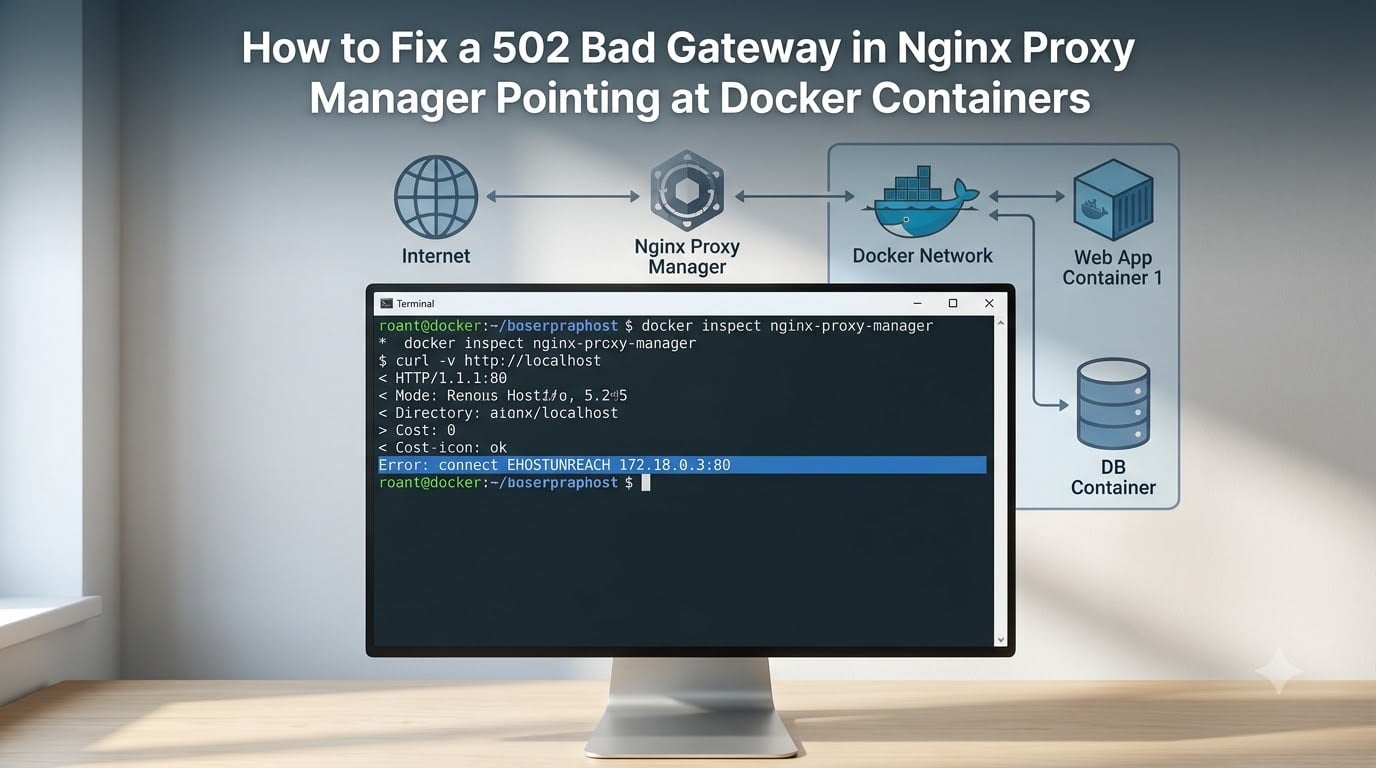
I have spent more weekends than I want to count staring at a 502 Bad Gateway page served by Nginx Proxy Manager. Most of those hours came down to one of five repeatable causes, and almost every fix was a one-line change I could have applied in five minutes if I had known where to look. This guide is the playbook I wish I had on day one: how to diagnose a 502 Bad Gateway in Nginx Proxy Manager pointing at Docker containers, what each error log line actually means, and how to keep it from coming back.
A 502 in this stack means the OpenResty instance bundled with NPM could not get a valid HTTP response from the upstream container you told it to forward to. It is not a bug in NPM. It is NPM telling you, very politely, that the network path or the backend it depends on is broken.
Table of Contents
How a 502 Bad Gateway Works in Nginx Proxy Manager?
Nginx Proxy Manager is built on OpenResty, which is Nginx plus Lua hooks and a SQLite database that stores your proxy host definitions, SSL certificates, and access lists. When a request hits your domain, NPM looks up the matching proxy host, then opens a TCP connection to the configured forward hostname and port.
A 502 Bad Gateway fires when that connection either fails to establish or returns an invalid HTTP response. The most common upstream triggers are connection refused (no process listening), no route to host (different Docker network), upstream timed out (slow or hung application), and 502 received from upstream (the backend itself returned 502, often because PHP-FPM or a database is unhealthy).
502 is different from 504. A 504 Gateway Timeout means NPM connected to the upstream, sent the request, and waited longer than the configured timeout for a response. A 502 means NPM never got a clean answer at all. When the symptom is “site loads for 30 seconds then fails,” you are looking at 504. When it is “instant error page, nothing loads,” you are looking at 502.
503 Service Unavailable is a sibling. It usually appears when NPM itself cannot read its SQLite database, often after a bad upgrade or a crashed disk. We will cover that specific failure mode in the database corruption section.
Error-to-Fix Reference Table
Before you start running commands, map the symptom you see to the most likely cause. This table is the shortcut I use to skip straight to the right fix when I already have a log line in front of me.
connect() failed (111: Connection refused) while connecting to upstream: The container is reachable on the network, but nothing is listening on the target port. Almost always a wrong port or a crashed backend.
connect() failed (113: No route to host) while connecting to upstream: NPM and the backend are on different Docker networks. The network is the fix.
upstream timed out (110: Connection timed out): NPM reached the IP but the application did not respond in time. Check the backend’s health and increase proxy_read_timeout.
no live upstreams while connecting to upstream: An upstream block lost all peers. Backend is down, health checks failed, or the container name no longer exists.
502 Bad Gateway shown only in NPM admin UI: NPM’s own database or its internal OpenResty is broken. Try the database rebuild procedure.
Works for 60 seconds after docker compose up then breaks: Backend container crashed because a dependency (DB, volume) was not ready. Add depends_on conditions and healthchecks.
Quick Diagnosis: Identify Timeout vs DNS vs Connection Refused
Run these five checks in order. Each one isolates a layer of the stack so you can stop guessing and start fixing. I run this same sequence every single time, regardless of which backend is involved.
Step 1: Confirm the container is running
Open a shell on the Docker host and run docker ps. Find the backend by name or image. If it is not listed, the fix is to start it. If it shows Restarting in the status column, the application inside is dying on launch and you need docker logs <name> to see why.
Step 2: Confirm the container is ready, not just running
Running and ready are not the same thing. A container can be “Up” for ten seconds while its app is still importing models or warming caches. Use docker inspect --format '{{.State.Health.Status}}' <name> if a healthcheck is defined, or hit the port directly with docker exec <name> curl -fsS http://127.0.0.1:<port>/.
Step 3: Test DNS resolution from inside the NPM container
Run docker exec nginx-proxy-manager getent hosts <backend-name>. If you get an IP address, DNS works. If you get nothing or “no address associated with hostname,” your two containers are not on the same user-defined network and Docker’s embedded DNS cannot see the backend.
Step 4: Test TCP connectivity from inside NPM
Run docker exec nginx-proxy-manager nc -zv <backend-name> <port> or curl -v http://<backend-name>:<port>/. Success means the network, DNS, and port are all correct and the bug is elsewhere. Connection refused means a port or process issue. No route to host means a network issue.
Step 5: Check the OpenResty error log
Run docker exec nginx-proxy-manager cat /data/logs/fallback_error.log or /var/log/nginx/error.log. The exact error string tells you which fix to apply, and the table above maps the common ones.
Fix 1: Docker Network Isolation Between NPM and Backend
This is the single most common 502 cause in the wild. By default, Docker Compose puts each container on its own private network, and containers can only reach each other by name if they share a network. If your docker-compose.yml declares a networks: block per service, NPM and your backend are on different bridges and DNS resolution between them silently fails.
Option A: Share an explicit network
The cleanest fix. Define a network in your Compose file and attach both services to it.
networks:
  proxy:
    name: proxy

services:
  nginx-proxy-manager:
    image: jc21/nginx-proxy-manager:latest
    networks:
      - proxy
      - default

  my-app:
    image: my-app:latest
    networks:
      - proxy
Now set the proxy host’s forward hostname to my-app (the service name) and the forward port to the container’s internal port. Both containers resolve each other through Docker’s embedded DNS at 127.0.0.11.
Option B: Attach an existing container to the network
If your backend is already running, attach it to NPM’s network without restarting it.
docker network connect proxy my-app
docker network inspect proxy
The network inspect command confirms both containers now appear under Containers. No restart required.
Option C: Use host networking
Host networking removes the Docker network abstraction entirely. The container shares the host’s network namespace, so you point proxy_pass to 127.0.0.1 or host.docker.internal. It works, but you lose port isolation and Docker DNS, which is why I avoid it unless the application genuinely needs raw socket access.
Warning: host.docker.internal works out of the box on Docker Desktop for Windows and macOS, but on Linux you must add it manually with extra_hosts: ["host.docker.internal:host-gateway"] or use the host’s bridge IP like 172.17.0.1.
Fix 2: Wrong Forward Hostname or IP
NPM’s “Forward Hostname / IP” field must be reachable from inside the NPM container, not from your laptop. The four common values resolve like this.
localhost or 127.0.0.1 points to the NPM container itself. Use this only if your backend is also running inside the NPM container, which is rare. In every other case, localhost will return the NPM admin UI or fail outright.
The Docker service name (for example, my-app) is the right answer when both containers share a user-defined network. Docker’s embedded DNS at 127.0.0.11 resolves service names to container IPs automatically.
The host machine’s IP (for example, 172.17.0.1 on Linux bridge or the host’s LAN IP) is correct when the backend is running directly on the host, not in a container. Combined with the host’s published port, this is the standard pattern when the backend predates your Docker setup.
host.docker.internal is the Docker Desktop shorthand for the host machine. It needs extra_hosts on Linux.
Quick test: from inside NPM, run docker exec nginx-proxy-manager getent hosts <what-you-entered>. If you get an IP, that hostname is correct. If not, switch it.
Fix 3: Backend Container Down or Crash-Looping
Even with perfect networking, NPM returns 502 if the backend is not accepting connections. The container being “Up” in docker ps only means the process inside has not exited. The application itself can still be in the middle of startup, stuck on a missing volume, or panicking on every request.
Use docker logs to find the failure
Run docker logs --tail 200 my-app and look for stack traces, missing environment variables, failed database migrations, or “address already in use” errors. Most crash loops surface here within seconds.
Add a healthcheck that actually verifies the app
A useful healthcheck hits an endpoint that returns 200 only when the app is ready to serve traffic.
healthcheck:
  test: ["CMD", "curl", "-fsS", "http://127.0.0.1:8080/health"]
  interval: 10s
  timeout: 3s
  retries: 5
  start_period: 30s
Combined with depends_on using the long syntax, you can make NPM wait until the backend reports healthy before it ever accepts traffic.
depends_on:
  my-app:
    condition: service_healthy
Set a real restart policy
restart: unless-stopped is the minimum for any production container. For stateless apps, restart: always is fine. For stateful services that depend on external volumes, pair this with a healthcheck so Docker knows when to give up restarting.
Fix 4: Port Mismatch in Proxy Host
The most expensive confusion in self-hosting is mixing up the host port and the container’s internal port. Compose lets you publish 8080:80, which means port 80 inside the container is reachable on port 8080 from the host. NPM, running in a different container, has to use the internal port, not the published one.
If your backend listens on port 80 inside the container and you publish it as 8080 to the host, NPM’s forward port must be 80, not 8080. The 8080 is for humans on the host. The 80 is for the network inside Docker.
To confirm which port the app is actually listening on, run docker inspect --format '{{json .Config.ExposedPorts}}' my-app and cross-check with docker inspect --format '{{json .NetworkSettings.Ports}}' my-app. The first shows what the image declares. The second shows what is actually mapped. If you see no entry, the container was started without -p or ports:, and you cannot reach it from outside its own network.
A common stack trace from this mistake looks like connect() failed (111: Connection refused) while connecting to upstream. That error means NPM reached the right container on the right network, but the port was empty. Fix the forward port and reload.
Fix 5: NPM Database Corruption After Upgrade
This is the one only NPM users hit. NPM stores proxy hosts, certificates, and access lists in a SQLite database inside its data volume. Jumping across major versions, killing the container mid-write, or running out of disk can leave that database in an inconsistent state. Symptoms include 502s on the admin UI itself, blank proxy host lists, and 502s that persist even after the backend is verified working.
Step 1: Back up before you touch anything
docker stop nginx-proxy-manager
cp -a /var/lib/docker/volumes/nginx-proxy-manager_data/_data
      /backup/npm-data-$(date +%F)
Adjust the volume path if your bind mount points elsewhere. The point is that you can roll back.
Step 2: Inspect the SQLite database
docker run --rm -it
  -v nginx-proxy-manager_data:/data
  alpine sh -c "apk add sqlite && sqlite3 /data/database.sqlite 'PRAGMA integrity_check;'"
If integrity_check returns anything other than ok, the database is corrupted.
Step 3: Rebuild if necessary
The pragmatic recovery is to drop the corrupted database and let NPM recreate the schema on the next start. You will lose your proxy hosts and SSL cert metadata, but NPM will start cleanly.
docker run --rm -v nginx-proxy-manager_data:/data alpine
  sh -c "rm -f /data/database.sqlite /data/database.sqlite-journal /data/database.sqlite-shm /data/database.sqlite-wal"
docker start nginx-proxy-manager
Re-add your proxy hosts and re-issue certificates. From here forward, upgrade NPM one minor version at a time and always back up the data volume first.
Log Analysis: Reading NPM and Container Logs
Logs are how you turn a 502 from a mystery into a sentence. NPM writes two streams worth reading. The proxy host error log lives at /data/logs/proxy-host-<id>_error.log inside the container, and the global fallback log lives at /data/logs/fallback_error.log. Tail them with docker exec nginx-proxy-manager tail -f /data/logs/fallback_error.log while you reproduce the error.
Each line tells you which layer failed. connect() failed (111: Connection refused) means the IP is reachable but no process is listening. connect() failed (113: No route to host) means Docker networking never let the packet through. upstream timed out means the app accepted the connection but never wrote a response. peer closed connection in SSL handshake usually means the backend uses self-signed certs and NPM has SSL enabled in the proxy host without the right CA.
Pair NPM logs with docker logs --since 5m my-app so you can correlate a 502 in the proxy with an exception in the backend. When the timestamps line up, the cause is in the backend. When they do not, the cause is in NPM or the network.
Production Hardening: Prevent Future 502s
Most 502s are preventable. After you have a working stack, layer in these guarantees so the next container restart does not page you at 2am.
Declare a shared user-defined network for NPM and every backend that should be reachable. Avoid the default bridge for inter-service traffic.
Forward by service name, never by localhost, when both containers are in Compose.
Add a healthcheck to every backend and use
depends_on: condition: service_healthyso dependents wait for green.Use
restart: unless-stoppedon every container, including NPM.Back up the NPM data volume before every upgrade, and upgrade one minor version at a time.
Increase
proxy_read_timeoutandproxy_connect_timeouton slow backends via a custom NPM config snippet, but only after confirming the app is healthy.Tail
fallback_error.login your monitoring stack. A rising 502 rate is the canary for a backend that is about to fall over.
Frequently Asked Questions
Why does Nginx Proxy Manager return 502 Bad Gateway?
NPM returns 502 Bad Gateway when the OpenResty instance it runs on cannot get a valid HTTP response from the upstream you configured. In Docker setups this almost always means the backend container is unreachable, on the wrong network, listening on a different port than you specified, or crashed.
How do I fix 502 Bad Gateway in Docker?
Start by confirming both containers share a user-defined network, then check that the forward hostname matches the backend’s service name and the forward port matches the container’s internal port. Run docker exec nginx-proxy-manager getent hosts u0026lt;backendu0026gt; to verify DNS, then nc -zv to verify the port. Finally tail /data/logs/fallback_error.log inside NPM for the exact upstream error.
What causes 502 Bad Gateway in Nginx?
The five recurring causes are Docker network isolation, wrong forward hostname or IP, the backend container being down or crash-looping, a port mismatch between what NPM forwards and what the app listens on, and NPM’s own SQLite database being corrupted after an upgrade.
How do I check if Nginx Proxy Manager can reach my Docker container?
Run docker exec nginx-proxy-manager getent hosts u0026lt;backend-nameu0026gt; to test DNS, then docker exec nginx-proxy-manager curl -v http://u0026lt;backend-nameu0026gt;:u0026lt;portu0026gt;/ to test the full request path. If DNS fails, the containers are on different networks. If curl fails with connection refused, the port is wrong.
What is the difference between 502 and 504 in Nginx?
A 502 Bad Gateway means NPM never received a valid response from the upstream, usually because the connection was refused or the upstream immediately returned an invalid reply. A 504 Gateway Timeout means NPM connected successfully, sent the request, and waited longer than proxy_read_timeout for a response.
Can a wrong port in Docker cause 502 Bad Gateway?
Yes, and it is one of the most common causes. NPM must use the container’s internal port, not the host-published port. If your compose file publishes 8080:80, the forward port in NPM is 80, not 8080. Using 8080 produces connect() failed (111: Connection refused) because NPM sees an empty port inside the container.
How do I prevent 502 Bad Gateway after upgrading Nginx Proxy Manager?
Always back up the NPM data volume before upgrading, then upgrade one minor version at a time. If the admin UI starts returning 502 after an upgrade, stop NPM, run sqlite3 PRAGMA integrity_check on /data/database.sqlite, and rebuild the database if it reports corruption.
Why does NPM admin UI return 502 but proxy hosts work fine?
When proxy hosts work and the admin UI returns 502, the issue is NPM’s own database or internal OpenResty, not your backend. Stop NPM, back up the data volume, run PRAGMA integrity_check on database.sqlite, and rebuild the database file if it is corrupted. Re-add your proxy hosts afterward.
Conclusion
Fixing a 502 Bad Gateway in Nginx Proxy Manager pointing at Docker containers is mostly about reading the right log line and applying the matching five-line fix. Most teams I work with resolve their outage within fifteen minutes once they stop guessing and start mapping the error to the table above.
If you only remember three things from this guide, make them these: share a user-defined Docker network between NPM and every backend, forward by service name on the container’s internal port, and back up the NPM data volume before every upgrade. Those three habits eliminate roughly nine out of every ten 502s you would otherwise hit in production.
Run through the diagnostic steps next time you see the error, and you will find the cause before your coffee gets cold.