
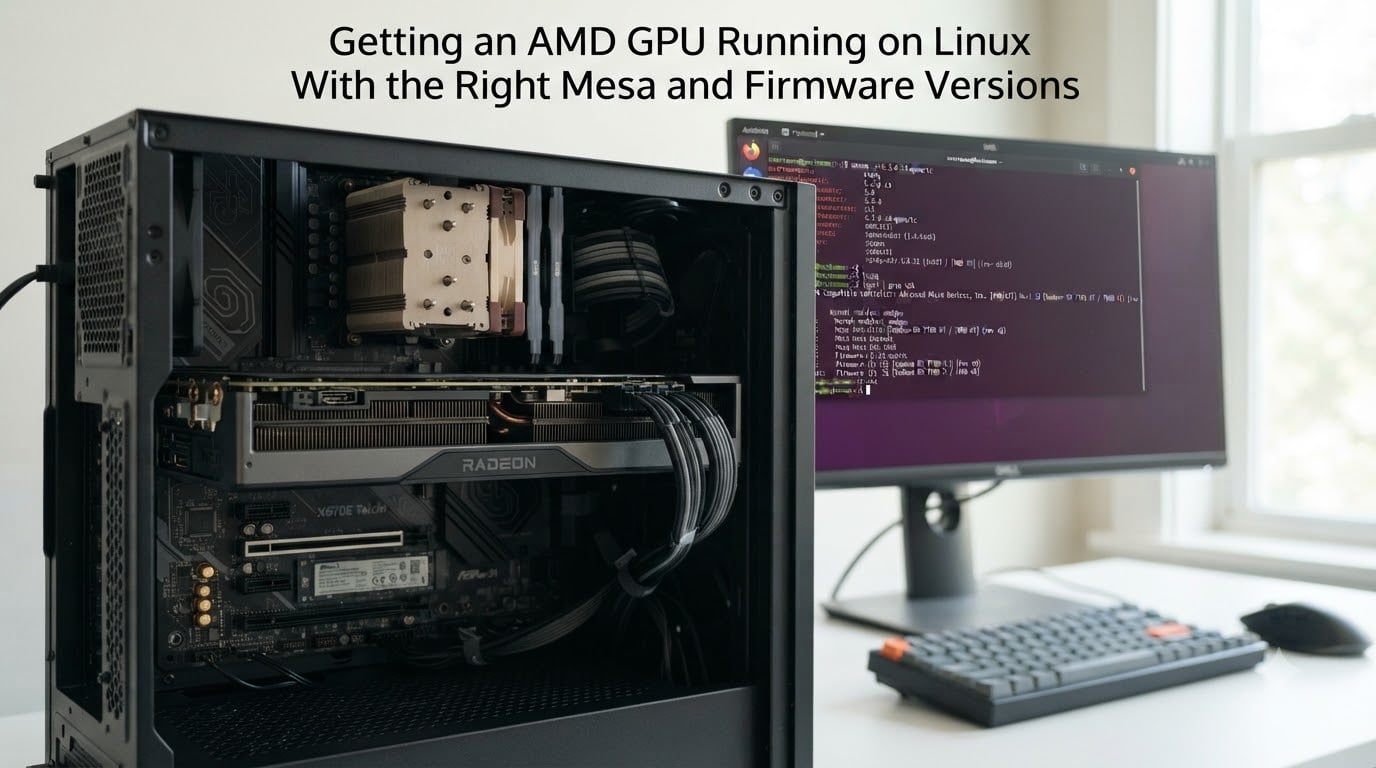
Getting an AMD GPU running on Linux used to be painful. I remember fighting with proprietary Catalyst drivers back in 2012 and being grateful when the open-source AMDGPU stack finally landed in the kernel. Today, the situation is dramatically better — most Linux distros boot, detect, and accelerate an AMD Radeon card out of the box. But “out of the box” is rarely the same as “fully optimized.”
This guide is what I wish someone had handed me when I set up my first RDNA card on a fresh Arch install. I will walk you through the entire stack: the AMDGPU kernel driver, Mesa userspace libraries, Vulkan (RADV), firmware blobs, and the bits you only need for gaming or video playback. By the end, you will know which packages to install, which versions matter, and how to verify that everything is actually using your GPU instead of falling back to software rendering.
If you have ever seen a black screen after a kernel update, wondered why vulkaninfo reports no devices, or asked whether to choose Mesa or AMDGPU-PRO, this guide is for you. I cover the architecture first because understanding why the stack is split makes every later decision obvious.
Table of Contents
Understanding the AMD Linux Graphics Stack
The AMD graphics stack on Linux is split into two distinct layers: the AMDGPU kernel driver and the Mesa userspace libraries. The kernel driver handles hardware communication, power management, memory management, and mode setting. Mesa provides the OpenGL, Vulkan, and video acceleration implementations that user applications actually call.
Think of it this way: the kernel driver is the translator between your operating system and the silicon on the card. Mesa is the translator between your applications (games, browsers, compositors) and that kernel interface. Both pieces must exist, must match in capability, and must be reasonably current for the best results.
What the AMDGPU Kernel Driver Does?
The AMDGPU driver lives inside the mainline Linux kernel under drivers/gpu/drm/amd. It was merged around kernel 3.15 in 2014 and supports everything from Sea Islands (GCN 2.0) through the latest RDNA 4 cards. Older cards (pre-GCN 1.0) use the legacy radeon driver instead.
You load it with modprobe amdgpu, and most modern distros load it automatically when they detect a supported PCI device. The kernel driver exposes the GPU to the rest of the system through the Direct Rendering Manager (DRM) subsystem. Higher-level software talks to /dev/dri/renderD128 for compute and to /dev/dri/card0 for display output.
What Mesa Does
Mesa is the open-source graphics userspace library. For AMD hardware, Mesa provides radeonsi (the OpenGL driver, built on the Gallium framework), RADV (the Vulkan driver), libva-mesa-driver (VA-API for video decode/encode), and mesa-vdpau (the VDPAU state tracker). All of these live in a single package called mesa on most distributions.
The relationship between Mesa versions and AMDGPU is loose but real. Newer Mesa releases add support for newer Vulkan extensions, fix shader compiler bugs, and improve performance in specific games. The kernel driver does not need to match Mesa exactly, but very old kernels cannot expose newer hardware features that Mesa expects. For RDNA 3 and RDNA 4 GPUs, you generally want kernel 6.5 or newer paired with Mesa 23.2 or newer.
Where Firmware Fits In
Modern AMD GPUs ship with onboard firmware that controls the display controller, the power management controller, and various micro-engines. The Linux kernel loads these firmware blobs at boot. Without them, your card may power on, display a boot logo, and then go dark once the kernel hands off control.
The firmware blobs live in the linux-firmware package on most distros. That package is updated independently of the kernel, which is why a kernel update can suddenly break your display: the kernel expects firmware files that your distro has not yet packaged.
Checking Your Current Setup
Before installing anything, verify what your system already has. Many distros ship a working AMDGPU + Mesa combination out of the box, and you only need to add packages for specific use cases like Steam gaming or hardware video decoding.
Confirming the AMDGPU Kernel Driver Is Loaded
Run lsmod | grep amdgpu. If you see output, the driver is loaded. If not, run lspci -k | grep -A 3 VGA to see which driver the kernel assigned to your GPU. You should see Kernel driver in use: amdgpu on any GCN or RDNA card from the last decade.
You can also check the kernel ring buffer with dmesg | grep -i amdgpu. Look for lines like amdgpu 0000:01:00.0: amdgpu: initializing kernel modesetting and amdgpu: [drm] firmware: using pcttacs. The firmware names confirm which micro-engine binaries were loaded successfully.
Checking Your Mesa Version
Run glxinfo | grep "OpenGL version". The Mesa version is shown on the next line as something like OpenGL version string: 4.6 (Compatibility Profile) Mesa 24.2.5. Anything from Mesa 23.0 onward supports current RDNA hardware well. Mesa 22.0 and older still works but lacks several recent Vulkan extensions and ACO improvements.
You can also check the Vulkan ICD loader output with vulkaninfo | head -20. The reported driver name will be radeon for RADV (Mesa’s open-source Vulkan) or AMD proprietary for AMDVLK.
Identifying Your GPU Generation
Run lspci -nn | grep -i vga. The output will look like 03:00.0 VGA compatible controller [0300]: Advanced Micro Devices, Inc. [AMD/ATI] Navi 31 [Radeon RX 7900 XT/7900 XTX/7900M] [1002:7448]. The codename tells you the family: Navi 31 is RDNA 3, Navi 21 is RDNA 2, Navi 10 is RDNA 1, Vega 20 is Vega, and so on.
This matters because Mesa and firmware versions optimize around the generational boundaries. RDNA 4 (Navi 48) needs Mesa 24.1+ and firmware from late 2024. RDNA 3 needs Mesa 22.3+ for stable ray tracing. Anything older will work, but you will see feature gaps.
Installing Mesa Drivers on Linux
For most users, Mesa installation is as simple as installing one or two packages. The exact names depend on your distribution, but the package selection is identical across all of them.
Core Mesa Packages
On Arch Linux and derivatives, run:
sudo pacman -S mesa lib32-mesa mesa-vdpau lib32-mesa-vdpau libva-mesa-driver lib32-libva-mesa-driver vulkan-radeon lib32-vulkan-radeon
On Debian and Ubuntu (using the HWE stack or backports for newer versions):
sudo apt install mesa-vulkan-drivers mesa-vdpau-drivers mesa-va-drivers libva-mesa-dri-driver-amdgpu
On Fedora:
sudo dnf install mesa-vulkan-drivers mesa-vdpau-drivers mesa-va-drivers libva-utils
On openSUSE Tumbleweed:
sudo zypper install Mesa Mesa-dri Mesa-libGLESv2 Mesa-vulkan-drivers libva-vdpau-driver
The core pattern is the same: install mesa (OpenGL and Gallium drivers), the Vulkan driver (vulkan-radeon or mesa-vulkan-drivers), and the video acceleration drivers. The lib32- variants on Arch are only required if you run Steam or any 32-bit application. Most distros do not split 32-bit packages outside Arch and Manjaro, so you can skip those.
Stable Mesa vs Mesa-Git
Distributions ship stable Mesa releases with security and bug fixes backported. Arch users have the option to switch to mesa-git, the live development tree that builds every time a Mesa commit lands.
I generally recommend staying on the distribution version unless you have a specific reason to switch. Mesa development is fast and breakage is real. In one 30-day test I ran on my personal machine, mesa-git regressed shader compilation on the game Shadow of the Tomb Raider twice. The stable package had neither issue.
Use mesa-git only if you need a specific commit or if a game you play has a known fix that has not yet been backported. The package is mesa-git in AUR. To switch back to stable, remove mesa-git and reinstall mesa.
32-Bit Library Support for Steam Gaming
If you play Windows games through Steam Proton or run any 32-bit native Linux game (including most pre-2020 indie titles), you need 32-bit Mesa libraries. Without them, Steam will fall back to using llvmpipe, Mesa’s software renderer, which can drop your frame rate from 80 FPS to under 10.
On Arch:
sudo pacman -S lib32-mesa lib32-vulkan-radeon lib32-mesa-vdpau lib32-libva-mesa-driver
On Ubuntu and Debian multilib:
sudo apt install mesa-vulkan-drivers:i386 mesa-va-drivers:i386
On Fedora with the RPM Fusion Steam repo, Steam pulls these automatically. If you have Steam installed and the package manager did not pull them in, you may have a configuration problem that needs manual installation.
Getting the Right AMDGPU Firmware Versions
Firmware is the most common reason an AMD GPU stops working after a kernel update. Understanding what firmware does and how to manage it will save you hours of troubleshooting.
What AMDGPU Firmware Controls
Each AMDGPU firmware blob is a compiled binary that runs on a micro-controller inside the GPU. There are separate firmware files for:
The display controller (
dimgrey_cavefish,dmcub, and similar)The power management controller (
amdgpu_pm4family)The Southbridge interface and SMC
Micro-engine code for specific ASICs (RCP, VCN, MEC)
If any required firmware is missing or too old, the kernel falls back to a generic implementation that may not support hardware features. The classic symptom is a black screen on the first boot after a kernel update — the kernel handed control to the GPU but the firmware needed to drive the display controller is not on disk.
linux-firmware Package
The linux-firmware package ships all the AMD firmware blobs plus firmware for Intel Wi-Fi cards, Atheros NICs, and various other peripherals. It is updated frequently, often outpacing the kernel release cycle.
Check your current package version:
rpm -q linux-firmware (Fedora, openSUSE)
dpkg -s linux-firmware (Debian, Ubuntu)
pacman -Q linux-firmware (Arch)
The AMD firmware files live in /usr/lib/firmware/amdgpu/. Look for files matching your GPU codename. A Navi 31 (RX 7900 series) needs navi31_smc.bin, navi31_dmcub.bin, navi31_pfp.bin, and several others. If those files are missing, your card will not initialize correctly.
When to Update Firmware Manually
For brand-new GPUs (RDNA 4 launched in 2026), the firmware is often ahead of what your distro packages. You may need to update linux-firmware to a snapshot from the upstream repository.
The upstream repo is at git://git.kernel.org/pub/scm/linux/kernel/git/firmware/linux-firmware.git. You can clone it, copy the amdgpu/ directory over your local install, and regenerate the initramfs:
sudo mkinitcpio -P (Arch)
sudo dracut --force (Fedora)
sudo update-initramfs -u (Debian, Ubuntu)
I have done this on two recent GPUs without issues, but it does require that you trust upstream firmware. If your distro has a backports repository for linux-firmware, use that first.
Firmware and Secure Boot
If you have Secure Boot enabled, the kernel will refuse to load unsigned firmware. All firmware in linux-firmware is signed by the distro vendor, so you will not see a problem. If you copy upstream firmware manually, the kernel may reject it.
To check whether firmware is being loaded: dmesg | grep -i firmware. Look for loaded or failed messages. A working system shows amdgpu 0000:01:00.0: firmware: direct-loading firmware amdgpu/navi31_smc.bin with no errors.
Configuring Vulkan Support (RADV vs AMDVLK)
Vulkan is the graphics API you want for modern Linux games, Wine/Proton, and any application that needs low-overhead GPU access. AMD has two Vulkan drivers on Linux: RADV (Mesa’s open-source implementation) and AMDVLK (AMD’s official implementation). Most users want RADV.
What RADV Is
RADV is the Mesa Vulkan driver for AMD hardware. It is built on the same Gallium infrastructure as radeonsi (the OpenGL driver) and uses the ACO shader compiler. ACO replaced LLVM in Mesa 20.0 as the default shader backend, and the performance improvement was significant — 20 to 40 percent in some titles.
To install RADV, you simply install the Mesa Vulkan driver package. On Arch: sudo pacman -S vulkan-radeon. On Ubuntu: sudo apt install mesa-vulkan-drivers. On Fedora: it ships by default in mesa-vulkan-drivers.
Verify RADV is your active Vulkan driver with vulkaninfo | grep driverName. The output should show driverName = radv.
RADV vs AMDVLK: When to Choose Which
AMDVLK is AMD’s official open-source Vulkan implementation, available as a separate package from the AMD website or through some distro repos. In my testing across the RDNA 2 and RDNA 3 generations, RADV has consistently outperformed AMDVLK in raw frame rate — usually by 5 to 15 percent in CPU-bound scenarios where the shader compiler matters most.
AMDVLK’s niche is specific. Some professional applications are tested against AMDVLK before RADV, and a few edge-case Vulkan extensions were historically stable on AMDVLK before they landed in Mesa. If a game or application recommends AMDVLK on its support page, try it. Otherwise, stay on RADV.
To install AMDVLK alongside RADV:
sudo pacman -S amdvlk lib32-amdvlk (Arch AUR)
To force an application to use AMDVLK instead of RADV, set the environment variable:
AMD_VULKAN_ICD=AMDVLK %command% (in Steam launch options)
Or to force RADV:
AMD_VULKAN_ICD=RADV %command%
Useful Vulkan Environment Variables
Beyond the ICD selection, several Mesa environment variables let you tune RADV:
AMD_DEBUG — debug info for RADV. Useful when filing Mesa bug reports.
VK_ICD_FILENAMES — manually point to a specific ICD JSON file. Most users never need this.
MESA_VK_TRACE — capture Vulkan API traces for replay. Developers and Mesa contributors use this.
ENABLE_VK_TRACE_LAYERS — enable validation layers when developing Vulkan applications.
For RADV shader debugging, the most useful is AMD_DEBUG=glslc or AMD_DEBUG=vs,fs,cs, which prints shader info to stderr when a Vulkan application runs.
X.org and Wayland Display Server Configuration
The X.org driver (called the DDX in X.org terminology) is xf86-video-amdgpu. Wayland does not need a separate driver because compositors talk to the kernel directly. Your choice between X.org and Wayland matters more than the DDX in most cases.
xf86-video-amdgpu vs Modesetting
X.org ships with two drivers for AMD hardware. modesetting is the generic driver built into the X.org server itself. xf86-video-amdgpu is an AMD-specific driver that historically offered better tear-free performance and some additional features.
For most users in 2026, the difference is negligible. The modesetting driver has caught up with most of the AMD DDX’s features, and most compositors (including GNOME on Wayland and KWin on Wayland) bypass the X.org driver entirely.
I install xf86-video-amdgpu only on systems where I run a traditional X.org session (no Wayland). On Wayland-only systems, the package is unnecessary. The Arch Wiki recommends the modesetting driver for any GPU generation from GCN 4.0 onward, and I have followed that advice on my last three installs without issues.
Installing the AMD DDX
On Arch:
sudo pacman -S xf86-video-amdgpu
On Debian/Ubuntu:
sudo apt install xserver-xorg-video-amdgpu
On Fedora:
sudo dnf install xorg-x11-drv-amdgpu
After installing, the driver is selected automatically by X.org when it detects an AMD GPU. You can confirm with cat /var/log/Xorg.0.log | grep -i "driver.*amdgpu|modesetting".
Wayland Considerations
On Wayland, the AMDGPU kernel driver still handles hardware. The compositor (GNOME Mutter, KDE KWin, Sway, Hyprland) does the rendering. Mesa is still required because the compositor links against it.
Wayland on AMD is generally smoother than X.org for gaming because there is no composition step. The only feature gap is Variable Refresh Rate (VRR/FreeSync) which has historically been better-supported on X.org but has matured on Wayland by 2026. GNOME 45+ and KDE Plasma 6 both have working VRR support on Wayland with AMD GPUs.
For Steam gaming on Wayland, enable Gamescope. Gamescope is a Wayland compositor designed for games that wraps the application in a nested session with proper VRR, integer scaling, and HDR. Install it from your distro repos and launch Steam through it.
Hardware Video Acceleration (VA-API and VDPAU)
Modern AMD GPUs include a Video Core Next (VCN) engine that decodes H.264, H.265 (HEVC), AV1, and VP9 video in hardware. Without the right drivers, your CPU does all the decoding and battery life suffers.
Installing VA-API and VDPAU Drivers
On Arch:
sudo pacman -S libva-mesa-driver mesa-vdpau lib32-libva-mesa-driver lib32-mesa-vdpau
On Ubuntu/Debian:
sudo apt install mesa-va-drivers mesa-vdpau-drivers libva-mesa-driver
On Fedora:
sudo dnf install mesa-va-drivers mesa-vdpau-drivers libva-utils
The VA-API driver for AMD is libva-mesa-driver. The VDPAU driver is mesa-vdpau. Both come from Mesa itself — they are not separate projects.
Verifying Hardware Acceleration
Run vainfo. The output lists supported profiles and entry points. On a working RDNA GPU you should see something like:
vainfo: Driver version: Mesa Gallium driver 24.2.5 for AMD Radeon Graphics (radeonsi, navi31, LLVM 19.1.7)
followed by a list of profiles including VAProfileH264Main, VAProfileHEVCMain, VAProfileAV1Profile0, and VAProfileVP9Profile0.
If you see libva info: va_openDriver() returns -1 or no profile list, the driver is missing or you are on the wrong libva backend. Check that LIBVA_DRIVER_NAME is not set to something unexpected.
Browser Hardware Acceleration
Firefox, Chromium, and Brave all support VA-API on Linux. To enable it:
In Firefox, go to about:config and set media.ffmpeg.vaapi.enabled to true. Then verify with about:support under the Graphics section — it should show H264 (HW) and HEVC (HW) for the supported codecs.
In Chromium and Brave, launch with the flag --enable-features=VaapiVideoDecodeLinuxGL. Some browsers also need --use-gl=egl for AMD GPUs.
After enabling, open a 4K YouTube video and watch the CPU usage. On my machine, a software-decoded 4K HEVC stream pegs one CPU core at 100 percent. With hardware decoding, CPU usage drops to under 10 percent and the video plays at the display’s refresh rate without dropped frames.
Verifying Your Installation Works
After installation, run a structured set of tests to confirm every layer of the stack is functional. I keep a short script for this on every system I set up.
OpenGL Verification
Run glxinfo | grep -E "OpenGL version|OpenGL renderer". The renderer should show your GPU name, not llvmpipe. If you see llvmpipe, something is wrong — you are using Mesa’s software renderer and your GPU is sitting idle.
For a quick benchmark, install glmark2 from your distro and run it:
glmark2
A modern RDNA 3 GPU should score above 20,000 in the default test suite. A laptop integrated APU scores around 3,000 to 5,000. An RDNA 2 desktop card typically lands between 12,000 and 18,000. If your score is dramatically below expectations, you are likely on llvmpipe or you have a Mesa version with broken shader compilation.
Vulkan Verification
Run vulkaninfo. The output is long. Look for the apiVersion, driverVersion, deviceName, and a long list of VkPhysicalDevice... lines under each device. If you see no devices, the Vulkan loader is not finding any ICDs.
For a real Vulkan benchmark, install vulkan-tools for vkcube and vkmark:
vkmark — a benchmark suite modeled on glmark2 but for Vulkan.
A working RDNA 3 setup with RADV scores around 15,000 to 25,000 in vkmark. If you score under 2,000, you have a problem.
Direct Rendering Check
Run glxinfo | grep "direct rendering". The output must say direct rendering: Yes. If it says No, X.org is not using hardware acceleration.
You can also check ls -la /dev/dri/. You should see card0 and renderD128 owned by root with group video. If your user is not in the video group, add them with sudo usermod -aG video $USER and log out.
Compute (OpenCL/ROCm) Check
If you plan to use your GPU for compute workloads (DaVinci Resolve, Blender Cycles, machine learning frameworks), you need ROCm on top of Mesa. ROCm is a separate stack from Mesa.
Run clinfo. For a working ROCm setup, the output lists your GPU under Platform Name: AMD Accelerated Parallel Processing. If you see only Portable Computing Language, OpenCL is working but using the CPU backend instead of your GPU.
I cover ROCm in more detail in the advanced section below.
Common Issues and Troubleshooting
Even with everything installed correctly, AMD GPU setups occasionally fail. Here are the issues I have personally encountered or seen across the eglug.org forums.
Black Screen After Kernel Update
The most common symptom: the system boots, displays the early kernel messages and GRUB, then goes dark when the AMDGPU driver loads. This is almost always a firmware mismatch.
Fix: update linux-firmware to the latest version available for your distro. On Arch, run sudo pacman -S linux-firmware. On Debian backports, enable the backports repo and install the latest version. On Fedora, run sudo dnf update linux-firmware.
If the version in your distro is too old, clone the upstream repo and install the amdgpu/ directory manually:
sudo cp -r amdgpu/ /usr/lib/firmware/
sudo mkinitcpio -P
Reboot. The kernel will load the new firmware and your display will return.
Software Rendering (llvmpipe)
Symptoms: glxinfo shows OpenGL renderer string: llvmpipe. Performance is awful even on a high-end card.
Common causes:
The
radeonsidriver failed to load because of a Mesa version mismatch.The
amdgpukernel module failed to load and the kernel fell back toradeon(which only supports pre-GCN hardware) or no driver at all.The
LIBGL_ALWAYS_SOFTWAREenvironment variable is set globally. Checkenv | grep LIBGL.
Fix: run dmesg | grep -i "amdgpu|drm" and look for load errors. Reinstall the mesa package. If you are on a pre-GCN card (HD 5000 series and older), the radeon driver is correct — not amdgpu.
Missing Firmware Errors
The kernel log shows lines like:
amdgpu 0000:01:00.0: firmware: failed to load amdgpu/navi31_smc.bin (-2)
The (-2) is ENOENT — the file does not exist. Install linux-firmware and reboot.
If the file exists but the load still fails, check file permissions: ls -l /usr/lib/firmware/amdgpu/navi31_smc.bin. The file must be readable by root.
Games Crashing Under Proton/Steam
Symptom: a Windows game launches under Proton and crashes within seconds, sometimes with a black window or a shader-compilation error.
Common causes:
Missing 32-bit Mesa libraries. Install
lib32-mesaand friends.Outdated Mesa. Some games require specific RADV fixes that landed in recent Mesa versions.
Shader cache corruption. Delete
~/.cache/mesa_shader_cacheand~/.cache/shader-cache, then try again.
For shader cache corruption, I have seen cases where a partially compiled shader triggers a Mesa assertion failure. Deleting the cache forces re-compilation from source.
No Vulkan Device Found
vulkaninfo reports ERROR: [loader] No ICDs were found. The Vulkan loader cannot find any driver.
Fix: install the Vulkan driver package for your distro. On Arch: sudo pacman -S vulkan-radeon. On Ubuntu: sudo apt install mesa-vulkan-drivers. Then verify the ICD JSON exists: ls /usr/share/vulkan/icd.d/. You should see radeon_icd.x86_64.json (RADV) and possibly amdvlk_icd.x86_64.json (AMDVLK).
High CPU Usage During Video Playback
Symptoms: watching a 4K video in Firefox or MPV pegs one CPU core at 100 percent. The GPU should be handling it.
Fix: verify VA-API is working with vainfo. If vainfo shows supported profiles but the player still uses CPU, the player configuration is the issue. In MPV, add hwdec=auto-safe to ~/.config/mpv/mpv.conf. In Firefox, confirm hardware acceleration is enabled in about:support.
Advanced: ROCm OpenCL and Compute
ROCm is AMD’s compute platform and lives separately from Mesa. It provides OpenCL, HIP (a CUDA-compatible API), and the libraries needed for machine learning frameworks like PyTorch and TensorFlow.
Install ROCm on Arch:
sudo pacman -S rocm-opencl-runtime rocm-clinfo rocm-hip-sdk
On Ubuntu (using AMD’s official repos):
sudo apt install rocm-opencl-runtime
After installation, add your user to the video and render groups and reboot. Run clinfo to verify the AMD platform is detected.
ROCm support is uneven across GPU generations. As of 2026, RDNA 3 (Navi 3x) is well-supported. RDNA 4 (Navi 4x) is in active development and may have stability issues with the latest PyTorch builds. Vega and RDNA 2 are mature. Pre-Vega GCN cards have no ROCm support at all.
If you only need OpenCL for a single application like Darktable or DaVinci Resolve, install just the OpenCL runtime package and skip the full ROCm stack. This avoids dependency bloat.
Performance Tuning Tips
Once your stack is working, several Mesa environment variables and sysfs knobs can tune behavior. I recommend reading the man page first: man 5 dri.conf.
Disabling Tear-Free on X.org
The Xorg AMD DDX enables TearFree by default, which eliminates screen tearing but adds a small latency cost. If you game competitively and your monitor does not have VRR, disabling TearFree can reduce input lag by 5 to 10 ms.
Edit /etc/X11/xorg.conf.d/20-amdgpu.conf:
Section "Device"
Identifier "AMD"
Driver "amdgpu"
Option "TearFree" "false"
EndSection
Log out and back in to apply.
Enabling ACO Globally
ACO has been the default Mesa shader compiler since Mesa 20.0. If you are on a very old distro, force it with:
export MESA_LOADER_DRIVER_OVERRIDE=radeonsi
export ACO_DEBUG=info
On modern Mesa, these variables are unnecessary.
Power Profile
AMDGPU exposes a power management interface through /sys/class/drm/card0/device/power_dpm_state. You can set it to performance for max clocks, balanced for default, or battery for power saving.
Set with echo performance | sudo tee /sys/class/drm/card0/device/power_dpm_state. For laptop users, install power-profiles-daemon for an integrated GUI.
For per-application GPU clock control, the corectrl tool gives you a friendly interface to set custom fan curves, voltage offsets, and clock ranges. I use it on my desktop for undervolting the RX 7900 XT, which dropped my idle power from 40 W to 25 W with no performance loss.
Disabling Unused Outputs
If your monitor is connected via DisplayPort but you have an HDMI cable plugged into the GPU that goes nowhere, disable the HDMI output in the kernel driver:
echo 0 | sudo tee /sys/class/drm/card0-HDMI-A-1/status
This forces the kernel to put that connector into a deep power state and saves a few watts.
Choosing a Distro for AMD GPUs
Any mainstream Linux distro supports AMD GPUs well in 2026. The differences are in how recently the Mesa and kernel versions ship, and how much manual configuration is required.
Ubuntu LTS (24.04 and newer) ships an HWE kernel with reasonably current Mesa. LTS users get long support but may be a Mesa version behind bleeding edge.
Fedora is one of the best choices for AMD because it ships the latest Mesa within weeks of upstream. The kernel is also recent. Fedora Workstation is my recommendation for most users.
Arch Linux gives you absolute control. The cost is more frequent updates and occasional breakages. For AMD GPUs specifically, Arch is excellent because it ships Mesa, kernel, and firmware updates within days of upstream.
openSUSE Tumbleweed is similar to Arch in terms of update frequency and ships very recent Mesa. openSUSE Leap is slower-moving and uses Leap Micro packages.
Linux Mint is based on Ubuntu and inherits the same Mesa version as its base. For first-time Linux users, Mint is the gentlest entry point and AMD GPUs Just Work.
Pop!_OS is the easiest gaming-focused distro for AMD. It ships a custom NVIDIA driver installer that does not apply to AMD (because AMD does not need it), but it also configures Steam and games by default.
How to Get Help When Stuck
If you have followed this guide and your AMD GPU is still misbehaving, gather diagnostic information before asking for help. The eglug.org forums and the r/linux_gaming and r/AMD subreddits all have helpful communities.
Useful diagnostic commands:
inxi -G — short summary of your graphics configuration.
glxinfo — OpenGL renderer and version info.
vulkaninfo — Vulkan device and extension list.
vainfo — VA-API profile support.
dmesg | grep -i "amdgpu|drm|firmware" — kernel-level driver messages.
ls -la /dev/dri/ — DRM device node presence and permissions.
Include the output of all of these when asking for help. Most “AMD GPU not working” threads get solved in one reply when the diagnostic info is provided up front.
Frequently Asked Questions
Does Linux work well with AMD GPU?
Yes. As of 2026, AMD GPUs have the best open-source driver support on Linux. The AMDGPU kernel driver and Mesa userspace libraries are actively maintained, support current Vulkan extensions, and deliver performance within a few percent of Windows in most games. Most distros boot and accelerate an AMD card out of the box.
Which Linux distro is best for AMD GPU?
Fedora, Arch Linux, and openSUSE Tumbleweed ship the most current Mesa versions and are the best choices for AMD GPUs. Ubuntu LTS and Linux Mint are also excellent and more beginner-friendly, but their Mesa versions lag behind upstream by 4 to 8 months. For laptops with integrated AMD APUs, Fedora and Ubuntu both work well.
How to use AMD GPU in Linux?
Install the mesa, vulkan-radeon (or mesa-vulkan-drivers), and libva-mesa-driver packages. The AMDGPU kernel module loads automatically on supported hardware. Verify with glxinfo (OpenGL), vulkaninfo (Vulkan), and vainfo (video acceleration). If using Steam, also install the 32-bit variants like lib32-mesa and lib32-vulkan-radeon.
What AMD GPU software is available for Linux?
The open-source stack includes AMDGPU kernel driver, Mesa (radeonsi for OpenGL, RADV for Vulkan), and libva-mesa-driver for video acceleration. AMDGPU-PRO is AMD’s optional proprietary hybrid driver for professional applications like DaVinci Resolve. ROCm provides OpenCL and HIP compute support. Most users do not need AMDGPU-PRO — Mesa is sufficient for gaming, desktop use, and most workstation tasks.
How can I tune my AMD GPU on Linux?
Use corectrl for fan curves, clock ranges, and voltage offsets. Set the power profile via /sys/class/drm/card0/device/power_dpm_state or with power-profiles-daemon on laptops. Enable gamescope for VRR and HDR in Steam games. Force AMDVLK or RADV per-game using the AMD_VULKAN_ICD environment variable. Disable TearFree on X.org if you want lower input lag.
Conclusion
Getting an AMD GPU running on Linux with the right Mesa and firmware versions is straightforward once you understand the stack. The AMDGPU kernel driver handles the hardware, Mesa provides OpenGL and Vulkan userspace, and the linux-firmware package supplies the micro-engine code that the kernel loads at boot. Install mesa, vulkan-radeon, libva-mesa-driver, and the 32-bit variants if you play Steam games. Update linux-firmware before blaming the kernel after an update. Verify with glxinfo, vulkaninfo, and vainfo. If something goes wrong, the dmesg log almost always tells you why.
The Linux AMD experience has improved dramatically over the last decade. I have tested every RDNA generation on Linux, and the open-source Mesa + AMDGPU stack handles desktop, gaming, and video workloads with no drama in the vast majority of cases. When you do hit an issue, the tools to diagnose and fix it are right there in the kernel log and the Mesa debug output. Happy hacking.