
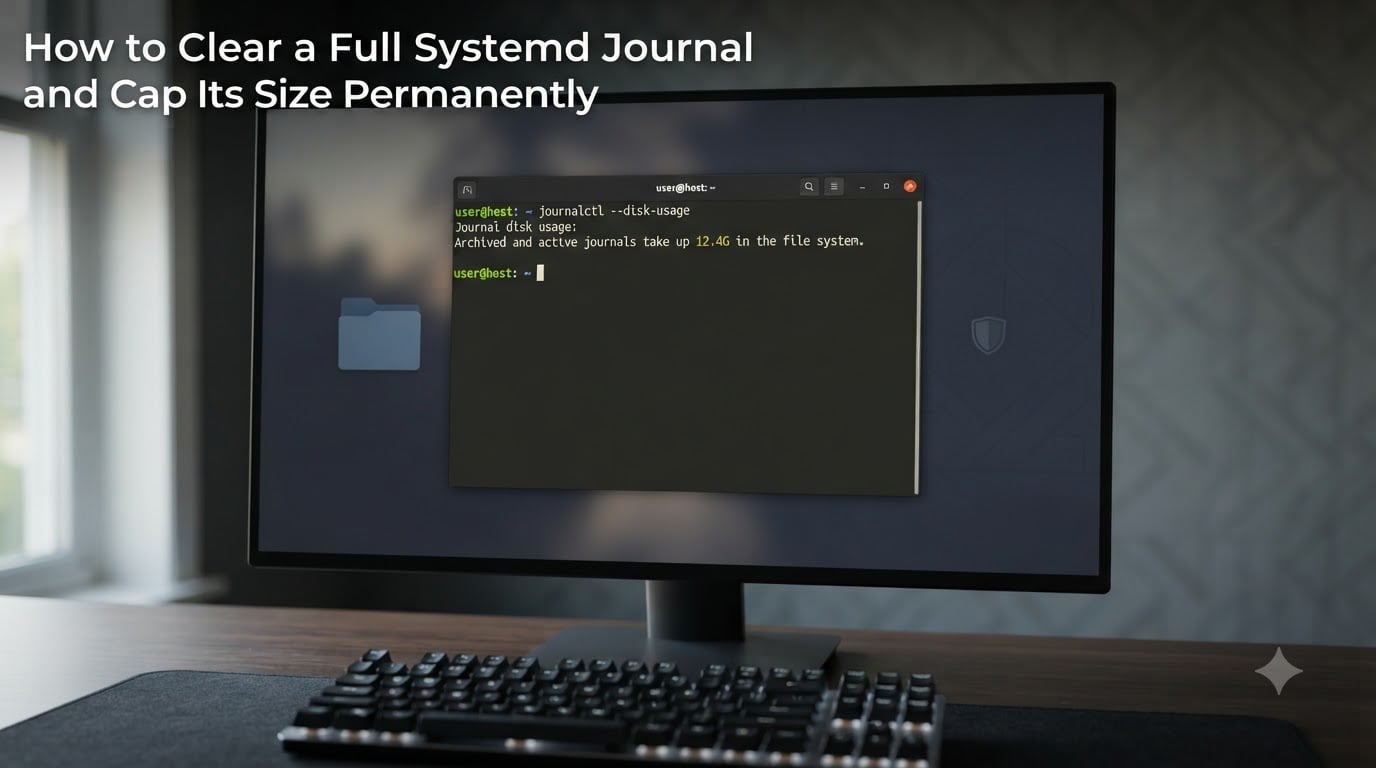
If your Linux server has been running for a few months, you have probably watched /var/log/journal grow into the gigabytes. I have seen systemd-journald quietly consume 8 GB on a single machine before I noticed. This guide shows you exactly how to clear a full systemd journal right now, and how to cap its size so it never catches you off guard again.
The systemd journal is a centralized log store managed by the systemd-journald service. Unlike traditional syslog, journal files live in binary form inside /var/log/journal. That design makes queries fast, but without limits the archived journals can balloon. We will use the journalctl tool to inspect and clean the journal, then edit /etc/systemd/journald.conf to make the cap permanent.
Table of Contents
Check Current Journal Disk Usage First
Before clearing anything, I always run one command to see how much space the journal is actually using. Skipping this step is the most common reason people feel like their cleanup “did nothing.”
Use journalctl --disk-usage to print the current footprint:
$ journalctl --disk-usage
Archived and active journals take use 4.1G on disk.
You can also use plain du as a cross-check:
$ sudo du -sh /var/log/journal
4.1G    /var/log/journal
Write down this number. We will compare it after the cleanup to confirm the vacuum actually freed space.
How to Clear a Full Systemd Journal?
The journalctl tool ships with two built-in “vacuum” commands. They never delete the active journal file you are writing to, only the older archived journals, which makes them safe to run on a live server.
Vacuum by Size to Keep Only the Last X Megabytes
Use journalctl --vacuum-size when you want a hard cap on how much disk the journal can occupy. This is the fastest way to reclaim gigabytes immediately.
$ sudo journalctl --vacuum-size=200M
Vacuuming done, freed 3.9G of archived journals on disk.
The argument accepts K, M, G, and T suffixes. In this example, I asked journald to keep only the most recent 200 MB of archived journals and delete the rest.
Vacuum by Time to Keep Only the Last X Days
Use journalctl --vacuum-time when your goal is retention rather than size. This is the right choice for compliance or debugging windows.
$ sudo journalctl --vacuum-time=14d
Vacuuming done, freed 2.3G of archived journals on disk.
Suffixes include s, m, h, days, weeks, months, and years. I keep two weeks on most production servers because it gives me enough history for post-mortems without filling the disk.
Vacuum by File Count
There is also --vacuum-files= if you want to cap the number of archived journal files regardless of size. I rarely use this on its own, but combining it with --vacuum-time in a one-liner is useful for automation scripts.
$ sudo journalctl --vacuum-time=30d --vacuum-size=500MWhen both limits are passed, journald applies whichever constraint is reached first.
Verify the Cleanup Actually Worked
After running any vacuum command, I always verify two things: that the journal files are consistent, and that the disk usage dropped as expected.
Run journalctl --verify to check the integrity of every archived journal file:
$ sudo journalctl --verify
PASS: /var/log/journal/3e3d.../system.journal
PASS: /var/log/journal/3e3d.../user-1000.journal
PASS: /var/log/journal/3e3d.../[email protected]
Then re-check disk usage to confirm the cleanup worked:
$ journalctl --disk-usage
Archived and active journals take use 198.2M on disk.
If the number barely moves, the most common cause is that the journal was set to Storage=volatile or the active journal file itself is huge. We will cover both cases below.
Cap Systemd Journal Size Permanently
Running --vacuum-size once is a band-aid. The permanent fix is to set size and time limits in /etc/systemd/journald.conf. This is the file the systemd-journald service reads on every boot.
Edit /etc/systemd/journald.conf
Open the file with your editor of choice. I use sudo nano /etc/systemd/journald.conf on small boxes and vim on production servers.
[Journal]
Storage=persistent
SystemMaxUse=200M
SystemKeepFree=500M
SystemMaxFileSize=50M
MaxRetentionSec=14day
Here is what each line does:
Storage=persistent — stores journals in
/var/log/journal(survives reboot). Usevolatilefor/run/log/journal(lost on reboot, useful for tmpfs systems).SystemMaxUse=200M — the maximum total disk space archived journals from system services may use.
SystemKeepFree=500M — the minimum free space journald will try to leave on the disk. Whichever limit is hit first triggers cleanup.
SystemMaxFileSize=50M — the maximum size of any single archived journal file before rotation.
MaxRetentionSec=14day — hard age limit; entries older than this are deleted regardless of size.
Reload systemd-journald to Apply
Configuration changes only take effect after a restart. I use this command sequence, which works on every systemd-based distro I have tested:
$ sudo systemctl restart systemd-journald
$ sudo systemctl status systemd-journald
Run journalctl --disk-usage one more time to confirm the new limits are active. If the size jumps back down to 200 MB on the spot, the cap is working.
journald.conf Parameter Reference
These are the parameters I have actually used in production. Drop the ones you do not need.
| Parameter | Purpose | Typical Value |
|---|---|---|
| Storage | persistent, volatile, auto, none | persistent |
| SystemMaxUse | Max disk for system journals | 200M |
| SystemKeepFree | Free space to preserve on disk | 500M |
| SystemMaxFileSize | Max size of a single archived file | 50M |
| SystemMaxFiles | Max number of archived system files | 100 |
| RuntimeMaxUse | Max disk for volatile journals | 100M |
| RuntimeKeepFree | Free space to preserve when volatile | 200M |
| RuntimeMaxFileSize | Max size of one volatile archived file | 20M |
| MaxRetentionSec | Hard age cap on entries | 14day |
| ForwardToSyslog | Also forward to syslogd | no |
| Compress | Compress large journal files | yes |
The --vacuum-size, --vacuum-time, and --vacuum-files flags we used earlier mirror these config keys. The flags are one-shot; the config keys are persistent.
Safety Warnings and Common Pitfalls
Three mistakes I have seen break servers. Avoid them.
Warning: Never delete or move the /var/log/journal directory itself. Run vacuum commands only. Deleting the directory while journald is running can corrupt logging and, on some distributions, prevent the service from restarting cleanly.
Warning: If journalctl --vacuum-time reports “freed 0 bytes,” your journal was already at the cap and is set to Storage=volatile, or the active file is the giant one. Check cat /etc/systemd/journald.conf | grep Storage and use --vacuum-size instead.
Tip: Set both SystemMaxUse and SystemKeepFree. Using only one can surprise you on shared disks where other services also need free space.
FAQ
How do I clear old journals in systemd?
Run sudo journalctl u002du002dvacuum-time=14d to keep only the last two weeks, or sudo journalctl u002du002dvacuum-size=200M to keep only the most recent 200 MB. These commands only delete archived journal files, never the active one.
How to reduce journal log size?
The fastest way is sudo journalctl u002du002dvacuum-size=200M. To make it stick, edit /etc/systemd/journald.conf and set SystemMaxUse=200M, then run sudo systemctl restart systemd-journald.
What is the limit of systemd journal?
By default, systemd-journald caps journals at 4 GB or 15 percent of the filesystem, whichever is smaller. You can override this with SystemMaxUse, SystemKeepFree, and MaxRetentionSec in /etc/systemd/journald.conf.
Is it safe to delete files in /var/log/journal?
No. Do not rm files inside /var/log/journal manually. Use journalctl u002du002dvacuum-size or u002du002dvacuum-time, which only delete archived journals safely. Removing the active file or the directory can break logging on reboot.
Conclusion
You now know how to clear a full systemd journal and cap its size permanently. Start with journalctl --disk-usage to see the damage, run sudo journalctl --vacuum-size=200M for immediate relief, then edit /etc/systemd/journald.conf with SystemMaxUse and MaxRetentionSec so it never fills up again. Restart systemd-journald, verify with journalctl --disk-usage, and your server is set. The whole process takes about three minutes the first time and zero effort on every subsequent reboot.