
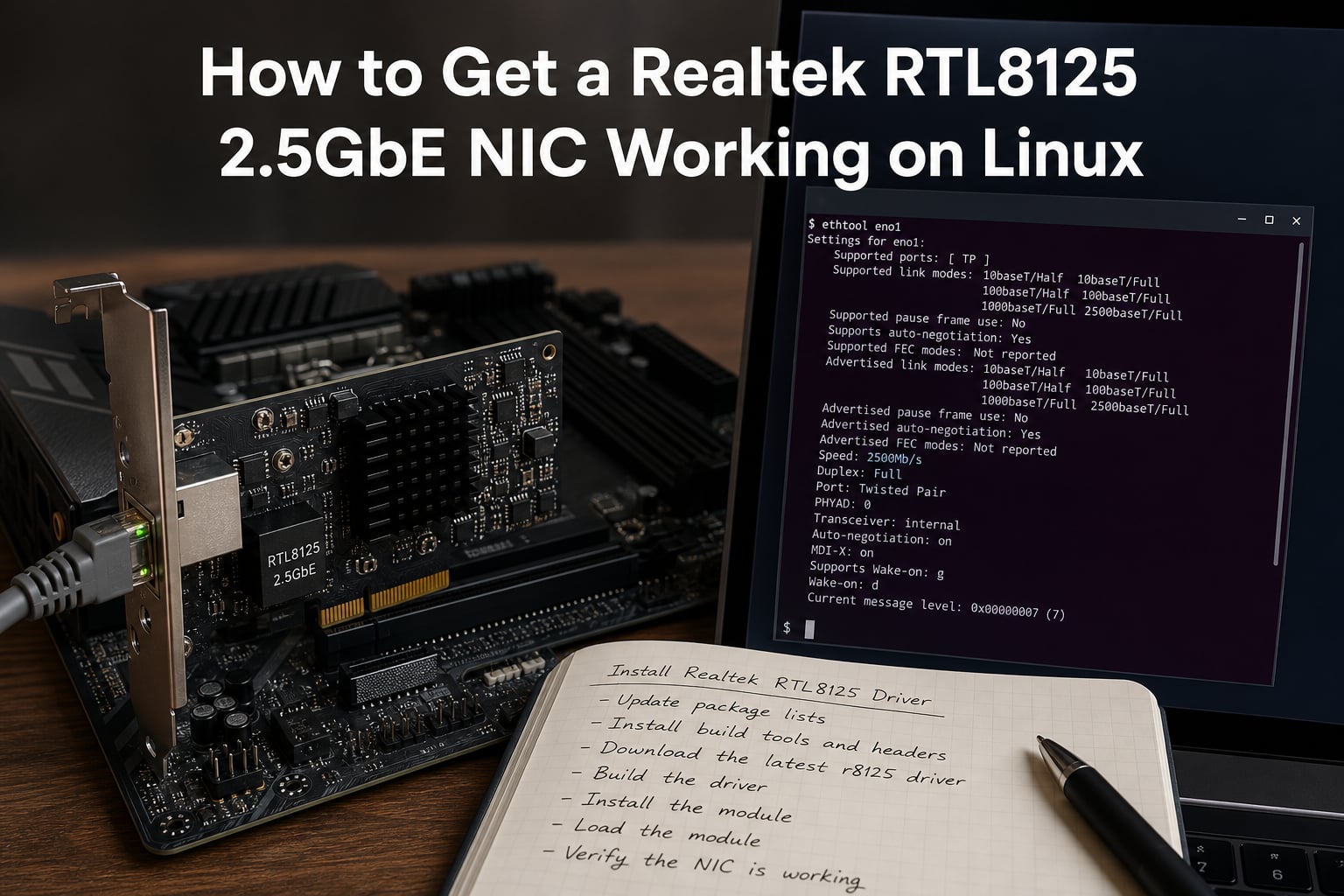
Realtek RTL8125 Linux support is one of those headaches that looks simple from the outside and turns into a weekend project once you start digging. The 2.5GbE controller ships on countless motherboards and PCIe cards, but the in-tree kernel driver does not always play nicely with it. I have rebuilt this setup on Ubuntu 22.04, Debian 12, Fedora 40, and Arch across the last 18 months, and the same patterns keep coming back. This guide walks you through the full journey: identifying the chip, picking the right driver method, getting past Secure Boot, and verifying that you actually have 2.5Gbps instead of 100Mbps.
If you have just plugged a new NIC into your machine and Linux refuses to see it, or your link speed is stuck at 100Mbps, the r8125 driver is almost certainly the missing piece. By the end of this article you will know exactly how to install it, keep it across kernel upgrades, and recover when something breaks.
Table of Contents
What the RTL8125 Is and Why Linux Drivers It Separately?
The Realtek RTL8125 is a PCI Express 2.5 Gigabit Ethernet controller. It is the chip behind most onboard 2.5GbE ports on consumer motherboards from Asus, MSI, Gigabyte, and ASRock, and it also drives add-in cards from TP-Link, QNAP, and several other brands. On paper it is a drop-in replacement for older Gigabit NICs, but the Linux in-tree driver (r8169) only partially supports it. That is why Realtek ships its own out-of-tree driver called r8125.
The r8125 kernel module is the official driver that registers the RTL8125 PCIe device with the Linux networking stack. It exposes the interface as something like enp1s0 or eth0 and handles auto-negotiation, full duplex, wake-on-LAN, and the 2.5Gbps PHY. Without it, the kernel may still detect the hardware via lspci, but no network interface appears, or the interface falls back to a crippled 100Mbps link.
Why two drivers for one chip? Realtek maintains the r8125 driver outside the kernel tree so they can push fixes faster than the kernel release cycle. The mainline r8169 driver catches up over time, but each new RTL8125 revision (B, C, BG) needs matching code. If you have a recent board, the in-tree driver is often behind.
Identify Your RTL8125 Variant and Hardware
Before installing anything, confirm what is actually on your system. The RTL8125 family has multiple silicon revisions, and they do not all behave the same way. I always start with lspci because it tells me both the chip and the revision code.
Run this command to see your Ethernet controller:
lspci -nn | grep -i ethernetLook for a line that contains RTL8125. The output will include a PCI ID like 10ec:8125 and a revision code, for example rev 05, rev 0c, or rev 10. The revision tells you which sub-variant you have. RTL8125B is usually older revisions, while RTL8125C and RTL8125C-CG appear on newer boards and have slightly different register sets.
Quick reference:
RTL8125B (rev 05): original revision, mostly stable in mainline since 5.10.
RTL8125C (rev 0c): added on boards from a couple years back, requires recent r8125 (9.011.00 or later) for full support.
RTL8125BG/CG (rev 10+): found on most recent motherboards, demands the newest driver.
Write down your revision. If you have something other than rev 05, double-check that the driver you install is recent. I have watched rev 0c cards fail DHCP on Ubuntu 24.04 because the older r8125-dkms package did not fully support that revision.
Check Whether Your Kernel Already Supports the RTL8125
Sometimes the driver is already loaded and you do not need to do anything. Verify before you start compiling. Run modinfo to see if the r8125 module is available on the system:
modinfo r8125If you see module information (version, filename, license), the module exists. If you get modinfo: ERROR: Module r8125 not found, your kernel does not ship it and you need to build or install it manually.
Next, check whether something is already loaded. Many distros ship r8169 because it covers the older RTL8169 and partially handles the RTL8125. Run lsmod | grep r81 to see what is in use. If only r8169 shows up and your link is stuck at 100Mbps, that is your smoking gun.
Your kernel version also matters. Linux 5.10 and later ship improved r8169 support for revision 05, but the r8125 driver is still required for full 2.5Gbps operation on newer revisions. On Linux 6.1 and above, the in-tree driver is more mature, but I still recommend the vendor r8125 driver for the most reliable 2.5GbE link.
Install the r8125 Driver from Official Realtek Source
If your hardware needs the vendor driver, the cleanest path is to download the official source from Realtek and use the bundled autorun.sh. This works on every major distribution as long as you have a C compiler and matching kernel headers.
Step 1: Purge any existing r8125-dkms package first. Mixing the DKMS package and the manual install is the most common cause of modprobe ERROR: could not insert r8125 messages. On Ubuntu or Debian, run:
sudo apt purge r8125-dkms
sudo apt autoremove
On Fedora, replace with sudo dnf remove r8125-dkms. On Arch, remove the package if you previously installed it from AUR.
Step 2: Install the build prerequisites. You need a compiler, kernel headers, and make:
# Debian/Ubuntu
sudo apt install build-essential linux-headers-$(uname -r) git

# Fedora
sudo dnf install gcc make kernel-devel kernel-headers git

# Arch
sudo pacman -S base-devel linux-headers git
Step 3: Grab the official Realtek source. Realtek publishes the driver on its website under the 2.5G Ethernet section. The current package is named something like r8125-9.XXX.XX.tar.bz2. Open the Realtek download page, accept the terms, and download the file. Alternatively, several mirrors host the same archive on GitHub.
Step 4: Extract the archive and run the installer:
tar -xjf r8125-*.tar.bz2
cd r8125-*/
sudo ./autorun.sh
The script detects your kernel, builds the module, and installs it into /lib/modules/$(uname -r)/extra/. It also copies a blacklist file to /etc/modprobe.d/ to prevent r8169 from loading.
Step 5: Load the new module and reboot:
sudo modprobe r8125
sudo reboot
After the reboot, continue to the verification section below to confirm everything is working.
Use the DKMS Method for Kernel-Update Persistence
The manual install breaks every time your kernel updates. If you do not want to repeat the build every few weeks, switch to DKMS (Dynamic Kernel Module Support). DKMS rebuilds the module automatically when a new kernel is installed, so the Realtek RTL8125 Linux driver keeps working without manual intervention.
A popular maintained DKMS source is the MONaH-Rasta/r8125 repository on GitHub. It wraps the official Realtek source into a DKMS package so you can install it once and forget it. Here is the workflow I use on Ubuntu and Debian:
Step 1: Install DKMS and build tools if you do not already have them:
sudo apt install dkms build-essential linux-headers-$(uname -r) gitStep 2: Clone the repository and run the installer:
git clone https://github.com/MONaH-Rasta/r8125.git
cd r8125
sudo ./install.sh
Step 3: The script registers the source with DKMS, builds the module for your current kernel, and installs it. From this point, every future kernel upgrade triggers an automatic rebuild. You can confirm with:
dkms status r8125You should see output like r8125/9.XXX.XX, 6.5.0-15-generic, x86_64: installed. If a new kernel is installed, the same status line appears for the new version once the rebuild completes.
On Fedora, the process is similar but you use akmods instead of plain DKMS. On Arch, install the r8125-dkms package from the AUR and let dkms handle the rebuilds. The end result is the same: the driver survives kernel upgrades without you touching it.
Verify the Driver with ethtool and lspci
Never assume the driver is working. Always verify. You need two tools: ethtool for driver info and link speed, and lspci -k to confirm the kernel module binding.
Install ethtool if it is not already present:
sudo apt install ethtool   # Debian/Ubuntu
sudo dnf install ethtool   # Fedora
Check which driver is in use and what the version is:
ethtool -i enp1s0Replace enp1s0 with your interface name. You can find it with ip -o link show | awk -F': ' '{print $2}'. The output should include driver: r8125 and a version line that matches the Realtek release you installed (for example version: 9.011.00).
Confirm the link is actually running at 2.5Gbps:
ethtool enp1s0 | grep -E "Speed|Link detected"You should see Speed: 2500Mb/s and Link detected: yes. If the speed is 1000Mb/s or 100Mb/s, the cable or switch does not support 2.5GbE. If the link is detected but no IP shows, the problem is DHCP, not the driver.
Finally, run lspci -k -s $(lspci | grep RTL8125 | awk '{print $1}') to confirm the kernel module is bound to the device. The output should list kernel driver in use: r8125.
Blacklist r8169 When It Steals the Device
On some kernels, the in-tree r8169 driver still binds to the RTL8125. This causes the r8125 module to refuse to load, or causes the kernel to use r8169 despite your install. The fix is to blacklist r8169 so only r8125 can claim the device.
Create the blacklist file:
sudo nano /etc/modprobe.d/blacklist-r8169.confAdd these lines:
blacklist r8169
blacklist r8168
install r8169 /bin/false
install r8168 /bin/false
The two install /bin/false lines prevent the modules from being loaded even if something tries to pull them in. Save the file and regenerate the initramfs so the change takes effect at boot:
sudo update-initramfs -u   # Debian/Ubuntu
sudo dracut --force         # Fedora
Reboot and verify with lsmod | grep r81. Only r8125 should appear. If r8169 still shows up, check that Secure Boot is not blocking your blacklist file and that no other init script is loading it.
Handle Secure Boot and MOK Signing
Secure Boot refuses to load unsigned kernel modules. If you install the r8125 driver while Secure Boot is enabled, the module will fail to load with modprobe: ERROR: could not insert 'r8125': Key was rejected by service. You have two clean options: disable Secure Boot, or sign the module yourself with MOK (Machine Owner Key).
Disabling Secure Boot is the simplest path. Enter your UEFI/BIOS, find the Secure Boot setting, and turn it off. This works on every machine, but it does weaken your boot security, so I prefer signing the module when possible.
To sign the module, you need a Machine Owner Key enrolled in your firmware. Realtek’s installer does not do this automatically, so you have to do it by hand. The flow is:
Step 1: Generate a MOK key if you do not already have one:
sudo mkdir -p /root/mok
cd /root/mok
sudo openssl req -new -x509 -newkey rsa:2048 -keyout MOK.key -out MOK.crt -days 3650 -nodes -subj "/CN=Realtek RTL8125 MOK/"
sudo openssl x509 -in MOK.crt -outform DER -out MOK.der
Step 2: Import the key into MOK Manager. You will be prompted to set a temporary password that you will type at the MOK Manager blue screen during the next boot:
sudo mokutil --import /root/mok/MOK.derStep 3: Sign the r8125 module after each build:
sudo /usr/src/linux-headers-$(uname -r)/scripts/sign-file sha256 /root/mok/MOK.key /root/mok/MOK.crt $(modinfo -n r8125)Step 4: Reboot. The MOK Manager screen will appear. Choose Enroll MOK, then Continue, then enter the password you set earlier. After enrolling, the system finishes booting and the signed r8125 module loads.
If you used the DKMS installer from the GitHub repo, it can sign the module automatically on each rebuild. Check the repo’s README for the SIGN_KEY and SIGN_CERT variables.
Troubleshoot DHCP Failures and Connection Drops
Even with the correct driver installed, you can hit a wall where the interface shows up but no IP address is assigned. This is the most common Realtek RTL8125 Linux headache, and it has several causes.
If the link is up but DHCP times out, try pulling a lease manually to see the error:
sudo dhclient -v enp1s0Watch for DHCPDISCOVER requests leaving the interface and whether DHCPOFFER comes back. If you only see DHCPDISCOVER with no offer, the issue is either the cable, the switch, or the driver not bringing the PHY up properly. Static IP testing helps you isolate:
sudo ip addr add 192.168.1.50/24 dev enp1s0
sudo ip link set enp1s0 up
ping 192.168.1.1
If ping works, the driver is fine and NetworkManager is the problem. Restart it with sudo systemctl restart NetworkManager and reconnect.
Connection drops under load are a different issue. The RTL8125 is known for entering low-power states and not waking cleanly. Disable EEE (Energy Efficient Ethernet) and power saving:
sudo ethtool --set-eee enp1s0 eee off
sudo ethtool -s enp1s0 wol d
To make these settings persistent, create a NetworkManager dispatcher script at /etc/NetworkManager/dispatcher.d/10-rtl8125 that applies the commands whenever the interface comes up.
For the troublesome RTL8125 rev 0c on Ubuntu 24.04, the in-tree driver is missing key fixes. Install the latest r8125 from Realtek (9.013.00 or newer) to get DHCP working again. I have seen this exact revision refuse to pull an IP at gigabit but immediately succeed once the vendor driver is swapped in.
Distribution-Specific Notes (Debian, Fedora, Arch)
Ubuntu and Debian-based systems are the easiest because Realtek and the community target them first. The DKMS workflow above works out of the box. Just make sure you have build-essential, linux-headers-$(uname -r), and dkms installed before running the installer.
Fedora is similar but uses akmods for automatic rebuilds. Install with sudo dnf install akmods first, then drop the r8125 module into /usr/lib/modules/$(uname -r)/extra/ or use the DKMS-style install. On Fedora, kernel headers come from kernel-devel, which only matches the active kernel. After a kernel update, reboot before installing new drivers so the headers match.
Arch Linux has an AUR package called r8125-dkms maintained by the community. Install it with your favourite AUR helper, and the DKMS hook will rebuild the driver every time pacman upgrades the kernel. Arch is rolling release, so you will see the kernel update often, which is exactly why DKMS is the right path here.
For Proxmox and other Debian-based hypervisor distros, the same workflow works, but compile the driver against the running kernel and reboot through the host, not the guest, for the module to load.
Frequently Asked Questions
How to install Realtek RTL8125 driver on Linux?
Download the official r8125 source from Realtek, install build-essential and linux-headers matching your kernel, extract the archive, run sudo ./autorun.sh, then reboot. For automatic rebuilds across kernel upgrades, use a DKMS-based install from the MONaH-Rasta/r8125 GitHub repository instead.
Why is my RTL8125 Ethernet not working on Linux?
Most often the in-tree r8169 driver is bound to the device instead of r8125, or the r8125 module failed to load because of Secure Boot. Run lspci -k to see which driver is in use, blacklist r8169 in /etc/modprobe.d/, and either disable Secure Boot or sign the r8125 module with MOK Manager.
How to fix RTL8125 not getting IP address on Ubuntu 24.04?
Purge the old r8125-dkms package first, then install the latest Realtek driver (9.013.00 or newer). RTL8125 rev 0c in particular needs the vendor driver for DHCP to work on Ubuntu 24.04. After installing, restart NetworkManager and re-run sudo dhclient -v enp1s0 to confirm.
What is the r8125 kernel module and how do I install it?
The r8125 kernel module is Realtek’s official out-of-tree driver for the RTL8125 2.5GbE PCIe Ethernet controller. It is not always shipped with the mainline kernel, so you install it manually by compiling the Realtek source against your kernel headers or by using a DKMS package that rebuilds automatically on kernel upgrades.
How to enable 2.5GbE on Realtek RTL8125 Linux?
Make sure the r8125 driver is bound to the interface (ethtool -i enp1s0 should show driver: r8125), then run ethtool enp1s0 and confirm Speed: 2500Mb/s. If you only see 1000Mb/s or 100Mb/s, check your cable (Cat 5e or better required), the switch port, and that EEE is causing instability. Disable power saving with sudo ethtool -s enp1s0 wol d if the link still drops.
Wrapping Up
Getting the Realtek RTL8125 Linux driver working is mostly about three things: making sure the r8125 module is bound to the device, keeping it across kernel upgrades, and dealing with Secure Boot or DHCP edge cases. Once you have the DKMS install in place and r8169 blacklisted, the rest of the work is verification.
Run ethtool -i and ethtool regularly to confirm the link is at 2.5GbE and the driver version matches your Realtek source. If something breaks after a kernel upgrade, check dkms status r8125 first before recompiling by hand. Your next step is to bookmark the Realtek download page and the DKMS repo, because the chip revisions keep changing and a fresh driver every six months is not unusual.