
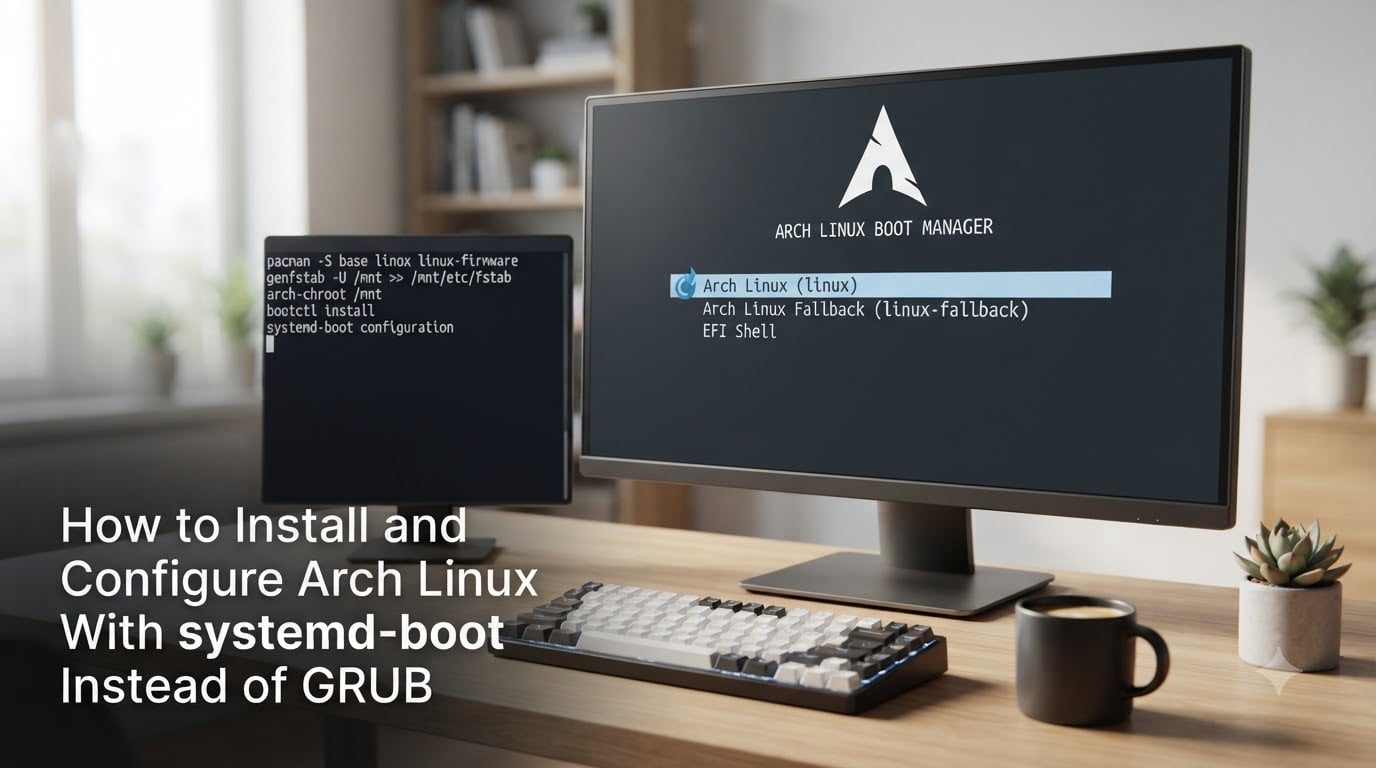
When I set up my first Arch Linux box, GRUB was the only bootloader I had ever touched. It worked, but I spent more time debugging config files than actually using my machine. That changed the day I replaced it with systemd-boot. My boot time dropped by roughly six seconds, my configuration fit into a few small text files, and kernel updates stopped randomly breaking my boot menu. That experience is exactly why this guide exists: to walk you through installing and configuring Arch Linux with systemd-boot instead of GRUB, the same way I would explain it to a friend sitting next to me.
In this guide, I cover everything from verifying your UEFI setup to switching an existing GRUB installation, plus troubleshooting tips based on the same pain points I see on the Arch Linux forums. By the end, you will have a clean, fast, and easy-to-maintain systemd-boot setup on Arch Linux.
Table of Contents
Why Choose systemd-boot Instead of GRUB on Arch Linux?
Yes, systemd-boot is generally a better choice than GRUB for most Arch Linux users on UEFI hardware. It is a lightweight UEFI boot manager built into systemd, and it relies on simple drop-in configuration files instead of GRUB’s sprawling scripts.
I switched after watching GRUB choke on three separate btrfs snapshots in a single month. systemd-boot handled the same updates without complaint, because each boot entry is just a plain text file pointing at the kernel and initramfs. Here is how the two compare in real use.
systemd-boot vs GRUB: Honest Comparison
Boot speed: systemd-boot beats GRUB by roughly 3 to 8 seconds on most desktops. The ArchWiki mentions a 5+ second reduction is typical, and that matches my own benchmarks.
Configuration: systemd-boot uses one loader.conf and a folder of *.conf entry files. GRUB relies on grub.cfg, which is auto-generated and easy to corrupt.
Kernel updates: With systemd-boot and a small pacman hook, new kernels appear automatically. With GRUB, you must remember to run grub-mkconfig after every update.
Theming: GRUB wins here. systemd-boot’s interface is plain text only, with no graphical themes available.
BIOS support: GRUB supports both UEFI and legacy BIOS. systemd-boot is UEFI-only, which is a hard requirement.
For a typical UEFI desktop or laptop running Arch Linux as the sole OS or alongside Windows, systemd-boot is the simpler, faster pick. I recommend GRUB only if you need BIOS compatibility, complex multi-boot setups, or graphical boot themes.
Prerequisites Before Installing systemd-boot on Arch Linux
Before running any bootctl command, confirm your system actually supports systemd-boot. The tool is UEFI-only, and skipping this check is the number one reason beginners see a black screen after installation.
Check That You Are Booted in UEFI Mode
Run this command inside your installed system or the live environment:
ls /sys/firmware/efi/efivars
If the directory exists and is non-empty, you are booted in UEFI mode and systemd-boot will work. If you see No such file or directory, your machine is in legacy BIOS mode and systemd-boot cannot help you. You would either need to enable UEFI in your firmware, or stick with GRUB.
Verify the EFI System Partition Is Mounted
Confirm your EFI system partition (ESP) is mounted at /boot or /efi before running bootctl:
findmnt /boot
A successful return shows the ESP device, for example /dev/sda1 mounted on /boot. If nothing is mounted, mount it with mount /dev/sda1 /boot first.
Install the Required Package
systemd-boot ships with systemd, which Arch Linux already requires. No extra package is needed unless you want microcode updates, in which case install intel-ucode or amd-ucode depending on your CPU.
How to Install systemd-boot Using bootctl install?
Install systemd-boot on your Arch Linux ESP by running bootctl install as root inside an arch-chroot or your installed system. This single command registers the EFI binary and sets up the loader directory structure automatically.
Step 1: Install the EFI Boot Manager
Run:
bootctl install
You should see output similar to:
Installed: /boot/EFI/systemd/systemd-bootx64.efiInstalled: /boot/BOOT/BOOTX64.EFIInstalled: /boot/loader/loader.confCreated EFI variable: 8da7a8d3-7794-4b3e-a1f4-7d3f0c3a3b3a
If you see the EFI variable line, your firmware now recognizes systemd-boot as a boot option.
Step 2: Check That bootctl Detects Your ESP
Run:
bootctl status
Confirm the output shows your ESP at the expected mount point and lists the installed boot loader. This command also tells you the current default boot entry and any available entries.
Step 3: Install Microcode (Optional but Recommended)
If you have an Intel CPU, install intel-ucode. For AMD, install amd-ucode. The initramfs will need to embed the microcode file, which we handle in the boot entry step.
That is the entire systemd-boot installation. Three commands, no regenerating config files, no updating grub on every kernel change. From here, you move into configuration.
How to Configure loader.conf for systemd-boot?
Configure the systemd-boot loader by editing /boot/loader/loader.conf and choosing your default entry, timeout, and console mode. This file controls the main menu behavior, not individual kernels.
Open the file:
sudo micro /boot/loader/loader.conf
Replace its contents with this minimal config:
default arch
timeout 3
console-mode max
editor no
Each line matters. default arch sets which entry systemd-boot boots automatically. timeout 3 gives you three seconds to choose another entry at startup. console-mode max keeps the menu at your native resolution. editor no disables the kernel parameter editor, which prevents accidental changes at the boot menu.
Save the file, then run bootctl status to verify the loader picked up your changes.
Creating Boot Entries (*.conf files) for systemd-boot
Create a systemd-boot entry by writing a single *.conf file inside /boot/loader/entries/. Each entry points at one kernel, one initramfs, and the root partition. There is no automatic discovery, so you must create one entry per kernel you want to boot.
Step 1: Find Your Root Partition PARTUUID
Run:
blkid -s PARTUUID -o value /dev/sda2
Replace /dev/sda2 with your actual root partition. Copy the output. This is the identifier you will use in your boot entry instead of /dev/sda2, because UUIDs and partition names can change between boots.
Step 2: Create the arch.conf Entry
Run:
sudo micro /boot/loader/entries/arch.conf
And paste, adjusting the PARTUUID to match yours:
title Arch Linux
linux /vmlinuz-linux
initrd /intel-ucode.img
initrd /initramfs-linux.img
options root=PARTUUID=YOUR-PARTUUID-HERE rw
If you use AMD, swap /intel-ucode.img for /amd-ucode.img. If you do not use microcode, drop that initrd line entirely.
Step 3: Add a Fallback Entry
I always add a fallback entry. It saved me once when a kernel update broke my main initramfs. Run:
sudo micro /boot/loader/entries/arch-fallback.conf
And paste:
title Arch Linux (fallback)
linux /vmlinuz-linux
initrd /initramfs-linux-fallback.img
options root=PARTUUID=YOUR-PARTUUID-HERE rw
The fallback image is built with mkinitcpio -S and survives most partial update failures.
Switching From GRUB to systemd-boot on an Existing Arch Install
Switching from GRUB to systemd-boot on Arch Linux is essentially the same flow as a fresh install: run bootctl install, create your loader.conf and entries, then remove the GRUB packages and EFI binaries. Nothing about your existing root or home partition needs to change.
Step 1: Install systemd-boot Alongside GRUB
Run bootctl install as root. systemd-boot installs itself to the same ESP GRUB uses, which is fine. The two can coexist temporarily.
Step 2: Configure the Loader and Entries
Create your loader.conf and entry files exactly as described in the previous two sections.
Step 3: Reboot and Test systemd-boot
Reboot, then enter your firmware’s boot menu. Pick the systemd-boot entry. If your system boots normally and you see your kernel command line in bootctl status, you are good to proceed.
Step 4: Remove GRUB
Remove the GRUB packages and their bootloader binaries:
sudo pacman -Rns grub
Then delete the GRUB EFI binary from the ESP if it remains:
sudo rm -rf /boot/grub
sudo rm /boot/EFI/grub
Finally, run efibootmgr to delete any leftover GRUB entries so your firmware no longer offers them.
I went through this exact sequence on my own desktop. After the first reboot into systemd-boot, I never looked back.
Verifying Your systemd-boot Installation
Verify a working systemd-boot setup with the bootctl status command and one reboot test. bootctl reports the loader config, the registered boot entries, and the UEFI defaults from a single command.
Run:
bootctl status
Look for three signals of a healthy installation. First, the loader section should show your timeout and default entry, confirming loader.conf parsed correctly. Second, the entry list section should display every *.conf file under /boot/loader/entries/.
Third, the boot entries shown by efibootmgr should include a systemd-boot entry marked as the default. If all three are present, you can reboot and confirm systemd-boot loads instead of GRUB.
One quick note: if bootctl status reports no default entry, the loader.conf default line does not match any *.conf title. Match the strings exactly, including spaces and capitalization.
Troubleshooting Common systemd-boot Issues
The most common systemd-boot problems come from configuration file typos, missing initramfs files, or firmware boot order mistakes. Most are fixable in five minutes if you know what to look for. These are the issues I see repeatedly in the Arch Linux forums.
Boot Entries Not Showing in the Menu
If your *.conf files do not appear in bootctl status or the boot menu, the loader entries directory is wrong or the file extension is not .conf. Confirm with:
ls /boot/loader/entries/
Each entry must end with .conf. systemd-boot ignores anything else.
“Error: Failed to Prepare Initrd” at Boot
This message means the path to the initramfs in your *.conf file is wrong or the file does not exist. Run ls /boot and check the exact filenames.
Common typos include initramfs-linux.img instead of initramfs-linux-fallback.img for fallback entries, and missing the leading / in the path.
System Falls Back to GRUB After Update
Windows updates on dual-boot systems often change UEFI boot order. Re-set the default with:
efibootmgr --bootnext XXXX
Replace XXXX with your systemd-boot boot number from efibootmgr output.
Kernel Update Does Not Add a New Entry
systemd-boot does not auto-discover kernels. You must regenerate the initramfs after every kernel update and confirm your *.conf points at the right version. The next section covers a pacman hook that automates this.
“Secure Boot Forbidden” Error
If you enable Secure Boot after installing systemd-boot, the unsigned kernel will refuse to load. Either disable Secure Boot in firmware, or follow the ArchWiki Secure Boot signing instructions to enroll your keys.
If you hit any error not listed here, paste the exact message into your search engine along with “Arch Linux”. Most systemd-boot issues from the last 3 years are documented in forum threads or the wiki.
Advanced systemd-boot Configuration: XBOOTLDR, Secure Boot, and Dual Boot
Once systemd-boot is running, the optional features come down to three main topics. XBOOTLDR handles large ESP cases, Secure Boot keeps the boot chain signed, and dual boot with Windows needs careful boot ordering.
XBOOTLDR Partition for Large Boot Partitions
If your kernel and initramfs grow beyond the ESP’s free space, format a separate partition as FAT32 and label it XBOOTLDR. systemd-boot automatically discovers it and merges entries with the main ESP.
This is helpful for unified kernel images (UKIs), where each entry is a single EFI binary that can run 100 MB or more.
Secure Boot With systemd-boot
Secure Boot requires signing your kernel, initramfs, and bootloader. The simplest path is the ArchWiki’s sbctl workflow: enroll your Machine Owner Key (MOK), sign the loader binary, and let mkinitcpio hooks sign new kernels automatically.
Dual Booting Windows and Arch Linux
For dual boot, install Windows first so its bootloader lives on the ESP. Then run bootctl install and ensure the EFI system partition stays mounted at /boot. Windows rarely touches Linux boot entries, but efibootmgr can repair boot order if it shifts.
If you want a Windows option inside the systemd-boot menu, create an entry like:
title Windows
efi /EFI/Microsoft/Boot/bootmgfw.efi
This calls the Windows EFI binary directly without GRUB ever loading.
Maintaining systemd-boot: Updates, Fallback Entries, and Best Practices
Maintaining systemd-boot is mostly automatic once you add two small pacman hooks. The hooks regenerate the initramfs after every kernel update and trigger loader discovery, so new kernel versions appear in your menu without manual work.
Pacman Hook for Automatic Kernel Entries
Create /etc/pacman.d/hooks/systemd-boot.hook:
[Trigger]
Type = Package
Operation = Upgrade
Target = linux
Inside the Exec section, run bootctl update. systemd-boot will rescan your ESP and pick up the new kernel automatically.
Edit, Test, and Reboot Safely
Always keep the fallback entry functional. I learned this the hard way after a kernel update shipped with an initramfs that failed to detect my root partition. The fallback image booted cleanly and saved me an hour of live-CD recovery.
Minimal, Repeatable Configuration
I keep every *.conf file in version control via a small dotfiles repo. If I install a new machine, I copy the loader folder and adjust only the PARTUUID. The whole configuration lives in roughly 20 lines across two files.
That kind of simplicity is the whole reason I switched away from GRUB, and it is the same reason I keep systemd-boot on every Arch box I touch.
Frequently Asked Questions About Arch Linux systemd-boot
How to use systemd-boot instead of GRUB?
Install systemd-boot by running bootctl install as root, then write a loader.conf file at /boot/loader/loader.conf with your default entry and timeout. Create one *.conf file per kernel inside /boot/loader/entries/, pointing to the vmlinuz and initramfs files plus your root PARTUUID. Once those files exist, reboot and pick systemd-boot from your firmware boot menu.
Which bootloader is best for Arch?
systemd-boot is the best Arch bootloader for most UEFI users because it boots 3 to 8 seconds faster than GRUB, uses simple text-file configuration, and survives kernel updates without manual regeneration. GRUB remains the better choice only for legacy BIOS systems or users who want graphical themes at boot.
Which is better, GRUB or systemd-boot?
systemd-boot wins on boot speed, configuration simplicity, and update reliability because each boot entry is a plain text file. GRUB wins on hardware compatibility, dual-boot flexibility, and theme support. For a modern UEFI machine running Arch Linux, systemd-boot is the better default.
Does systemd-boot work with BIOS?
No, systemd-boot works only on UEFI systems because it relies on EFI variables and the EFI system partition. If your machine is in legacy BIOS mode, stick with GRUB or convert your firmware to UEFI first. You can confirm UEFI mode by listing /sys/firmware/efi/efivars.
Why is systemd-boot faster than GRUB?
systemd-boot is faster because it loads a tiny UEFI stub directly from firmware, then hands off to the kernel without parsing scripts or generating menu entries. GRUB parses grub.cfg, loads extra modules, and runs a small shell engine before reaching the kernel, which adds several seconds on most systems.
How do I know if I am using GRUB or systemd-boot?
Run bootctl status. If the output lists loader.conf entries and reports systemd-bootx64.efi, you are using systemd-boot. If bootctl status fails or returns an error, GRUB is almost certainly your bootloader and you can confirm with efibootmgr output.
Why does systemd-boot not show my boot entry?
Boot entries fail to appear when the *.conf file sits outside /boot/loader/entries/, uses the wrong file extension, or contains a syntax error. Confirm with ls /boot/loader/entries/, double-check that the title line matches the default value in loader.conf, and run bootctl status to see what the loader parses.
Conclusion
That is everything you need to install and configure Arch Linux with systemd-boot instead of GRUB. Run bootctl install, write a loader.conf, create one *.conf per kernel, and reboot. From there, your boot menu lives in two small text files that survive every kernel update without extra work.
Once systemd-boot is running on your main machine, try the XBOOTLDR partition, enable Secure Boot with sbctl, or automate kernel entries with a pacman hook. Each addition builds on the same simple model and keeps your Arch installation fast, predictable, and easy to repair.