
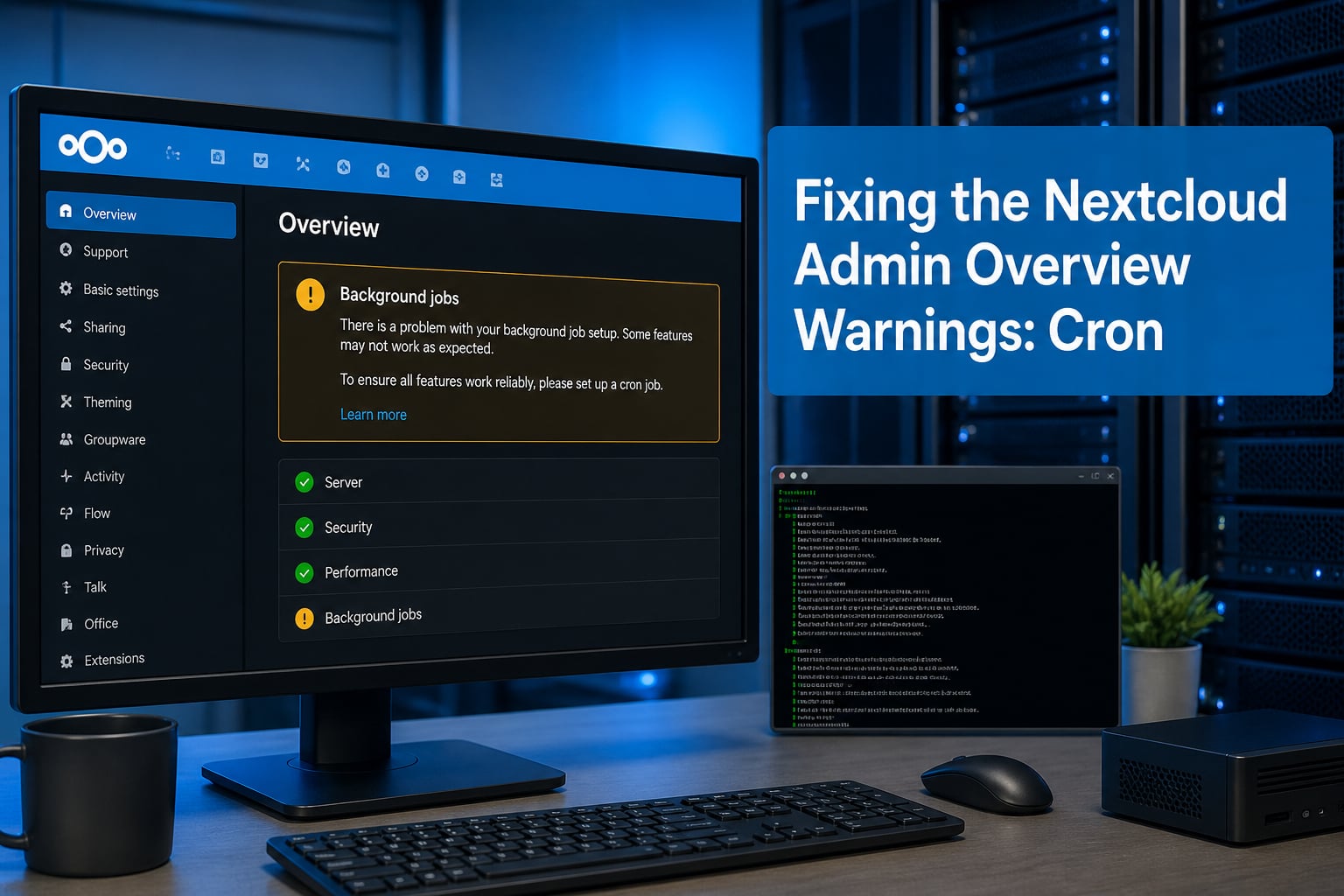
If you manage a Nextcloud server, you have probably opened the Admin Overview page and seen a yellow or red warning about background jobs not running via cron. It is one of the most common Nextcloud setup warnings, and our team has run into it across bare metal, Docker, and shared hosting deployments.
The warning tells you that Nextcloud cannot reliably execute background tasks like file scanning, notification delivery, and temporary file cleanup. Left unfixed, your instance slowly degrades in functionality.
In this guide, I will walk you through fixing the Nextcloud Admin Overview cron warning step by step. We will cover system cron setup, the APCu CLI trap that catches almost everyone, Docker-specific configurations, systemd timers, and how to clear a stale warning after the fix is applied.
Table of Contents
Quick Answer: How to Fix the Nextcloud Cron Warning?
The Nextcloud admin overview cron warning means background jobs are not being triggered by system cron. To fix it, set the background jobs mode to Cron in Admin Settings, then add a crontab entry that runs cron.php every five minutes as your web server user. You also need apc.enable_cli=1 in your CLI php.ini so that APCu is available during cron execution.
Once the cron job fires successfully, the warning in the admin overview clears automatically within five to ten minutes. If it does not, you likely have a wrong path, a PHP version mismatch, or missing APCu CLI mode.
What the Nextcloud Admin Overview Cron Warning Means?
Nextcloud relies on background jobs to handle tasks that should not block page loads. These include sending notification emails, scanning external storage mounts, generating preview thumbnails, cleaning up deleted files, and checking for app updates. The system that runs these jobs is called cron.php, and it needs to be triggered at regular intervals.
Nextcloud offers four background job modes: AJAX, Webcron, Cron, and systemd. The admin overview page monitors the last successful execution time of these background jobs. When it detects that jobs have not run within the expected window, it displays a warning.
Here is how the four modes compare:
AJAX: Runs background jobs when a user loads a page in the browser. It is the default mode and works out of the box, but it is slow, unreliable, and can make page loads sluggish. Not recommended for any real deployment.
Webcron: Triggers cron.php by pinging a URL from an external service on a schedule. It works on shared hosting where you cannot access the system crontab, but it depends on an external service and your server being reachable over HTTP.
Cron (recommended): Uses the Linux system cron daemon to execute cron.php directly via the PHP CLI binary every five minutes. This is the most reliable method and what Nextcloud officially recommends for production.
systemd: Uses a systemd service and timer unit instead of crontab. It provides the same reliability as cron but with better logging through journald. Available since Nextcloud 26.
When you see the cron warning, it almost always means you selected Cron mode in settings but never actually set up the system crontab entry, or the entry is failing silently.
Prerequisites: Check Your Current Background Job Mode
Before making any changes, confirm what mode your Nextcloud instance is currently using. Open your Nextcloud admin panel and navigate to Administration Settings > Basic settings. Look at the Background jobs section at the top.
You will see three radio buttons (AJAX, Webcron, Cron) and potentially a systemd option if you are on a newer version. Take note of which one is selected. If AJAX is selected and you are seeing the cron warning, it likely means background jobs are running too slowly because AJAX only fires on page loads.
If you want to switch to Cron mode (recommended), select the Cron radio button now. The moment you do this, no background jobs will run until you set up the system crontab entry. So make sure to complete Step 1 promptly.
You will also need the following information ready:
Your Nextcloud installation directory path (common paths include /var/www/nextcloud, /var/www/html/nextcloud, or /usr/share/webapps/nextcloud on Arch Linux).
The PHP CLI binary path. On most systems this is /usr/bin/php. If you have multiple PHP versions installed, you need to specify the exact one your Nextcloud instance uses (for example, /usr/bin/php8.1).
The web server user. On Debian and Ubuntu this is www-data. On CentOS, RHEL, and Fedora it is typically apache or nginx. On FreeBSD it is www.
You can find your Nextcloud directory by checking your web server configuration or running occ config:system:get datadirectory as the web server user. The installation directory is the parent of the data directory in most cases, or you can check your web server document root.
Step 1: Set Up System Cron via Crontab
This is the core fix. You need to add a crontab entry that runs Nextcloud’s cron.php script every five minutes as the web server user. The web server user owns the Nextcloud files, so running cron as that user avoids permission conflicts.
Switch to the web server user and open its crontab:
sudo -u www-data crontab -e
Add the following line at the bottom of the file. Replace /var/www/nextcloud with your actual Nextcloud installation path, and /usr/bin/php with your PHP CLI binary path if different:
*/5 * * * * /usr/bin/php -f /var/www/nextcloud/cron.php
Save and exit the editor. The crontab is now active. If you are using a different web server user on your distribution, substitute accordingly. For example, on a typical CentOS or RHEL setup with Apache:
sudo -u apache crontab -e
And for nginx with PHP-FPM:
sudo -u nginx crontab -e
One common mistake is using php without the full path. On systems with multiple PHP versions, php might resolve to a different version than what your web server uses. Always specify the full binary path like /usr/bin/php8.1 or /usr/bin/php8.2 to match your Nextcloud PHP version.
Another frequent error is getting the Nextcloud directory path wrong. The cron.php file lives directly in the Nextcloud installation root, not in a subdirectory. If the path is off by even one directory level, the cron job will fail silently and the warning will persist.
After saving the crontab entry, wait about five to ten minutes for the first scheduled run. Then check your admin overview page to see if the warning has cleared. If it has not, proceed to Step 2 for the APCu fix.
Step 2: Enable APCu CLI Mode (apc.enable_cli)
This is the single most common reason the Nextcloud cron warning persists after setting up crontab. If your installation uses APCu as the local memory cache (which is the recommended configuration), cron.php will fail because APCu is disabled by default in PHP CLI mode.
Here is why: APCu is a PHP opcode and object cache that stores data in shared memory. In CLI mode, each PHP execution is a fresh process with no shared memory persistence, so APCu is disabled by default to prevent confusion. But Nextcloud expects APCu to be available when cron.php runs.
You will see an error like this in your Nextcloud logs if APCu CLI is the problem: APCu not available for local cache or Memcache APCu not available for local cache.
There are two ways to fix this. The first and recommended method is to enable APCu globally for CLI by editing your CLI php.ini file. Find your CLI php.ini (usually /etc/php/8.1/cli/php.ini on Ubuntu/Debian or /etc/php-fpm.d/ equivalent on other distros) and add or uncomment:
apc.enable_cli=1
Restart is not needed for CLI since each invocation reads the ini file fresh.
The second method is to pass the flag directly in the crontab entry. This is useful if you do not want to change the global CLI php.ini. Modify your crontab line to include the define flag:
*/5 * * * * /usr/bin/php --define apc.enable_cli=1 -f /var/www/nextcloud/cron.php
Both methods work. The global php.ini approach is cleaner if you have full server access. The crontab flag approach is better for shared hosting or if you want to keep the change isolated to the cron job.
After enabling APCu CLI mode, trigger a manual cron run or wait for the next scheduled execution. Check the admin overview again. If APCu was the issue, the warning should clear on the next run.
Step 3: Verify the Cron Job Is Running
Once you have set up the crontab entry and APCu CLI, you need to verify that everything is actually working. There are three ways to confirm.
First, check the admin overview page. The cron warning should disappear within five to ten minutes of a successful run. The page also shows the last time a job was executed, so you can confirm the timestamp is recent.
Second, use the Nextcloud occ command to check background job status. Run this as the web server user from the Nextcloud directory:
sudo -u www-data php occ background-job:worker or sudo -u www-data php /var/www/nextcloud/occ status
This executes pending jobs manually and reports any errors. If the occ command runs successfully but cron does not, you have a problem specific to the cron environment (wrong PHP binary, missing APCu CLI, or a path issue).
Third, trigger cron.php manually to see if it produces any errors:
sudo -u www-data /usr/bin/php -f /var/www/nextcloud/cron.php
If this runs without output and exits cleanly, the script itself is working. If you see error messages, they will tell you exactly what is wrong. Common errors include APCu warnings, permission denied messages, or file not found errors.
For ongoing monitoring, you can also check the Nextcloud log file at /var/www/nextcloud/data/nextcloud.log (or wherever your data directory is) for any cron-related errors. Use grep cron nextcloud.log to filter for relevant entries.
Docker-Specific Cron Setup
Docker is one of the most popular Nextcloud deployment methods, but it requires special cron handling. The Nextcloud Docker image does not include a system cron daemon, so you need to either run cron.php from the host or set up a dedicated mechanism inside the container.
Method 1: Host crontab with docker exec. If you are running Nextcloud in Docker via docker-compose or docker run, you can trigger cron.php from the host system’s crontab by executing into the container. Add this to your host user’s crontab (not the web server user, since the PHP process runs inside the container):
*/5 * * * * docker exec -u www-data nextcloud-app php -f /var/www/html/cron.php
Replace nextcloud-app with your container name and /var/www/html with the Nextcloud document root inside the container (this is the default path in the official image). Note that inside the Docker container, the Nextcloud path is /var/www/html, not /var/www/nextcloud.
Method 2: Using the cron.sh wrapper script. The official Nextcloud Docker repository includes a cron.sh script that runs cron.php in a loop. You can add a dedicated cron service to your docker-compose file:
cron:
image: nextcloud
restart: always
volumes:
  - nextcloud:/var/www/html
entrypoint: /cron.sh
This approach runs a separate container dedicated to executing background jobs. It shares the same volume as your main Nextcloud container so it has access to the same files and configuration.
Method 3: Dedicated cron container in docker-compose. Some administrators prefer running a full Alpine or Debian container with cron installed. This gives you more control over the cron schedule and logging. You mount the Nextcloud volume and add a standard crontab entry inside that container.
For APCu in Docker, the same apc.enable_cli=1 rule applies. If your Docker Nextcloud uses APCu as memcache.local, you need to ensure the CLI PHP configuration inside the container includes this setting. You can pass it via the crontab command or set it in the container’s PHP config.
To check if APCu CLI is set correctly inside a Docker container, run:
docker exec -u www-data nextcloud-app php -i | grep apc.enable_cli
If the output shows apc.enable_cli => On, you are good. If not, you need to add the setting to the container’s PHP configuration.
Alternative: Using a systemd Timer Instead of Crontab
On modern Linux distributions, systemd timers offer a cleaner alternative to crontab with better logging through journald. Nextcloud officially supports this method since version 26.
Create a systemd service file at /etc/systemd/system/nextcloud-cron.service:
[Unit]
Description=Nextcloud cron.php

[Service]
User=www-data
ExecStart=/usr/bin/php -f /var/www/nextcloud/cron.php
Then create a timer file at /etc/systemd/system/nextcloud-cron.timer:
[Unit]
Description=Run Nextcloud cron.php every 5 minutes

[Timer]
OnBootSec=5min
OnUnitActiveSec=5min
Unit=nextcloud-cron.service

[Install]
WantedBy=timers.target
Enable and start the timer:
sudo systemctl enable --now nextcloud-cron.timer
You can verify it is running with systemctl list-timers | grep nextcloud and check logs with journalctl -u nextcloud-cron.service. The advantage of systemd timers over crontab is that you get structured logging and can easily check the last run status and any error output.
Remember to set the Nextcloud background jobs mode to systemd in the admin settings if you go this route. The same APCu CLI requirement applies here, so make sure apc.enable_cli=1 is set in your CLI php.ini.
Troubleshooting Common Cron Issues
If the cron warning persists after following all the steps above, here are the most common culprits and how to fix each one.
Wrong cron.php Path
This is the number one cause of silent cron failures. The path in your crontab must point to the exact location of cron.php in your Nextcloud installation. Common wrong paths include /var/www/nextcloud/cron.php when the actual path is /var/www/html/nextcloud/cron.php, or using the data directory instead of the installation directory.
To find the correct path, run sudo -u www-data find /var/www -name cron.php and use whatever path is returned.
PHP Version Mismatch
If your web server uses PHP 8.2 but your crontab calls /usr/bin/php which resolves to PHP 7.4, cron.php will fail or produce errors. This is especially common on shared hosting and cPanel environments where multiple PHP versions coexist.
Check which PHP version your web server uses with phpinfo() or occ status, then make sure your crontab uses the exact same binary. On Ubuntu, you can list available PHP versions with update-alternatives --list php.
APCu Not Available in CLI Mode
As covered in Step 2, if your Nextcloud uses APCu as memcache.local and apc.enable_cli=1 is not set, cron will fail with a caching error. Check your Nextcloud config.php for 'memcache.local' => 'OCMemcacheAPCu' to confirm APCu is in use, then enable CLI mode.
CLI php.ini vs Web php.ini Differences
PHP loads different configuration files for web requests and CLI execution. Your web php.ini might have memory_limit = 512M while your CLI php.ini has memory_limit = 128M or even -1 (unlimited). This mismatch can cause cron jobs to fail on memory-intensive tasks.
To check the CLI memory limit, run php -i | grep memory_limit. If it is lower than your web configuration, edit the CLI php.ini to match.
Missing PCNTL Extension
Some background job workers require the PHP PCNTL extension for process control. If your PHP CLI is missing PCNTL, certain background jobs may fail. Check with php -m | grep pcntl. On Ubuntu, install it with apt install php8.1-pcntl (adjust for your PHP version).
Cron Job Appears Frozen After Long Downtime
If your cron job has not been running for weeks or months, the first successful run can take a very long time because it has to process a massive backlog of queued jobs. This is not a bug. Let the process complete, and subsequent runs will be fast. If it takes more than 15 minutes, consider running occ maintenance:data-fingerprint to help reset job states.
Clearing a Stale Warning After the Fix
Sometimes the admin overview warning persists even after you have fixed the cron job and it is running correctly. The warning typically clears on the next successful cron run, but if it does not, try these steps:
Run sudo -u www-data php occ background-job:worker to manually trigger job execution. This forces pending jobs to run and updates the internal status.
If the warning still persists, clear the Nextcloud cache with sudo -u www-data php occ maintenance:repair. This runs the built-in repair steps and can reset stale state.
As a last resort, you can manually set the cron execution time in the database by running sudo -u www-data php occ config:app:set core cronErrors --value="[]" to clear stored cron error state.
Nextcloud 29+ Cron Memory Monitoring Warning
Starting with Nextcloud 29, the admin overview introduced a new monitoring feature that warns when background jobs consume excessive memory during execution. If you see a message about cron memory increase after upgrading, it means a specific background job is using more memory than expected.
Check your nextcloud.log for entries about memory consumption. You may need to increase the PHP memory limit for CLI or identify which app’s background job is causing the spike. This warning is informational and does not mean cron is broken.
Frequently Asked Questions
How do I fix the Nextcloud admin overview cron warning?
Set the background jobs mode to Cron in Admin Settings, add a crontab entry running cron.php every 5 minutes as the web server user, and ensure apc.enable_cli=1 is set in your CLI php.ini. The warning clears automatically after the first successful run.
What does the Nextcloud cron warning mean?
The warning indicates that background jobs (handled by cron.php) have not executed successfully within the expected time window. This means scheduled tasks like notifications, file scanning, and cleanup are not running, which degrades Nextcloud functionality over time.
Does Nextcloud cron need apc.enable_cli?
Yes, if your Nextcloud uses APCu as memcache.local. PHP disables APCu by default in CLI mode, so cron.php fails without apc.enable_cli=1. Add it to your CLI php.ini or pass u002du002ddefine apc.enable_cli=1 in the crontab entry.
Why is my Nextcloud cron job not running?
The most common causes are a wrong cron.php path in the crontab, a PHP version mismatch between web and CLI, missing apc.enable_cli=1, or incorrect file permissions. Run cron.php manually to see the specific error message.
How do I set up Nextcloud cron in Docker?
Use docker exec from the host crontab to call cron.php inside the container, or add a dedicated cron service to your docker-compose file using the official cron.sh entrypoint. Remember that the Nextcloud path inside Docker is /var/www/html, not /var/www/nextcloud.
How do I verify that Nextcloud cron is working?
Check the admin overview page for the last execution timestamp, run sudo -u www-data php occ background-job:worker to trigger jobs manually, or run cron.php directly to see any errors. The warning clears within 5-10 minutes of a successful run.
How do I clear a stale cron warning after fixing it?
The warning should clear on the next successful cron run. If it persists, run occ background-job:worker to force job execution, run occ maintenance:repair to reset state, or clear stored cron errors with occ config:app:set core cronErrors u002du002dvalue=[]
Wrapping Up
Fixing the Nextcloud Admin Overview cron warning comes down to three things: setting up a proper system crontab entry, enabling APCu CLI mode, and verifying the job runs without errors. Whether you are on bare metal, Docker, or shared hosting, the principles are the same even if the specific commands differ.
Our team has seen every variation of this problem across dozens of Nextcloud deployments, and in nearly every case the root cause was either a wrong path, a PHP version mismatch, or the missing apc.enable_cli setting. Follow the steps and troubleshooting section above and you should have background jobs running cleanly within minutes. A healthy cron setup keeps your Nextcloud instance fast, responsive, and fully functional for 2026 and beyond.