
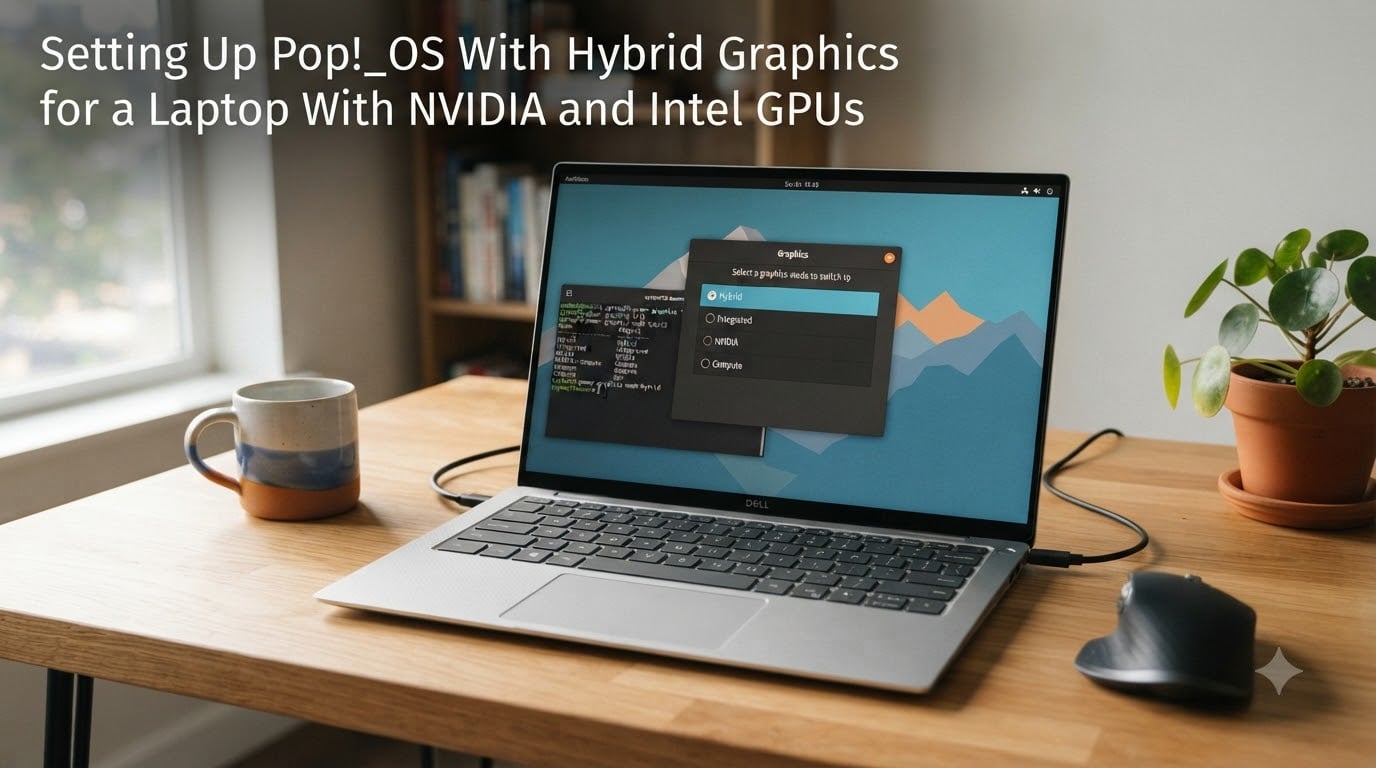
If your laptop has both an NVIDIA discrete GPU and an Intel integrated GPU, you already know the trade-off: battery life versus graphics performance. Pop!_OS handles this better than almost any other Linux distribution, thanks to the system76-power package that ships by default. I have been running hybrid graphics on Pop!_OS across three different laptops over the past two years, and this guide walks you through everything I wish someone had told me on day one.
You will learn how Pop!_OS hybrid graphics work with NVIDIA and Intel GPUs, how to switch between the four graphics modes, how to force specific apps onto the discrete GPU, and how to fix the most common issues that come up. Whether you are on a System76 machine or a third-party laptop like a Dell XPS, Lenovo Legion, or ASUS ROG, the same principles apply.
Table of Contents
What Is Hybrid Graphics and Why It Matters on Pop!_OS
Hybrid graphics is a laptop configuration that pairs an integrated GPU (iGPU) embedded in your Intel or AMD CPU with a discrete GPU (dGPU) like an NVIDIA RTX card. Most modern gaming and workstation laptops ship this way. The point is to use the iGPU for everyday tasks and wake the dGPU only when you need extra horsepower.
Understanding iGPU vs dGPU
The integrated GPU (iGPU) lives inside your Intel processor and shares system memory. It uses very little power, which is why your laptop lasts 8 hours on battery when browsing the web. The discrete GPU (dGPU) is a separate NVIDIA chip with its own video memory that can render complex 3D scenes or train machine learning models, but it drains battery fast.
Hybrid graphics, sometimes called NVIDIA Optimus on the Windows side, lets your operating system decide which GPU each application uses. The goal is simple: spend power only when you need it.
How NVIDIA Optimus Works on Linux
Linux has historically struggled with hybrid graphics because the kernel, drivers, and desktop environment all need to cooperate. Pop!_OS solves this through the system76-power daemon, which manages GPU state at a low level and exposes clean commands for switching modes. Since Pop!_OS 22.04 and especially 24.04, switching is mostly seamless and no longer requires a reboot in most cases.
The short version: Pop!_OS gives you four graphics modes that control when the dGPU is powered on, which applications can access it, and how aggressively the system tries to save battery.
The Four Graphics Modes in Pop!_OS
Pop!_OS exposes four distinct graphics modes through system76-power. Choosing the right one depends on what you are doing at the moment. Here is how each one behaves.
Integrated Mode (Battery Saver)
In Integrated mode, the NVIDIA dGPU is completely powered off. Your laptop runs only on the Intel iGPU, which gives you the best battery life and quietest thermals. This is the default mode for most System76 laptops out of the box, and it is what I leave on when I am writing or browsing.
Use this mode when: writing documents, browsing the web, watching video, doing anything where battery life matters more than 3D performance.
NVIDIA Mode (Maximum Performance)
NVIDIA mode forces every application to render through the discrete GPU. The dGPU stays on permanently, which means shorter battery life and louder fans, but every game and 3D app gets full performance. This is essentially the opposite of Integrated mode.
Use this mode when: gaming, running long CUDA jobs, doing 3D rendering where consistent performance matters more than battery.
Hybrid Mode (Automatic Switching)
Hybrid mode is the best of both worlds. The dGPU stays available but is only woken up when an application requests it. Pop!_OS 24.04 added automatic on-the-fly switching, so the system decides which GPU to use based on the workload. When you close the demanding app, the dGPU powers back down.
Use this mode when: you do a mix of light and heavy work throughout the day, like coding during the day and gaming at night.
Compute Mode (CUDA Workloads)
Compute mode keeps the dGPU powered on but treats it as a compute resource only. The GPU is not used to render your desktop or OpenGL applications, but it is fully available for CUDA, OpenCL, and machine learning frameworks. This avoids some driver conflicts that can happen when the dGPU is actively driving displays.
Use this mode when: running PyTorch, TensorFlow, Blender GPU rendering, or any other CUDA workload for extended periods.
How to Switch Graphics Modes in Pop!_OS
Pop!_OS gives you three ways to change graphics modes: a graphical toggle in the COSMIC desktop, a CLI tool, and direct commands. I usually use the command line because it is faster and works regardless of which desktop environment is installed.
Switching from the COSMIC Desktop
If you are running Pop!_OS 24.04 or newer with COSMIC, open the system tray and click the battery or power icon. You will see a graphics mode selector with options for Integrated, NVIDIA, Hybrid, and Compute. Clicking a mode prompts you for your password and applies the change within a few seconds. Most modes no longer require a logout.
Switching from GNOME Desktop
On older Pop!_OS installations running GNOME, you will find the graphics mode toggle inside the system menu under “Power” or through the Pop!_OS Settings panel. The behavior is similar to COSMIC, but the option may be labelled “Graphics Mode” instead of appearing in the tray.
Command Line Instructions for Graphics Switching
The command line is the most reliable way to switch modes and the only way that works headlessly. Open a terminal and run any of these commands:
system76-power graphics integrated
system76-power graphics nvidia
system76-power graphics hybrid
system76-power graphics compute
Each command prompts for your password and may require a logout depending on the mode and your current state. I keep these aliased in my ~/.bashrc as gint, gnv, ghyb, and gcomp for quick access.
If you want to see the current mode without changing it, run:
system76-power graphicsThis prints the active mode plus whether a reboot or logout is required to apply pending changes.
Checking Which GPU Is Currently Active
One of the most common questions I see on Reddit is “how do I know which GPU my laptop is using right now?” The answer is nvidia-smi.
Using nvidia-smi
Run nvidia-smi in a terminal. If the output shows processes and a memory table, your dGPU is active and being used. If the command errors out saying “No devices were found” or shows the GPU as “Off,” your system is running on the iGPU only. The power draw column is especially useful: 0W means the dGPU is idle, 15W+ means it is rendering something.
For a quick visual check, run nvidia-smi while playing a game. You should see the game’s process listed under the GPU. If it is not there, the game is running on the iGPU and you need to force it onto the dGPU.
Reading System76 Power Profiles
You can also check the active power profile with:
system76-power profileThis returns your current profile (Battery, Balanced, or Performance). Combined with the graphics mode, this tells you exactly how Pop!_OS is balancing power and performance at any moment.
Per-Application GPU Assignment Using prime-run
Hybrid mode is convenient, but sometimes you want to guarantee that one specific application uses the dGPU without switching the whole system. That is what prime-run is for.
Running Specific Apps on the dGPU
prime-run is a wrapper script that sets two environment variables before launching an application: __NV_PRIME_RENDER_OFFLOAD=1 and __GLX_VENDOR_LIBRARY_NAME=nvidia. These tell the NVIDIA driver to render the app on the dGPU and stream the result back to your display.
Usage is simple:
prime-run glxinfo | grep "OpenGL renderer"If the output mentions NVIDIA, prime-run is working. If it mentions Mesa or Intel, something is misconfigured.
Steam and Gaming Examples
To force a Steam game to run on the dGPU, you have two options. The easy way: in Steam, right-click the game, choose Properties, and under Launch Options enter:
prime-run %command%The harder but more flexible way is to launch Steam itself with prime-run from the terminal. The first method is cleaner and works for most users.
Blender and Creative Apps
For Blender, launch it from a terminal with:
prime-run blenderThen go to Edit > Preferences > System and pick “CUDA” or “OptiX” as the rendering device. Blender will now use the NVIDIA card for Cycles rendering. The same pattern works for DaVinci Resolve, Kdenlive (with hardware acceleration), and most other creative apps.
Battery and Power Management Tips
Hybrid graphics is only as good as your power profile. Here is what I have learned after running three different hybrid laptops on Pop!_OS.
Maximizing Battery Life on Hybrid Setups
Stay in Integrated mode whenever you can. The dGPU at idle still pulls 5 to 10 watts, which can cut your battery life in half. If you only need the dGPU occasionally, leave Hybrid mode on but use prime-run for the specific apps that need it instead of switching the whole system.
Disable the dGPU manually if you want even more savings:
sudo systemctl stop nvidia-persistenced
sudo rmmod nvidia_drm nvidia_modeset nvidia_uvm nvidia
This is a temporary fix that powers off the dGPU until the next reboot. To make it stick, disable the systemd services that load the NVIDIA modules automatically.
Power Profile Recommendations
Pop!_OS ships with three power profiles: Battery, Balanced, and Performance. Pair Battery profile with Integrated mode for travel days. Pair Balanced with Hybrid mode for normal use. Reserve Performance plus NVIDIA mode for gaming or rendering sessions plugged into the wall.
Troubleshooting Common Hybrid Graphics Issues
Even with Pop!_OS doing the heavy lifting, hybrid graphics can be finicky. Here are the three issues I see most often and how to fix them.
Games Not Using the dGPU
If nvidia-smi shows zero processes while a game is running, the game is using the iGPU. First, confirm you are in Hybrid or NVIDIA mode using system76-power graphics. If you are already in Hybrid mode, launch the game with prime-run or set the Steam launch option as shown above.
If the game still ignores the dGPU, check that the NVIDIA driver is properly loaded:
lsmod | grep nvidiaIf nothing comes back, reinstall the driver with:
sudo apt install system76-driver-nvidiaBattery Drain Despite Integrated Mode
If your battery is draining fast even in Integrated mode, something is waking the dGPU. Run nvidia-smi and check the Processes section. Common culprits are background services like updatedb with GPU indexing, Steam’s auto-update, and Electron apps that request GPU acceleration.
You can also check what’s keeping the dGPU alive with:
cat /sys/bus/pci/devices/*/power/runtime_statusIf any line says “active,” that device is preventing the dGPU from sleeping.
Non-System76 Laptop Considerations
Pop!_OS is built by System76, but it works fine on Dell, Lenovo, HP, ASUS, and other laptops. The main difference is firmware. System76 machines ship with open firmware that exposes clean ACPI calls, while third-party laptops sometimes hide the dGPU behind proprietary BIOS settings.
If you install Pop!_OS on a non-System76 laptop and the dGPU refuses to power off, check your BIOS for an option labelled “Hybrid Graphics,” “Switchable Graphics,” or “Discrete GPU.” Set it to “Enabled” or “Auto.” Avoid “Discrete Only” if you want battery life.
BIOS and UEFI Settings for Hybrid Graphics
Before you even boot Pop!_OS, your BIOS controls whether the dGPU is available at all. Most laptops ship with hybrid graphics enabled by default, but it is worth checking if you are having trouble.
Reboot into your BIOS (usually by pressing F2, F10, or Del during startup) and look for these settings:
Hybrid Graphics / Switchable Graphics: Set to Enabled or Auto.
Discrete GPU: Set to Dynamic or Auto, not Always On.
Boot Display: Set to IGFX or Integrated so the iGPU handles the boot screen.
On Lenovo Legion laptops, the relevant setting is under Configuration > Display > Hybrid Mode. On Dell XPS, look under Video. On ASUS ROG, it is usually under Advanced > Graphics Configuration. The exact wording varies, but the idea is the same: let the OS decide when to wake the dGPU.
Save and reboot, then install Pop!_OS as usual. The system76-power package will detect the available GPUs and let you switch between them through the methods described above.
Frequently Asked Questions
Does Pop!_OS support NVIDIA GPUs?
Yes. Pop!_OS supports NVIDIA GPUs out of the box and ships with the system76-power package, which lets you switch between Integrated, NVIDIA, Hybrid, and Compute modes. For most NVIDIA cards you can install the proprietary driver with sudo apt install system76-driver-nvidia and reboot.
How do I enable hybrid graphics mode in Pop!_OS?
Open a terminal and run system76-power graphics hybrid. Enter your password when prompted. On Pop!_OS 24.04 with COSMIC, the change takes effect immediately. On older versions you may need to log out and back in. You can also enable hybrid graphics from the COSMIC system tray by clicking the power icon and selecting Hybrid.
How can I check which GPU is currently active?
Run nvidia-smi in a terminal. If it lists processes and memory usage, the dGPU is active. If it says no devices were found or shows 0W power draw, the system is running on the iGPU. You can also check the current graphics mode with system76-power graphics.
Why are my games still using the integrated GPU?
In Hybrid mode, only apps launched with prime-run use the dGPU. To force a Steam game onto the discrete GPU, right-click the game in Steam, choose Properties, and set the launch option to prime-run %command%. For other apps, launch them from a terminal with prime-run before the program name.
Final Thoughts on Pop!_OS Hybrid Graphics
Setting up Pop!_OS hybrid graphics with NVIDIA and Intel GPUs is one of the smoother Linux experiences available today. The combination of system76-power, prime-run, and the four graphics modes gives you full control without third-party tools.
Start in Integrated mode to confirm everything works, switch to Hybrid for daily use, and reach for NVIDIA mode or Compute mode when you need every watt of GPU power. Use prime-run to target specific apps, and remember that nvidia-smi is your best friend for verifying which GPU is actually being used. If you hit a wall, the BIOS settings and troubleshooting tips above should cover the most common scenarios on both System76 and non-System76 laptops.