
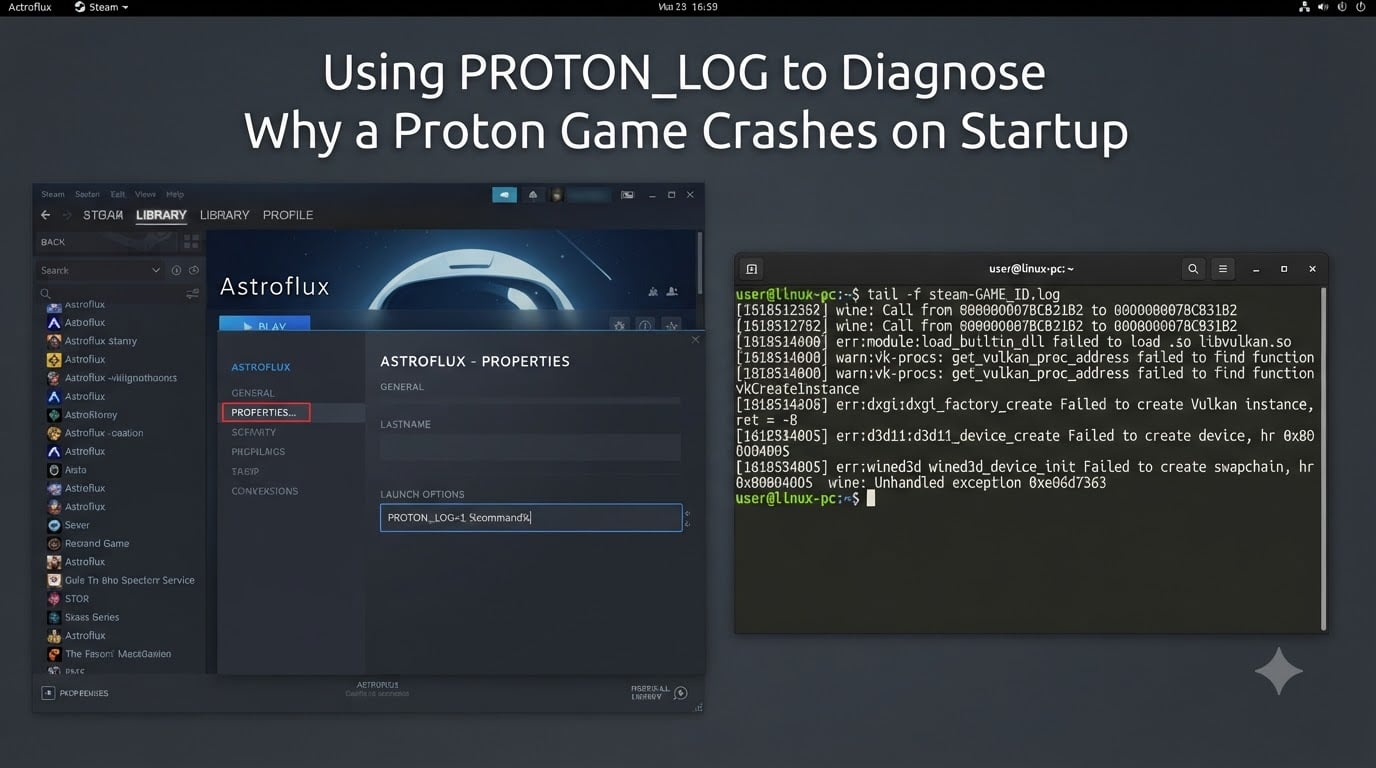
There is nothing worse than clicking Play in Steam and watching a Proton game crash before the window even appears. No error, no popup, just silence. When that happens, your first move should be PROTON_LOG, the built-in environment variable that turns Proton’s debugging output into a readable text file.
In this 2026 guide I’ll walk you through the exact PROTON_LOG workflow I use when a Steam game refuses to start on Linux or the Steam Deck. We’ll cover how to enable it, where the log lands, how to read it, and what to do when even PROTON_LOG stays silent.
Table of Contents
What Is PROTON_LOG and Why You Need It?
PROTON_LOG is an environment variable that tells Proton to write its internal log messages to a file. Proton is built on top of Wine, DXVK, VKD3D-Proton, and Vulkan. When something goes wrong, the error usually surfaces inside one of those layers, not in Steam itself.
Without PROTON_LOG, that information is thrown away. With it, every Wine debug message, DXVK warning, and Vulkan error is captured so you can actually see why a Proton game crashes on startup.
Think of it as Proton’s black box recorder. It is the difference between guessing and knowing.
How to Enable PROTON_LOG in Steam Launch Options?
Enabling PROTON_LOG is a matter of adding one string to a game’s launch options in Steam. The syntax is simple, but the exact placement matters.
Setting Up the Launch Option in Desktop Mode
Follow these steps on any Linux desktop client:
Step 1. Open your Steam library and right-click the game that will not start.
Step 2. Choose Properties from the context menu.
Step 3. In the General tab, find the field labeled Launch Options.
Step 4. Type exactly:
PROTON_LOG=1 %command%
Step 5. Close the Properties window. Steam saves automatically.
Now launch the game once. Even if it crashes immediately, Proton will write a log before exiting.
Doing the Same on a Steam Deck in Gaming Mode
The Steam Deck hides the launch option under a couple of menus, but the syntax is identical:
Step 1. Select the game on the deck and press the Options button (the three dots).
Step 2. Choose Properties.
Step 3. Scroll down to the Launch Options field on the left.
Step 4. Enter PROTON_LOG=1 %command% and exit.
One common mistake I see on the r/linux_gaming subreddit is typing PROTON_LOGS (with an S) or forgetting %command%. Without %command%, Steam will not pass the executable and the game will not run at all.
Where to Find the Proton Log File
Once the game has been launched with logging enabled, Proton drops a file called steam-<GAME_ID>.log into your home directory. That is the file you want to open.
Default Log Location on Linux and Steam Deck
The default location is your user home:
Linux desktop:
~/steam-<GAME_ID>.log(for example/home/yourname/steam-1234560.log)SteamOS:
/home/deck/steam-<GAME_ID>.log
The <GAME_ID> is the Steam App ID, not the game’s name. You can find it in the store page URL or in the Properties window under the game name.
If you launch the game and no log file appears, jump ahead to the silent crash section below.
How to Read and Interpret a Proton Log
A Proton log looks intimidating at first. It is usually thousands of lines long and full of acronyms. The good news is you rarely need to read the whole file.
Anatomy of a Proton Log Entry
Each line is stamped with a timestamp and tagged with the module that produced it:
wined3dorwine– native Windows API translationdxvk– Direct3D 9, 10, and 11 to Vulkan translationvkd3d-proton– Direct3D 12 to Vulkan translationvulkan– the underlying graphics API
Severity markers matter. Lines that begin with err: are real errors. Lines that begin with warn: or fixme: are usually informational.
Open the file and scroll to the bottom. The crash usually happens near the end, often inside a backtrace block. Search that section for the words err, exception, device lost, or failed to load.
Common Error Patterns Found in Proton Logs
Once you have read a few of these logs, the patterns start to repeat. These are the most common ones I have seen while debugging crashes on Arch, Fedora, Ubuntu, and SteamOS.
Vulkan and DXVK Errors
Driver problems are the single biggest cause of Proton crashes. Look for these strings:
VK_ERROR_DEVICE_LOST– the GPU reset itself. Often a driver mismatch, unstable overclock, or a missing 32-bit Vulkan loader.DXVK: failed to create instance– DXVK could not talk to Vulkan. Check that your Mesa or NVIDIA driver is up to date.Loaders mentioning both
amdvlkandradv– two Vulkan drivers fighting each other. Removeamdvlkand use Mesa’sradvfor AMD GPUs.
On the Steam Deck this is rare, but on Arch and Manjaro it is the cause of half the crash reports I see.
Wine and DLL Errors
Wine-related crashes usually show up with the err:module prefix:
err:module:import_dll Loading library X failed– a dependency DLL is missing from the Proton prefix. Protontricks or a clean prefix usually fixes this.Unhandled exception: page fault– the game accessed memory it should not have. Often a Proton version mismatch.
Filesystem and Permission Errors
Games installed on NTFS or exFAT partitions frequently fail on Linux. Watch for access denied or STATUS_OBJECT_NAME_INVALID lines. Linux cannot apply the Unix permissions Proton expects, and the game crashes before any window appears.
What to Do When PROTON_LOG Does Not Create a File?
This is the silent-crash scenario that frustrates Linux users the most. You set PROTON_LOG=1, launch the game, it dies instantly, and no steam-<GAME_ID>.log appears.
That usually means the crash happens before Proton can open the log file. It is most often a 32-bit Vulkan loader issue or a corrupt prefix.
Forcing Persistent Logs With user_settings.py
For stubborn cases, set the variable inside the Proton prefix itself. Every Proton prefix has a Python file called user_settings.py that Proton reads on launch.
Step 1. Open the prefix folder at ~/.steam/steam/steamapps/compatdata/<APPID>.
Step 2. Edit (or create) user_settings.py.
Step 3. Add this line and save:
PROTON_LOG=1
Step 4. Relaunch the game. Logs now persist even when the launch option string is overridden.
From my experience, the next thing to verify is the 32-bit Vulkan loader. On Arch and Manjaro, that means installing lib32-vulkan-radeon (AMD), lib32-nvidia-utils (NVIDIA), or lib32-vulkan-intel (Intel). The Steam Deck ships with these preinstalled, so the issue is rare there but common on a freshly installed desktop distro.
Picking the Right Proton Version for the Game
Sometimes the log points at nothing obvious and the crash is actually caused by the Proton version itself. Valve and the community release new builds frequently, and a title that crashes on Proton 9 Experimental may run perfectly on Proton 8 or GE-Proton.
How to Switch Proton Versions in Steam
Step 1. Open the game’s Properties.
Step 2. Click Compatibility.
Step 3. Tick Force the use of a specific Steam Play compatibility tool.
Step 4. Choose Proton 8, Proton 9 Experimental, or a GE-Proton release.
Before changing versions, check ProtonDB. If other users report success on a specific build, start there.
Submitting a Useful Bug Report to Valve
If the log reveals a real Proton bug, file it with Valve. A good report gets fixed. A vague one gets closed.
What to Include in the Report
Open the issue tracker at github.com/ValveSoftware/Proton and create a new issue with:
The exact game title and Steam App ID
The Proton version you tested
Your distro name and version (for example, Arch Linux, kernel 6.10)
Your GPU driver version (output of
vulkaninfo | grep driverName)The full
steam-<GAME_ID>.logattached as a file
Use a clear title such as [Game Name] crashes on startup with Proton 9 Experimental. Maintainers triage by title, so a specific subject saves everyone time.
Frequently Asked Questions
How do I check what caused a Proton game crash?
Enable PROTON_LOG=1 %command% in the game’s Steam launch options, then launch the game once. Open the steam-.log file in your home directory and scroll to the bottom. Search the last few hundred lines for err:, exception, or device lost to find the actual fault.
Why does my Proton game crash on startup with no error?
Silent crashes usually mean the game exits before any visible UI can render. Common causes are missing 32-bit Vulkan drivers (lib32-vulkan-radeon, lib32-nvidia-utils), conflicts between amdvlk and radv, or NTFS/exFAT partitions that cannot apply Linux permissions. Install the right 32-bit loader for your GPU and reinstall the game on an ext4 or Btrfs drive to test.
How do I force a Windows game to run through Proton?
Right-click the game in Steam, open Properties, click Compatibility, and tick Force the use of a specific Steam Play compatibility tool. Choose a Proton release such as Proton 8, Proton 9 Experimental, or a GE-Proton build. Close the window and launch the game.
Can bad RAM cause Proton games to crash?
Yes. Faulty memory causes random crashes that look like software bugs because the fault can land inside Wine or DXVK. If your Proton log shows SIGSEGV or page fault inside ntdll or kernel32, run memtest86 overnight to rule out hardware before blaming Proton.
Why is PROTON_LOG not creating any log file?
The crash is happening before Proton can open the log, usually because a 32-bit Vulkan loader is missing or the Proton prefix is corrupt. Install the correct lib32-vulkan package for your GPU, delete the prefix under steamapps/compatdata/, or set PROTON_LOG=1 inside the user_settings.py file inside the prefix.
Wrapping Up: A Repeatable PROTON_LOG Workflow
When a Proton game crashes on startup, PROTON_LOG is your fastest path to a real answer. Add PROTON_LOG=1 %command% to the launch options, reproduce the crash, and open the resulting steam-<GAME_ID>.log from your home directory.
If the log is missing, work the silent-crash checklist: confirm 32-bit Vulkan drivers, fix driver conflicts, switch Proton versions, and try a fresh prefix. When the log is present, read from the bottom up and look for err: lines.
That single workflow has helped our team diagnose why a Proton game crashes on startup on everything from a six-year-old Arch desktop to a brand-new Steam Deck. Bookmark it, share it with the next person stuck on a silent crash, and your future self will thank you.