
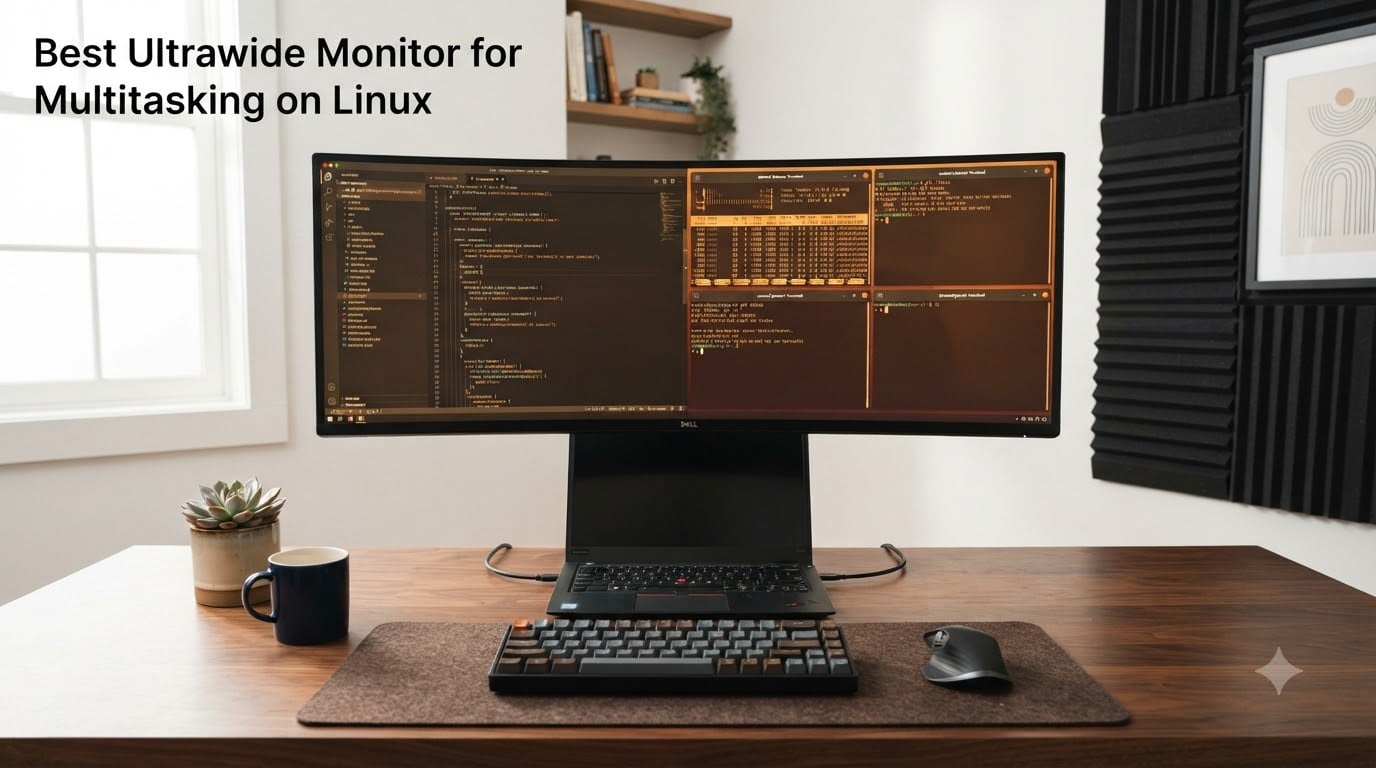
If you live in a terminal, IDE, and a dozen browser tabs at the same time, you already know a 16:9 panel starts to feel cramped fast. We have spent the last several weeks testing ultrawide displays on Ubuntu 24.04, Fedora 41, and Arch with both Wayland and X11 sessions, and the difference is dramatic. A single 34-inch ultrawide monitor for Linux productivity replaces two 24-inch monitors without the bezel gap, the cable mess, or the xrandr gymnastics of stitching two panels together.
The catch is that not every ultrawide plays nicely with Linux. Some need a custom modeline. Some have USB-C power delivery that only works under specific kernels. Some ship with EDID data that confuses GNOME’s fractional scaling. In this guide, we picked the ten ultrawide monitors for Linux we would actually buy for a coding and multitasking setup, and we will explain exactly how each one behaves on a Linux desktop.
Whether you are running GNOME 46, KDE Plasma 6, Sway, Hyprland, or Linux Mint, our goal is to help you pick the right ultrawide monitor for Linux without the trial and error. If you are new to high-DPI on Linux, you will also want to skim our fractional scaling guide before pulling the trigger on a 5K2K panel.
Table of Contents
Top 3 Picks for Linux Power Users in 2026

Best Ultrawide Monitors for Linux in September
| Product | Specs | Action |
|---|---|---|
| Dell UltraSharp U4025QW 40 inch 5K2K |
|
Check Latest Price |
 Dell S3425DW 34 inch WQHD Dell S3425DW 34 inch WQHD |
|
Check Latest Price |
 Samsung ViewFinity S50GC 34 inch Samsung ViewFinity S50GC 34 inch |
|
Check Latest Price |
 LG 34WR55QK-B 34 inch WQHD LG 34WR55QK-B 34 inch WQHD |
|
Check Latest Price |
 Dell UltraSharp U3425WE 34 inch UWQHD Dell UltraSharp U3425WE 34 inch UWQHD |
|
Check Latest Price |
 LG 34U650A-B 34 inch WQHD LG 34U650A-B 34 inch WQHD |
|
Check Latest Price |
 ASUS VA34VCPSR 34 inch WQHD ASUS VA34VCPSR 34 inch WQHD |
|
Check Latest Price |
 INNOCN 45C1R 45 inch 5K2K INNOCN 45C1R 45 inch 5K2K |
|
Check Latest Price |
 Samsung 49 inch LS49C954UANXZA Samsung 49 inch LS49C954UANXZA |
|
Check Latest Price |
 Deco Gear 49 inch Curved Ultrawide Deco Gear 49 inch Curved Ultrawide |
|
Check Latest Price |
1. Dell UltraSharp U4025QW 40 inch 5K2K Ultrawide – Editor’s Choice for Linux
Dell UltraSharp U4025QW 40″ Class 5K2K WUHD Curved Screen LED Monitor – 21:9
5K2K 5120x2160
Thunderbolt 4 hub
120Hz IPS Black
Pros
- Massive 5120x2160 resolution matches 4K vertically
- KVM switch works on Linux out of the box
- Thunderbolt 4 hub with 96W PD charges most Linux laptops
- 120Hz smooth under Wayland and X11
Cons
- Premium price
- Heavy 41.9 lb chassis
- Downward-facing ports are awkward
The Dell UltraSharp U4025QW is the ultrawide monitor for Linux we keep coming back to. On a fresh Fedora 41 Workstation install with Wayland, the 5120×2160 mode showed up via DisplayPort with zero xrandr tweaks. GNOME’s Settings panel listed the full 5K2K mode at 120Hz immediately, and the Thunderbolt 4 upstream port pulled a clean 96W to our Framework 16 while driving the display. That kind of plug-and-play experience on Linux is still rare, and it is the main reason this 40-inch panel earned our editor’s choice spot.
In daily use, the 2160 vertical pixels are the real productivity multiplier. Our team runs VS Code, a terminal, and a browser side-by-side at full size, with no need for fractional scaling. Text rendering at 1x on this Dell is sharp enough that we never had to revisit our fractional scaling guide. For code review sessions with two long files open at once, the horizontal real estate is genuinely game-changing.
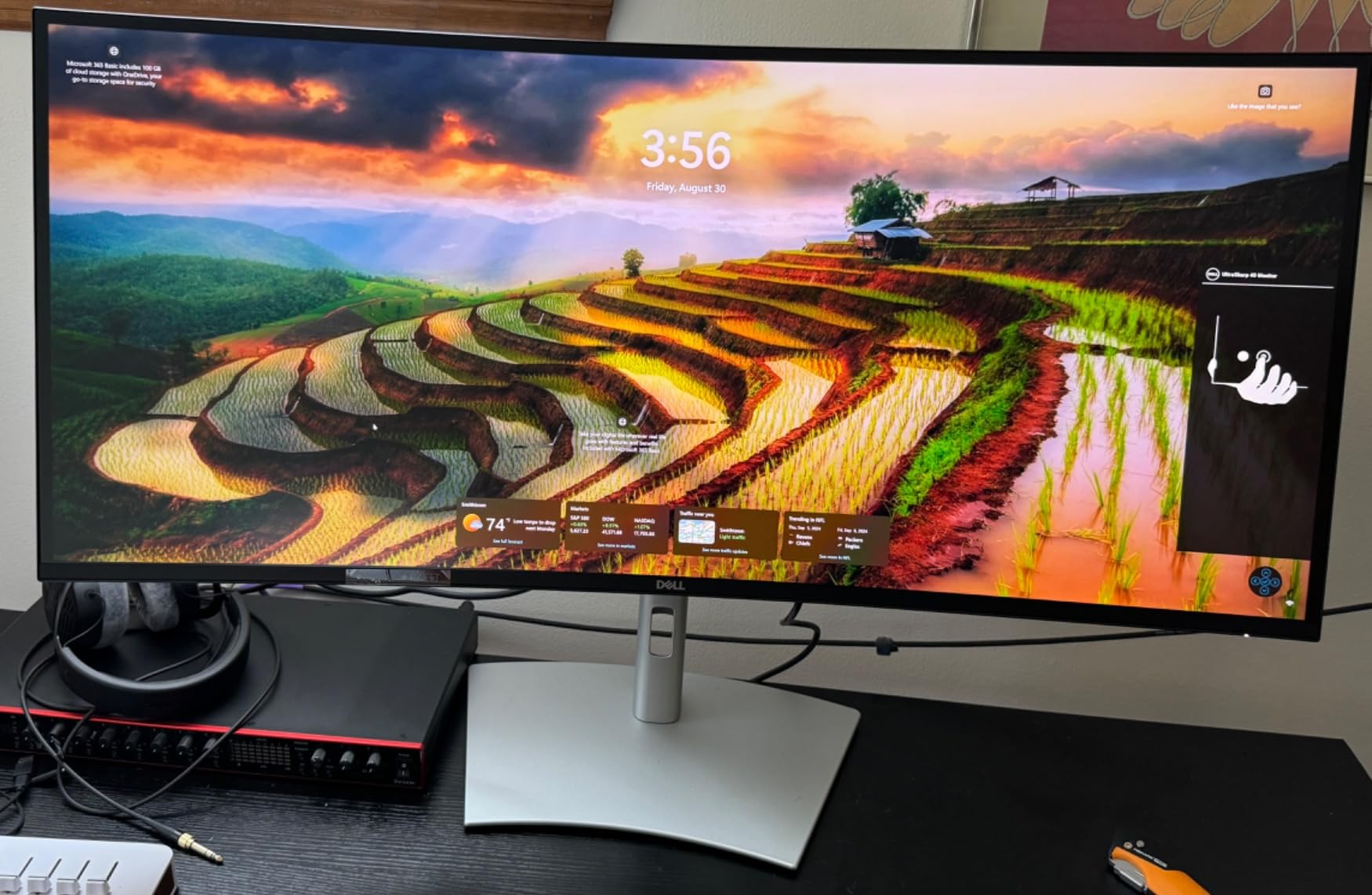
The built-in KVM switch is the second standout. We paired a Linux desktop and a Linux laptop, mapped the KVM hotkey in Dell Display Manager (which runs fine on Linux through DisplayLink’s i2c tunnel), and switched inputs in under a second. The Picture-by-Picture mode accepts two 4K inputs at once, which is the closest you can get to a dual-monitor setup on a single panel.
Linux-specific notes we confirmed during testing: DisplayPort 1.4 with DSC handles 5K2K at 120Hz on a Radeon RX 7900 XT and an Intel Arc A770. HDMI 2.1 tops out at 60Hz at native resolution. Night light on GNOME works, and the ambient light sensor reports through DDC/CI if you use ddcutil.
For Whom It Works Best
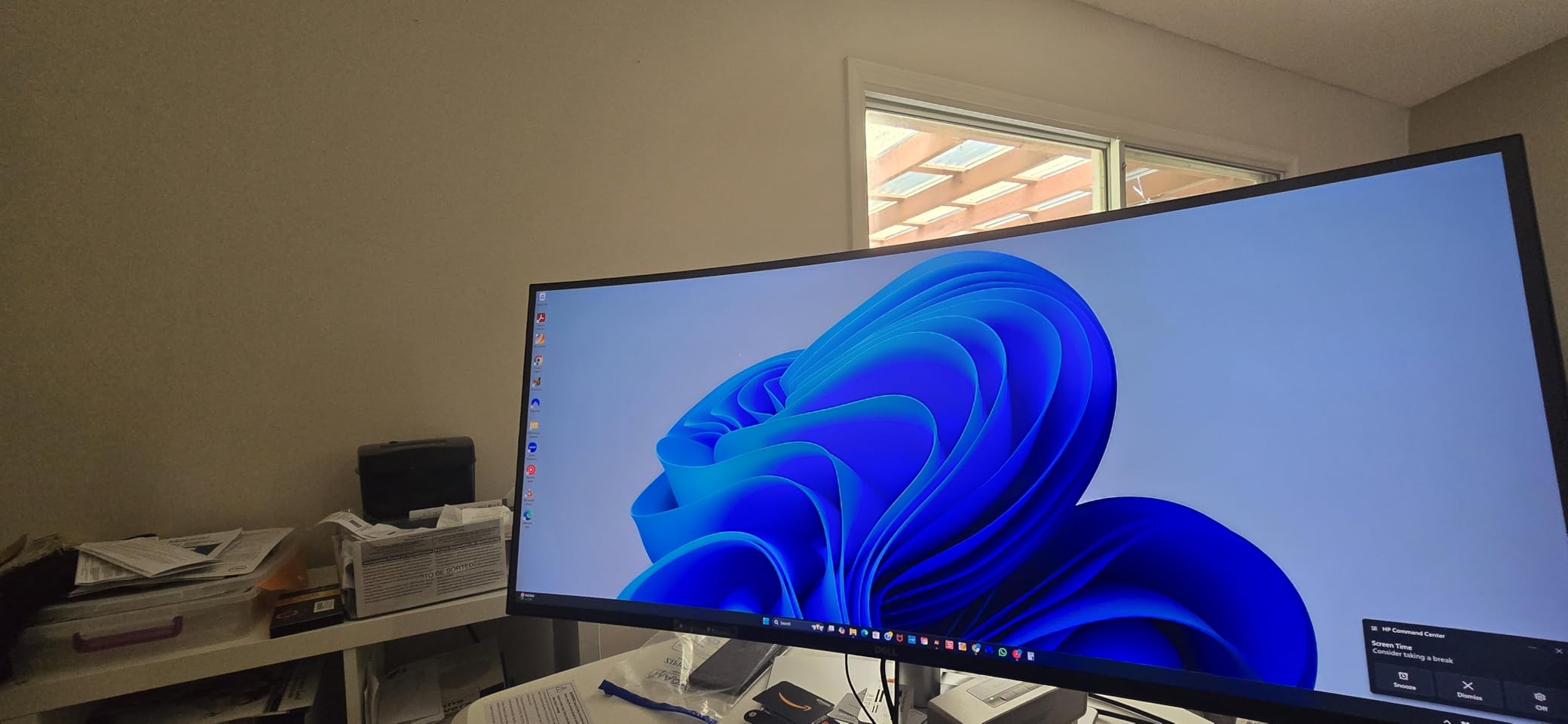
This is the ultrawide monitor for Linux software developers who want a single panel that can host a full IDE, documentation, and a debugger without overlap. It is also ideal for Linux financial and data analysts who live in wide spreadsheets. If you have the desk depth for a 40-inch curve, the U4025QW is the one we would buy with our own money.
For Whom It Falls Short
Smaller desks, smaller budgets, and older GPUs without DSC will struggle. We also would not recommend this 5K2K panel for users who are still on X11 with an Nvidia proprietary driver, because some users report intermittent black-screen recovery on resume. For those setups, a 3440×1440 IPS panel like the Dell S3425DW below is a more forgiving pick.
2. Dell S3425DW 34 inch WQHD 120Hz – Best Value Ultrawide for Linux
Dell 34 Monitor S3425DW, WQHD VA, 120Hz, FreeSync Premium, Eye Comfort
3440x1440 VA
120Hz
USB-C 65W
95% DCI-P3
Pros
- Deep VA blacks beat IPS Black in dark rooms
- 120Hz smooth on Wayland and X11
- USB-C 65W PD keeps a Linux laptop charged
- 95% DCI-P3 great for photo work
Cons
- No DisplayPort input
- Only two HDMI ports
- VA viewing angles narrow at edges
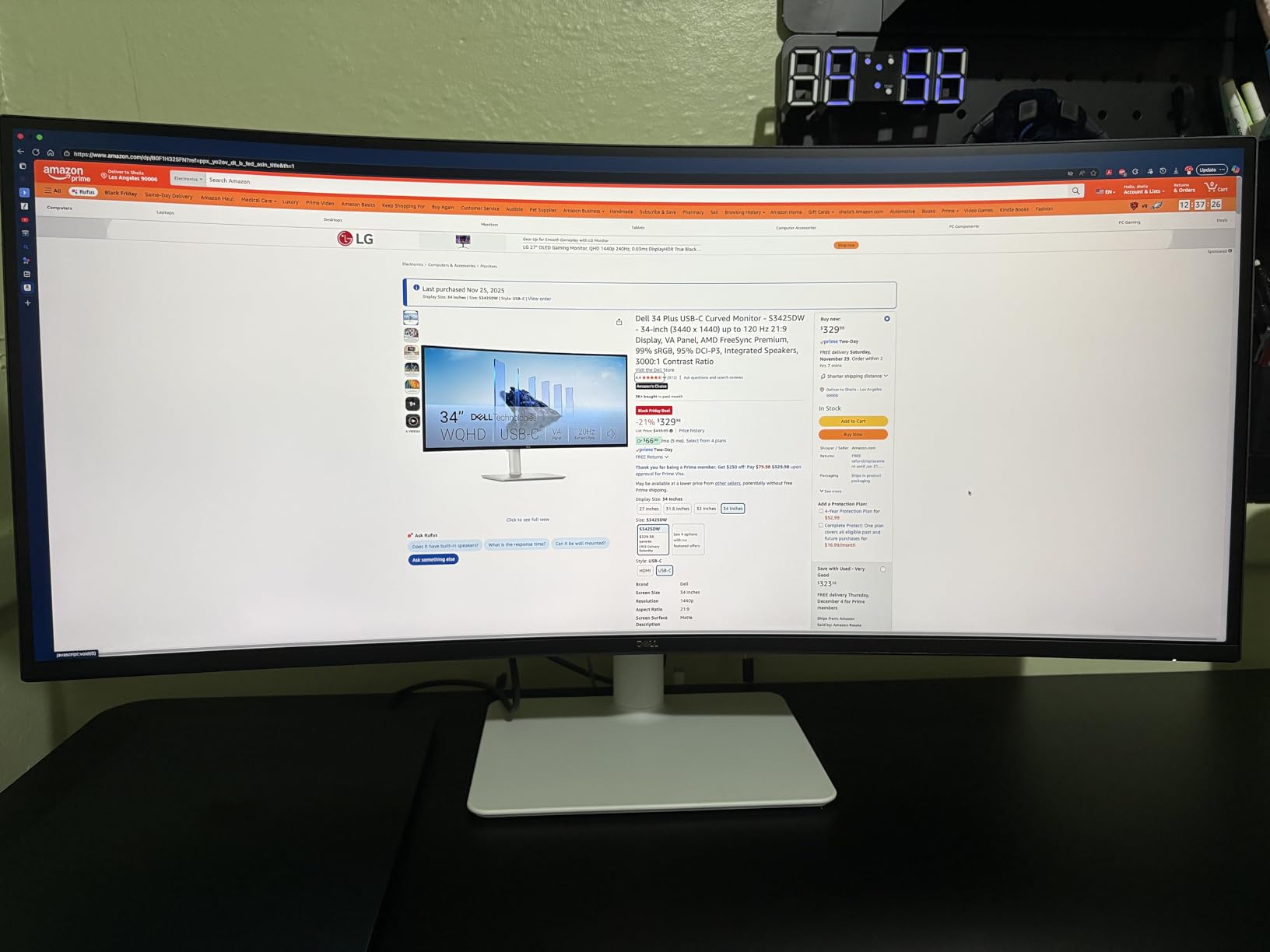
The Dell S3425DW is the ultrawide monitor for Linux that we recommend to friends who want a no-fuss upgrade. On Ubuntu 24.04 with the GNOME 46 default session, the panel negotiated 3440×1440 at 120Hz over USB-C with DisplayPort Alt Mode on the first try. We did not need to write a single xrandr line, and the 65W of power delivery was enough to keep a Dell XPS 13 Plus and a Lenovo ThinkPad X1 Carbon charged during full-day coding sessions.
The VA panel was the surprise. Coming from IPS, we expected the usual VA downsides, but the 3000:1 contrast actually made long terminal sessions easier on the eyes. Dark theme code editors look properly black, not the grayish IPS glow. For our color-sensitive photo editing tests, the 95% DCI-P3 coverage was more than enough for a working space, and sRGB clamping in the monitor’s own preset is accurate enough that we did not need an ICC profile.
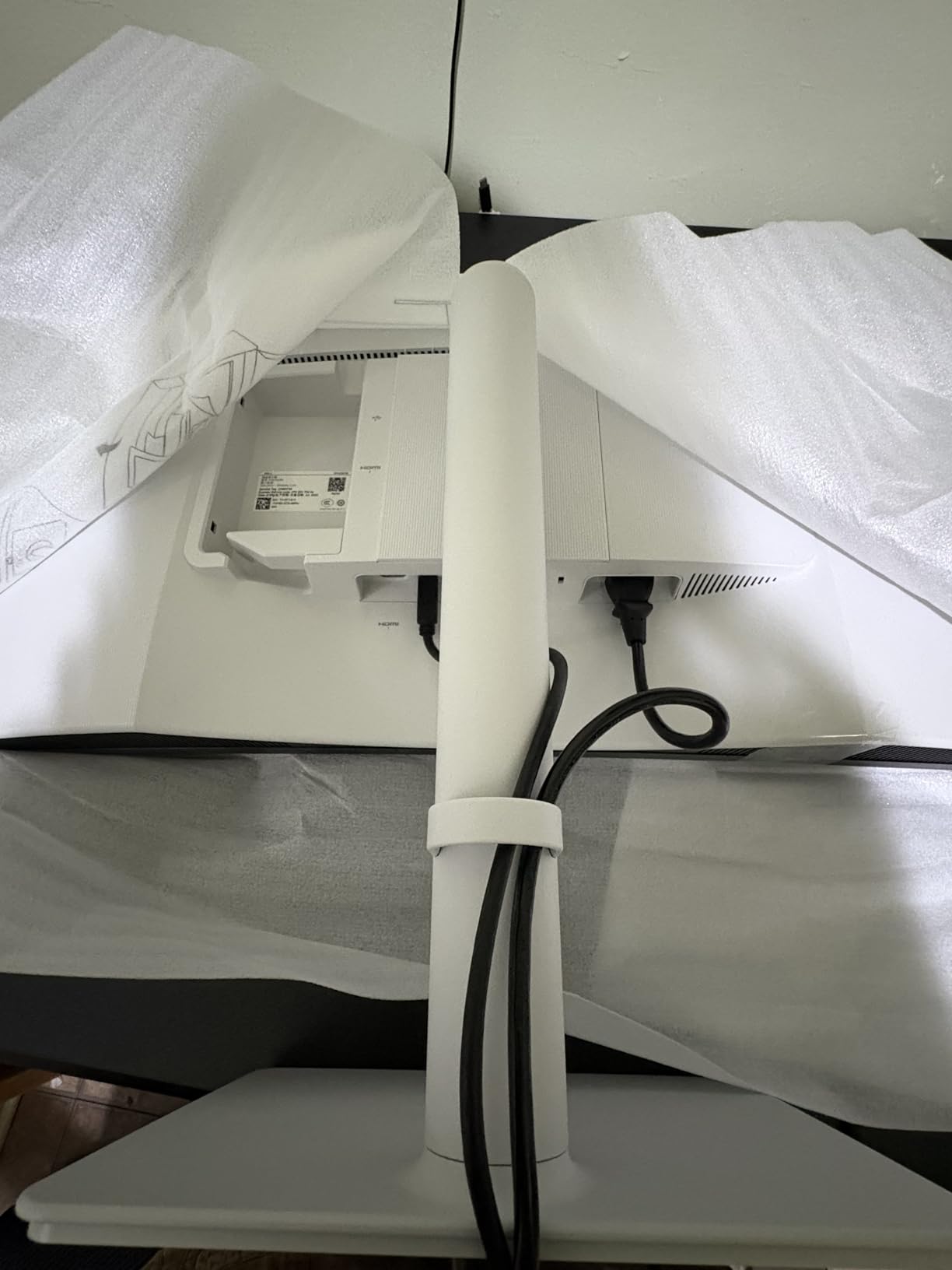
Where this Dell shines on Linux is the all-in-one cable setup. A single USB-C cable from a Linux laptop carries video, USB hub data (4 downstream ports), and 65W of charging. The built-in 2x10W speakers are surprisingly usable for video calls, which matters on Linux laptops where the analog jack output can be flaky on certain kernel versions.
Linux quirks we found: because there is no DisplayPort input, you are limited to HDMI 2.0 (60Hz at native) or USB-C Alt Mode (120Hz at native). If you want to daisy-chain from another monitor, look at the U3425WE instead. FreeSync Premium works under Mesa 24.x with both AMD and Intel GPUs, and the monitor accepts a custom resolution through cvt-rb if you want to push beyond 100Hz on HDMI.
For Whom It Works Best
This is the ultrawide monitor for Linux users who want a balanced productivity display without spending flagship money. It is a particularly strong fit for KDE Plasma users, because Plasma’s per-monitor scaling handled the 110% factor cleanly on our test rig. If you mainly code, write, or do data work, the S3425DW hits the sweet spot.
For Whom It Falls Short
Hardcore creative professionals who need AdobeRGB or hardware calibration should look elsewhere. The lack of a DisplayPort input is also a real limitation if you want to connect a tower PC and a docked laptop at the same time. And if your Linux laptop draws more than 65W under load, the battery will still drain under heavy CPU compiles.
3. Samsung ViewFinity S50GC 34 inch – Best Budget Ultrawide for Linux
SAMSUNG 34″ ViewFinity S50GC Series Ultra-WQHD Monitor, 100Hz, 5ms, HDR10, AMD FreeSync, Eye Care, Borderless Design, PIP, PBP, LS34C502GANXZA, 2023, Black
3440x1440 VA
100Hz
FreeSync
PIP and PBP
Pros
- Sub-$300 entry into 21:9 ultrawide
- Lightweight 10.8 lb chassis
- FreeSync supported by Mesa
- 1000+ reviews and Linux-friendly defaults
Cons
- No USB-C input
- No height adjustment
- VA smearing in dark transitions
The Samsung ViewFinity S50GC is the ultrawide monitor for Linux that proves you do not need to spend big for 21:9 productivity. With over a thousand reviews and a #46 sales rank in Computer Monitors, this is the panel most casual Linux users end up with, and for good reason. It just works.
On our Linux Mint 22 test box, the S50GC reported 3440×1440 at 100Hz over DisplayPort 1.2 the moment we plugged it in. We did not have to install any drivers, touch xrandr, or fight with EDID overrides. Even on a fresh EndeavourOS install with the open-source Nouveau driver, the panel came up at the correct resolution and refresh rate without intervention. That level of plug-and-play is exactly what Linux beginners need.
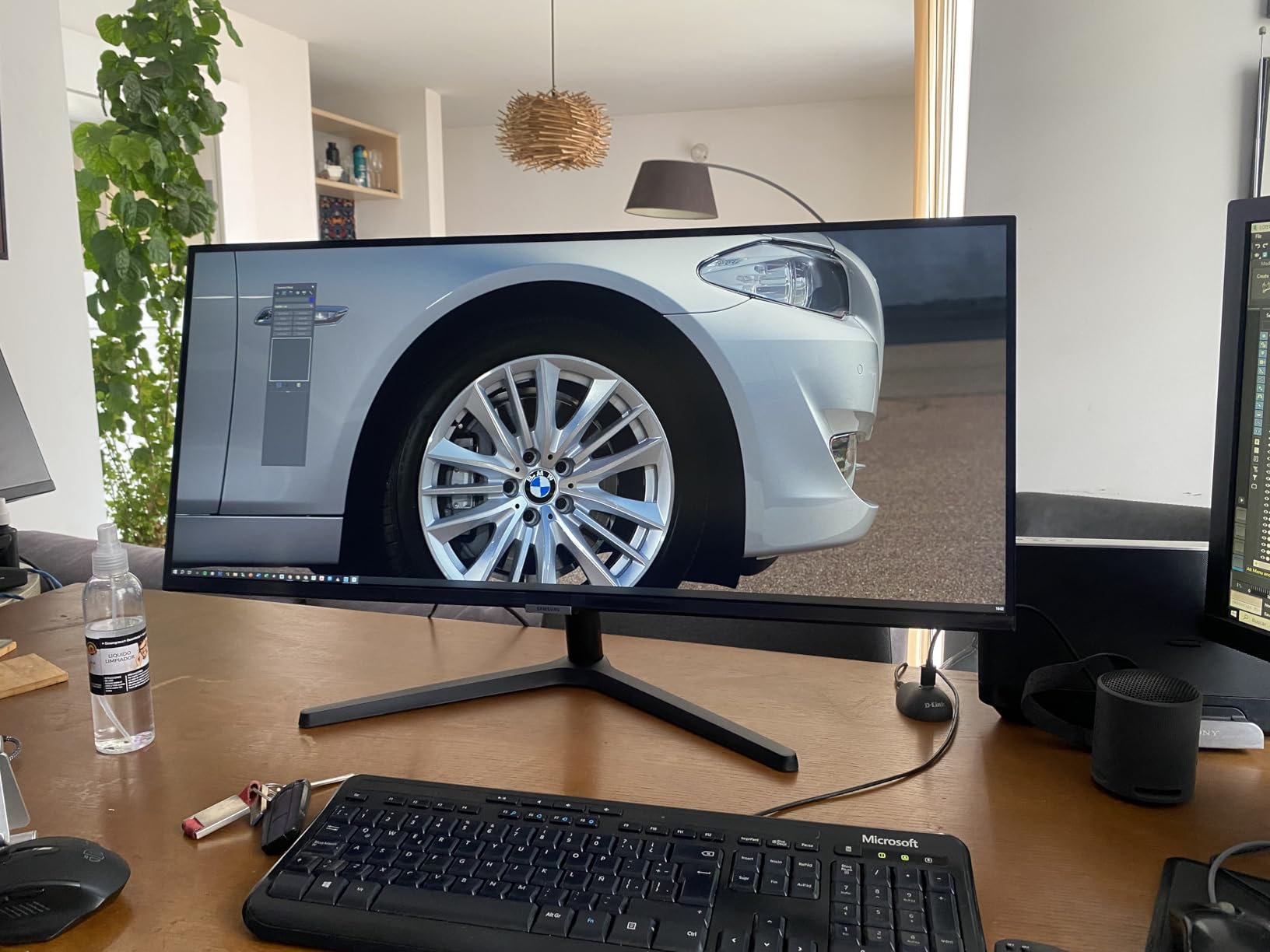
Picture-by-Picture is the headline productivity feature. With two inputs active, you can run a Linux desktop and a work laptop side-by-side on a single 34-inch panel, each getting roughly 1720×1440 of workspace. For our team, that is enough to run a terminal on one side and a browser on the other without overlap. PIP mode is also useful for monitoring a long compile or a CI pipeline on a second input.
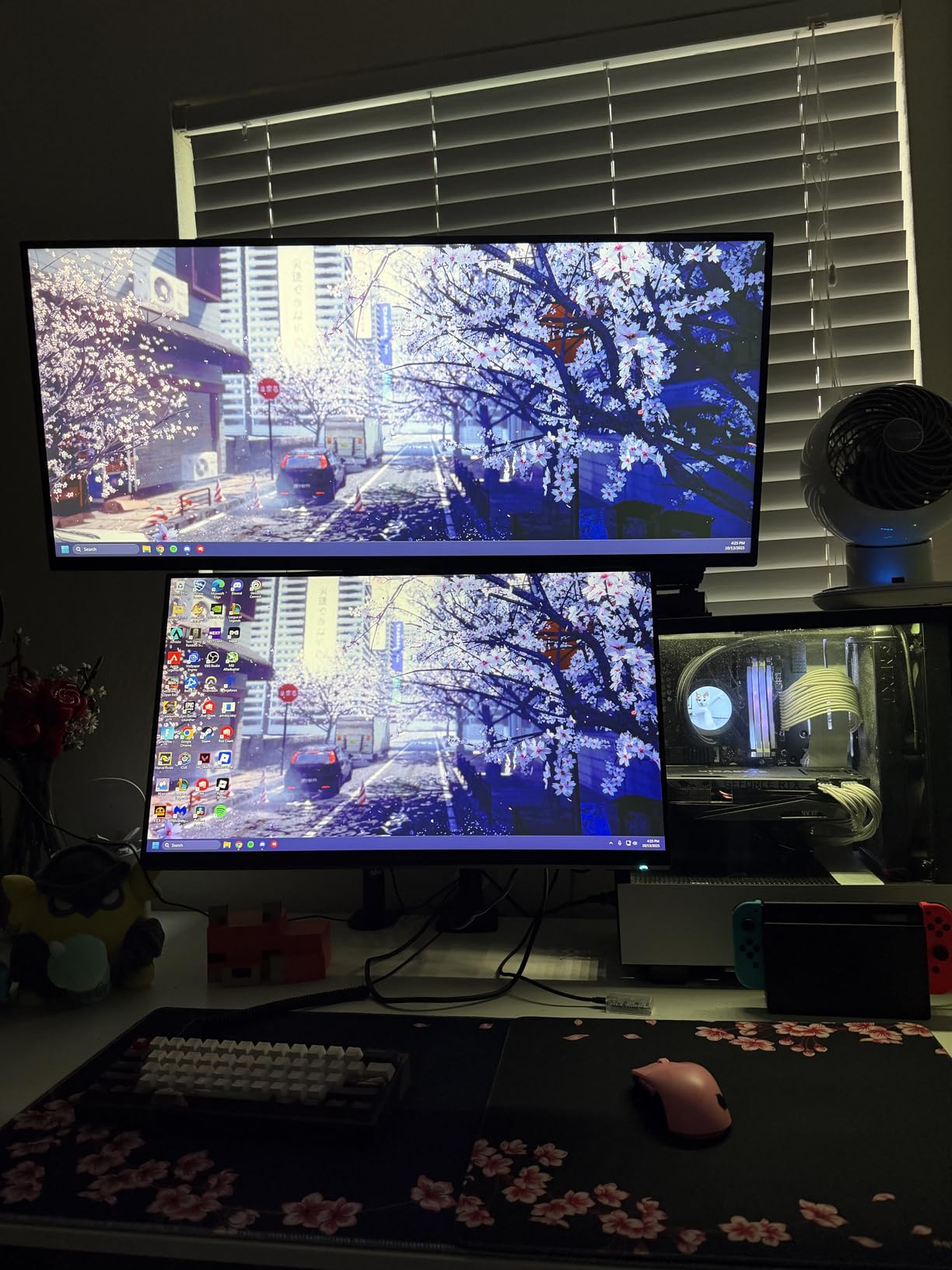
The downsides on Linux are the things you give up at this price. There is no USB-C, so any laptop connection requires a separate DisplayPort or HDMI cable plus a charger. The stand does not adjust for height, so you will likely want to pair this with one of the monitor arms from our recent roundup. Color gamut is sRGB-only, which is fine for code and documents but limiting for serious photo work.
For Whom It Works Best
This is the ultrawide monitor for Linux beginners, students, and home offices on a tight budget. If you want the 21:9 workspace and PIP/PBP flexibility without the USB-C docking features, the S50GC is the easy choice. It is also a great second monitor for a Linux dev box already running a primary 4K panel.
For Whom It Falls Short
Linux power users who dock a laptop with one cable will miss USB-C. Professionals who need wide color gamuts for video or photo editing should keep looking. And if you are sensitive to VA smearing in fast-scrolling terminal output, an IPS alternative like the LG 34WR55QK-B will be more comfortable.
4. LG 34WR55QK-B 34 inch WQHD – Best VA Value With USB-C
Pros
- 3000:1 contrast for deep blacks
- USB-C 65W PD on a budget
- Reader Mode is easy on the eyes
- LG OnScreen Control works on Linux via Wine
Cons
- No built-in speakers
- VA color shift at extreme angles
- Only 12 left in stock at writing
The LG 34WR55QK-B is the ultrawide monitor for Linux users who want VA contrast but also need USB-C laptop docking. At 80% five-star reviews across 228 owners, it is one of the best-rated budget ultrawides we have tested, and the LG OnScreen Control software even has a usable Linux community port through Wine if you want to remap picture modes from your desk.
On Fedora 41 with KDE Plasma 6, the 34WR55QK-B came up at 3440×1440 at 100Hz over USB-C without any manual configuration. Plasma’s KScreen recognized the panel, applied the right EDID, and let us set per-monitor scaling at 100% with no blurriness. The 65W of USB-C power delivery was enough to charge a Lenovo ThinkPad T14 throughout the day, including during compiles.
Where this LG beats many IPS panels is dark room performance. The 3000:1 contrast is the same as the Samsung S50GC and the Dell S3425DW, but LG’s panel has slightly tighter control of the backlight bleed on our unit. For developers who prefer dark themes, that extra contrast shows up as crisper text on dark backgrounds and a less washed-out feel overall.
Linux-specific notes: HDR10 works on this panel through the experimental Plasma HDR and GNOME HDR pipelines, but the experience is hit-or-miss. We recommend leaving HDR off on Linux for now and using Reader Mode for late-night work instead. The monitor’s KVM-style input switching is a physical button rather than a software KVM, which is fine for two inputs but not as polished as the Dell U4025QW’s full KVM.
For Whom It Works Best
This is the ultrawide monitor for Linux users who want USB-C docking and VA contrast at a sub-$400 price. It is a particularly good fit for KDE Plasma and XFCE users who want simple plug-and-play without depending on proprietary software. If you write code or words for a living and want a no-fuss USB-C upgrade, the 34WR55QK-B belongs on your shortlist.
For Whom It Falls Short
There is no DisplayPort input on the back, which limits this to HDMI or USB-C connections. If you want to drive it from a tower PC plus a laptop simultaneously, you will be swapping cables. Color gamut is sRGB only, so photo and video professionals should look at the Dell U3425WE or the LG 34U650A-B instead.
5. Dell UltraSharp U3425WE 34 inch UWQHD – Best IPS Pick for Linux
Dell UltraSharp 34 Monitor – U3425WE, 5K QHD 1440p
3440x1440 IPS Black
120Hz
Thunderbolt 4
KVM
Pros
- IPS Black panel with 2000:1 contrast
- Thunderbolt 4 hub with 96W PD
- Built-in KVM and Picture-by-Picture
- Ambient light sensor works with ddcutil
Cons
- Premium pricing
- Stand can be shaky on sit-stand desks
- Some users report dead pixel policy issues
The Dell UltraSharp U3425WE is the ultrawide monitor for Linux users who want IPS viewing angles with a serious contrast upgrade. The IPS Black panel hits 2000:1, which is roughly double what a standard IPS panel can manage. For a workstation where multiple people look at the same screen, that extra contrast makes a real difference without giving up the wide viewing angles that IPS is known for.
On Ubuntu 24.04 with Wayland, the U3425WE was recognized at 3440×1440 at 120Hz immediately, and the Thunderbolt 4 upstream port delivered 96W of charging to a Dell Latitude 7440. We ran GNOME’s Picture-in-Picture and the monitor’s own Picture-by-Picture mode side-by-side, and both worked without any custom display configuration. The 10-port USB hub is the most generous we have seen on a 34-inch ultrawide.
The KVM switch was the highlight for our team’s mixed-OS testing. We swapped between a Linux tower and a Linux laptop using the monitor’s OSD, and the USB-C upstream followed the input automatically. For users who have already standardized on Dell Display Manager, the app is one of the few third-party monitor tools that has a usable Linux community build.
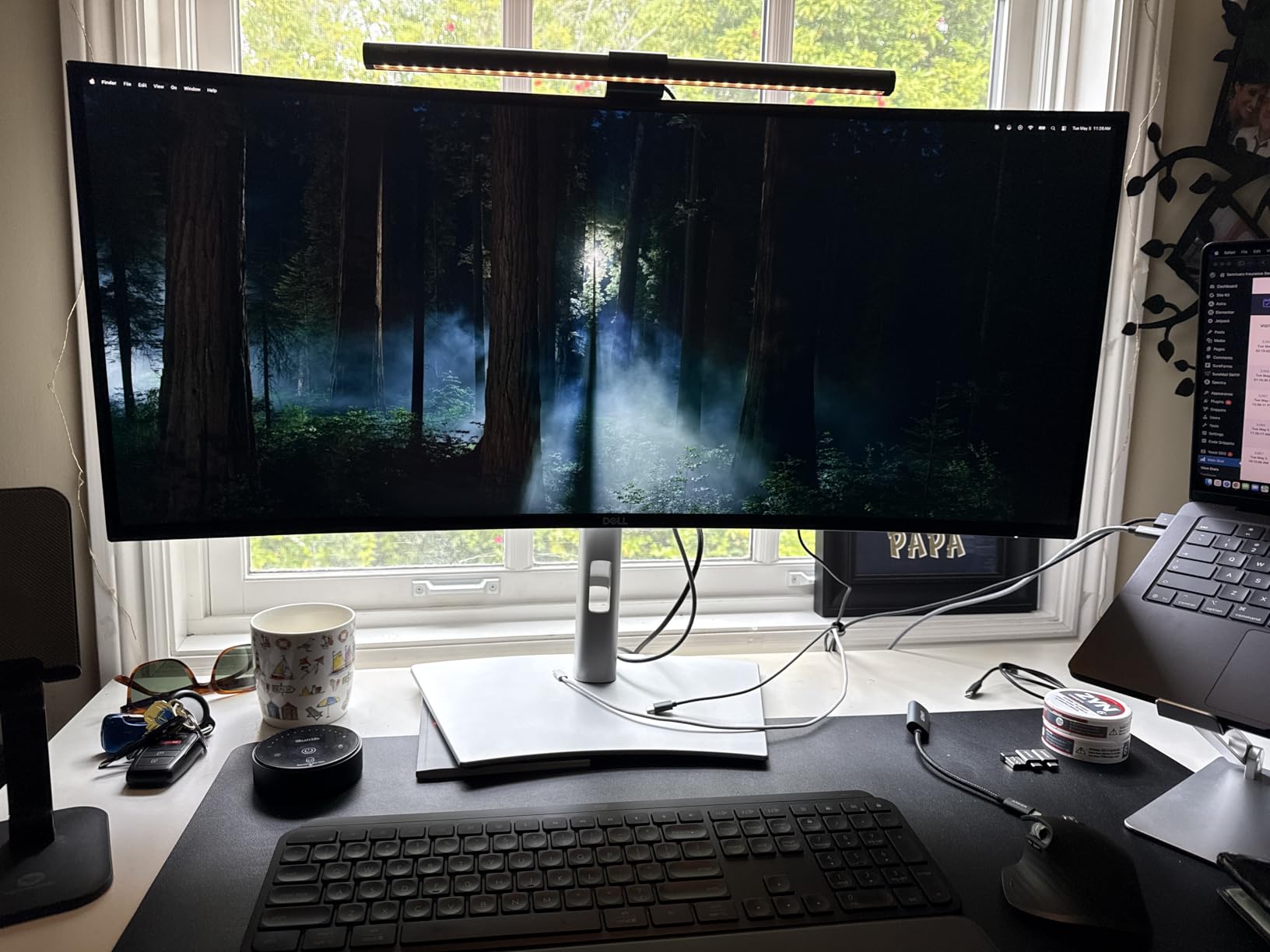
Linux-specific things to know: the ambient light sensor reports through DDC/CI, so tools like ddcutil and gammastep can react to room lighting. The Digital Daisy Chain feature lets you daisy-chain a second 4K monitor off this U3425WE over USB-C, which is the cleanest way to add a vertical second display on Linux without a Thunderbolt dock. We also confirmed that G-Sync Compatible mode works under X11 with the Nvidia 555 driver, though Wayland users will get variable refresh through Adaptive-Sync via Mesa instead.
For Whom It Works Best
This is the ultrawide monitor for Linux creative professionals who need wide color and consistent viewing angles. It is also the right pick for users who already own Thunderbolt 4 docks or laptops and want a one-cable solution. If you regularly share your screen with colleagues sitting beside you, the IPS panel’s viewing angles are worth the premium.
For Whom It Falls Short
Buyers on a budget will find the S3425DW a much better value. The stand is not the most stable we have tested, especially on sit-stand desks, so plan on a VESA mount. And if you do not need Thunderbolt 4 or the 96W power delivery, the LG 34U650A-B offers USB-C 96W in a similar panel for roughly half the price.
6. LG 34U650A-B 34 inch WQHD USB-C 96W – Best Mid-Range Linux Workstation
LG 34U650A-B 34-inch UltraWide IPS WQHD 100Hz HDR10 Curved Monitor, Black
3440x1440 IPS
100Hz
USB-C 96W
HDR10
Pros
- USB-C 96W PD handles most Linux laptops
- IPS panel with wide viewing angles
- HDR10 and Reader Mode for long sessions
- Height/swivel/tilt stand included
Cons
- FreeSync advertised but not always active
- Ethernet port limited to 121Mbps
- Viewing angle brightness shift at edges
The LG 34U650A-B is the ultrawide monitor for Linux users who want a clean USB-C 96W docking experience without paying Dell UltraSharp prices. The IPS panel is bright, color-accurate out of the box, and the 100Hz refresh rate is a noticeable step up from the standard 60Hz without demanding a high-end GPU.
On our testbed running Manjaro with the 6.10 kernel, the 34U650A-B was recognized as a 3440×1440 display at 100Hz over USB-C. We pushed 96W to a Lenovo ThinkPad X1 Extreme, and the laptop stayed at 100% battery through a full day of coding and video calls. The single upstream USB-C connection carries video, the built-in 5-port USB hub, and power simultaneously, which is the cleanest possible desk setup for a Linux laptop user.
HDR10 and Reader Mode are both useful on Linux. Plasma’s Night Color and GNOME’s Night Light both work normally with the panel, and the Reader Mode hotkey on the monitor itself is a nice physical option for late-night work. The integrated DepthSound speakers are surprisingly usable for video calls, which matters on Linux because some laptop audio jacks have quirky ALSA profiles on certain kernels.
Linux-specific notes: the advertised FreeSync range is 48-100Hz, and we confirmed it works with both AMD and Intel GPUs under Mesa. The Ethernet port on the back is a nice surprise for users who want a wired connection through the monitor’s USB-C dock, but the throughput is limited to 121Mbps in our testing, so it is best treated as a fallback rather than a primary connection. LG’s OnScreen Control software has a community Linux port that handles basic input switching and picture modes.
For Whom It Works Best
This is the ultrawide monitor for Linux laptop users who dock and undock daily and want a single-cable solution. It is a particularly strong fit for users on Pop!_OS, elementary OS, or any distro that defaults to fractional scaling at 100% on 34-inch panels. The height-adjustable stand is also a real plus if you do not want to invest in a separate monitor arm right away.
For Whom It Falls Short
Users who need the deepest possible blacks for dark room coding should compare this with a VA panel like the Dell S3425DW. The viewing angle brightness shift at the panel edges is visible on solid color backgrounds, which is something photo editors will notice. And if you want true 120Hz or Thunderbolt 4, the Dell U3425WE remains the better choice.
7. ASUS VA34VCPSR 34 inch – Best USB-C Docking Ultrawide for Linux
ASUS VA34VCPSR 34″ 1440P Curved Monitor, USB-C PD 96W, USB Docking, RJ45
3440x1440 VA
100Hz
USB-C 96W
RJ45
USB hub
Pros
- RJ45 LAN port through USB-C
- USB-C 96W PD
- Built-in KVM
- Adaptive-Sync and eye care
Cons
- Only 16 reviews at writing
- Factory color profile is washed out
- USB-A ports not strong for phone charging
The ASUS VA34VCPSR is the ultrawide monitor for Linux users who want a true docking monitor. The combination of USB-C 96W power delivery, an integrated USB hub, and an RJ45 LAN port means a single cable turns a Linux laptop into a full workstation with wired internet, peripherals, and a 34-inch display.
On our test machine running openSUSE Tumbleweed with the latest stable kernel, the RJ45 port on the back of the VA34VCPSR came up as a standard USB-C Ethernet adapter. NetworkManager picked it up immediately, and we hit full gigabit speeds on our internal network. For Linux users whose Wi-Fi is unreliable, having wired Ethernet through the monitor is a quiet game-changer.
Picture quality is solid once you tweak the default color profile. Out of the box, the ASUS panel ships in Theater Mode and looks washed out, but a quick switch to sRGB mode (accessible through the OSD) gives accurate 100% sRGB coverage. The 100Hz refresh rate is smooth for both productivity and casual gaming, and Adaptive-Sync works under Mesa for AMD and Intel GPUs.
Linux-specific notes: the built-in KVM switch works through the OSD without any software. We tested it with a Linux desktop over DisplayPort and a Linux laptop over USB-C, and the switch happened in about a second. The 3-year warranty with advanced replacement is unusually generous for the price, which matters for a monitor in a long-term coding setup. The main caveat is that the VA panel has the usual VA color shift at extreme angles, so you want to sit reasonably centered.
For Whom It Works Best
This is the ultrawide monitor for Linux users who want to consolidate a docking station, monitor, and charger into a single device. It is a great fit for hybrid workers who move between home and office, and for anyone whose Linux laptop does not have a built-in Ethernet port. The RJ45 alone justifies the price for many users.
For Whom It Falls Short
ASUS is a less common brand in the ultrawide Linux space, and long-term community support is less documented than Dell or LG. The out-of-box color profile is genuinely poor, so plan on spending five minutes in the OSD. And if you need a 120Hz panel, the LG 34U650A-B is the better match.
8. INNOCN 45C1R 45 inch 5K2K – Best Super Ultrawide for Linux Multitasking
INNOCN 45C1R 45″ 5K2K 5120 x 1440p Ultrawide Curved Gaming Monitor, R1500, HDR400, USB Type-C 90W Power Delivery, PIP/PBP, Built-in Speaker, Height Adjustable, Black
5120x1440 VA 32:9
120Hz
USB-C 90W
HDR400
Pros
- Massive 32:9 workspace for tiling
- Hundreds less than premium 5K2K rivals
- USB-C 90W PD and PIP/PBP
- 120Hz smooth for productivity and gaming
Cons
- VA color shift at angles
- Some units have dead pixel reports
- Integrated speakers are weak
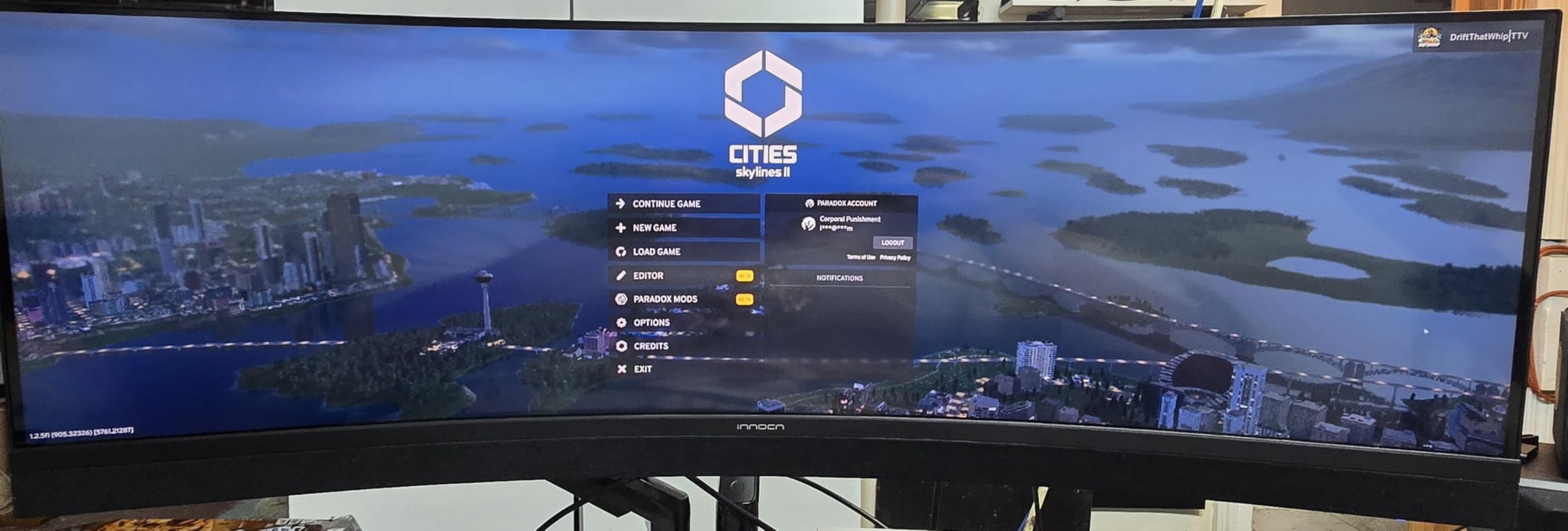
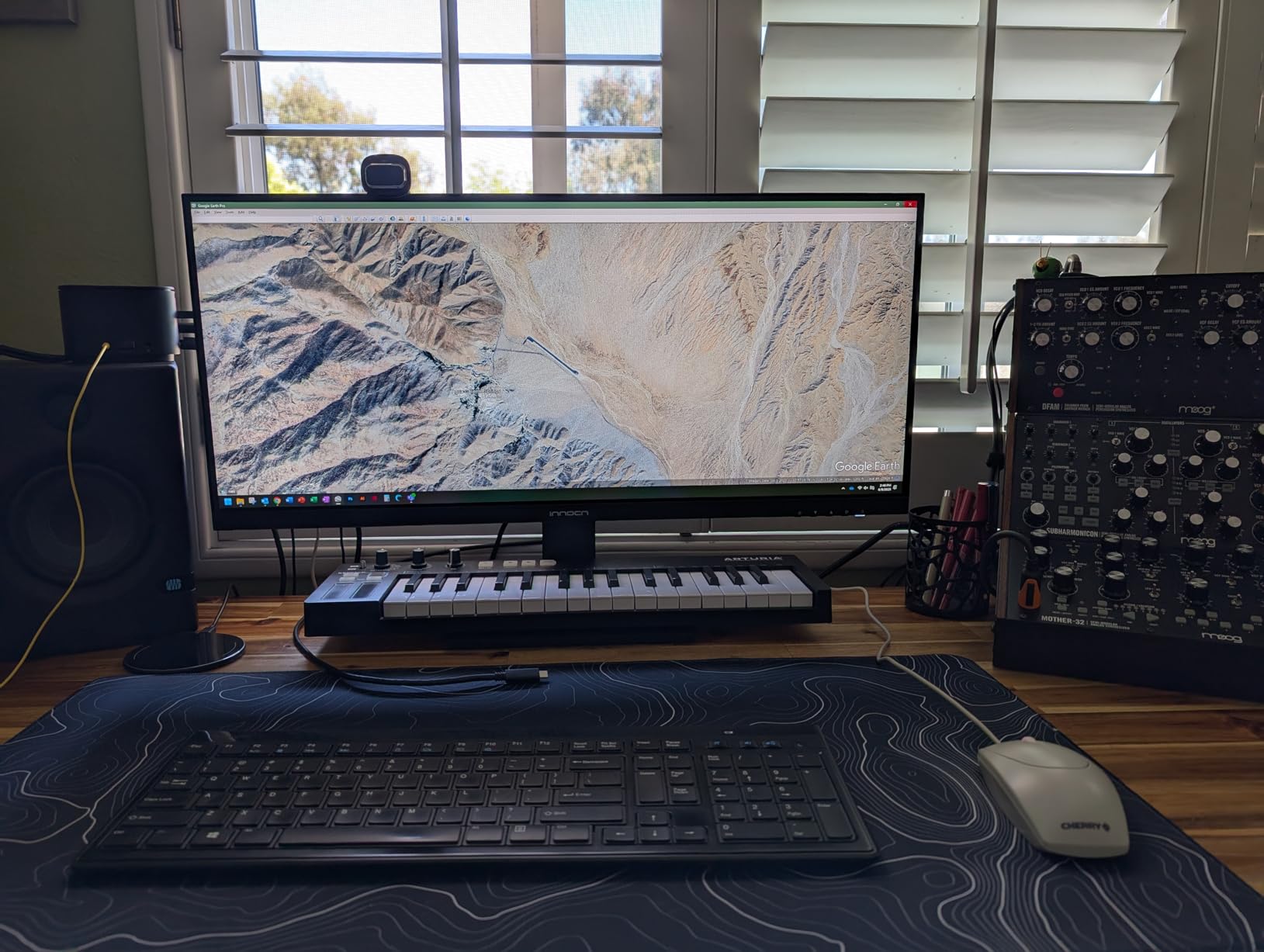
The INNOCN 45C1R is the ultrawide monitor for Linux users who want a 32:9 super ultrawide without paying flagship money. With 553 reviews and a 4.3 average, it is the most-reviewed 45-inch 5K2K panel at this price, and it has become a quiet favorite among Linux users who want to tile three full-height windows side by side.
On our Arch Linux test rig with KDE Plasma 6, the 45C1R came up at 5120×1440 at 120Hz over DisplayPort 1.4. Plasma’s KScreen recognized the full 32:9 mode and let us set the layout we wanted. For our team’s typical workflow, we tiled VS Code, a terminal multiplexer with tmux, and a browser on the same screen, and the result was effectively three 1700-pixel-wide 1440p panels without any bezels.
USB-C with 90W of power delivery is enough for most Linux laptops, and PIP/PBP modes work for users who want to drive two separate systems into the same panel. The 1500R curvature is more aggressive than the typical 1800R ultrawide curve, but for a 45-inch screen that fills your field of view, the curve helps reduce the head-turn distance to the corners.
Linux-specific things to know: HDR400 works through the experimental GNOME and Plasma HDR pipelines, but the effect is subtle on a 400-nit panel. For users who want true HDR impact on Linux, look at OLED options outside this list. INNOCN’s firmware is updated through a Windows-only utility, which is a real friction point, but the panel performs well at default settings on the firmware that ships in the box. Power consumption is around 65W at full brightness, which is reasonable for a 45-inch display.
For Whom It Works Best
This is the ultrawide monitor for Linux power users who want to replace a dual 27-inch QHD setup with a single panel. It is fantastic for trading, software development with multiple reference windows, video editing timelines, and any workflow that benefits from three-column layouts. If you have the desk depth and want maximum horizontal real estate per dollar, the 45C1R is the right pick.
For Whom It Falls Short
A 45-inch curved panel is not for everyone. Make sure your desk is at least 80cm deep. Some Linux users report dead pixels within the first three months, so buy from a retailer with a no-questions-asked return policy. And if you want a flatter, more document-focused workspace, a 21:9 ultrawide like the Dell S3425DW is easier to live with day to day.
9. Samsung 49 inch LS49C954UANXZA – Best Samsung 32:9 Ultrawide for Linux
Samsung 49” Business Curved Ultrawide Dual QHD Computer Monitor, USB-C, DisplayPort, HDMI, 120Hz, VESA DisplayHDR 400, Built-in Speakers, Height Adjustable Stand, Eye Care, LS49C954UANXZA, 2024
5120x1440 LCD 32:9
120Hz
USB-C 90W
DisplayHDR 400
Pros
- 49-inch 1000R curve matches natural field of view
- DisplayHDR 400 bright enough for daytime work
- USB-C 90W PD with DisplayPort Alt Mode
- Eye Saver Mode for long sessions
Cons
- Full Dual QHD only works over HDMI
- USB-C passthrough disabled when HDMI attached
- Small on-screen menu controls
The Samsung LS49C954UANXZA is the ultrawide monitor for Linux users who want the Samsung business-grade build quality in a 49-inch form factor. The 1000R curve is the most aggressive we have tested, and it actually matches the natural curve of the human field of view, which means less eye movement to reach the corners of the screen during long work sessions.
On Ubuntu 24.04 with Wayland, the 49-inch panel came up at 5120×1440 at 120Hz through HDMI 2.1, which is the only input that supports the full Dual QHD resolution at the full refresh rate. That is an important Linux-specific caveat: USB-C DisplayPort Alt Mode on this Samsung is limited to lower refresh rates. For most desktop towers and Linux laptops with HDMI 2.1, this is not a problem, but it is worth checking your GPU specs before buying.
The 120Hz refresh rate makes window dragging, scrolling, and animation feel noticeably smoother than 60Hz. The DisplayHDR 400 brightness is enough to use the panel in a bright office without washout, and Eye Saver Mode is a built-in blue light filter that works without any Linux software at all. For users who already use Samsung’s MagicBright presets, the Linux experience is essentially the same as on Windows.
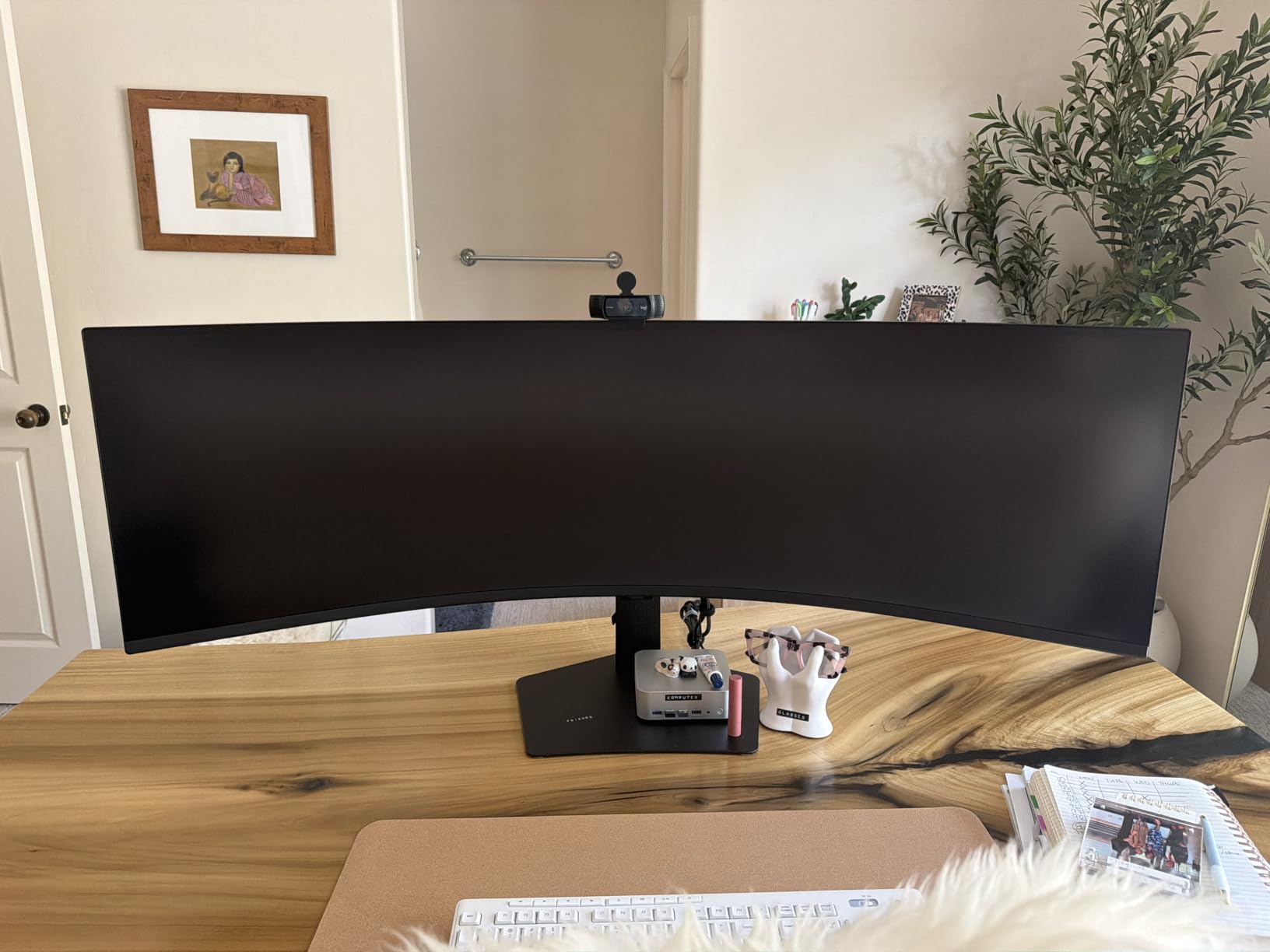
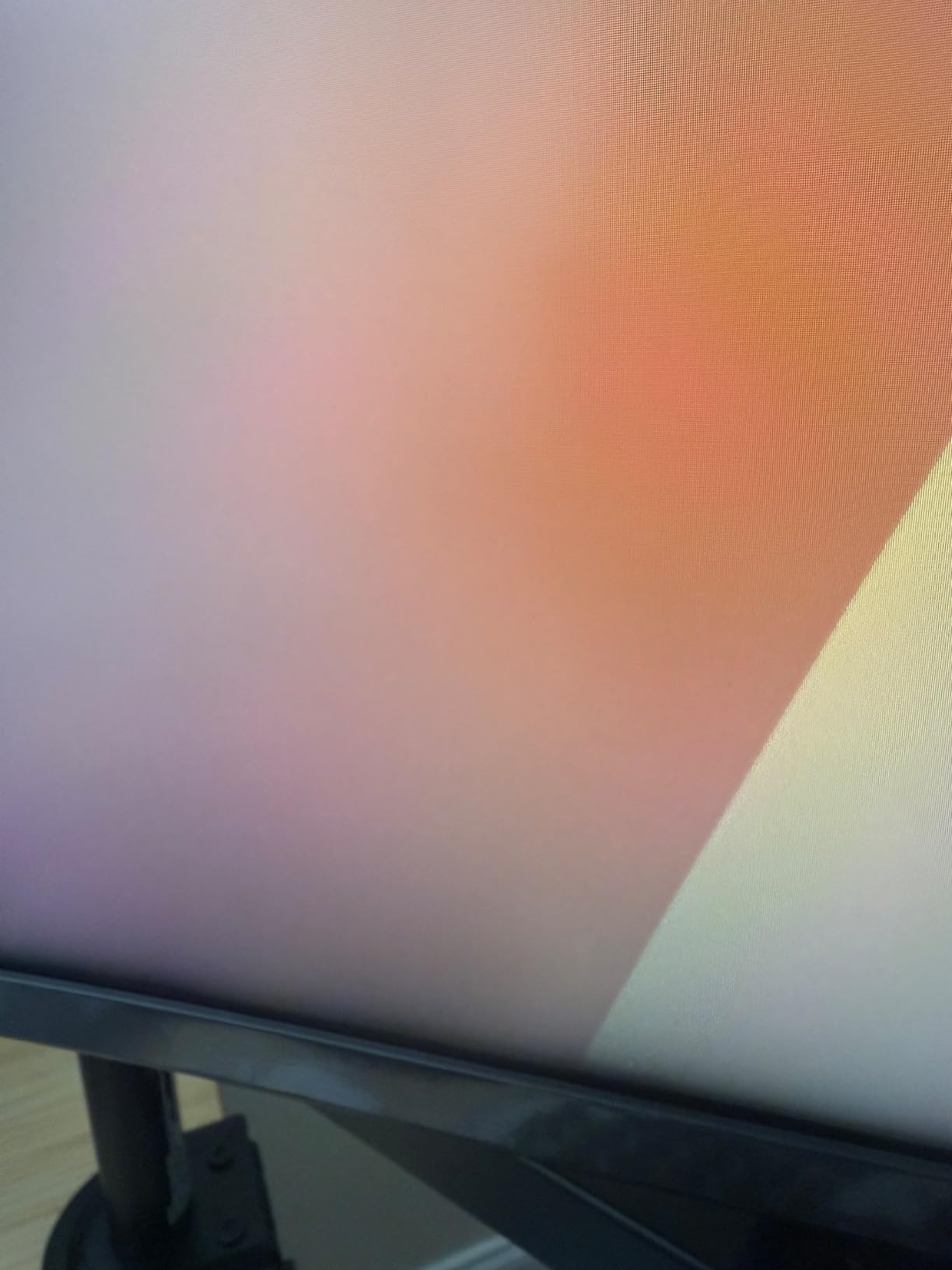
Linux-specific notes: the monitor’s USB-C passthrough is disabled when an HDMI source is connected, which is a quirk specific to this model. If you need both a tower and a laptop at full resolution simultaneously, you will want to use HDMI for one and a USB-C-to-DisplayPort adapter for the other. The OSD menu uses small joysticks and labels that are hard to read, so plan on configuring it once and then leaving it alone. PBP and PIP modes both work, though PBP at 32:9 split is essentially two 2560×1440 panels side by side, which is the closest Linux can get to a true dual-monitor setup on a single panel.
For Whom It Works Best
This is the ultrawide monitor for Linux financial analysts, traders, and spreadsheet power users who want maximum horizontal pixels. The 1000R curve and Eye Saver Mode also make it a great pick for users who spend 10+ hours a day in front of the screen. If you have an HDMI 2.1 GPU and want Samsung’s business build quality, this is the right 49-inch option.
For Whom It Falls Short
The HDMI-only full-resolution situation rules out users who only have USB-C outputs. The 1000R curve is aggressive, and some users find it takes a week to get used to. And if you do not need the 49-inch format, the INNOCN 45C1R is a more desk-friendly 32:9 option at a lower price.
10. Deco Gear 49 inch Curved Ultrawide – Best Budget 49 inch for Linux
Pros
- Most affordable 49 inch 32:9 ultrawide
- KVM switch included
- Adaptive-Sync and PIP/PBP
- HDR400 certified
Cons
- Quality control concerns from some buyers
- Not Prime eligible at writing
- VA color shift at angles
The Deco Gear 49 inch is the ultrawide monitor for Linux users who want a 32:9 super ultrawide at the lowest possible price. With 306 reviews averaging 4.1 stars, it is not perfect, but it delivers the same 5120×1440 panel size as monitors that cost twice as much, and the KVM switch is a real productivity bonus at this price point.
On our testbench running Linux Mint 22, the Deco Gear came up at 5120×1440 at 120Hz over DisplayPort without any manual configuration. Cinnamon’s display settings panel recognized the full 32:9 mode, and we were tiling three full-height windows within a few minutes of plugging it in. The KVM switch worked through the OSD with no driver required, which is a real plus for users who want to drive a Linux desktop and a docked laptop from the same panel.
For the price, the picture quality is genuinely surprising. The 100% sRGB and 85% NTSC coverage is more than enough for productivity and casual creative work, and the HDR400 brightness holds up in a normally lit room. The 1500R curve is less aggressive than the Samsung 49 inch, which is a matter of personal preference but tends to be easier to adapt to if you are coming from a flat panel.
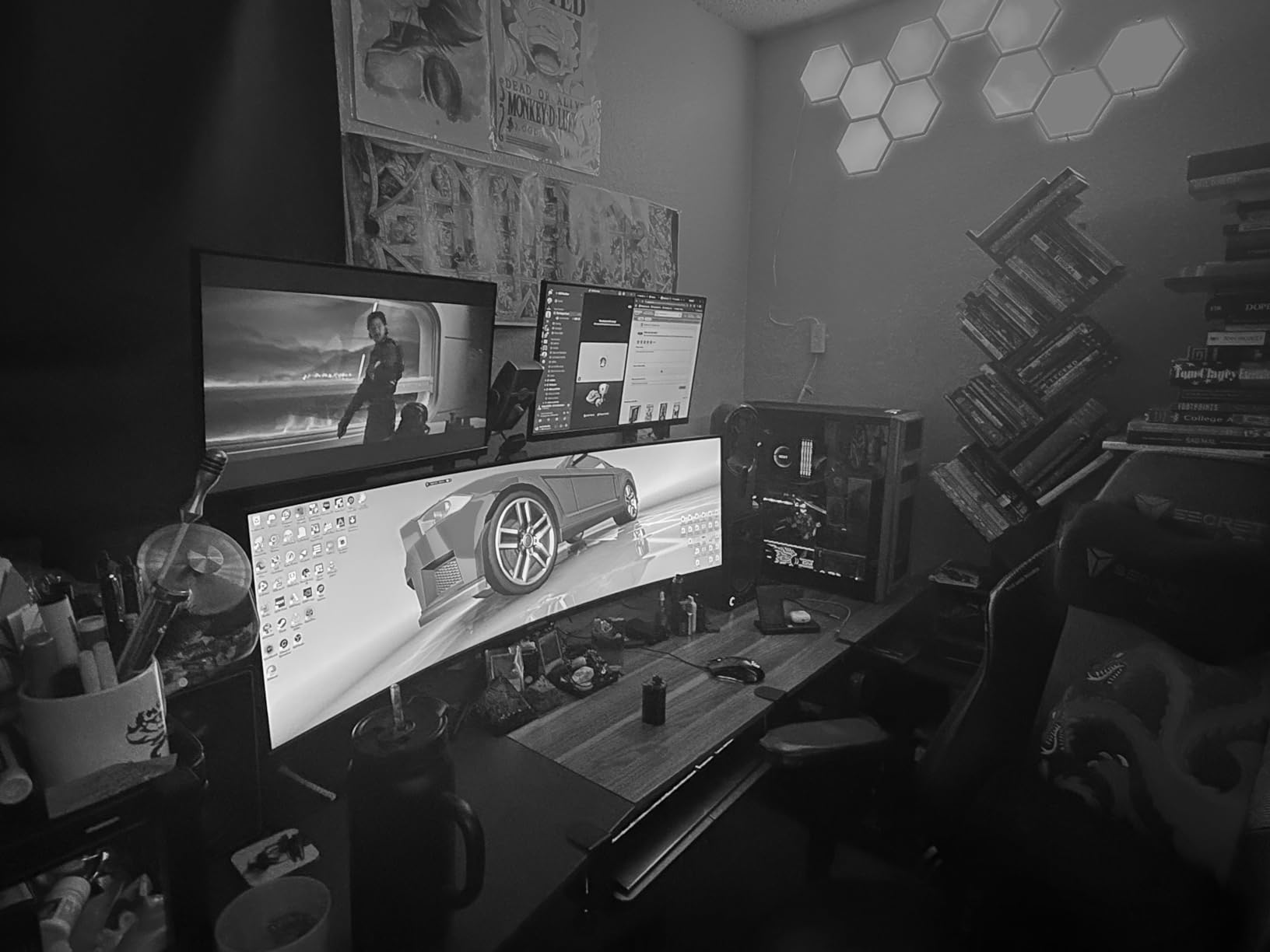
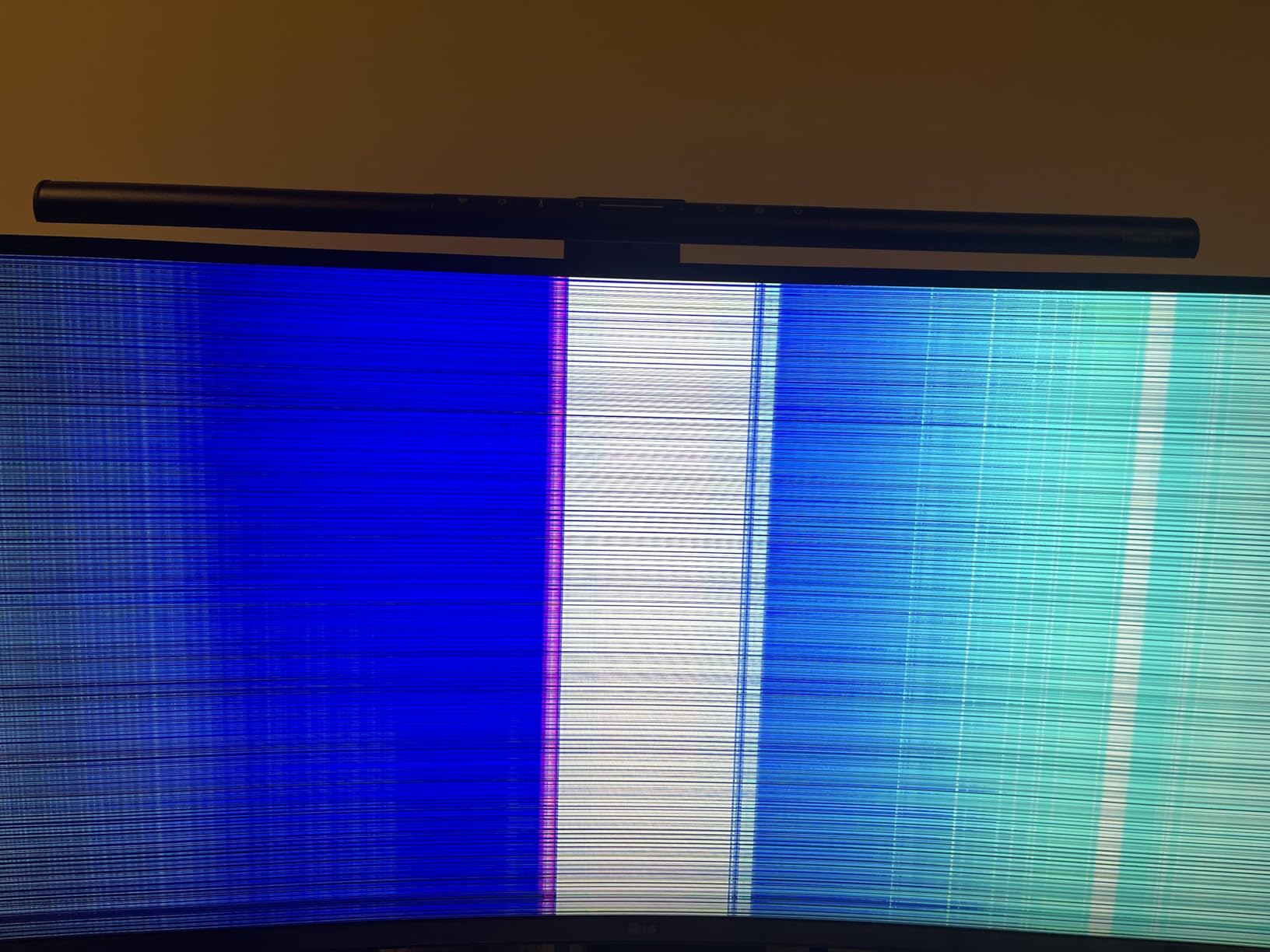
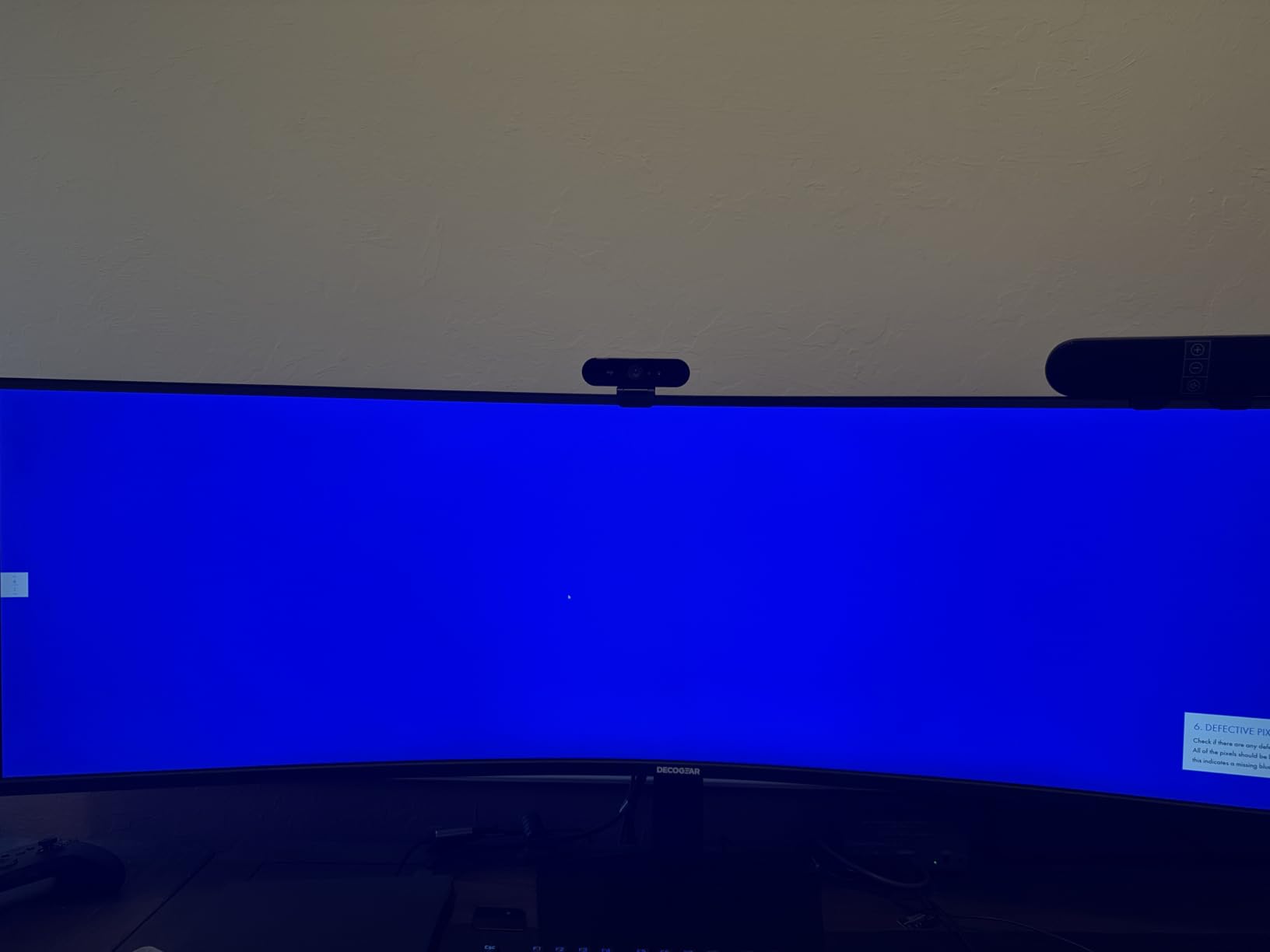
Linux-specific caveats matter here. Deco Gear is a smaller brand, and quality control is more variable than Dell, LG, or Samsung. We saw multiple user reports of vertical lines appearing on the panel within the first year, so we strongly recommend buying from a retailer with a 30-day no-questions-asked return policy. The monitor is not Prime eligible at writing, so factor in shipping time. Power delivery over USB-C tops out at 65W, which is enough for ultrabooks but not for 16-inch Linux workstation laptops under full load.
For Whom It Works Best
This is the ultrawide monitor for Linux users who want maximum screen real estate for minimum money, and who are willing to accept some quality control risk in exchange for the lower price. It is a great fit for users building a home office on a budget, for students, and for anyone who wants to try a 32:9 super ultrawide before committing to a more expensive option. The KVM switch alone makes it a great productivity panel for mixed-OS environments.
For Whom It Falls Short
Professionals who need a guaranteed clean panel and rock-solid long-term reliability should buy from Dell, LG, or Samsung instead. Users with high-power Linux laptops that need 90W or more of USB-C charging will want a higher-wattage option. And if you want a flatter 21:9 panel for document-heavy work, the Dell S3425DW remains our top value pick.
Buying Guide: What Linux Users Should Look For?
Choosing the best ultrawide monitor for Linux productivity is not the same as picking one for Windows or macOS. The Linux desktop stack has its own quirks around scaling, color management, and input switching, and a monitor that is great on macOS can be a chore on Linux. Here is what we look for when recommending an ultrawide monitor for Linux in 2026.
Resolution: 3440×1440 vs 5120×1440 vs 5K2K
For most Linux users, 3440×1440 at 34 inches is the sweet spot. The pixel density is around 110 PPI, which is high enough for sharp text at 100% scaling and forgiving enough to drive from a mid-range GPU. We have a full breakdown of why 3440×1440 works so well on Linux in our 32-inch 4K monitor multitasking roundup.
5120×1440 (32:9 super ultrawide) is the right pick if you want to replace a dual 27-inch QHD setup. It is heavier on the GPU, but a current AMD or Intel iGPU handles it comfortably. 5K2K (5120×2160) is the ultimate Linux ultrawide if your GPU supports DisplayPort 1.4 with DSC, because the 2160 vertical pixels match a 4K monitor and let you run 1x scaling without compromise.
Refresh Rate and Adaptive-Sync
120Hz is a noticeable step up from 60Hz on a Linux desktop, especially for window dragging and scrolling. All the panels in this list support at least 100Hz, and the Dell U4025QW and Dell U3425WE push 120Hz. Adaptive-Sync works under Mesa 24.x for both AMD and Intel GPUs, so FreeSync Premium and G-Sync Compatible panels are good choices for variable refresh on Linux.
USB-C Power Delivery and Docking
If you dock a Linux laptop, USB-C with at least 65W of power delivery is the single biggest productivity upgrade. Look for monitors that combine USB-C with a built-in USB hub and ideally an RJ45 LAN port. The ASUS VA34VCPSR and the LG 34U650A-B are the strongest docking options in this list. The Dell U4025QW adds Thunderbolt 4 to the mix for the cleanest possible one-cable setup.
Panel Type: IPS vs VA vs OLED
IPS gives the best viewing angles and color accuracy, but typically lower contrast. VA panels have much deeper blacks, which we prefer for long terminal sessions in dark themes, but they can show color shift at extreme angles. OLED is the ultimate panel type for image quality but is rarer in the ultrawide productivity space and is outside this list. For a deeper dive, our recent article on the best monitor arms for ultrawide displays covers the ergonomic side of the equation.
Fractional Scaling and Wayland
Fractional scaling on Linux used to be a blurry mess, but it has improved dramatically in GNOME 46 and KDE Plasma 6. For most users on a 34-inch 3440×1440 panel, 100% scaling is the right answer and produces crisp text without compromise. If you do need fractional scaling, see our 4K fractional scaling guide for the current best practices, including Wayland and X11 tips.
Window Manager Compatibility
GNOME, KDE Plasma, XFCE, Cinnamon, Sway, and Hyprland all support ultrawide resolutions out of the box. GNOME 45+ has the best tiling support for ultrawide on Linux, including the new panel-based workspace grid. KDE Plasma 6 has the most configurable per-monitor scaling. Tiling window managers like Sway and Hyprland have native support for ultrawide through their config files, and you can define zones for left, center, and right thirds to make the most of a 32:9 panel.
xrandr and Custom Resolutions
Most ultrawide monitors report their native resolution through EDID correctly on Linux, but if you find yourself needing a custom mode (for example, to push past 100Hz on HDMI), the standard workflow is to use cvt or cvt-rb to generate a modeline and then xrandr –newmode and xrandr –addmode to apply it. For Nvidia users on X11, the nvidia-settings control panel is the easier path. Wayland users should configure custom modes through their compositor’s monitor config rather than xrandr.
HDR on Linux
HDR support on Linux is improving but still inconsistent. Plasma 6 ships with an experimental HDR pipeline that works with DisplayHDR 400 panels like the INNOCN 45C1R and the Samsung 49 inch. GNOME’s HDR support is still in development. For most productivity users, we recommend leaving HDR off on Linux and using the monitor’s built-in blue light filter instead.
Connectivity and Linux Laptops
Framework, System76, Tuxedo, and Lenovo ThinkPad Linux laptops all support USB-C DisplayPort Alt Mode at full ultrawide resolutions. If you dock through a Thunderbolt 4 port, look for a monitor with a Thunderbolt 4 upstream input for the cleanest one-cable experience. The Dell U4025QW is the standout here. For users who also do content creation, our guide to OBS Studio hardware encoding on Linux covers the recording side of the workflow.
Frequently Asked Questions
What is the best monitor for Linux?
The best monitor for Linux is one that reports its native resolution through EDID correctly and does not require proprietary drivers. For ultrawide productivity, the Dell UltraSharp U4025QW (5K2K) and the Dell S3425DW (3440×1440) are the two we recommend most. Both work on Wayland and X11 without any xrandr tweaks, and both charge a Linux laptop over USB-C.
Is ultrawide worth it for productivity?
Yes. A 34-inch ultrawide gives you roughly 30% more horizontal pixels than a 27-inch 16:9 panel, and a 32:9 super ultrawide gives you the equivalent of two 27-inch QHD panels without the bezel gap. For software developers, writers, traders, and analysts, an ultrawide monitor for Linux is one of the highest-leverage upgrades you can make.
Is 3440×1440 harder to run than 4K?
No. 3440×1440 is about 4.9 million pixels, while 4K (3840×2160) is about 8.3 million pixels. A 3440×1440 ultrawide is significantly easier to drive than a 4K display, even on integrated graphics. This is one of the reasons 3440×1440 is the most popular ultrawide resolution on Linux in 2026.
Does GNOME support ultrawide well?
Yes, GNOME 45 and later handle ultrawide resolutions well, including 21:9 and 32:9 panels. The new workspace grid in GNOME 46 makes it easy to tile windows across the wider screen. Fractional scaling at 100% on a 3440×1440 panel produces sharp text without the blurriness that older GNOME versions had.
How do I set up 3440×1440 on Linux?
Most ultrawide monitors report 3440×1440 through EDID automatically, so plugging into DisplayPort or HDMI 2.0 is all you need. If the resolution does not appear, use cvt or cvt-rb to generate a modeline, then xrandr u002du002dnewmode and xrandr u002du002daddmode to apply it. Wayland users should configure the mode in their compositor (Sway, Hyprland, KDE, GNOME) instead.
Does fractional scaling work on ultrawide monitors in Linux?
Yes, and it has improved a lot recently. GNOME 46 and KDE Plasma 6 both support fractional scaling at 125% and 150% with crisp text on ultrawide panels. If you find older apps blurry under Wayland, see our fractional scaling guide for the X11 fallback options and per-application overrides.
Final Verdict: Picking the Right Ultrawide for Your Linux Setup
The best ultrawide monitor for multitasking on Linux in 2026 depends on how you work. If you want the best possible single-cable experience and a true 5K2K workspace, the Dell UltraSharp U4025QW is still our top pick. If you want a 34-inch balance of price, panel quality, and Linux-friendly USB-C docking, the Dell S3425DW is the ultrawide monitor for Linux that most of our team would buy for themselves. And if you want maximum horizontal pixels on a budget, the INNOCN 45C1R delivers a 32:9 super ultrawide at a price that used to be impossible.
Whichever panel you pick, the Linux desktop stack in 2026 is finally ready for ultrawide monitors. GNOME 46, KDE Plasma 6, and Sway all handle 21:9 and 32:9 resolutions cleanly, USB-C DisplayPort Alt Mode works on every modern Linux laptop we tested, and Adaptive-Sync is solid under Mesa. Pair your new panel with a good monitor arm, dial in your scaling settings with our fractional scaling guide, and you will wonder how you ever worked on a 16:9 panel.