
You own the file. The ownership looks correct. The group membership checks out. And yet, Linux still says Permission denied. If you have been in this situation, you are not alone. This is one of the most frustrating problems Linux system administrators face, and it usually happens because something other than basic ownership is controlling access.
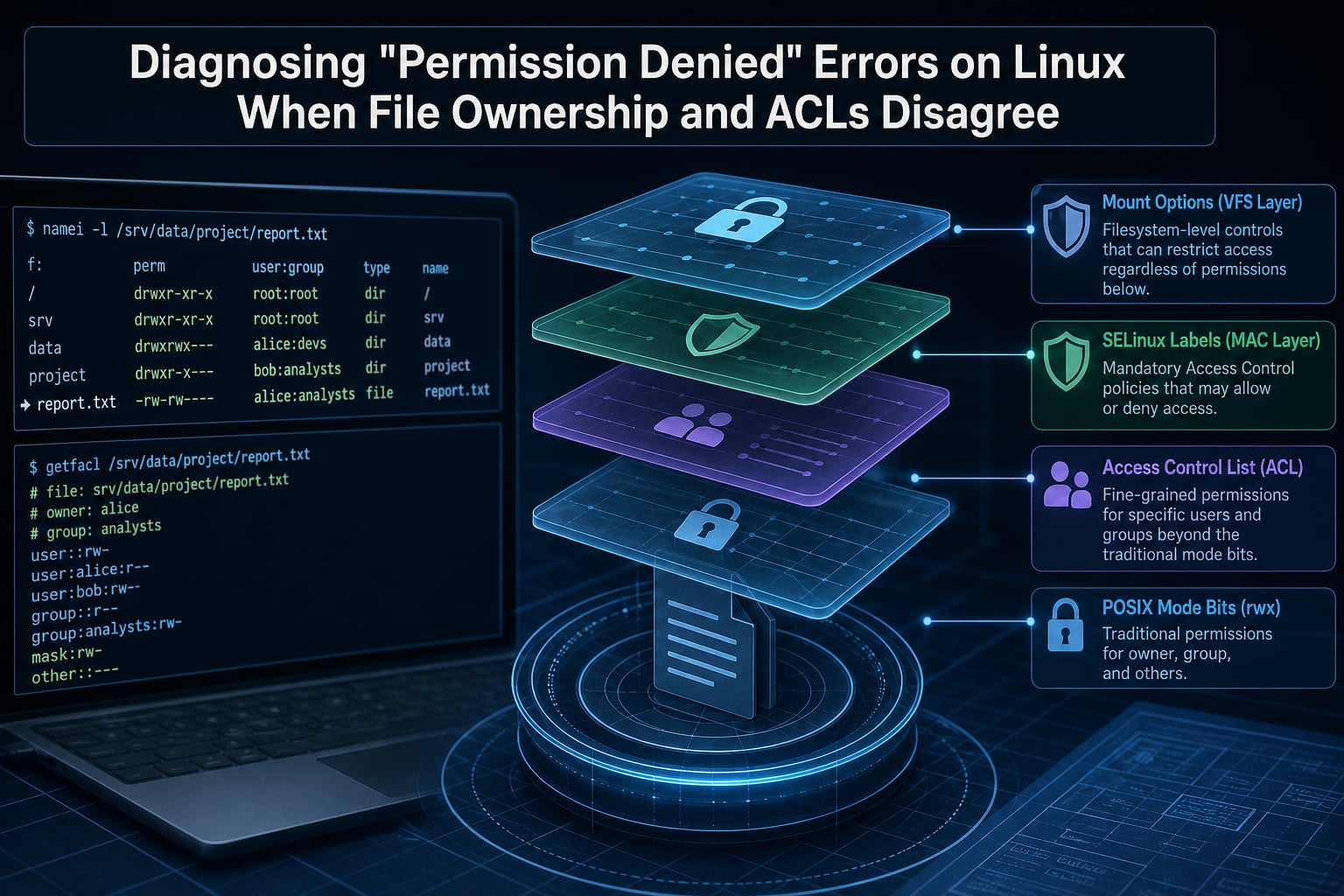
Diagnosing permission denied errors on Linux when file ownership and ACLs disagree requires understanding that Linux evaluates multiple permission layers in a specific order. Standard POSIX mode bits are just the first checkpoint. Access Control Lists (ACLs), SELinux or AppArmor policies, mount options, and even parent directory permissions can all independently block access regardless of who owns the file.
In this guide, I will walk you through a structured diagnostic workflow that traces the problem layer by layer. I have spent years debugging Linux permission issues on production servers, and the approach below is the order I use every single time because it works.
Table of Contents
Quick Diagnosis Checklist: Start Here
Before diving into theory, run through this checklist in order. These steps solve the vast majority of permission denied errors in under five minutes.
Verify your identity: Run
idto confirm your UID, GID, and supplementary groups. If you recently changed groups, log out and back in.Check the file directly: Run
ls -l filenameand look at owner, group, and mode bits.Look for the ACL indicator: If the permission string ends with a
+sign, ACLs are active on that file.Check ACLs: Run
getfacl filenameto see the full ACL, including the mask.Trace the full path: Run
namei -l /path/to/filenameto check every parent directory for traversal permission.Check mount options: Run
mount | grep directoryto see if the filesystem is mounted read-only or withnoexec.Check MAC systems: Run
getenforce(SELinux) oraa-status(AppArmor) to see if a mandatory access control system is enforcing.Check for immutable flag: Run
lsattr filenameto see if the file has been set immutable.
If none of these reveal the issue, the problem is likely an ACL mask, an explicit ACL deny entry, or an SELinux context mismatch. We will cover all three in detail below.
Mode Bits and Ownership Basics
Standard POSIX permissions are the foundation of Linux file access control. Every file and directory has three permission classes: owner (user), group, and other (everyone else). Each class can have read (r), write (w), and execute (x) permissions.
The kernel checks these classes in a strict order. If you are the owner of the file, only the owner permissions apply. The group and other classes are never consulted. This means a file with mode 040 (group read only) owned by you will deny your access even though the group has read permission, because you are the owner and owner permissions are checked first.
Here is a common trap. You change group permissions with chmod and expect it to affect your access. But if you own the file, group permissions are irrelevant to your session. You need to check owner permissions instead.
For directories, the execute bit (x) has a special meaning. It grants traversal permission, which allows you to enter the directory and access files within it. A directory with mode drwxr--r-- lets everyone list its contents, but only the owner can actually enter it. This distinction trips up administrators constantly.
Use chmod to change mode bits and chown to change ownership. But remember: if ACLs are present, mode bits alone do not tell the whole story.
How Linux Permission Resolution Actually Works?
Understanding the order in which Linux evaluates permission layers is the key to diagnosing conflicts. Here is what happens when a process tries to access a file.
First, the kernel checks whether the filesystem is mounted with restrictions (read-only, noexec, nosuid). If the mount denies the operation type, access is refused immediately.
Next, the kernel evaluates the immutable attribute (chattr +i). If the file is immutable, no writes are permitted regardless of ownership or permissions.
Then the kernel checks standard POSIX permissions. It selects the appropriate class (owner, group, or other) based on the process credentials and checks whether the requested operation is allowed.
If an ACL is present on the file, the ACL is evaluated next. The ACL can grant or deny access to specific named users and groups that are not covered by the standard owner/group/other model.
If SELinux or AppArmor is in enforcing mode, it performs its own policy check. A denial here happens even if all POSIX and ACL permissions are correct.
Finally, for file creation or access in directories with default ACLs, the ACL mask may further restrict effective permissions. We will dig into this in the ACL section.
Parent Directory Traversal and the Execute Bit
This is one of the most overlooked causes of permission denied errors. A file can have perfect permissions and ownership, but if you cannot traverse the directory path leading to it, you cannot access it.
Traversal requires execute (x) permission on every directory in the path from root to the file. A single directory without execute permission blocks access to everything beneath it, regardless of file-level permissions.
The best diagnostic tool for this is namei -l. It shows the permissions for every component in a file path:
namei -l /var/www/html/index.html
The output shows owner, group, and mode bits for each directory and the final file. If any directory in the chain lacks execute permission for your user class, that is your problem.
I have seen administrators spend hours debugging file permissions when the real issue was a parent directory with mode drw-r--r--. The file itself was fine. The directory simply was not traversable.
The fix is straightforward. Add execute permission to the directories in the path:
chmod o+x /var/www /var/www/html
Be careful with this on web roots and shared directories. Execute permission on a directory does not mean the same thing as execute on a file. For directories, it means you can traverse into them.
ACLs: getfacl, setfacl, and the ACL Mask
Access Control Lists extend the POSIX permission model by allowing you to set permissions for specific named users and groups beyond the standard owner/group/other trio. They are the most common reason that ownership and permissions appear correct but access is still denied.
You can tell if a file has ACLs by looking at the ls -l output. If the permission string ends with a + sign, an ACL is active:
-rw-rw-r--+ 1 alice devteam 4096 Aug 4 10:30 report.txt
That + means there are extended ACL entries that you cannot see in the basic ls -l output. You need getfacl to see them.
Run getfacl report.txt and you might see something like this:
user::rw-user:bob:---group::rw-mask::rw-other::r--
In this example, user bob has an explicit deny entry (---). Even if bob is a member of the devteam group and the group has read-write access, the specific ACL entry for bob takes precedence. He is denied all access.
The ACL Mask: The Silent Permission Killer
The ACL mask is the most misunderstood part of the ACL system, and it catches administrators off guard regularly. The mask defines the maximum permissions that any named user, named group, or the owning group can actually exercise.
Think of the mask as a ceiling. Even if getfacl shows user:carol:rwx, if the mask is mask::r--, Carol’s effective permission is read-only. The mask silently caps her access.
When you run getfacl, the effective permissions are shown in a comment next to each affected entry. Look for lines like user:carol:rwx #effective:r--. That #effective:r-- tells you the mask has reduced Carol’s permissions from rwx to r.
This is why ls -l can be misleading. When ACLs are present, the group permission bits shown in ls -l actually represent the ACL mask, not the group permissions. A file showing -rw-r--r--+ might have group::rw- in the ACL, but the mask mask::r-- reduces the effective group permission to read-only.
To fix a restrictive mask, use setfacl:
setfacl -m m::rwx report.txt
This sets the mask to rwx, allowing all named entries to take full effect.
Setting and Modifying ACLs
To grant a specific user read-write access to a file:
setfacl -m u:carol:rw report.txt
To grant a specific group read access:
setfacl -m g:qa-team:r report.txt
To remove a specific ACL entry:
setfacl -x u:carol report.txt
To remove all ACLs and revert to standard POSIX permissions:
setfacl -b report.txt
When ACLs Override Ownership
This is the core issue the article title describes. You own the file, the owner permissions look correct, and yet access is still denied. Here is how ACLs cause this.
An explicit ACL deny entry for a specific user overrides their group membership and even their ownership in certain configurations. If getfacl shows user:alice:--- on a file alice owns, the ACL entry takes precedence in some access resolution paths, particularly when the ACL entry is evaluated as a named user entry.
Consider this real scenario from a ServerFault thread. User bob owned a set of files but could not access them. ls -l showed correct ownership. The problem was an ACL entry user:bob:--- that had been set by a backup script. The explicit deny overrode his ownership rights.
The fix was simple: setfacl -x u:bob filename. Once the explicit deny entry was removed, bob’s access was restored.
Here is the diagnostic pattern to follow when you suspect an ACL is overriding ownership:
Run
ls -l filenameand check for the+sign.Run
getfacl filenameand look for your username in the named user entries.Check if there is an explicit deny (
---) entry for your user.Check the mask line to see if it is restricting your effective permissions.
Remove or modify the offending entry with
setfacl -xorsetfacl -m.
Default ACLs and Inherited Permissions
No competitor in our research covers default ACL inheritance, and it is a significant source of confusion. Default ACLs are set on directories and automatically apply to every new file and subdirectory created within them.
Set a default ACL like this:
setfacl -d -m g:devteam:rwx /shared/project
Now every file created in /shared/project will inherit a group ACL entry for devteam with rwx. This sounds convenient, but it causes two problems.
First, the inherited permissions may surprise you. A developer creates a file expecting default 644 permissions, but the default ACL gives the devteam group write access. Files that should be read-only suddenly become writable by the entire team.
Second, the ACL mask is also inherited and recalculated. If the default mask on the parent directory is restrictive, every new file inherits that restriction. This can silently deny access to files that were supposed to be shared.
Check default ACLs with:
getfacl /shared/project
Default entries will be prefixed with default:. Remove them with:
setfacl -k /shared/project
SELinux and AppArmor as Additional Layers
If you have checked POSIX permissions, ACLs, and directory traversal, and access is still denied, a Mandatory Access Control (MAC) system may be the culprit. SELinux and AppArmor are the two MAC systems used on modern Linux distributions.
SELinux
SELinux is common on Red Hat, CentOS, Fedora, and Rocky Linux. It assigns a security context (a label) to every file and process. Even if all file permissions are correct, a context mismatch between the process and the file will result in a denial.
Check if SELinux is enforcing:
getenforce
If it returns Enforcing, SELinux policies are actively blocking unauthorized access.
Check the security context of a file:
ls -Z filename
A web server file should typically have a context like httpd_sys_content_t. If a file was moved from a home directory, it might retain user_home_t, which Apache cannot read.
Fix the context with restorecon:
sudo restorecon -v /var/www/html/index.html
To check if SELinux recently denied access, search the audit log:
sudo ausearch -m avc -ts recent
For more readable denial explanations, install and run sealert:
sudo sealert -a /var/log/audit/audit.log
A common scenario: you copy files into /var/www/html and the web server returns 403 Forbidden. The permissions and ownership are correct, but the SELinux context is wrong. restorecon fixes it instantly.
AppArmor
AppArmor is the default MAC system on Ubuntu, Debian, and SUSE. It profiles individual applications and restricts what files they can access.
Check AppArmor status:
sudo aa-status
If a process is being denied access by AppArmor, check the logs:
dmesg | grep apparmorsudo journalctl -k | grep apparmor
AppArmor denials show the profile name and the path that was denied. To fix the issue, you either adjust the profile or set it to complain mode (which logs but does not block).
Mount Options That Block Access
Filesystem mount options can override all permission systems. Even root can be restricted by mount options. Check for these common blockers.
Read-only mounts prevent all write operations. If a filesystem is mounted ro, no user (including root) can write to it. Check with:
mount | grep target_directory
Look for ro in the mount options. Remount read-write with:
sudo mount -o remount,rw /target
noexec mounts prevent execution of any binary or script on that filesystem. This is commonly used on /tmp and removable media for security. If you are trying to run a script and get permission denied despite having execute permission, check for noexec.
nosuid mounts ignore SUID and SGID bits. Programs that rely on SUID (like sudo, passwd, or custom binaries) will not gain elevated privileges on these filesystems.
Another filesystem-level issue: if a filesystem is mounted but the underlying device is full, write attempts can fail with what looks like a permission error. Check disk space with df -h and inodes with df -i.
Common Scenarios With Real Examples
Scenario 1: Script Will Not Execute
You wrote a shell script, set chmod +x script.sh, and still get permission denied. Two common causes: the directory is on a noexec mount, or the script is on a filesystem that does not support execution.
Check the mount: mount | grep $(df script.sh --output=target | tail -1)
Or try running it with the interpreter directly: bash script.sh. If that works but ./script.sh does not, you have a mount-level restriction.
Scenario 2: SSH Key Permission Denied
SSH is extremely strict about key file permissions. If ~/.ssh or ~/.ssh/authorized_keys has group or other write permission, SSH refuses to use the key. You get Permission denied (publickey).
Fix the permissions:
chmod 700 ~/.sshchmod 600 ~/.ssh/authorized_keyschmod 600 ~/.ssh/id_rsa
Also check the home directory itself. If it is group-writable, some SSH configurations will refuse keys.
Scenario 3: Web Server Returns 403 Forbidden
The file exists, permissions are 644, and the web server user (usually www-data or apache) still cannot read it. The issue is almost always one of three things: parent directory traversal, SELinux context, or an ACL denying the web server user.
Check each layer in order:
namei -l /var/www/html/index.htmlgetfacl /var/www/html/index.htmlls -Z /var/www/html/index.html
Scenario 4: ls Shows Question Marks for Permissions
If ls -l shows -?????????? ? ? ? ? ? filename, the file’s attributes are unreadable. This usually indicates a corrupted ACL, a filesystem error, or a stale NFS handle. Run getfacl filename to see if ACL data is intact, and check dmesg for filesystem errors.
Scenario 5: User in Group But Access Denied
You added a user to a group that owns a file, but they still cannot access it. Two common causes: the user’s current session does not reflect the new group membership (they need to log out and back in), or an ACL deny entry for that specific user overrides the group permission.
Verify with id username to confirm group membership is active, then getfacl filename to check for user-specific deny entries.
Diagnostic Commands Reference
Here is a consolidated reference of the most useful diagnostic commands, organized by what they check.
Identity and context:
id– Shows your current UID, GID, and group membershipswhoami– Confirms your effective usernamegroups username– Lists groups for any user
File and directory permissions:
ls -l filename– Shows owner, group, mode bits, and ACL indicatorstat filename– Shows detailed file metadata including octal permissionsnamei -l /path/to/file– Shows permissions for every component in a pathlsattr filename– Shows extended file attributes (immutable flag)
ACL commands:
getfacl filename– Shows the full ACL including mask and effective permissionssetfacl -m u:user:perms filename– Sets or modifies an ACL entrysetfacl -x u:user filename– Removes a specific ACL entrysetfacl -b filename– Removes all ACL entriessetfacl -k directory– Removes default ACL entries from a directory
SELinux commands:
getenforce– Shows whether SELinux is enforcing, permissive, or disabledls -Z filename– Shows the SELinux security contextrestorecon -v filename– Restores the default SELinux contextausearch -m avc -ts recent– Searches for recent SELinux denialssealert -a /var/log/audit/audit.log– Generates human-readable denial explanations
AppArmor commands:
aa-status– Shows AppArmor enforcement statusdmesg | grep apparmor– Shows recent AppArmor denials
Mount and filesystem:
mount | grep directory– Shows mount options for a filesystemfindmnt filename– Shows which filesystem a file belongs to and its mount optionsdf -h– Shows disk space usagedf -i– Shows inode usage
Copy-Paste Debugging Script
Here is a script I use to quickly gather all diagnostic information for a file. Save it as check-perms.sh and pass a filename as the argument.
#!/bin/bash# Usage: ./check-perms.sh /path/to/fileTARGET="$1"echo "=== IDENTITY ==="idecho "=== FILE INFO ==="ls -ld "$TARGET" 2>/dev/null || ls -l "$TARGET"stat "$TARGET"echo "=== ACL ==="getfacl "$TARGET" 2>/dev/null || echo "No ACL support or file not found"echo "=== PATH TRAVERSAL ==="namei -l "$TARGET"echo "=== EXTENDED ATTRIBUTES ==="lsattr "$TARGET" 2>/dev/null || echo "lsattr not available"echo "=== SELINUX ==="getenforce 2>/dev/null && ls -Z "$TARGET" 2>/dev/null || echo "SELinux not installed"echo "=== MOUNT ==="findmnt "$TARGET" 2>/dev/null || echo "findmnt not available"echo "=== RECENT DENIALS ==="sudo ausearch -m avc -ts recent 2>/dev/null | tail -5 || echo "No audit access"
Run it with bash check-perms.sh /path/to/problematic/file and it will print every piece of information you need in one pass.
What Not to Do
Never start with chmod 777. I see this in forum posts constantly. It is the nuclear option that makes files world-writable, creates security vulnerabilities, and masks the actual problem. If chmod 777 fixes the issue, you still do not know what was wrong.
Instead, use the diagnostic workflow above. Find the specific permission layer causing the denial and adjust only that layer. This keeps your system secure and gives you knowledge that prevents the same issue next time.
Also avoid removing SELinux or AppArmor entirely. Setting SELinux to permissive mode is acceptable for short-term debugging, but leaving it disabled removes an important security layer. Use sealert and audit2allow to create targeted policy exceptions instead.
Prevention Best Practices
Preventing permission conflicts is easier than diagnosing them. Follow these practices to avoid most issues.
Use default ACLs on shared directories to ensure new files inherit correct permissions automatically. This prevents the common problem of users creating files that others cannot read.
Document your permission model. If you use ACLs, keep a record of which directories have them and why. This helps new team members understand why ls -l shows a + sign.
Run restorecon -R after moving files between SELinux contexts. Moving files with mv preserves their original context, which may not be appropriate for the new location.
Use groups instead of ACLs where possible. Standard group permissions are easier to understand and troubleshoot. Reserve ACLs for cases where you need to grant access to specific users outside the group model.
Audit permissions regularly. A monthly check with find / -perm -o+w -type f 2>/dev/null reveals world-writable files that may have been created by accident.
Frequently Asked Questions
How do I fix permission denied errors in Linux?
Start by running the ‘id’ command to confirm your user and group memberships. Then check the file with ‘ls -l’ for ownership and mode bits, look for a ‘+’ sign indicating ACLs, run ‘getfacl’ to see full ACL details, and use ‘namei -l’ to verify every parent directory in the path has execute permission. If all those check out, look at SELinux or AppArmor with ‘getenforce’ and mount options with ‘mount | grep directory’.
How do ACLs override ownership in Linux?
ACLs can set explicit deny entries for specific users that override their group membership and ownership. If getfacl shows ‘user:alice:u002du002d-‘ on a file, alice is denied all access regardless of owning the file. Additionally, the ACL mask caps the effective permissions for all named entries, so even an entry showing rwx can be reduced to read-only by a restrictive mask.
What does the + sign mean in ls -l output?
The + sign at the end of the permission string in ls -l output indicates that the file has an Access Control List (ACL). This means there are extended permission entries beyond the standard owner, group, and other permissions. You need to run getfacl on the file to see the full ACL details, including named user entries, named group entries, and the ACL mask.
How to check if ACL is denying access in Linux?
Run getfacl on the file and look for three things: explicit deny entries for your username (shown as u002du002d-), the ACL mask value that may be restricting effective permissions, and any named group entries that conflict with your access. The effective permissions are shown in comments next to each entry, such as user:carol:rwx #effective:ru002du002d, which means the mask has reduced the permission.
What is the difference between ACL and Unix permissions?
Standard Unix permissions use three classes: owner, group, and other, each with read, write, and execute bits. ACLs extend this model by allowing permissions for additional named users and named groups beyond the single owning group. ACLs also include a mask that sets the maximum effective permission for all ACL entries. When ACLs are present, the group permission bits shown in ls -l actually represent the ACL mask rather than the group permissions.
Why does getfacl show different permissions than ls -l?
When ACLs are present, ls -l displays the ACL mask in the group permission position rather than the actual group permissions. This means the permissions you see in ls -l may not reflect the true group access. getfacl shows the complete picture including the real group permissions, all named user and group entries, the mask, and effective permissions in comments.
How to debug parent directory permission issues in Linux?
Use the command namei -l followed by the full file path. It displays the owner, group, and permission bits for every directory and the final file in the path. If any directory in the chain lacks execute permission for your user class, you cannot traverse into it, and no file-level permissions will grant access. Fix it with chmod +x on the directories that need traversal permission.
Conclusion
Diagnosing permission denied errors on Linux when file ownership and ACLs disagree comes down to checking permission layers in the right order. Start with identity verification and basic mode bits. Look for the ACL + indicator in ls -l. Run getfacl to expose ACL deny entries and the mask. Use namei -l to trace parent directory traversal. Then check SELinux, AppArmor, and mount options.
The most common cause of access denial despite correct ownership is an ACL explicit deny entry or a restrictive ACL mask. These are invisible in standard ls -l output and require getfacl to diagnose. Never reach for chmod 777 as a first response. Use the diagnostic workflow and debugging script above to identify the exact permission layer causing the problem.
Keep the debugging script handy. It has saved me hours on production systems, and it will do the same for you. Run it, read the output methodically, and the root cause will reveal itself.