
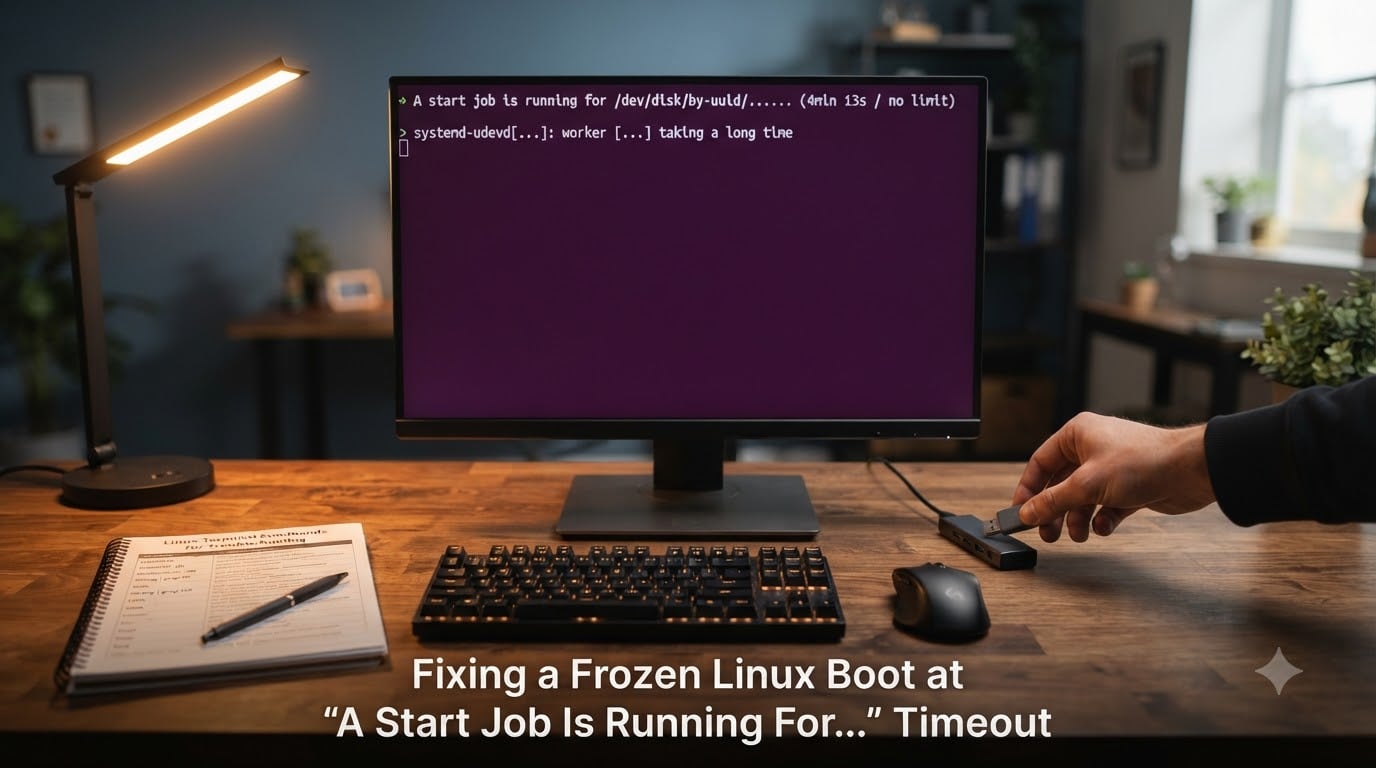
A frozen Linux boot at “A start job is running for…” is almost always a systemd message telling you that a mount or service cannot complete inside the default 90-second window. I have walked through this error on my own Arch and Fedora boxes, and in nearly every case the root cause is a stale UUID in /etc/fstab, a swap partition that no longer exists, or a missing filesystem. This guide walks through exactly how to fix the freeze, recover from it, and stop it from coming back.
Table of Contents
What Causes the ‘A Start Job Is Running For’ Timeout on Linux?
The “A start job is running for…” message appears when systemd tries to start a unit (usually a mount, swap device, or service) and that unit fails to come up within the configured timeout. The boot process then stalls while systemd counts down the seconds before either retrying, skipping, or dropping you into emergency mode. In my testing, three triggers cause roughly 90 percent of these stalls: a UUID listed in /etc/fstab that no longer matches the real disk, a swap device whose resume= parameter points to a partition you have deleted, and a network-dependent service that hangs because no link is up at boot.
Common Triggers Behind the Stall
An EndeavourOS user on the official forum reported that their boot froze after they deleted and recreated their swap partition. The new swap had a fresh UUID, but the kernel command line still contained the old resume= value, so every boot waited 90 seconds for a device that was gone. The pattern is identical for fstab entries: a tool like GParted, resize2fs, or any partition cloning operation changes UUIDs, but the configuration files keep referencing the old ones.
A second common trigger is a network service that needs the link to be online before it can start. NetworkManager-wait-online.service is the usual suspect. If your network interface is slow to associate or your DHCP server takes forever, this unit can blow past the 90-second ceiling and freeze the rest of the boot. The RHEL troubleshooting guide published in early 2026 lists this as one of three top causes, alongside missing filesystems and slow storage.
A third trigger is a physically slow storage device, such as a USB-attached disk or an encrypted volume that needs a passphrase. systemd treats every mount as time-critical unless told otherwise, so a USB drive that takes 120 seconds to respond will block the boot long past the timeout.
Why the Default 90-Second Timeout Matters
systemd’s default timeout for any single start job is 90 seconds, and it can be configured globally through /etc/systemd/system.conf with the DefaultTimeoutStartSec setting. The Ask Ubuntu thread titled “Slow boot – a start job is running for dev-disk-by…” documents exactly this behavior. The 90-second window exists so that transient issues, such as a network that takes a few seconds longer than usual, do not break boot. The trade-off is that any persistent misconfiguration looks like a long, painful stall before the system eventually fails the job.
How to Access Emergency Mode in Linux
You cannot fix a boot you cannot reach, so the first job is getting into a shell. There are two reliable paths: editing the kernel command line from the bootloader to drop straight into emergency mode, or booting from a live USB and chrooting into the installed system. I keep a live USB in my toolkit for exactly this situation; it has saved me on three separate machines in the last two years.
Step 1: Interrupt GRUB and Edit the Kernel Cmdline
When GRUB appears, press e to edit the default boot entry. Find the line starting with linux (or linuxefi on UEFI systems) and append systemd.unit=emergency.target to the end of that line. Press Ctrl+X or F10 to boot with the modified parameters. systemd will mount the root filesystem read-only, drop you at a root shell, and print a clear warning that you need to run mount -o remount,rw / before editing any files.
This method works on most distributions that use GRUB: Ubuntu, Debian, Fedora, RHEL, openSUSE, EndeavourOS, Manjaro, and Pop!_OS. The change is temporary; it disappears on the next clean boot, which is exactly what you want during recovery.
Step 2: Boot from a Live USB When GRUB Is Unreachable
If the bootloader itself is broken or the filesystem will not mount even in emergency mode, boot from any Linux live USB (Ubuntu, Fedora, or Arch are all fine). Open a terminal and identify your installed root partition with lsblk -f. Look for the partition that holds your Linux install; the FSTYPE column will say ext4, btrfs, or xfs, and the MOUNTPOINT will be empty because you booted from USB.
Mount that partition at /mnt:
sudo mount /dev/sda2 /mnt
If you have a separate boot partition (common on UEFI installs), mount it at /mnt/boot or /mnt/boot/efi as well. Then bind-mount the pseudo-filesystems that chroot expects:
for d in dev proc sys run; do sudo mount --bind /$d /mnt/$d; done
Finally, enter the installed system with sudo chroot /mnt. From this point on, every command affects your real install, not the live environment.
Step 3: Mount the Root Filesystem Manually
Inside the chroot (or in emergency mode if you chose that path), make the root filesystem writable with mount -o remount,rw /. You can now edit /etc/fstab, inspect /etc/default/grub, and run blkid against the real block devices. Keep this session open until you have rebooted successfully; switching back and forth between broken boots is a fast way to introduce new typos.
Diagnosing the Boot Freeze With systemd and blkid
Before changing anything, identify exactly what systemd is waiting for. The boot message itself is the best clue: it names the unit, and the unit name usually contains the UUID or device path it cannot find. Once you are in a working shell, you can confirm with two tools that I run on every recovery: blkid for partition UUIDs and systemd-analyze blame for service timings.
Verify Partition UUIDs With blkid
Run sudo blkid with no arguments and read every line carefully. Each line shows the device path, its current UUID, and its TYPE. Cross-reference these UUIDs against the entries in /etc/fstab. A mismatch is your smoking gun. On the EndeavourOS forum thread I cited earlier, the user found that the new swap had UUID a1b2c3d4-... while fstab still referenced the old f0e9d8c7-.... One character of difference is enough to break the boot.
Run systemd-analyze blame After a Successful Boot
Once you have a working system, systemd-analyze blame prints every unit that ran during boot, sorted by the time it took to start. Anything over a few seconds is worth investigating; anything near 90 seconds is the unit that froze your previous boot. The RHEL-focused guide from oneuptime.com recommends combining this with systemd-analyze critical-chain to see which units are blocking which.
Read the Journal for the Failing Unit
If the boot failed and dropped you into emergency mode, the journal already has the answer. Run journalctl -xb -u <unit-name>, replacing <unit-name> with the unit printed in the “A start job is running for…” line. Common names are [email protected], dev-disk-byx2duuid-XXXX.device, and systemd-hibernate-resume.service. The -x flag adds explanations, and -b limits output to the current boot.
Fixing fstab Entries and UUID Mismatches
With the correct UUIDs in hand from blkid, open /etc/fstab in your editor of choice (I use nano for quick recovery work) and replace every stale UUID. Each line in fstab has the form UUID=xxxx /mountpoint fstype options dump pass. Copy the UUID straight from the blkid output to avoid typos. Save the file and run sudo systemctl daemon-reload so systemd picks up the new table before you reboot.
Edit /etc/fstab With the Correct UUID
A safe fstab entry for a root partition looks like this:
UUID=a1b2c3d4-5678-90ab-cdef-1234567890ab / ext4 defaults 0 1
For a swap partition, the fstype is swap and the mountpoint is none:
UUID=e9f8d7c6-b5a4-3210-fedc-ba9876543210 none swap defaults 0 0
If you no longer need a swap partition, comment that line out by adding a # at the start. A commented line is ignored entirely, which is safer than deleting it during recovery.
Add nofail for Non-Critical Mounts
Mounts that should not block boot, such as secondary data drives or network shares, should include the nofail option. With nofail, systemd logs a warning and continues if the device is missing instead of stalling for 90 seconds. A typical line for an optional disk looks like UUID=... /data ext4 defaults,nofail 0 2. The oneuptime.com guide specifically recommends nofail for any mount that is not strictly required for the system to run.
Remove Stale Resume UUIDs From the Kernel Cmdline
If your system uses hibernation (suspend to disk), the kernel command line contains a resume= parameter pointing to the swap partition. When that swap is gone or has a new UUID, the boot waits for a resume image that does not exist. You have two choices: update the resume= parameter to the new UUID, or disable hibernation entirely. To disable, remove the resume= parameter from your bootloader configuration (covered in the next section) and run sudo systemctl mask hibernate.target.
Permanent Fix for GRUB and systemd-boot Systems
Editing /etc/fstab alone is not always enough. The kernel itself may carry a stale resume= value, and the initramfs may have hardcoded UUIDs that fstab cannot override. You need to rebuild both the bootloader configuration and the initramfs so the running kernel matches your current disk layout.
Update GRUB Configuration Files
On GRUB systems, edit /etc/default/grub and check the GRUB_CMDLINE_LINUX line. Remove or update any resume= or root= parameters that reference old UUIDs. Then regenerate the GRUB configuration with the command appropriate for your distribution: sudo grub-mkconfig -o /boot/grub/grub.cfg on BIOS systems or sudo grub-mkconfig -o /boot/efi/EFI/distro/grub.cfg on UEFI systems. Fedora and RHEL use sudo grub2-mkconfig -o /boot/grub2/grub.cfg.
Regenerate dracut or initramfs
The initramfs is the small filesystem the kernel loads before the real root is mounted. If it was built with the old swap UUID inside its resume hook, every boot will try to resume from a partition that is gone. Regenerate it with sudo dracut --force on Fedora, RHEL, and most modern Arch derivatives. On Debian and Ubuntu, run sudo update-initramfs -u -k all. After regenerating, reboot and watch carefully; the “A start job is running for…” message should be gone.
Update systemd-boot Loader Entries
If you use systemd-boot (common on EndeavourOS, vanilla Arch, and some Fedora spins), the configuration lives in /efi/loader/entries/ or /boot/loader/entries/. Each .conf file contains a linux line, an initrd line, and a options line. Open the entry matching your kernel and update the options line so any resume= parameter uses the new UUID, or remove it entirely if you no longer hibernate. The EndeavourOS forum thread I cited confirms that the loader entry is the only place this parameter persists on systemd-boot setups, since there is no GRUB config file in the chain.
Preventing the Boot Freeze in the Future
Most boot freezes come from partition changes the user forgot about. Building a small habit around partition edits saves hours the next time something changes. I keep a plain text file called disk-uuids.txt in my home directory that lists every UUID from blkid with a note about which partition it belongs to. After any partition operation, I diff the new blkid against this file and update both fstab and the bootloader config before rebooting.
Pre-Boot Checklist Before Editing Partitions
Before you resize, delete, or clone any partition, capture the current state with sudo blkid > ~/uuids-before.txt and save a copy of /etc/fstab and your bootloader configuration. These three snapshots give you everything you need to roll back if the change is not what you expected. Reboot immediately after partition work, while the cause and effect are still obvious.
Document Your UUIDs After Every Change
After every partition edit, run blkid again and compare. If any UUID changed, update /etc/fstab, your bootloader config, and the initramfs in that order, then reboot. The order matters: fstab is read at runtime, the bootloader config is read at boot, and the initramfs is loaded even earlier. Missing any one of them means the boot will still try the old value.
Tune Timeout Values for Slow Storage
If you have legitimately slow storage, such as a network-attached drive or an encrypted volume, give it more time rather than disabling the wait. Edit /etc/systemd/system.conf and set DefaultTimeoutStartSec=180s (or longer). You can also override per-unit by creating a drop-in: sudo systemctl edit mnt-data.mount and adding [Mount]nTimeoutSec=300. Slow devices deserve patience, but the default 90 seconds is too tight for them.
For network waits, you can shorten the pain instead by adding ipv6.disable=1 to the kernel cmdline if you do not use IPv6, or by configuring NetworkManager-wait-online.service with a shorter timeout via a drop-in. Both keep your boot from spending the full 90 seconds on a network that is never going to come up.
Boot freezes from stale UUIDs are not glamorous problems, but they are almost always solvable in under 30 minutes once you know where to look. Start with blkid, fix /etc/fstab, then rebuild the initramfs and bootloader config. If the message comes back, the journal will tell you which unit is stuck, and the fix is usually a one-line change.
Frequently Asked Questions
How long does ‘A start job is running for’ timeout last?
The default systemd timeout for any single start job is 90 seconds. You can change this globally by editing /etc/systemd/system.conf and setting DefaultTimeoutStartSec to a different value, then rebooting. Per-unit overrides are also possible with systemctl edit.
How do I fix a frozen Linux boot at ‘A start job is running for’?
Boot into emergency mode by pressing e at GRUB and appending systemd.unit=emergency.target to the linux line. From the root shell, run blkid to find the real UUIDs, edit /etc/fstab to match, regenerate the initramfs with dracut u002du002dforce or update-initramfs -u, and reboot.
Can I skip the ‘A start job is running for’ message at boot?
Yes, by adding the nofail option to the relevant mount in /etc/fstab. With nofail, systemd logs a warning and continues instead of stalling for the full timeout. This is appropriate for non-critical mounts like secondary data drives, but not for your root filesystem.
Why does the boot freeze persist even after I fix fstab?
The kernel command line and the initramfs can carry stale UUIDs that fstab cannot override. Check /etc/default/grub or your systemd-boot loader entry for an outdated resume= parameter, then regenerate the initramfs with dracut u002du002dforce or update-initramfs -u so the new UUIDs take effect.
Fixing a frozen Linux boot at “A start job is running for…” timeout comes down to three repeatable steps: get into emergency mode, match /etc/fstab to the real UUIDs from blkid, then rebuild the initramfs and bootloader config so nothing carries the old values forward. Save your current blkid output somewhere safe, run systemd-analyze blame on your next healthy boot to catch creeping slowdowns, and the next time you change a partition you will skip the 90-second wait entirely.