
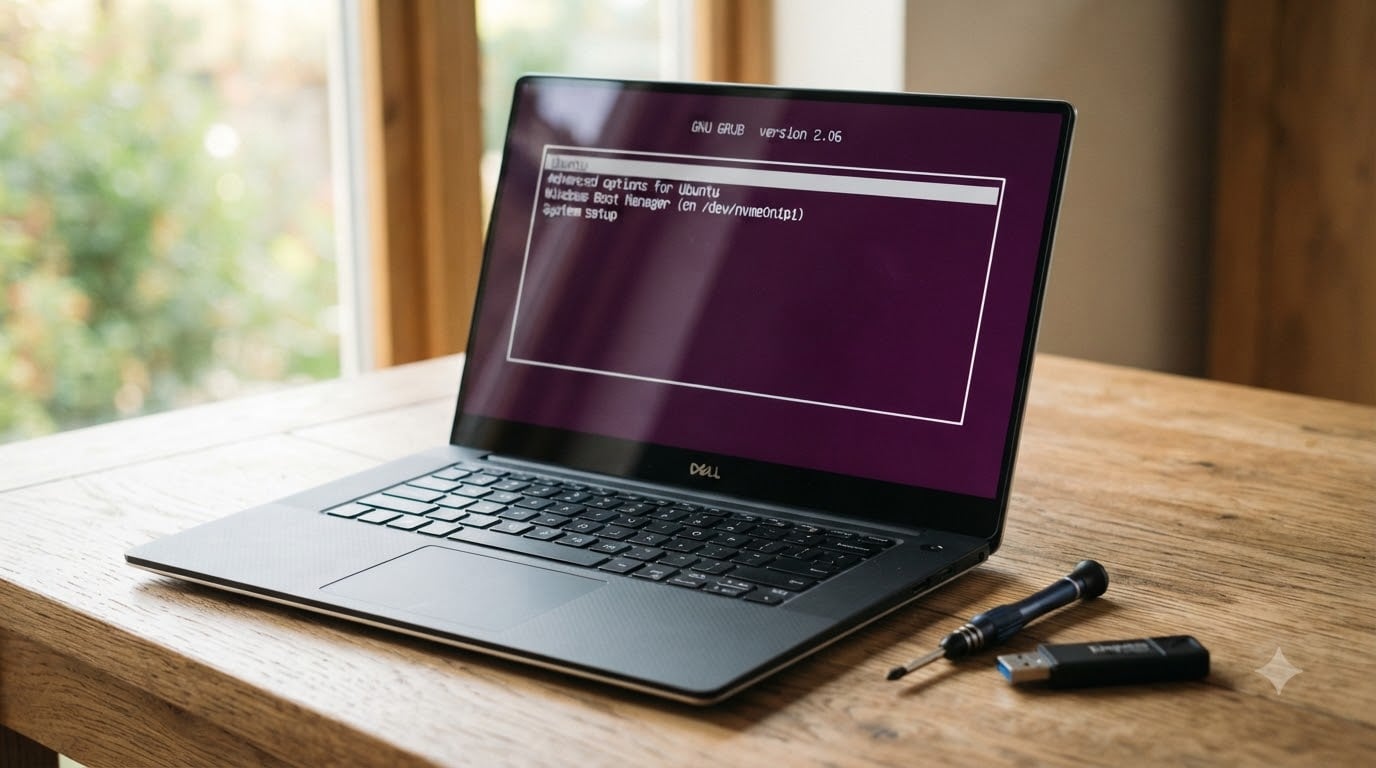
I remember the first time this happened to me. I had just finished installing Ubuntu next to my Windows 10 partition, hit reboot, and watched the system glide straight into Windows. No purple GRUB menu. No choice. No Linux.
That sinking feeling is the reason you are here. You installed Linux alongside Windows, and now GRUB is not showing Windows — or worse, GRUB is missing entirely and you only see Windows. The good news: your Linux partition almost certainly still exists. The GRUB bootloader is just being skipped by your firmware. In this guide, I will walk you through four methods to fix the GRUB not showing Windows after installing Linux problem, starting with the simplest fix and moving toward the heavier tools.
Table of Contents
Why GRUB Stops Showing Windows After Installing Linux?
When GRUB fails to appear after a Linux install, it is rarely because the bootloader is missing. It is almost always because something higher up in the boot chain is taking priority. Here is the chain your computer follows every time it powers on:
UEFI/BIOS firmware initializes.
Firmware reads the boot order list and picks the first valid boot entry.
That boot entry hands control to either Windows Boot Manager or GRUB.
If Windows Boot Manager is ranked above your Linux entry in that list, the firmware never even looks at GRUB. That is why GRUB stops showing Windows after installing Linux — the firmware never reaches the menu stage.
The four most common causes I have seen across forums like Reddit, Ask Ubuntu, and the Arch BBS are:
Boot order priority: Windows Boot Manager sits above Linux (or ubuntu) in firmware.
Missing boot entry: Firmware was never told GRUB exists, so it cannot list it.
Fast Startup: Windows holds the disk in a hibernated state, blocking os-prober.
Secure Boot or UEFI/Legacy mismatch: Firmware refuses to load shimx64.efi or GRUB lives on a partition the firmware ignores.
Each of these is fixable. Let us figure out which one applies to you.
Before You Start: Prerequisites and Quick Diagnosis
Before touching anything, take ten minutes to prepare. I have learned the hard way that a calm head and a backup save hours later.
What you will need:
A live USB of the Linux distribution you installed (Ubuntu, Mint, Fedora, etc.).
A Windows recovery drive, in case you need to repair the Windows bootloader.
A backup of anything irreplaceable on both partitions.
About 20 to 45 minutes.
Quick diagnosis — which method should you try first?
If your computer still shows a one-time boot menu when you press F12/F2 and Linux is listed there: jump to Method 1.
If you can boot into Linux (even from the live USB), but cannot see Windows in the GRUB menu: jump to Method 4.
If you cannot boot into Linux at all and Linux is not in the firmware boot list: jump to Method 2.
If you are stuck inside Windows and want to fix it without a USB: jump to Method 3.
This triage matters. Method 1 takes about 90 seconds. Method 3 takes 10 minutes. Starting with the right one saves you from undoing work.
Method 1: Adjust Boot Order in BIOS or UEFI
Adjusting the boot order in BIOS/UEFI is the fastest fix and the one I try first every time. If your firmware is just prioritizing Windows Boot Manager above your Linux entry, promoting GRUB above it solves the entire problem.
Step 1: Enter firmware settings. Restart your computer and press the firmware key during POST. Common keys are F2, F10, F12, Del, or Esc. Dell often uses F2, HP uses F10 or Esc, Lenovo uses F1 or F2, and Acer uses F2 or Del. A quick Google of your laptop model plus “boot key” will confirm.
Step 2: Navigate to the boot tab. Look for labels like Boot, Boot Order, Boot Priority, or Startup. On modern UEFI systems, this is usually under “Boot” or “Boot Configuration”.
Step 3: Reorder the entries. You should see something like Windows Boot Manager, ubuntu (or Linux, Fedora, Debian), and your USB drive. Use the arrow keys or +/- to move the Linux entry to the top.
Step 4: Save and exit. Press F10 (or the key listed on screen) to save. Your machine will reboot.
You should now see the GRUB menu with both Linux and Windows listed. If Linux still does not appear in the boot list at all, head to Method 2.
Pro tip: If your machine keeps reverting to Windows Boot Manager after every reboot, a Windows update is rewriting the boot order. Method 4 lets you fight back from inside Linux.
Method 2: Add the Linux Boot Entry Manually in UEFI
Sometimes the firmware has no idea Linux exists. I ran into this on an older Acer laptop where the only options were Windows Boot Manager and the network boot. The fix is to add the Linux EFI file to the firmware’s boot list manually.
Step 1: Boot into your Linux live USB. Choose “Try Ubuntu” (or the equivalent). You need access to a terminal.
Step 2: Find the EFI partition. Open a terminal and run:
sudo fdisk -l
Look for a small partition (usually 100 to 500 MB) with the EFI System flag. It is typically /dev/sda1 or /dev/nvme0n1p1.
Step 3: Mount the EFI partition.
sudo mount /dev/sda1 /mnt
For NVMe drives, replace sda1 with nvme0n1p1. This is a step most guides skip, and it is the single biggest reason NVMe users hit GRUB not showing Windows after installing Linux issues.
Step 4: List the available EFI files.
ls /mnt/EFI/
You should see folders like ubuntu, fedora, debian, or Manjaro. Inside each is an EFI binary such as shimx64.efi or grubx64.efi.
Step 5: Reboot and re-enter firmware. This time, look for an “Add Boot Option” button (or similar) in the boot tab. Point it to the EFI file you found — for Ubuntu, that is usually EFIubuntushimx64.efi. Name it “Linux” or “Ubuntu” so you can recognize it.
Step 6: Move the new entry to the top using the same controls as Method 1, then save and exit.
If your firmware does not let you add boot options (some locked-down Acer and HP laptops do this), try the next method.
Method 3: Use bcdedit from Windows to Point to GRUB
When the firmware refuses to cooperate, you can fix it from the Windows side using bcdedit. This command tells Windows Boot Manager to chain-load GRUB, which then shows the menu including both Windows and Linux. I treat this as a last resort because every major Windows update can reset it.
Step 1: Open an elevated command prompt in Windows. Press Win + X and choose “Terminal (Admin)” or “Command Prompt (Admin)”. Click Yes on the UAC prompt.
Step 2: Find the EFI partition letter in Windows.
diskpart
list volume
Look for a volume labelled “SYSTEM” or hidden FAT32, usually mounted as C: or D:. Type exit to leave diskpart.
Step 3: Locate the GRUB EFI file.
dir C:EFIubuntu
You should see shimx64.efi. Note the path — we will reference it in the next command.
Step 4: Create a new boot entry.
bcdedit /set {bootmgr} path EFIubuntushimx64.efi
This tells Windows Boot Manager to hand off to GRUB on the next reboot.
Step 5: Reboot. You should now land in GRUB, where both Windows and Linux are listed. Selecting Windows will still work because GRUB knows how to chain-load it.
Step 6: Reverting if things go wrong. If your system becomes unbootable, boot from a Windows recovery USB, choose “Repair your computer” -> “Command Prompt”, and run:
bcdedit /set {bootmgr} path EFIMicrosoftBootbootmgfw.efi
This restores the default Windows boot path. I have used this rollback command twice in five years — both times after a botched distro upgrade.
Method 4: Run update-grub from a Linux Live USB
The cleanest fix happens from inside Linux itself. If GRUB is installed but cannot detect Windows, you need to tell GRUB to rescan with os-prober. This is the method I recommend when you can boot into Linux at all, because it regenerates the entire GRUB menu.
Step 1: Boot into Linux. Use your installed Linux, or boot the live USB and choose “Try Ubuntu” if you cannot reach your install.
Step 2: Open a terminal and check os-prober.
os-prober
You should see your Windows partition listed, something like /dev/sda2@/EFI/Microsoft/Boot/bootmgfw.efi. If os-prober returns nothing, your Windows partition may be hibernated (Fast Startup) or hidden. Skip to the troubleshooting section.
Step 3: Make sure os-prober is enabled. In modern GRUB versions (2.04+), os-prober is disabled by default for safety. Enable it temporarily:
sudo nano /etc/default/grub
Add or uncomment this line:
GRUB_DISABLE_OS_PROBER=false
Save with Ctrl + O, exit with Ctrl + X.
Step 4: Regenerate the GRUB config.
sudo update-grub
On Fedora or Arch, use sudo grub2-mkconfig -o /boot/grub2/grub.cfg or sudo grub-mkconfig -o /boot/grub/grub.cfg. You should see output like “Found Windows Boot Manager on /dev/sda2”.
Step 5: Reboot.
sudo reboot
Now GRUB should show both Linux and Windows. If this does not work and you are stuck on the live USB, you can chroot into your install first. Mount your root partition, mount the EFI partition, then run grub-install followed by update-grub.
Troubleshooting: Fast Startup, Secure Boot, and UEFI vs Legacy
If none of the four methods above worked, the cause is almost always one of three firmware-level settings. Let me walk you through them.
Fast Startup. Windows 10 and 11 enable Fast Startup by default. This puts the disk into a hibernated state, which means Linux cannot safely read the NTFS partition and os-prober skips it. To disable it, open Control Panel -> Power Options -> Choose what the power buttons do -> Change settings currently unavailable -> uncheck “Turn on fast startup”. Save and reboot twice — once into Windows, once into Linux. I have watched this single setting fix the GRUB not showing Windows after installing Linux problem on more machines than any other trick.
Secure Boot. Most modern distros ship with signed shim binaries that work under Secure Boot, but some do not. If your firmware refuses to load GRUB, disable Secure Boot in the Security tab of your UEFI. Ubuntu, Fedora, Mint, Pop!_OS, and Manjaro all support Secure Boot out of the box. Arch users may need to install shim-signed or disable Secure Boot.
UEFI vs Legacy mode mismatch. If Windows was installed in UEFI mode but your Linux installer set up GRUB in Legacy mode (or vice versa), GRUB will not appear at all. Check from Windows by running msinfo32 and looking for “BIOS Mode”. It should say “UEFI”. Then check Linux by running [ -d /sys/firmware/efi ] && echo UEFI || echo Legacy. Both should report UEFI. If they disagree, you will need to reinstall Linux in the matching mode.
NVMe-specific tip. NVMe drive users should mount partitions by UUID rather than device name in their fstab. UUIDs are stable across reboots, while /dev/nvme0n1p1 can shuffle if you add another drive.
Recovery options if everything fails. Use the Boot-Repair tool from a live USB. It automates most of Method 4 and can reinstall GRUB to the EFI partition in one click. If that fails too, your Windows installation media’s “Repair your computer” option can rebuild the Windows bootloader, which at least gets you back into Windows.
Frequently Asked Questions
Why isn’t Windows appearing in GRUB after installing Linux?
Windows is missing from the GRUB menu because your UEFI firmware is booting Windows Boot Manager directly instead of GRUB. This happens when Windows Boot Manager is ranked above your Linux entry in the boot order, or when os-prober is disabled in modern GRUB versions. Adjust the boot order in firmware settings, or run sudo update-grub with os-prober enabled to bring Windows back into the menu.
How do I make GRUB recognize Windows in a dual-boot setup?
Run sudo os-prober first to confirm GRUB can see your Windows partition, then enable os-prober by setting GRUB_DISABLE_OS_PROBER=false in /etc/default/grub. After saving, run sudo update-grub to regenerate the menu. Reboot and Windows should now appear alongside your Linux entry.
How can I force the GRUB menu to show up at boot?
To force the GRUB menu, restart and press Shift during boot on BIOS systems, or Esc on many UEFI systems. For a permanent fix, edit /etc/default/grub and set GRUB_TIMEOUT_STYLE=menu, then uncomment GRUB_TIMEOUT=10 to give yourself 10 seconds to choose. Save the file and run sudo update-grub.
How do I fix GRUB after installing Windows alongside Linux?
When you install Windows after Linux, Windows overwrites the boot sector and your GRUB menu disappears. Boot from a Linux live USB, mount your root and EFI partitions, then run sudo grub-install and sudo update-grub. The first command reinstalls GRUB to the EFI partition and the second regenerates the menu with both entries.
Why is GRUB not detecting Windows on my computer?
GRUB cannot detect Windows when Fast Startup is enabled in Windows, when the Windows partition is hibernated, or when os-prober is disabled in the GRUB configuration. Disable Fast Startup in Windows power settings, fully shut down Windows instead of using Restart, and ensure GRUB_DISABLE_OS_PROBER=false in /etc/default/grub before running update-grub.
What is the easiest way to fix a missing GRUB menu after dual-boot install?
The fastest fix is to enter your UEFI firmware settings and reorder the boot list so your Linux entry (ubuntu, Fedora, Debian) sits above Windows Boot Manager. Save and exit, and GRUB should appear on the next reboot. If Linux is not listed at all, boot a live USB and use Boot-Repair to reinstall GRUB automatically.
Do I need to disable Secure Boot to fix GRUB?
Not necessarily. Most modern Linux distributions ship with signed shim binaries that work under Secure Boot, including Ubuntu, Fedora, Mint, and Manjaro. Only disable Secure Boot if GRUB refuses to load and you have ruled out every other cause, or if you use a distribution that does not sign its bootloader.
Adjust the boot order in UEFI/BIOS
Restart and press F2, F10, F12, Del, or Esc to enter firmware. Move the Linux entry above Windows Boot Manager, save with F10, and reboot.
Add the Linux boot entry manually
Boot a live USB, mount the EFI partition, locate shimx64.efi or grubx64.efi, then add it as a new boot option in firmware settings.
Use bcdedit from Windows
Open an elevated command prompt and run bcdedit /set {bootmgr} path EFIubuntushimx64.efi to make Windows Boot Manager chain-load GRUB.
Run update-grub from Linux
Set GRUB_DISABLE_OS_PROBER=false in /etc/default/grub, then run sudo update-grub to regenerate the menu with both Linux and Windows entries.
Final Thoughts
Fixing GRUB not showing Windows after installing Linux comes down to one idea: your firmware is making a choice before GRUB ever gets a turn. Once you control that choice, the rest is straightforward.
Start with Method 1 because it takes 90 seconds and solves the majority of cases. If Linux is missing from the firmware list entirely, move to Method 2. If you are stuck inside Windows or your firmware will not let you add entries, Method 3 with bcdedit will get you out. And if you can boot into Linux but the menu is empty, Method 4 with update-grub cleans it up properly.
Whichever method you use, remember to disable Fast Startup in Windows once you are back in. It is the silent culprit behind more “my GRUB disappeared” threads than anything else. After that, keep a live USB handy and a recent backup, and you can install, update, and experiment with both operating systems without fear. Good luck, and welcome back to dual-booting.