
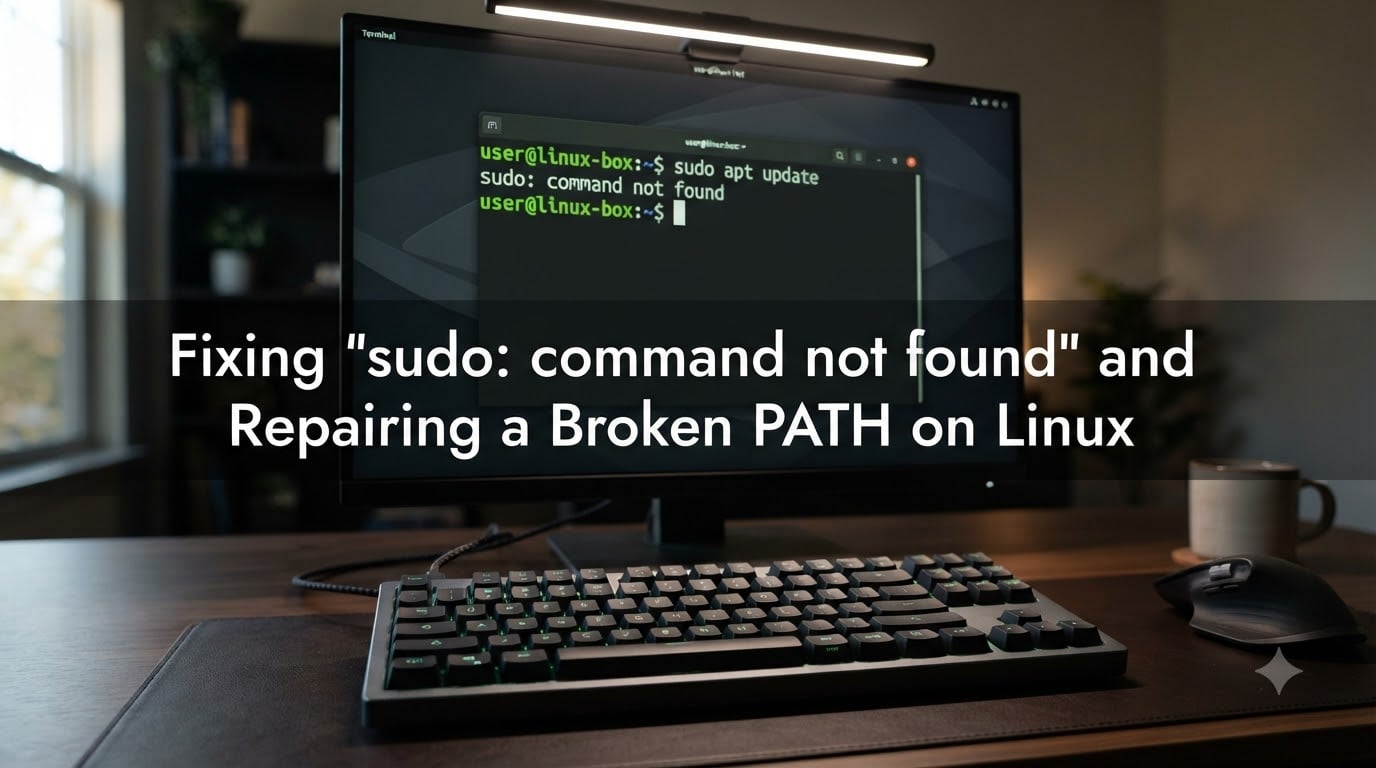
You type sudo apt update on your Linux machine, hit Enter, and instead of a password prompt you get: bash: sudo: command not found. I have been there, and it is one of the most frustrating errors you can hit on a fresh server or a container you just spun up.
The good news is that this error has exactly two root causes: either sudo is not installed on your system, or your PATH variable is broken and the shell cannot find the sudo binary even though it exists. Both are completely fixable, and I will walk you through every scenario I have encountered in years of Linux administration.
This guide covers fixing “sudo: command not found” and repairing a broken PATH on Linux across Debian, Ubuntu, Fedora, RHEL, Arch, Alpine, Docker containers, and WSL. Whether you are locked out of root access on a production server or just setting up a minimal install for the first time, you will find the exact commands you need below.
By the end of this article, you will know how to diagnose the problem, install sudo if it is missing, fix a corrupted PATH, add your user to the right group, and verify everything works before you move on.
Table of Contents
Quick Reference: Fix “sudo: command not found” by Distribution
If that table does not solve your problem, the sections below walk you through diagnosis, installation, PATH repair, and edge cases step by step.
| Distribution | Install Command | Group Name |
|---|---|---|
| Debian / Ubuntu / Mint | apt update && apt install sudo | sudo |
| Fedora / RHEL / Rocky / Alma | dnf install sudo | wheel |
| Arch / Manjaro | pacman -S sudo | wheel |
| Alpine | apk add sudo | wheel |
| openSUSE | zypper install sudo | wheel |
If that table does not solve your problem, the sections below walk you through diagnosis, installation, PATH repair, and edge cases step by step.
Why “sudo: command not found” Happens
The sudo command (short for “superuser do”) lets authorized users run commands with root privileges without logging in as root. When your shell says it cannot find sudo, one of three things has gone wrong.
Cause 1: sudo is not installed. Debian minimal installs, many Docker base images, and some cloud server templates ship without sudo. The developers assume you will log in as root directly or add sudo yourself. This is the most common cause on fresh systems.
Cause 2: Your PATH variable is broken. The PATH tells your shell where to look for executables. If /usr/bin (where sudo lives on most systems) is missing from PATH, the shell cannot locate sudo even though the binary exists on disk. This often happens after editing ~/.bashrc or ~/.profile with a syntax error.
Cause 3: sudo exists and PATH is fine, but your user lacks permission. Even with sudo installed, your user must belong to the sudo group (on Debian/Ubuntu) or wheel group (on Fedora/RHEL/Arch) or be listed in /etc/sudoers. Without membership, sudo will not let you execute commands.
Less commonly, the error appears after a botched package upgrade, a filesystem corruption event, or an accidental chmod or chown that changed permissions on /usr/bin/sudo. The SUID bit on the sudo binary is critical, and if it gets stripped, sudo stops working silently.
Diagnose the Problem Before You Fix It
Before installing or changing anything, figure out which of the three causes you are dealing with. A wrong diagnosis wastes time and can make things worse. Run these checks in order.
Step 1: Check if the sudo binary exists on disk. Run this command:
ls -l /usr/bin/sudoIf you see a file with -rwsr-xr-x permissions, sudo is installed and the SUID bit is intact. Move to Step 2. If you get “No such file or directory,” sudo is not installed, and you can skip straight to the installation section for your distribution.
Step 2: Check your PATH variable. Run:
echo $PATHA healthy PATH on most Linux systems looks something like this:
/usr/local/sbin:/usr/local/bin:/usr/sbin:/usr/bin:/sbin:/binIf /usr/bin is missing from that list, your PATH is broken. Jump to the Fix a Broken PATH Variable section below.
Step 3: Check your group membership. Run:
groupsIf you do not see sudo (Debian/Ubuntu) or wheel (Fedora/RHEL/Arch) in the output, your user is not authorized to use sudo. Proceed to the section on adding your user to the sudo group.
Step 4: Try switching to root. If none of the above helps, see whether you can escalate at all:
su -Enter the root password when prompted. If this works, you have root access and can fix anything from here. If root has no password set (common on Ubuntu desktop), you will need recovery mode, covered later in this guide.
Install sudo on Debian, Ubuntu, and Derivatives
Debian-based distributions (Debian, Ubuntu, Linux Mint, Pop!_OS, Kali) all use apt for package management. Installing sudo here is straightforward once you have root access.
Step 1: Switch to root.
su -Enter the root password. On many Ubuntu systems, the root account is disabled and has no password. If su - fails with “Authentication failure,” boot into recovery mode instead (covered later).
Step 2: Update package lists and install sudo.
apt update
apt install sudo
The installation pulls the sudo package and sets up the /usr/bin/sudo binary with the correct SUID permissions automatically.
Step 3: Verify sudo installed correctly.
which sudo
# Expected output: /usr/bin/sudo

dpkg -l sudo
If which sudo returns the path, the install succeeded. If dpkg -l sudo shows ii in the status column, the package is properly installed.
Step 4: Add your user to the sudo group.
usermod -aG sudo yourusernameReplace yourusername with your actual username. The -aG flags append your user to the group without removing you from other groups.
Step 5: Log out and back in. Group membership changes only take effect in a new login session. Run exit to drop root, then log out and log back in. Alternatively, you can use newgrp sudo to apply the change in your current session, though a full re-login is cleaner.
Install sudo on Fedora, RHEL, Rocky, and AlmaLinux
RPM-based distributions use dnf (or yum on older RHEL). The process mirrors Debian closely, but the group name differs.
Step 1: Switch to root.
su -Step 2: Install sudo.
dnf install sudoOn older systems running RHEL 7 or CentOS 7, use yum install sudo instead.
Step 3: Verify the installation.
rpm -q sudo
# Expected output: sudo-1.9.x-x.el9.x86_64
Step 4: Add your user to the wheel group.
usermod -aG wheel yourusernameOn Fedora and RHEL, the privileged group is called wheel, not sudo. This trips up many users coming from Debian or Ubuntu.
Step 5: Confirm the wheel group is enabled in sudoers. Some RHEL installs do not enable the wheel group by default. Check by running:
visudoLook for this line and make sure it is uncommented (no # at the start):
%wheel ALL=(ALL) ALLSave and exit. On visudo, the default editor is usually vi. Press i to insert, make your edit, press Esc, then type :wq to save and quit. Never edit /etc/sudoers directly with a text editor, always use visudo because it validates syntax before saving.
Step 6: Log out and log back in for the group change to take effect.
Install sudo on Arch Linux and Manjaro
Arch Linux uses pacman as its package manager. Many Arch users install sudo during the initial setup, but if you skipped that step or are using a minimal Arch derivative, here is how to add it.
Step 1: Switch to root.
su -Step 2: Install sudo.
pacman -S sudoStep 3: Add your user to the wheel group.
usermod -aG wheel yourusernameStep 4: Enable the wheel group in sudoers. Arch does not enable wheel by default. Run visudo and uncomment this line:
%wheel ALL=(ALL) ALLSave and exit. Log out and back in to apply the changes.
One Arch-specific tip: if you want passwordless sudo for the wheel group (common on desktop Arch installs), uncomment this line instead:
%wheel ALL=(ALL) NOPASSWD: ALLBe aware that passwordless sudo reduces security. Only use it on personal machines, not on shared or internet-facing servers.
Install sudo on Alpine Linux and Minimal Containers
Alpine Linux uses apk and is the base for countless Docker images. Many minimal containers skip sudo entirely to keep image size tiny, which causes this error frequently in container workflows.
Step 1: If you have root, install sudo.
apk add sudoStep 2: Add your user to the wheel group.
addgroup yourusername wheelStep 3: Enable wheel in sudoers.
visudoUncomment the %wheel ALL=(ALL) ALL line, save, and exit.
Docker-specific scenario: If you are inside a Docker container and see “sudo: command not found,” the simplest fix is often to not use sudo at all. Docker containers run as root by default. Run your commands directly without sudo.
# Instead of:
sudo apt update

# Just run:
apt update
If you need sudo in a Dockerfile, add it during the build stage:
RUN apt update && apt install -y sudo
RUN usermod -aG sudo appuser
For Alpine-based Dockerfiles, use RUN apk add --no-cache sudo.
Add Your User to the sudo or wheel Group
Installing sudo is only half the job. Your user must be a member of the privileged group for sudo to actually work. I have seen many users install sudo successfully, then get a different error saying “user is not in the sudoers file” because they skipped this step.
The group name depends on your distribution:
Debian, Ubuntu, Mint, Pop!_OS:
sudogroupFedora, RHEL, Rocky, AlmaLinux, CentOS:
wheelgroupArch, Manjaro:
wheelgroupAlpine:
wheelgroupopenSUSE:
wheelgroup
Add your user with usermod (most distributions):
su -
usermod -aG sudo yourusername   # Debian/Ubuntu
# or
usermod -aG wheel yourusername  # Fedora/RHEL/Arch/Alpine
The -a flag means append (add to the group without removing from others). The -G flag specifies the group. Never use -G without -a, or you will remove your user from all secondary groups.
On Alpine Linux, usermod may not be available in minimal installs. Use this instead:
addgroup yourusername wheelIndividual sudoers entry (alternative method): If you want to grant sudo access to a specific user without adding them to a group, run visudo as root and add this line at the bottom:
yourusername ALL=(ALL) ALLThis is useful on systems where group-based access is impractical or for service accounts.
After adding your user to the group or sudoers file, you must start a new login session. The easiest way is to fully log out and log back in. If you are in an SSH session, just disconnect and reconnect.
Fix a Broken PATH Variable
If sudo is installed and your user has the right group membership but you still see “command not found,” your PATH variable is the culprit. A broken PATH is sneakier than a missing package because the binary exists, your user has permissions, but the shell simply does not know where to look.
What PATH does: PATH is an environment variable containing a colon-separated list of directories. When you type a command without a full path, the shell searches these directories in order. If /usr/bin is not in that list, the shell cannot find sudo.
Step 1: Check your current PATH.
echo $PATHA correct PATH should include at minimum: /usr/local/sbin:/usr/local/bin:/usr/sbin:/usr/bin:/sbin:/bin. If any of these are missing, something has gone wrong.
Step 2: Temporarily fix PATH for your current session.
export PATH="/usr/local/sbin:/usr/local/bin:/usr/sbin:/usr/bin:/sbin:/bin:$PATH"This restores the standard directories immediately. Test with sudo -v to confirm sudo is now reachable. But this fix disappears when you close the terminal, so you need to make it permanent.
Step 3: Find what broke PATH. The most common culprits are shell startup files. Check these files for syntax errors or bad PATH assignments:
cat ~/.bashrc
cat ~/.bash_profile
cat ~/.profile
cat /etc/environment
Look for lines that assign PATH. A common mistake looks like this:
# WRONG - overwrites PATH entirely
PATH=/my/custom/bin

# CORRECT - appends to existing PATH
export PATH="/my/custom/bin:$PATH"
That single mistake replaces the entire PATH variable instead of adding to it, wiping out /usr/bin and every other standard directory.
Step 4: Fix the broken file. Open the offending file and correct the PATH assignment. Use export and always include $PATH to preserve existing entries:
export PATH="/your/custom/path:$PATH"If /etc/environment is the problem, it uses a different format (no export keyword):
PATH="/usr/local/sbin:/usr/local/bin:/usr/sbin:/usr/bin:/sbin:/bin"Editing /etc/environment as root with a mistake can break PATH system-wide for all users. Always back it up first with cp /etc/environment /etc/environment.bak.
Step 5: Apply the fix. After saving your corrected file, reload it:
source ~/.bashrc
# or
source ~/.profile
Then verify with echo $PATH and sudo -v.
Forum insight: Users on Reddit report that PATH corruption happens most often after adding a tool like Rust, Go, or NVM to ~/.bashrc and accidentally using assignment (=) instead of appending (:$PATH). If the error appeared right after you installed a new development tool, that is your first place to look.
Docker, WSL, and Recovery Mode Scenarios
Some situations fall outside the normal install-and-configure flow. Here are the edge cases I hear about most from Linux users.
Docker containers: Minimal Docker images (Alpine, Debian slim, Ubuntu minimal) frequently omit sudo. If you are root inside the container, you do not need sudo at all. Run commands directly. If you need a non-root user with sudo inside a container, add it in your Dockerfile:
RUN apt update && apt install -y sudo
RUN useradd -m -s /bin/bash appuser
RUN usermod -aG sudo appuser
RUN echo "appuser ALL=(ALL) NOPASSWD:ALL" >> /etc/sudoers
Windows Subsystem for Linux (WSL): If sudo stops working in WSL, the issue is usually one of two things. First, check that /usr/bin/sudo exists (it should on standard WSL installs). Second, verify your PATH is not getting mangled by Windows interop. In ~/.bashrc or /etc/wsl.conf, make sure PATH includes the Linux system directories.
If WSL itself is corrupted, you can reset it. From PowerShell on Windows:
wsl --shutdown
wsl --unregister Ubuntu
# Then reinstall from the Microsoft Store
Warning: unregistering deletes all data in that WSL instance. Back up important files first.
Recovery mode (when you are completely locked out): If sudo is missing and root has no password (common on Ubuntu), you need recovery mode. Reboot your machine and hold Shift during boot to show the GRUB menu. Select “Advanced options for Ubuntu” (or your distribution), then choose the recovery mode entry.
From the recovery menu, select “root – Drop to root shell prompt.” Your filesystem is mounted read-only by default, so remount it read-write:
mount -o remount,rw /Now you have root access. Install sudo, add your user to the group, fix PATH, or reset the root password:
apt update && apt install sudo
usermod -aG sudo yourusername
passwd root   # set a root password if you want one
Type reboot to restart normally and log in with your user account.
Fixing file ownership in /etc: Sometimes a misguided chown -R command changes ownership of /etc/sudoers or related files, breaking sudo. The sudoers file must be owned by root with specific permissions. Fix it with:
chown root:root /etc/sudoers
chmod 440 /etc/sudoers
chown -R root:root /etc/sudoers.d
Verify the Fix and Avoid Future Breakage
Once you have installed sudo, added your user to the right group, and verified PATH, test that everything works with a simple command:
sudo -v
# Enter your password. If no error, sudo works.

sudo whoami
# Should output: root
If both commands succeed, your system is fixed. Run sudo apt update or your distribution equivalent to confirm end-to-end functionality.
To avoid this problem in the future, follow these habits:
Always use
export PATH="...:$PATH"when modifying PATH in shell config files, never overwrite it.Back up
~/.bashrcand/etc/environmentbefore editing them.Use
visudoexclusively for editing sudoers, never a plain text editor.On fresh server installs, install sudo and configure your user before doing anything else.
For Docker containers, include sudo installation in your Dockerfile if non-root users need it.
One more thing worth knowing: the secure_path directive in /etc/sudoers defines the PATH that sudo uses when executing commands. If your regular PATH works but sudo-based commands fail with “command not found,” check whether secure_path is misconfigured in the sudoers file.
Frequently Asked Questions
How to fix sudo command not found on Linux?
Switch to root with su -, install sudo using your package manager (apt install sudo on Debian/Ubuntu, dnf install sudo on Fedora, pacman -S sudo on Arch, apk add sudo on Alpine), add your user to the sudo or wheel group with usermod -aG, then log out and back in.
How to fix broken sudo?
If sudo is installed but not working, check three things: verify the binary exists at /usr/bin/sudo, confirm your user is in the sudo or wheel group, and make sure /usr/bin is in your PATH. If the sudoers file is corrupted, boot into recovery mode and run visudo to repair it.
How to fix command not found error in Linux?
The command not found error usually means the executable is not in your PATH. Check your PATH with echo $PATH and ensure standard directories like /usr/bin and /usr/local/bin are listed. Fix broken PATH assignments in ~/.bashrc or /etc/environment, then run source ~/.bashrc to apply changes.
Why is sudo not installed on my Linux system?
Minimal installations, Docker base images, and some cloud server templates do not include sudo by default to keep the image small. Debian minimal installs and Alpine containers commonly omit it. You can install it manually with your distribution package manager once you have root access.
How to add a user to sudoers file safely?
Always use visudo to edit the sudoers file. Add your user to the sudo group (Debian/Ubuntu) or wheel group (Fedora/RHEL/Arch) with usermod -aG sudo username. For individual access, add a line like username ALL=(ALL) ALL in visudo. Never edit /etc/sudoers directly with a text editor.
Conclusion
Fixing “sudo: command not found” and repairing a broken PATH on Linux comes down to three checks: is sudo installed, is your user in the right group, and is PATH configured correctly. Work through the diagnosis steps, install sudo for your distribution, add your user to sudo or wheel, and repair any PATH corruption in your shell config files.
The error feels alarming when it first appears, but it is one of the most predictable Linux problems you will encounter. Once you know the diagnostic workflow, you can resolve it in under five minutes on any distribution.