
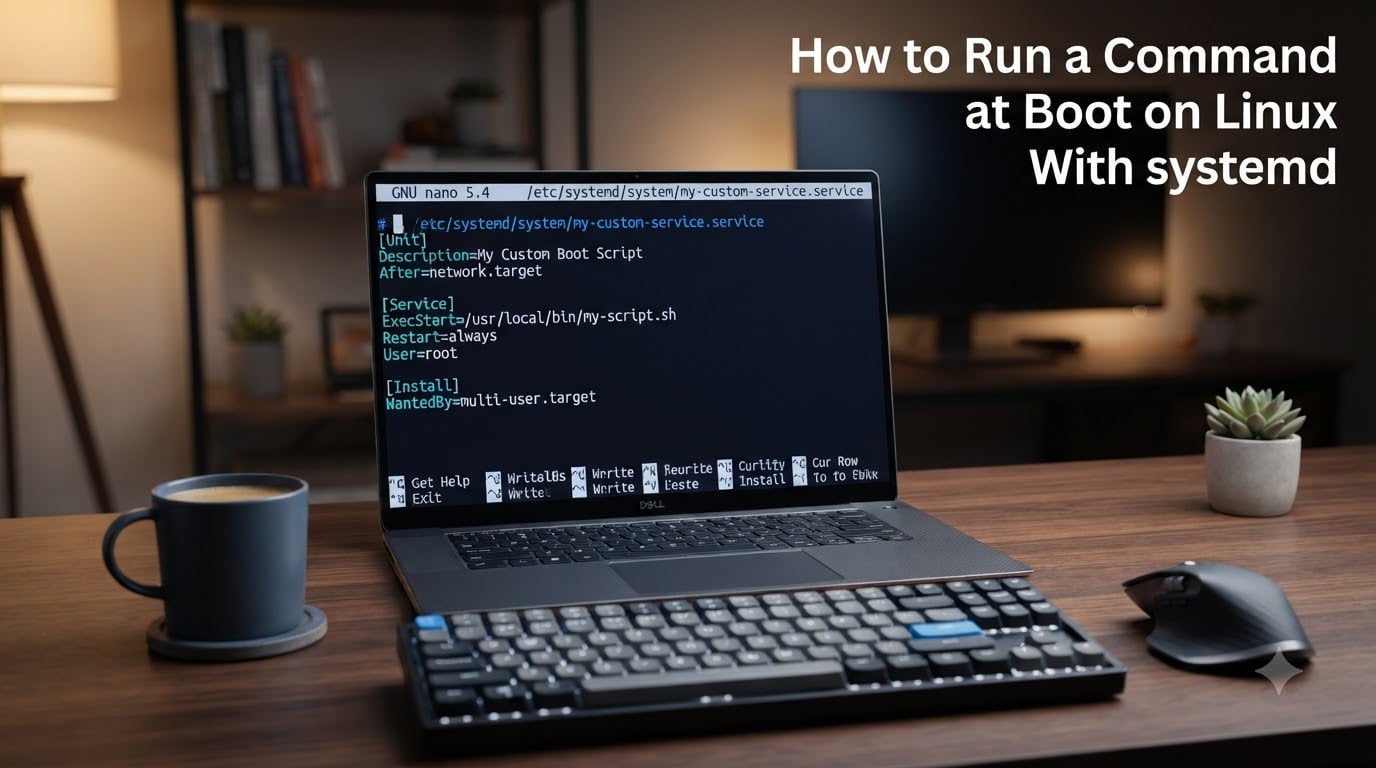
Running a command automatically when your Linux machine boots is one of the most common tasks for system administrators and home server enthusiasts alike. Whether you want to start a game server, mount a network share, or kick off a maintenance script, systemd makes this reliable and standardized. In this guide I will walk you through how to run a command at boot on Linux with systemd, step by step, with copy-paste examples you can use right now.
systemd is the default init system on nearly every mainstream Linux distribution in 2026, including Ubuntu, Debian, Fedora, RHEL, Arch, and openSUSE. That means the method I cover here works the same way across almost every modern Linux machine you will touch.
Table of Contents
What Is systemd and Why Use It for Boot Commands?
systemd is the first process that starts when your Linux system boots, and it runs as PID 1. Its job is to initialize the system, manage services, and coordinate the boot sequence through targets and dependencies.
Before systemd, Linux distributions relied on older init systems like SysV init scripts and the /etc/rc.local file. Those methods worked, but they had no built-in dependency handling, no automatic restart on failure, and no unified logging.
With systemd you get automatic restarts if your script crashes, proper dependency ordering, centralized logging through journalctl, and clean start, stop, and status commands through systemctl. These features are why systemd is the recommended way to run a command at boot on modern Linux.
How to Run a Command at Boot on Linux With systemd
Here is the complete process to run a command at boot on Linux with systemd. I will break it into five clear steps so you can follow along from start to finish.
Step 1: Create Your Script or Command
First, decide what you want to run at boot. If you are running a single command, you can place it directly in the unit file later. For anything more complex, create a shell script.
Create your script, for example at /usr/local/bin/myscript.sh:
sudo nano /usr/local/bin/myscript.sh
Add your commands inside the script:
#!/bin/bash
echo "Hello from boot" >> /tmp/boot-test.log
date >> /tmp/boot-test.log
Make the script executable. This is a step many people miss, and it is the most common reason a service fails silently:
sudo chmod +x /usr/local/bin/myscript.sh
Test the script manually before going further. If it works when you run it by hand, you have a solid baseline for debugging later:
sudo /usr/local/bin/myscript.sh
Step 2: Create the systemd Unit File
Every systemd service is defined by a unit file. These live in /etc/systemd/system/ for custom services created by the administrator.
Create a new file with a .service extension:
sudo nano /etc/systemd/system/myscript.service
Add the following content. This is a minimal, working unit file you can adapt:
[Unit]
Description=Run my custom script at boot
After=network.target

[Service]
ExecStart=/usr/local/bin/myscript.sh
Type=simple
User=root
Restart=on-failure

[Install]
WantedBy=multi-user.target
Let me break down what each line does. After=network.target tells systemd to wait until the network stack is up before starting your service, which matters if your script needs network access.
ExecStart is the command or script systemd will run. Always use absolute paths here, because systemd does not load your shell environment or PATH.
Type=simple is the default and works for any long-running or quick-exit process. I cover when to use Type=oneshot in the next section.
WantedBy=multi-user.target is what actually makes the service start at boot. When you enable the service, systemd creates a symlink into the multi-user target, which is the standard runlevel for booted multi-user systems.
Step 3: Reload systemd and Enable the Service
After creating or editing a unit file, you must tell systemd to reload its configuration. Without this step, systemd will not see your new file:
sudo systemctl daemon-reload
Now enable the service so it starts automatically at boot:
sudo systemctl enable myscript.service
You should see a confirmation that systemd created the symlink. That symlink is the mechanism that ties your service into the boot sequence.
Step 4: Start and Verify the Service
Enabling a service does not start it immediately. To start it right now without rebooting, run:
sudo systemctl start myscript.service
Check the status to confirm it ran successfully:
sudo systemctl status myscript.service
A green active (running) or active (exited) status means everything worked. You can also check the logs for your service specifically:
sudo journalctl -u myscript.service -f
This command tails the live log output, which is invaluable when something goes wrong. If your script wrote to a log file, check that file too.
Step 5: Stop, Restart, or Disable the Service
To stop a running service temporarily:
sudo systemctl stop myscript.service
To restart it after making changes to your script:
sudo systemctl restart myscript.service
To remove the service from the boot sequence entirely, disable it:
sudo systemctl disable myscript.service
Disabling does not delete your unit file. The service just will not start at boot anymore. To fully remove it, delete the file from /etc/systemd/system/ and run daemon-reload again.
Understanding Service Types: Type=simple vs Type=oneshot
The Type directive in your unit file tells systemd how your process behaves. Getting this wrong is a common source of confusion that I see repeatedly in Linux forums.
Type=simple is the default and works for long-running processes like web servers or daemons. systemd considers the service started as soon as the main process forks, and it tracks that process for its entire lifetime.
Type=oneshot is for scripts that do their job and then exit. This is the right choice for boot-time setup tasks like configuring a network interface, cleaning a temp directory, or applying a sysctl tweak.
When you use Type=oneshot, add RemainAfterExit=yes if you want systemd to report the service as active even after the script finishes. Without this, systemd marks the service as inactive once it exits, which can look like a failure even though the script ran perfectly.
There is also Type=forking for traditional daemons that fork a child process and exit the parent. Use this only when the service expects it, like Apache or SSH in their default modes.
rc.local vs systemd: Which Should You Use
Many users moving from older Linux setups ask me whether they should just use /etc/rc.local instead. The short answer is no, not on modern distributions.
rc.local was a simple shell script that SysV init ran at the end of the boot process. It was easy to understand but had serious limitations. There was no dependency management, no restart-on-failure, and no structured logging.
systemd does still ship a compatibility layer called systemd-rc-local.service that can run rc.local if it exists and is executable. Some distributions like Debian enable it by default, while others require you to create and chmod the file manually.
However, relying on rc.local on a systemd-based distribution is treating a legacy compatibility shim as a primary tool. Creating a proper unit file gives you logging, restart behavior, and ordering control that rc.local simply cannot match.
My recommendation is to migrate any existing rc.local entries into dedicated unit files. It takes five minutes per script and you gain full visibility into what is happening at boot.
Common Problems and Troubleshooting
Even with a correct unit file, things can go wrong. Here are the issues I see most often in forums like r/linuxquestions and r/linux4noobs, along with how to fix them.
Your Script Works Manually but Fails Under systemd
This is the single most common complaint, and the cause is almost always the environment. systemd runs services in a minimal environment with no shell profile, no user PATH, and no interactive variables.
The fix is to use absolute paths for every command inside your script. Instead of python3, use /usr/bin/python3. Instead of relying on $HOME, set it explicitly in the unit file with an Environment= directive.
Service Is Enabled but Does Not Start at Boot
Check the boot logs first:
sudo journalctl -u myscript.service -b
The -b flag shows only logs from the current boot. Look for permission errors, missing files, or dependency timeouts. A common cause is After=network.target firing before the network is actually online. For network-dependent scripts, use After=network-online.target and add Wants=network-online.target in the [Unit] section.
Race Conditions and Logging Surprises
systemd starts services in parallel, which means two services can step on each other if they share resources. If your script depends on another service, declare it explicitly with Requires= and After= directives.
Another wrinkle: services run by default as root with no tty, so scripts that need user interaction will hang silently. Wrap interactive processes in screen or tmux, or redesign them to run unattended.
Environment Variables Not Available
Many users are surprised that variables from .bashrc or .profile are not present in a systemd service. To pass environment variables, either use the Environment= directive in the unit file or reference an external file with EnvironmentFile=/path/to/vars.
Frequently Asked Questions
How do I run a single command at startup using systemd?
Create a unit file in /etc/systemd/system/ with ExecStart set to your command using the full path. Set Type=simple, add WantedBy=multi-user.target in the [Install] section, then run sudo systemctl daemon-reload and sudo systemctl enable yourservice.service. The command will run automatically on every boot.
How do I set up systemd for a script to startup on boot?
Create your executable script with chmod +x, write a .service unit file pointing ExecStart to the script path, reload systemd with daemon-reload, then enable the service with systemctl enable. Verify with systemctl status and journalctl -u to confirm it runs correctly at boot.
How to automatically execute shell script at startup boot on systemd Linux?
Place a unit file in /etc/systemd/system/ with ExecStart pointing to your shell script using its absolute path. Use Type=oneshot with RemainAfterExit=yes for scripts that exit, or Type=simple for long-running scripts. Enable it with systemctl enable and it will execute on every boot.
How to enable a service to start on boot using systemctl?
Run sudo systemctl enable servicename.service after reloading systemd with sudo systemctl daemon-reload. This creates a symlink into the multi-user target so the service starts automatically. Use sudo systemctl start servicename.service to run it immediately without rebooting.
Why is my systemd service not starting at boot?
The most common causes are missing execute permissions on the script, non-absolute paths in ExecStart, environment variables that are not defined in the unit file, or a network dependency that fires before the network is online. Check boot logs with sudo journalctl -u servicename.service -b and verify permissions and paths.
Conclusion
Learning how to run a command at boot on Linux with systemd gives you a reliable, portable skill that works across virtually every modern distribution. The process comes down to five steps: write your script, create a unit file, reload systemd, enable the service, and verify it works.
The biggest stumbling blocks for new users are the environment differences between a manual shell and a systemd service. Use absolute paths, set environment variables explicitly, and always check journalctl when something fails silently.
Once you master this pattern, you can extend it with advanced directives like ExecStartPre, ExecStartPost, systemd timers for scheduled tasks, and systemd-run for one-off temporary services. The same unit file structure scales from a simple echo script to a full production application stack.