
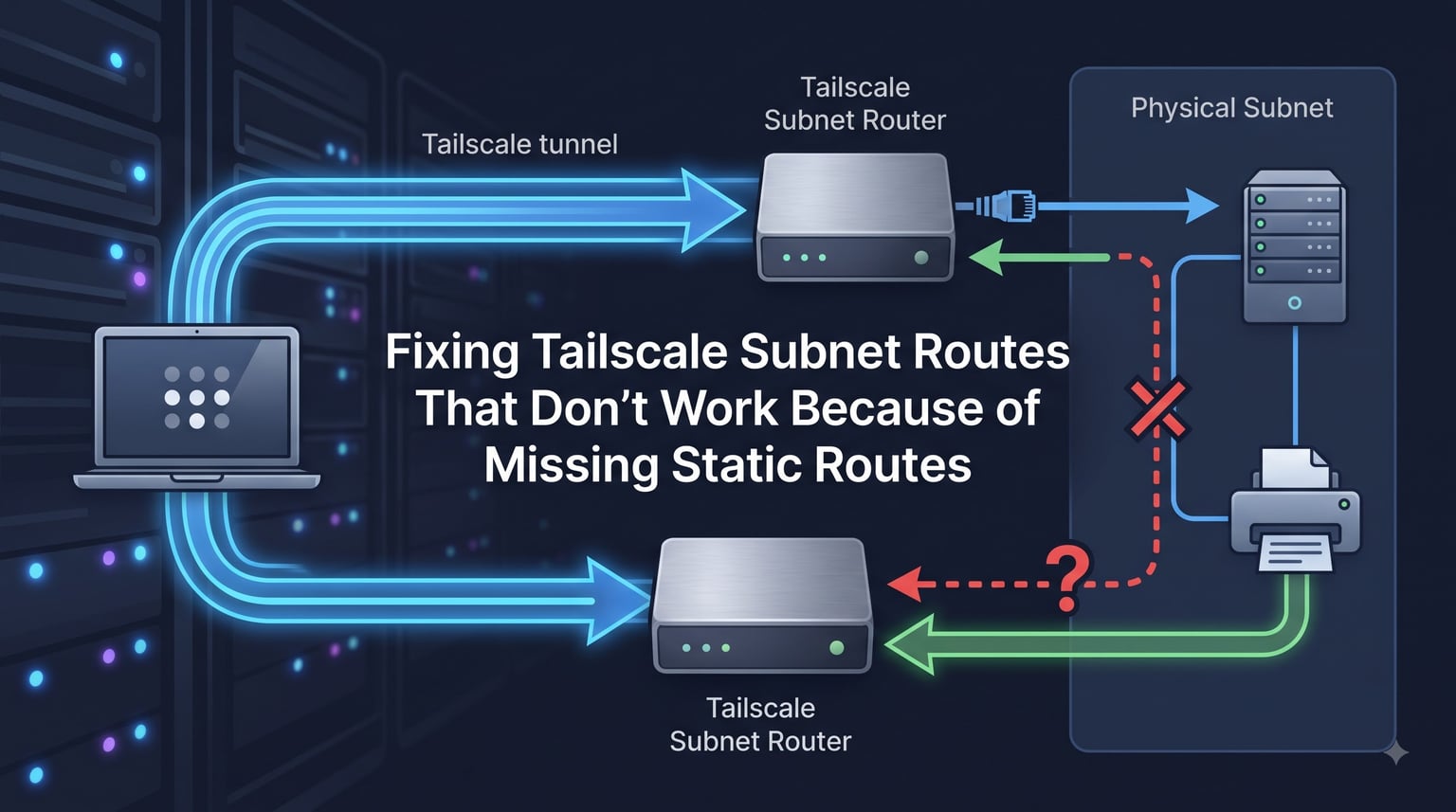
If you’ve ever set up a Tailscale subnet router, watched the route appear in the admin console, and then watched your traffic vanish into a black hole, you’ve probably hit one of the most common pain points in the Tailscale community: missing static return routes. The route advertises, the client says it’s there, and yet nothing on the other side ever responds.
This guide on Fixing Tailscale Subnet Routes That Don’t Work Because of Missing Static Routes walks through exactly what goes wrong, how to confirm that’s your problem, and the commands you can paste to put a return path in place on Linux, Synology NAS, and pfSense/OPNsense. I pulled the workflow together from repeated trips through the Tailscale docs, the r/Tailscale subreddit, the Level1Techs forum, and the Home Assistant community threads where people report the same symptoms.
Table of Contents
What Is a Tailscale Subnet Router?
A Tailscale subnet router is a device on your tailnet that advertises a route to a physical network it sits on. Once you approve that route in the admin console, every other Tailscale device on your tailnet can reach that physical subnet through the router as if it were local.
This is the answer for devices that can’t run Tailscale themselves: printers, cameras, NAS units on locked-down firmware, legacy industrial gear, and entire home or office subnets. The router does the work on their behalf.
Behind the scenes, the subnet router relies on three things working together: IP forwarding enabled at the kernel level, the Tailscale daemon advertising routes with tailscale set --advertise-routes, and a return path so the physical devices know how to send replies back through the tailnet. If any one of those three is missing or misconfigured, your advertised routes silently stop working.
Why Missing Static Routes Break Your Subnet Routes?
The traffic that breaks subnet routes flows in one direction but never returns. That’s the entire problem in one sentence.
When you ping a device on the physical subnet from your laptop on the tailnet, the laptop sends the packet to the subnet router over Tailscale. The router forwards it onto the physical network. The device receives the ping and prepares a reply. But the device doesn’t know what Tailscale is. It knows only its local gateway and the public internet.
So the reply leaves the physical device destined for your laptop’s Tailscale IP. The router, by default, rewrites the source address with SNAT (source NAT) or masquerading. The packet hits your laptop, but the source address now belongs to the subnet router’s Tailscale IP, not the actual device you pinged. Worse, in some setups the reply never arrives because the physical device’s routing table has no idea where to send a reply that’s destined for a 100.x.y.z address.
This is what people mean by “missing static routes” on the subnet router. You need a static route on the subnet router (or on the physical network’s default gateway) that tells the network where to send traffic for the tailnet range — namely, back through Tailscale. Without it, return traffic either gets dropped or takes a path that the subnet router can’t reverse.
How to Tell If Missing Static Routes Are Your Problem?
The diagnostic is quick if you know the symptoms. Confirm these one at a time and you can isolate the cause to missing static routes in under five minutes.
First, run tailscale status on the subnet router. Confirm the subnet route shows up as advertised and approved. If you see no peers are advertising or the route shows (off), your problem is upstream of static routes — likely IP forwarding or admin approval.
Second, from a tailnet client, run tailscale ping <physical-device-ip>. If it says no route to host, the subnet router hasn’t accepted the traffic. If you see timeouts instead of no-route errors, you’re closer to the return-route problem.
Third, run a traceroute from the physical device (or its gateway) back to your Tailscale IP. If the trace dies before reaching any 100.x address, the return route is missing or pointing the wrong way. This is the smoking gun for fixing Tailscale subnet routes that don’t work because of missing static routes.
Finally, check tailscale netcheck from the subnet router. It reports whether the route is actually being advertised and whether the daemon sees a valid path back to the control server.
Fixing Tailscale Subnet Routes That Don’t Work Because of Missing Static Routes
The fix is to add a static route that points tailnet traffic back through the subnet router. On most Linux boxes, you do this with the ip route command. On Synology, you use the DSM network settings or the SSH ip route equivalent. On pfSense and OPNsense, you add a static route through the web GUI.
Before you start, gather these values: the Tailscale IP of your subnet router (call it $TS_IP), the subnet you want to advertise (for example 192.168.1.0/24), and the physical interface name of the router (often eth0 or lan0).
On a Linux subnet router, run the following commands as root or with sudo:
# Make IP forwarding persistent
echo 'net.ipv4.ip_forward = 1' | sudo tee /etc/sysctl.d/99-tailscale.conf
sudo sysctl -p /etc/sysctl.d/99-tailscale.conf

# Ensure the route is advertised
sudo tailscale set --advertise-routes=192.168.1.0/24 --accept-routes

# Approve it in the admin console, then verify
tailscale status
If the subnet still won’t talk back, the next step is the static route. On Linux, the working command is:
sudo ip route add 100.64.0.0/10 dev tailscale0This tells the kernel that anything destined for the CGNAT range Tailscale uses (100.64.0.0/10) should go through the tailscale0 interface. On many Linux distributions you need to persist this in /etc/network/interfaces or via NetworkManager, depending on what you use.
Platform-Specific Static Route Examples
Linux (systemd-networkd). Drop a route file in /etc/systemd/network/ with the line 100.64.0.0/10 via 0.0.0.0 dev tailscale0, then run networkctl reload. This is the cleanest way to keep the route across reboots.
Synology DSM. The NAS won’t expose a GUI option for this, but SSH works the same way as Linux. Enable SSH in Control Panel, log in as root (use sudo -i from an admin account), then run ip route add 100.64.0.0/10 dev tailscale0. To persist it, write a scheduled task under Control Panel → Task Scheduler that runs at boot with the command /sbin/ip route add 100.64.0.0/10 dev tailscale0. This is exactly what users on the r/Tailscale subreddit found worked for them on Synology boxes.
pfSense and OPNsense. Go to System → Routing → Static Routes and add a new route. Destination: 100.64.0.0/10. Gateway: your Tailscale interface (often Tailscale0 or Tailscale). Description: “Tailscale return route.” Apply changes. Both firewalls then know how to send return traffic back to the tailnet through Tailscale.
For overlapping subnets, use the longer prefix that matches your actual network. If two subnet routers cover overlapping /24s, you may need to advertise the more specific route and add a return route for that prefix instead of the entire 100.64.0.0/10 range.
Verifying the Fix Works
Once the static return route is in place, test from the other side. Run tailscale ping 192.168.1.10 (replace with a real device IP) from any tailnet client. You should see a response within a second or two.
Then log into the physical device (or its gateway) and ping the Tailscale IP of your laptop. If the return path is wired correctly, you’ll get a reply. If you don’t, the static route is missing or pointing to the wrong interface.
Run tailscale netcheck on the subnet router for a quick report on what’s advertising and what the daemon sees as healthy. tailscale status should list the subnet route as approved and live. From a Linux client, traceroute 192.168.1.10 should hop through the subnet router’s Tailscale IP on its way to the physical device.
Common Pitfalls Beyond Static Routes
If you’ve added the return route and subnet routes still don’t work, walk through these quickly. Each one breaks subnet routes in ways that look identical from the client side.
IP forwarding off. Run sysctl net.ipv4.ip_forward on the subnet router. If it returns 0, the kernel isn’t forwarding packets, and no amount of routing will help. Set it to 1 and persist it in /etc/sysctl.d/.
Linux clients not accepting routes. The “Some peers are advertising routes but –accept-routes is false” warning means your Linux client refuses subnet routes by default. Run sudo tailscale set --accept-routes on each Linux client that needs to reach the subnet. macOS, iOS, Windows, and Android accept routes by default; Linux does not.
ACL rules blocking traffic. The Tailscale admin console’s Access Controls tab can deny traffic to specific destinations. Make sure your ACL allows dst: 192.168.1.0/24 from the devices that need access.
Key expiry. Tailscale auth keys expire. When the subnet router’s key expires, the daemon stops advertising routes, and the route silently disappears from your tailnet. Use a reusable, non-expiring key for production subnet routers, or set up a key rotation script.
SNAT vs no-SNAT. By default, Tailscale uses SNAT for subnet routing. If you disable SNAT with --snat-subnet-routes=false, the physical devices see the real Tailscale IP of the client. That requires the physical network’s gateway to know how to route 100.64.0.0/10, which is the same static-route problem in a different form.
Frequently Asked Questions
My Tailscale subnet router isn’t working. What can I do to fix this?
Run tailscale status on the subnet router to confirm the route is advertised and approved. Then check sysctl net.ipv4.ip_forward (it must return 1), run sudo tailscale set u002du002daccept-routes on every Linux client that needs access, and add a static route so return traffic knows how to come back: on Linux, sudo ip route add 100.64.0.0/10 dev tailscale0; on pfSense/OPNsense, add a static route to 100.64.0.0/10 via the Tailscale interface; on Synology, run the same ip route command as root and schedule it at boot.
Why is my static routing not working?
Static routing usually fails for one of three reasons: the route points at the wrong interface, the kernel has IP forwarding disabled, or the Tailscale ACL blocks the destination. Verify each one with sysctl net.ipv4.ip_forward (should be 1), ip route show (confirm the 100.64.0.0/10 entry), and a check of the Access Controls tab in the admin console.
Is the warning ‘Some peers are advertising routes but u002du002daccept-routes’ false on Tailscale?
The warning is real and not a false positive. By default, Linux clients do not accept subnet routes advertised by other nodes. Run sudo tailscale set u002du002daccept-routes on the Linux client to fix it. macOS, Windows, iOS, and Android accept routes by default and do not show this warning.
How to enable subnets on Tailscale?
On the subnet router, enable IP forwarding with sysctl (echo net.ipv4.ip_forward=1 into /etc/sysctl.d/99-tailscale.conf and reload), then advertise routes with sudo tailscale set u002du002dadvertise-routes=192.168.1.0/24 u002du002daccept-routes. Finally, log into the Tailscale admin console, open the machine’s detail page, and approve the advertised routes. Make sure your ACL allows traffic to the new subnet.
Conclusion
Fixing Tailscale subnet routes that don’t work because of missing static routes comes down to one idea: the subnet router advertises how to reach the physical network, but something has to tell the physical network how to reach the tailnet. That something is the static return route, and it’s almost always the missing piece.
Verify IP forwarding is on, advertise and approve the route, enable --accept-routes on your Linux clients, then add the static route back to 100.64.0.0/10 through the Tailscale interface. Test with tailscale ping from the tailnet side and a regular ping from the physical side. Once both directions work, your subnet routes are healthy for 2026 and beyond.