
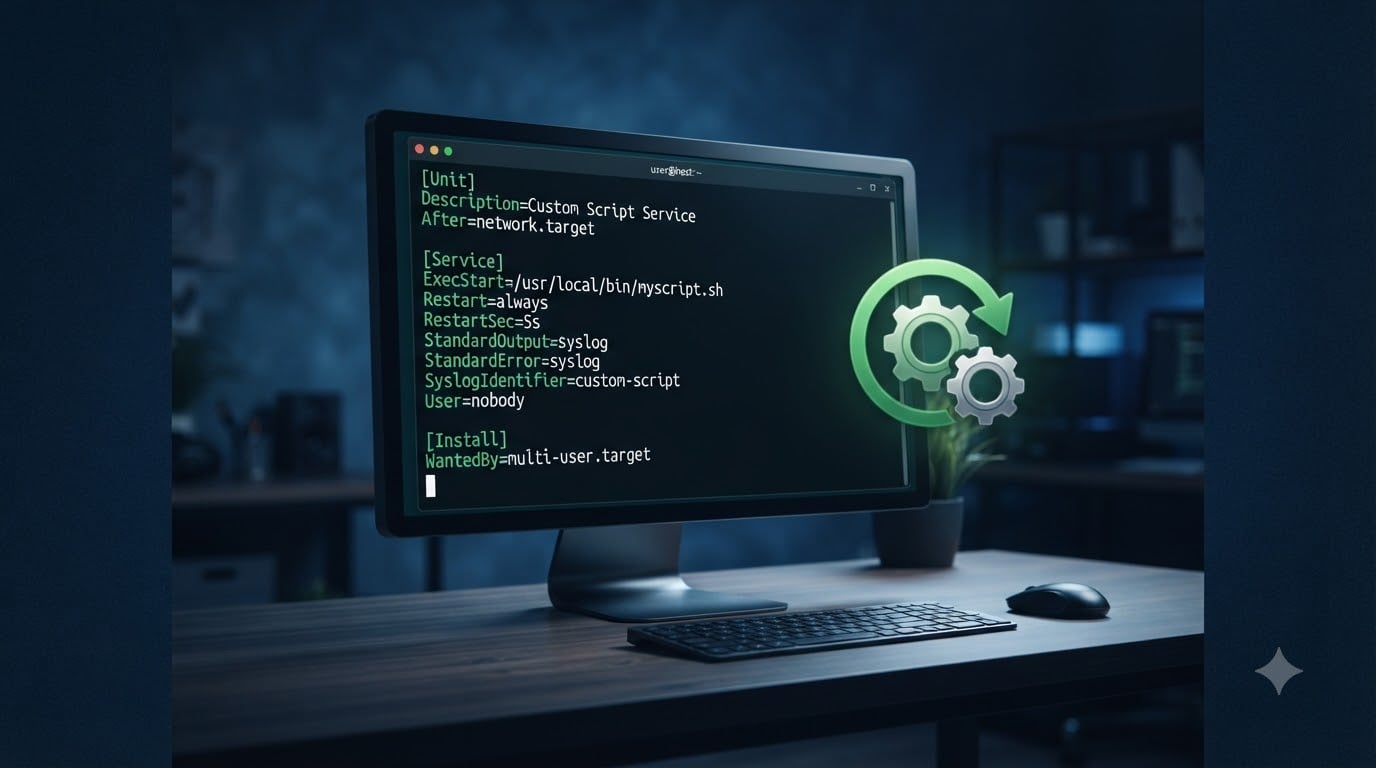
I’ve lost count of how many times a custom script crashed at 3 AM and I only found out the next morning when a customer complained. If you run any kind of background process on Linux, you already know the feeling. That’s exactly why I built my first systemd service for a custom script that restarts on failure, and why I want to walk you through doing the same.
In this guide, I’ll show you the exact unit file I use, the restart directives that actually work, and the trap that catches almost everyone the first time. By the end, you’ll have a service that recovers on its own and a clear debugging path when it doesn’t.
Table of Contents
What is a systemd service and why use it for custom scripts?
A systemd service is a unit file (usually ending in .service) that tells systemd how to manage a process on your Linux system. Instead of running a script with nohup or hoping a cron job relaunches it, systemd watches the process for you.
The official systemd documentation defines a service unit as a configuration that describes how systemd should start, stop, reload, and supervise a daemon. When you write a unit file, you’re giving systemd a contract.
Here is why I prefer systemd over older methods like init scripts or supervisor processes:
It is built into nearly every modern Linux distribution (Ubuntu, Debian, CentOS, Fedora, Arch, RHEL).
It handles dependencies, logging, cgroups, and privilege dropping for you.
It can restart failed services automatically, with backoff and start limits.
It survives reboots without extra cron hacks.
If your script needs to run continuously and quietly, a systemd service is the right tool.
How to create a basic systemd service unit file
Creating a systemd service comes down to writing one small text file and telling systemd to read it. I’ll use a real example: a Python watcher script at /opt/myapp/watcher.py.
Step 1: Create the unit file in /etc/systemd/system/. The /etc/systemd/system/ directory takes priority over /lib/systemd/system/, which is where package defaults live.
sudo nano /etc/systemd/system/my-watcher.serviceStep 2: Paste the following unit configuration. I’ll explain every section below.
[Unit]
Description=My Custom Watcher Script
After=network.target

[Service]
Type=simple
User=appuser
WorkingDirectory=/opt/myapp
ExecStart=/usr/bin/python3 /opt/myapp/watcher.py
Restart=on-failure
RestartSec=5

[Install]
WantedBy=multi-user.target
Step 3: Reload systemd to pick up the new file, then enable and start it.
sudo systemctl daemon-reload
sudo systemctl enable my-watcher.service
sudo systemctl start my-watcher.service
Here is what each directive does. The [Unit] section holds metadata and ordering rules. After=network.target means this service waits until the network is up. The [Service] section defines how the process runs.
Type=simple tells systemd that the main process is what ExecStart launches. User= runs the script as a non-root user for safety. WorkingDirectory= sets the script’s working directory, which matters if your script reads relative paths.
Finally, WantedBy=multi-user.target in the [Install] section tells systemd to start this service at normal boot.
Understanding restart directive options in systemd
The Restart= directive is the heart of automatic recovery. It tells systemd what to do when the process exits. You have five options, and choosing the wrong one is one of the most common bugs I see.
Restart=no (default): systemd never restarts the service.
Restart=always: restarts on any exit, clean or unclean.
Restart=on-success: restarts only when the process exits with status code 0.
Restart=on-failure: restarts on non-zero exit, signal, or timeout.
Restart=on-abnormal: restarts on signal or timeout, but not on non-zero exit code.
Restart=on-watchdog: restarts when the watchdog timeout is reached.
Restart=on-abort: restarts only when the process is aborted by an uncaught signal.
For most custom scripts, Restart=on-failure is the right choice. It catches crashes and unexpected exits, but doesn’t loop a script that intentionally exits cleanly after running a job. Use Restart=always only for true long-running daemons.
A subtle point worth knowing: a process killed by systemctl stop is not considered a failure. systemd will not restart a service you stopped manually.
Configuring restart limits and delays with StartLimitBurst and RestartSec
Restarting on every failure sounds great, until a buggy script crashes in a tight loop and consumes 100% CPU. systemd solves this with three knobs: RestartSec, StartLimitBurst, and StartLimitIntervalSec.
RestartSec adds a delay between restarts. The default is 100 milliseconds, which is too fast for most cases. I usually set this to 5 or 10 seconds.
[Service]
Restart=on-failure
RestartSec=10
StartLimitBurst and StartLimitIntervalSec work together. By default, systemd stops trying after 5 restarts within 10 seconds. This is the famous “start limit trap” that frustrates new users. To allow 10 restart attempts within 5 minutes, use:
[Service]
Restart=on-failure
RestartSec=10
StartLimitIntervalSec=300
StartLimitBurst=10
For services that must stay up no matter what, set StartLimitIntervalSec=0 to disable the limit entirely. Pair this with StartLimitAction=reboot as a last-resort safety net if the process itself cannot be kept alive.
[Service]
Restart=on-failure
RestartSec=5
StartLimitIntervalSec=0
StartLimitAction=reboot
Use that combination carefully. Forcing a reboot when a misbehaving script crashes is fine on a homelab box, but it can hide bugs in production.
Using OnFailure and FailureAction for custom recovery
Sometimes you need more than a simple restart. systemd gives you two recovery mechanisms that work at the unit level and the system level.
OnFailure= in the [Unit] section lets you trigger another unit when this one fails. This is great for paging you, sending a webhook, or running a cleanup script. For example:
[Unit]
Description=My Custom Watcher Script
OnFailure=notify-failure.service
Where notify-failure.service is a separate unit that posts to Slack or PagerDuty.
FailureAction= works at the manager level and supports reboot, reboot-force, reboot-immediate, poweroff, poweroff-force, exit, and exit-force. Configure it in /etc/systemd/system.conf or directly inside a unit’s [Unit] section.
The combination of OnFailure= for application-level alerts and StartLimitAction=reboot for system-level recovery is what Red Hat’s self-healing guide recommends, and it’s what I deploy on critical worker nodes.
Managing the service with systemctl commands
Once your unit file is in place, you manage the service with systemctl. These are the commands I run dozens of times a day.
systemctl start my-watcher.service: start it now.systemctl stop my-watcher.service: stop it manually.systemctl restart my-watcher.service: stop and start.systemctl enable my-watcher.service: start at boot.systemctl disable my-watcher.service: do not start at boot.systemctl status my-watcher.service: see state and recent logs.systemctl reset-failed my-watcher.service: clear the failure counter after fixing the bug.
Two of these are particularly useful when debugging. systemctl status shows the last few journal entries, which often point directly at the problem. systemctl reset-failed is essential once you fix a crash loop, because systemd remembers the failed state until you clear it.
Troubleshooting common systemd service failures
Even with a perfect unit file, things break. Here are the failures I see most often and how I fix them.
1. The “start request repeated too quickly” error. This is the start limit trap I mentioned earlier. You have hit StartLimitBurst within StartLimitIntervalSec. Either raise the limits, set StartLimitIntervalSec=0, or fix the underlying crash.
2. Service works manually but fails on boot. Usually a missing dependency. Add After= and Requires= for any unit you depend on, like network-online.target, mysql.service, or a mount unit. Note that network.target is up early in boot but the network may not be routable yet, so prefer network-online.target.
3. Permission denied when accessing files. The User= in your unit cannot read or write the script or its data. Check ownership with ls -la and update with sudo chown -R appuser:appuser /opt/myapp.
4. The service runs but exits immediately. Your script returns a non-zero status from a startup check. Run it manually as the same user and confirm the exit code with echo $?.
For deeper debugging, journalctl -u my-watcher.service -f follows the live log, and journalctl -u my-watcher.service --since "1 hour ago" shows recent history. Adding StandardOutput=journal and StandardError=journal in your unit ensures both streams land in the journal.
Frequently asked questions
How can I configure systemd.service to automatically restart on failure?
Add Restart=on-failure to the [Service] section of your unit file, set RestartSec=5 for a short delay, and configure StartLimitBurst together with StartLimitIntervalSec to control how often systemd retries before giving up. Reload with systemctl daemon-reload and restart the service to apply the changes.
How do I create a custom systemd service?
Write a .service file in /etc/systemd/system/ with [Unit], [Service], and [Install] sections, include ExecStart pointing at your script, set Restart=on-failure, then run systemctl daemon-reload, systemctl enable, and systemctl start to activate it on boot and immediately.
What is the difference between Restart=always and Restart=on-failure?
Restart=always restarts the service on any exit, including a clean exit with code 0. Restart=on-failure restarts only when the process exits with a non-zero code, crashes on a signal, or hits the watchdog timeout. For most custom scripts, on-failure is safer because it does not loop intentional clean exits.
How do I fix the systemd start limit hit error?
Raise StartLimitBurst and StartLimitIntervalSec to allow more retries over a longer window, set StartLimitIntervalSec=0 to disable the limit entirely, or pair it with StartLimitAction=reboot for a hard reset. Then run systemctl reset-failed on your service so the failure counter is cleared.
Wrap-up: a systemd service for a custom script that restarts on failure
Building a systemd service for a custom script that restarts on failure takes about ten minutes once you know the pieces. Write the unit file in /etc/systemd/system/, set Restart=on-failure, tune RestartSec and StartLimitBurst, and reload systemd.
From there, layer in OnFailure= for alerts and StartLimitAction=reboot only when you really need it. Test with systemctl status and journalctl -u, and keep systemctl reset-failed in your toolbox for after the fix. That’s the recipe I use on every Linux box I touch in 2026.