
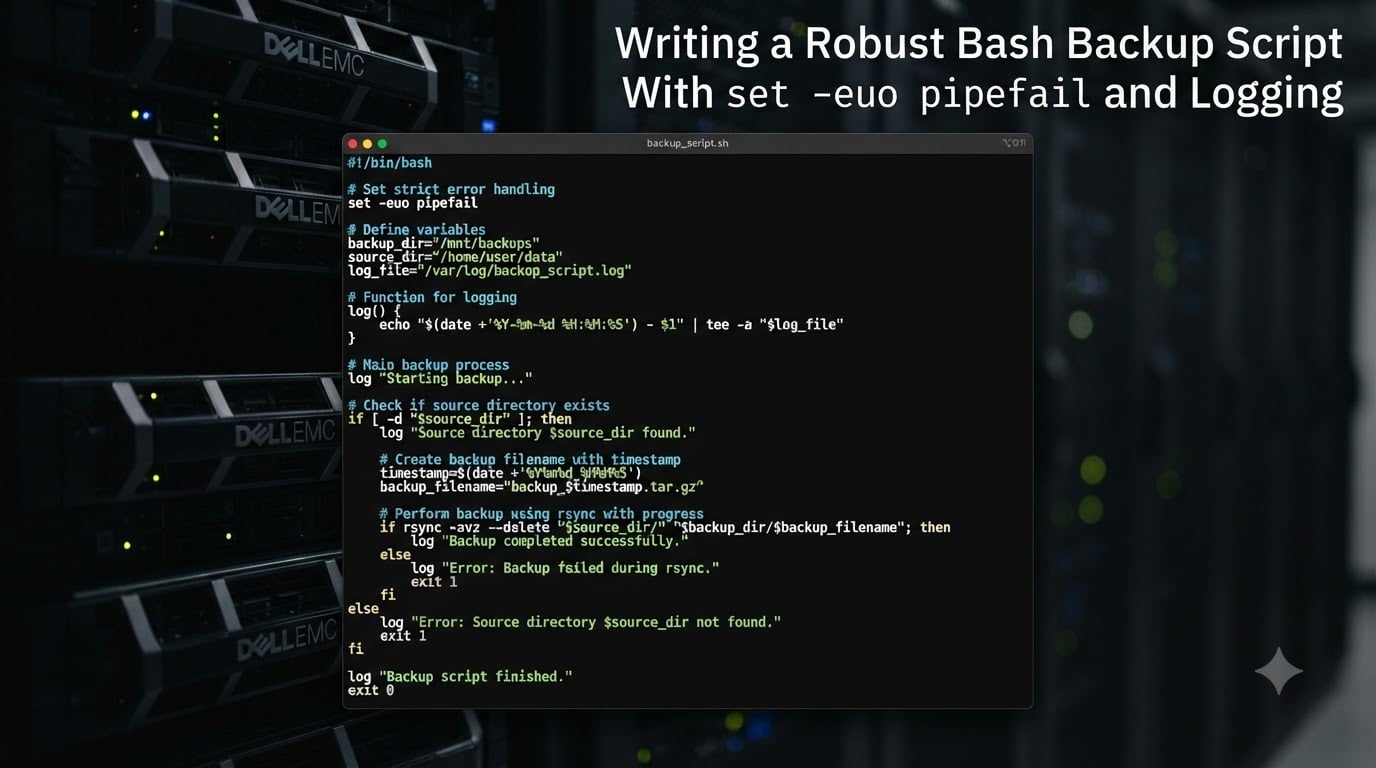
Every system administrator has been there. You write a quick Bash backup script, schedule it with cron, and walk away thinking the job is done. Then two weeks later you discover your backups have been silently failing the entire time because a single command returned an error and Bash happily kept going.
This guide covers writing a robust Bash backup script with set -euo pipefail and logging from the ground up. You will learn what each set option does, how to add proper logging, how to handle interrupts cleanly with trap, and how to assemble a complete production-ready template you can copy and adapt.
I have spent years running Bash scripts on production servers, and the difference between a script that “mostly works” and one you can trust comes down to a handful of options and a few defensive habits. The Reddit r/bash and r/sysadmin communities consistently recommend set -euo pipefail as the “unofficial strict mode” that catches bugs early. Let me show you exactly why.
Table of Contents
What Is set -euo pipefail in Bash?
set -euo pipefail is a combination of three Bash options that make scripts fail fast: -e (errexit) exits on any command failure, -u (nounset) errors on undefined variables, and -o pipefail propagates pipeline failures so the script exits if any command in a pipe fails.
Without these options, Bash silently ignores errors by default. A failed cp command, a typo in a variable name, or a broken pipeline will not stop your script. The script steamrolls onward, and you end up with corrupted or incomplete backups and no idea anything went wrong.
Here is the one-line preamble you should start every production Bash script with:
#!/usr/bin/env bash
set -euo pipefail
Think of it as putting on your seatbelt before driving. It costs you almost nothing, and it saves you when something goes wrong.
Understanding set -e (errexit)
The set -e option, also called errexit, tells Bash to exit immediately whenever a command returns a non-zero exit status. This is the single most important safety net for any backup script.
Consider what happens without it:
#!/usr/bin/env bash
cp /important/data /backup/data
echo "Backup complete!"
If cp fails (the source does not exist, the destination disk is full, permissions are wrong), Bash prints the error to stderr and then continues to the next line. Your log says “Backup complete!” even though nothing was actually backed up. That is the silent failure scenario that frustrates so many administrators.
Now add set -e:
#!/usr/bin/env bash
set -e
cp /important/data /backup/data
echo "Backup complete!"
If cp fails, the script stops immediately. The misleading “Backup complete!” line never runs. You get a non-zero exit code that cron or your monitoring system can detect.
One important pitfall: commands in if conditions, || chains, and ! negations are exempt from set -e. This is intentional, so you can check for expected failures safely:
if mkdir /backup/dir; then
  echo "Created backup directory"
fi
This gives you the best of both worlds. Unexpected errors halt the script, but you can still test for conditions you anticipate.
Understanding set -u (nounset)
The set -u option, also called nounset, treats references to undefined variables as errors. This catches typos and missing environment variables before they cause silent, confusing behavior.
Without set -u, a typo like $SROUCE_DIR instead of $SOURCE_DIR expands to an empty string. Your rsync or cp command then runs with a blank source path, producing unpredictable results or backing up the wrong directory.
With set -u enabled, that same typo causes the script to exit immediately with a clear error message:
#!/usr/bin/env bash
set -u
echo "$SROUCE_DIR"
# bash: SROUCE_DIR: unbound variable
This is especially valuable in backup scripts that depend on environment variables for paths, credentials, or configuration values. A missing variable is almost always a sign something is misconfigured, and failing loudly beats running with wrong assumptions.
Understanding set -o pipefail
The set -o pipefail option changes how Bash evaluates pipelines. By default, the exit status of a pipeline is the exit status of the last command in the pipe. If an earlier command fails but the last one succeeds, Bash reports success.
This is a subtle and dangerous trap. Consider this common backup pattern:
#!/usr/bin/env bash
set -e
tar cf - /important/data | gzip > /backup/data.tar.gz
If tar fails (file disappeared mid-read, permission denied), but gzip still runs and produces an empty or partial archive, the pipeline returns success. With set -e alone, your script continues as if nothing happened. You now have a corrupt backup and a success log.
Add pipefail to fix this:
#!/usr/bin/env bash
set -euo pipefail
tar cf - /important/data | gzip > /backup/data.tar.gz
Now the pipeline returns the exit status of the first failing command. If tar fails, the whole pipeline fails, set -e kicks in, and the script exits. This is why pipefail is essential whenever your script uses pipes, which most backup scripts do.
Handling Interrupts With trap and Signal Management
The trap command lets you run a cleanup function when the script exits, whether normally or because someone pressed Ctrl+C. For backup scripts, this matters because an interrupted backup can leave half-written files that look like complete backups.
Here is a practical cleanup trap for a backup script:
#!/usr/bin/env bash
set -euo pipefail

BACKUP_FILE="/backup/data-$(date +%Y%m%d).tar.gz"

cleanup() {
  echo "Cleaning up incomplete backup..."
  rm -f "$BACKUP_FILE"
  exit 1
}

trap cleanup EXIT ERR SIGINT SIGTERM

tar czf "$BACKUP_FILE" /important/data
echo "Backup completed successfully."
trap - EXIT  # Disable EXIT trap before normal completion
exit 0
The cleanup function removes the partial backup file so you never mistake a corrupted archive for a good one. SIGINT catches Ctrl+C, SIGTERM catches termination signals from systemd or cron, and ERR fires when any command fails under set -e.
Using trap with EXIT is particularly powerful because it runs no matter how the script exits. That makes it ideal for removing temporary files, releasing locks, or sending alert notifications.
Implementing Logging in Your Backup Script
Adding structured logging to a Bash script means you can review what happened during each run without guessing. The most common approach is a small log function that writes timestamped messages to both stdout and a log file.
Here is a reusable logging setup with severity levels:
#!/usr/bin/env bash
set -euo pipefail

LOG_FILE="/var/log/backup.log"
LOG_LEVEL="${LOG_LEVEL:-INFO}"

log() {
  local level="$1"
  shift
  local message="$*"
  local timestamp
  timestamp=$(date '+%Y-%m-%d %H:%M:%S')
  echo "[${timestamp}] [${level}] ${message}" | tee -a "$LOG_FILE"
}

log "INFO" "Starting backup process"
log "INFO" "Source: $SOURCE_DIR"
log "INFO" "Backup complete"
The tee -a command sends output to both the terminal and the log file, so you can monitor the script in real time and keep a permanent record. The timestamp format %Y-%m-%d %H:%M:%S sorts naturally and is easy to grep.
For more advanced control, add a LOG_LEVEL check so you can increase or decrease verbosity without editing the script:
# Only log DEBUG when LOG_LEVEL=DEBUG
case "$LOG_LEVEL" in
  DEBUG) log "DEBUG" "Detailed diagnostic info" ;;
esac
The Reddit community specifically recommends setting LOG_LEVEL via an environment variable so you can flip a script into debug mode without modifying code. This is invaluable for troubleshooting a backup that works in testing but fails in production.
Complete Bash Backup Script Template
Here is a complete, production-ready Bash backup script that combines everything covered so far. It includes set -euo pipefail, trap-based cleanup, timestamped logging, parameter validation, and efficient rsync transfers.
#!/usr/bin/env bash
#
# Robust backup script with error handling and logging
# Usage: ./backup.sh <source_dir> <backup_dir>
#
set -euo pipefail

# --- Configuration ---
readonly SCRIPT_NAME="$(basename "$0")"
readonly TIMESTAMP="$(date '+%Y%m%d-%H%M%S')"
LOG_LEVEL="${LOG_LEVEL:-INFO}"

# --- Logging ---
log() {
  local level="$1"; shift
  local msg="$*"
  local ts; ts="$(date '+%Y-%m-%d %H:%M:%S')"
  echo "[${ts}] [${level}] ${msg}"
}

# --- Parameter validation ---
if [[ $# -ne 2 ]]; then
  echo "Usage: ${SCRIPT_NAME} <source_dir> <backup_dir>" >&2
  exit 1
fi

SOURCE_DIR="$1"
BACKUP_DIR="$2"
BACKUP_FILE="${BACKUP_DIR}/backup-${TIMESTAMP}.tar.gz"

# --- Verify source exists ---
if [[ ! -d "$SOURCE_DIR" ]]; then
  log "ERROR" "Source directory not found: ${SOURCE_DIR}"
  exit 1
fi

# --- Cleanup on failure ---
cleanup() {
  log "WARNING" "Script interrupted, removing partial backup"
  rm -f "$BACKUP_FILE"
  exit 1
}
trap cleanup ERR SIGINT SIGTERM

# --- Create backup directory ---
mkdir -p "$BACKUP_DIR"
log "INFO" "Backup directory ready: ${BACKUP_DIR}"

# --- Efficient sync with rsync (optional alternative) ---
# rsync -a --delete "$SOURCE_DIR/" "${BACKUP_DIR}/latest/"

# --- Create compressed archive ---
log "INFO" "Creating archive: ${BACKUP_FILE}"
tar czf "$BACKUP_FILE" -C "$SOURCE_DIR" .

# --- Verify archive integrity ---
if ! tar tzf "$BACKUP_FILE" >/dev/null 2>&1; then
  log "ERROR" "Archive verification failed"
  exit 1
fi

log "INFO" "Backup completed: ${BACKUP_FILE}"
trap - ERR SIGINT SIGTERM  # Disable traps before clean exit
exit 0
This template is designed to copy, adapt, and run. Change the tar line to rsync if you prefer incremental syncs over compressed archives. The validation, logging, and cleanup logic all work the same way.
I recommend running any new backup script manually two or three times before scheduling it. Watch the log output, deliberately trigger an error (point it at a nonexistent directory), and confirm the cleanup trap removes the partial file. Once you trust the script locally, automate it.
Adding a Retention Policy and Compression
A backup script that never deletes old backups will eventually fill your disk. Adding a retention policy keeps only the most recent N backups and removes the rest automatically.
Here is a simple function that deletes backups older than seven days:
# --- Retention: keep last 7 days of backups ---
cleanup_old_backups() {
  log "INFO" "Applying retention policy (7 days)"
  find "$BACKUP_DIR" -name "backup-*.tar.gz" -type f -mtime +7 -delete
  log "INFO" "Old backups removed"
}

cleanup_old_backups
The find -mtime +7 -delete approach is clean and reliable. For more granular control, you can combine time-based and count-based rules. For example, keep daily backups for a week, weekly backups for a month, and monthly backups for a year.
The template above already uses tar czf for gzip compression. If you need better compression ratios and can afford slower runtimes, switch to bzip2 with tar cjf or xz with tar cJf. For most backup workloads, gzip offers the best balance of speed and compression.
How to Automate a Bash Script With Cron?
Once your backup script is tested, schedule it with cron for hands-off automation. Open the crontab editor with crontab -e and add a line like this:
# Run backup every night at 2:00 AM
0 2 * * * /usr/local/bin/backup.sh /important/data /backup >> /var/log/backup-cron.log 2>&1
The >> redirect captures any output cron would otherwise email you, and 2>&1 includes stderr in the same file. Because the script uses set -e, a failed run exits with a non-zero code that monitoring tools like monit or Nagios can detect.
Always use absolute paths in cron jobs. The cron environment is minimal and does not load your shell profile, so $PATH and other variables you expect interactively may not be set.
Frequently Asked Questions
What is set pipefail in bash script?
set -o pipefail makes Bash return the exit status of the last failing command in a pipeline instead of the last command. Without pipefail, a pipeline like tar cf – data | gzip reports success if gzip succeeds even when tar fails, hiding real errors in your backup.
How to add logging to bash script?
Create a log function that prepends a timestamp and writes to a file using tee -a. Example: log() { local ts; ts=$(date ‘+%Y-%m-%d %H:%M:%S’); echo u0022[${ts}] $*u0022 | tee -a /var/log/backup.log; }. This sends output to both the terminal and a permanent log file.
How to create a backup script in Linux?
Start with #!/usr/bin/env bash and set -euo pipefail for safety. Validate your source and destination directories, create a tar czf archive with a timestamped filename, add a trap cleanup function to remove partial files on failure, and log each step. Schedule the finished script with cron for automatic nightly runs.
How to automate a bash script?
Use cron to schedule the script. Run crontab -e and add a line like ‘0 2 * * * /path/to/script.sh’ to run it daily at 2 AM. Always use absolute paths, redirect output with u0026gt;u0026gt; logfile 2u0026gt;u0026amp;1, and rely on set -e so failures produce non-zero exit codes your monitoring system can catch.
Conclusion
Writing a robust Bash backup script with set -euo pipefail and logging is not complicated, but it requires discipline. The three set options catch the three most common silent failure modes: ignored command errors, undefined variables, and hidden pipeline failures.
Add a trap for cleanup, a timestamped log function for visibility, and a retention policy so old backups do not eat your disk. Test deliberately before automating, then schedule with cron and let your monitoring system watch the exit codes.
Your future self, debugging a 3 AM backup failure, will thank you for the few extra lines of defensive scripting.