
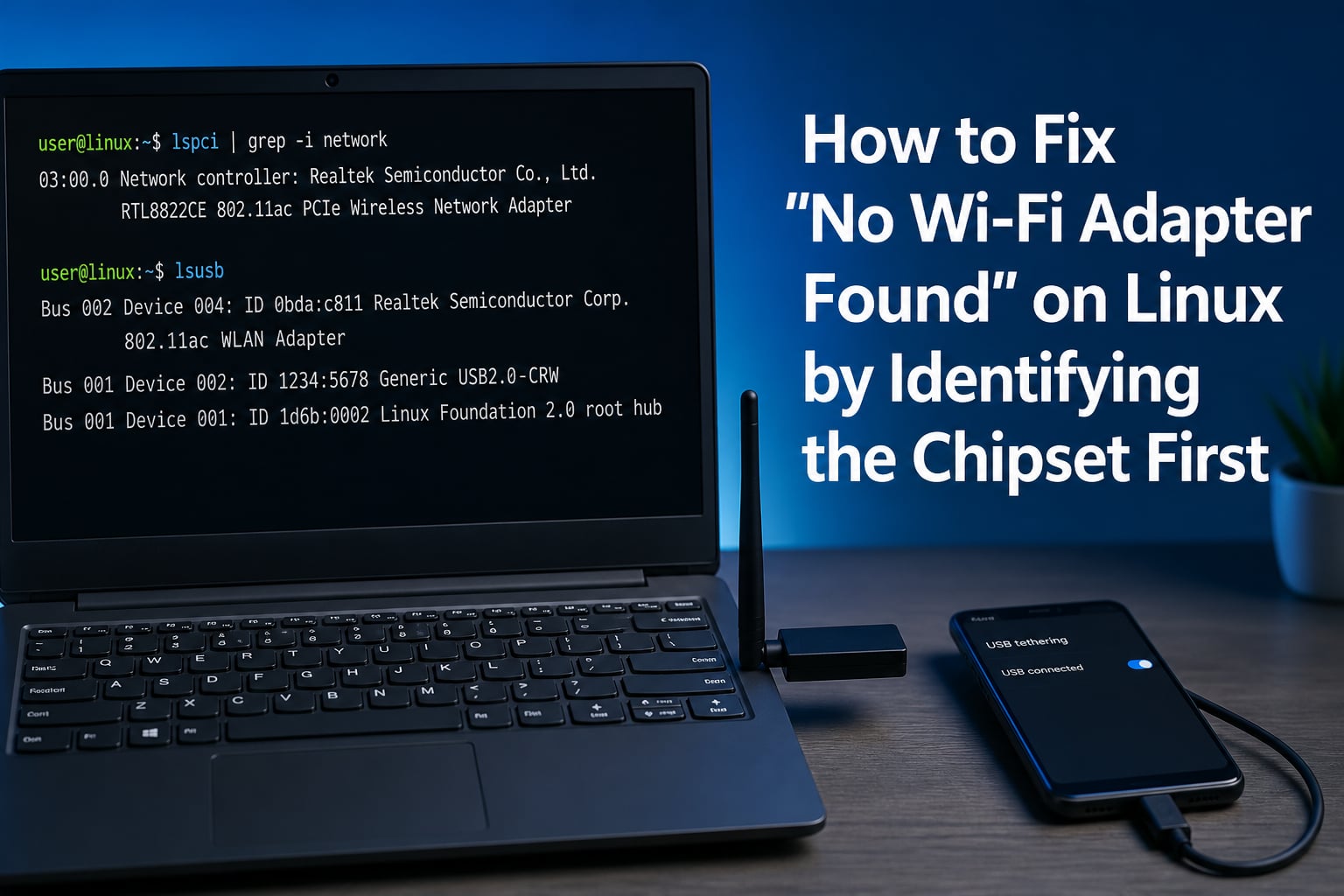
Seeing “No Wi-Fi Adapter Found” on your Linux machine is one of the most frustrating errors you can encounter, especially when you need internet access to fix it. The error means your Linux system cannot detect any wireless network hardware, and in most cases the root cause is a missing or mismatched driver for your specific chipset. I have helped dozens of users troubleshoot this exact problem across Ubuntu, Linux Mint, Pop!_OS, Fedora, and Arch, and the same pattern emerges every time: people try random fixes before knowing what hardware they actually have.
The fix almost always follows a predictable path. You identify the chipset, check for blocked radios, confirm what the kernel sees, then install the driver specific to that chipset. This guide walks you through that exact workflow, command by command, so you can resolve the “No Wi-Fi Adapter Found” error without guessing.
One quick tip before we start: if you have no internet on the affected machine, connect your phone via USB and enable USB tethering. This gives you a wired connection through your phone so you can download packages and drivers while troubleshooting.
Table of Contents
Why You Must Identify the Chipset Before Attempting Any Fix?
The biggest mistake people make with the “No Wi-Fi Adapter Found Linux” error is jumping straight to driver installations without knowing which chipset they have. Wi-Fi drivers on Linux are chipset-specific. The driver that fixes a Realtek RTL8723DE will do nothing for a Broadcom BCM43142, and vice versa.
Think of it like this: the chipset is the physical brain of your Wi-Fi card, and the kernel module (driver) is the software that talks to it. If you install the wrong driver, nothing happens. If you install the right driver but the firmware blob is missing, nothing happens. You need to know the chipset first so you can install both the correct kernel module and its matching firmware package.
I have seen users spend hours installing DKMS packages, editing GRUB parameters, and blacklisting drivers, only to realize they were working on the wrong chipset entirely. Spend two minutes on identification, and you will save hours of trial and error.
The kernel identifies hardware through standard bus interfaces. PCIe Wi-Fi cards show up through the PCI bus, while USB Wi-Fi adapters show up through the USB bus. Linux provides two commands, lspci and lsusb, that read these buses and tell you exactly what hardware is connected. Once you have the chipset name and PCI ID, the rest of the fix becomes straightforward.
The 60-Second Diagnostic: Identify Your Wi-Fi Chipset
Here is the diagnostic routine I run on every laptop that comes to me with Wi-Fi issues. It takes about a minute and gives you everything you need to proceed.
Step 1: Check for PCIe Wi-Fi Adapters with lspci
Most internal laptop Wi-Fi cards connect over the PCIe bus. Open a terminal and run:
lspci | grep -i network
This filters the PCI device list for network controllers. You should see a line that looks something like this:
02:00.0 Network controller: Realtek Semiconductor Co., Ltd. RTL8723DE Device d723
Or for an Intel card:
02:00.0 Network controller: Intel Corporation Wireless 8265 [802.11ac] (rev 78)
That output tells you three things: the bus address (02:00.0), the manufacturer (Realtek or Intel), and the chipset model (RTL8723DE, Wireless 8265). Write down the chipset name because you will need it for the driver installation steps later.
If lspci returns nothing for network controllers, your Wi-Fi card may be a USB adapter, or it may not be physically seated correctly. Try the next step.
Step 2: Check for USB Wi-Fi Adapters with lsusb
If you are using a USB Wi-Fi dongle, or if lspci showed nothing, run:
lsusb
Look for entries containing words like “Wireless,” “802.11,” “Wi-Fi,” or manufacturer names like Realtek, TP-Link, Netgear, or ASUS. A typical USB adapter entry looks like:
Bus 001 Device 004: ID 2357:0120 TP-Link 802.11ac NIC
The ID field (2357:0120 in this example) contains the vendor ID and product ID, which you can look up to confirm the exact chipset. Many USB adapters use Realtek chipsets internally, even if the brand on the case says something different.
Step 3: Get the Raw PCI ID for Confirmation
If the chipset name is unclear from lspci output, get the raw PCI vendor and device codes:
lspci -nn | grep -i network
The output will include bracketed codes like [10ec:d723]. The first part (10ec) is the vendor ID for Realtek, and the second part (d723) is the device ID. You can look these up at the PCI ID database (pci-ids.ucw.cz) to confirm the exact chipset if lspci does not name it directly.
Common vendor IDs you will encounter: 8086 is Intel, 10ec is Realtek, 14e4 is Broadcom, and 168c is Qualcomm Atheros.
Step 4: Use lshw as a Backup Diagnostic
If lspci and lsusb both come up empty, but you are certain the laptop has Wi-Fi hardware, run:
sudo lshw -C network
This command queries the hardware at a deeper level and sometimes reveals network controllers that lspci misses. Look for entries with “wireless” in the description or capabilities. If lshw also shows nothing, the card may be physically unseated or disabled in BIOS.
From my experience on support forums, when all three commands return nothing for wireless hardware, the card has either come loose from its M.2 slot (common after travel or drops) or is disabled in the BIOS/UEFI firmware. Check your BIOS settings for any wireless or Wi-Fi toggle before assuming the card is dead.
Check for Blocked Radios with rfkill
rfkill is a Linux subsystem that manages radio transmitters, including Wi-Fi and Bluetooth. Sometimes the “No Wi-Fi Adapter Found” error is not a driver problem at all. The radio is simply blocked at the hardware or software level.
Run this command to check the radio status:
rfkill list
You will see output listing each radio device and whether it is blocked. There are two types of blocks to watch for:
Soft blocked means software has disabled the radio. You can fix this by running:
rfkill unblock wifi
Hard blocked means a physical switch on your laptop has turned off the radio. No software command can fix this. You need to find the physical switch, function key combination (often Fn + F2, Fn + F12, or a dedicated button), or BIOS setting that controls the hardware radio kill switch.
I have seen cases where users reinstalled their entire operating system trying to fix Wi-Fi, only to discover a hardware switch on the side of their laptop was set to off. Always check rfkill before doing anything more complex.
Verify NetworkManager Detection with nmcli
After confirming the chipset and unblocking radios, check whether NetworkManager actually sees your Wi-Fi adapter. NetworkManager is the default network management service on most desktop Linux distributions.
Run:
nmcli device status
You should see your Wi-Fi adapter listed, typically as type “wifi” with a state of “connected,” “disconnected,” or “unavailable.” If your adapter does not appear in this list at all, the kernel has not loaded a working driver for it.
If the adapter shows up but Wi-Fi is disabled at the NetworkManager level, run:
nmcli radio wifi on
Sometimes NetworkManager itself gets into a bad state. Restarting it can resolve detection issues:
sudo systemctl restart NetworkManager
After restarting, run nmcli device status again to see if the adapter now appears. If it still does not show up, you have confirmed that the problem is the kernel driver, and you can move on to the chipset-specific fixes below.
Fixing Realtek Wi-Fi Chipsets (RTL8723DE, RTL8821CE, RTL8822BE)
Realtek chipsets are the most common source of “No Wi-Fi Adapter Found” errors on Linux. Historically, Realtek had poor out-of-the-box Linux support, and many laptop manufacturers ship Realtek cards because they are inexpensive. The good news is that the situation has improved dramatically with the rtw88 driver, which landed in the mainline kernel starting around version 5.x.
Loading the In-Kernel rtw88 Driver
If you are running a kernel version 5.9 or later, the rtw88 driver may already be available. Check if the module is loaded:
lsmod | grep rtw
If it is not loaded, try loading it manually for your chipset. For the RTL8723DE:
sudo modprobe rtw88_8723de
For RTL8822BE:
sudo modprobe rtw88_8822be
If the module loads successfully and Wi-Fi starts working, add it to your module autoload list so it loads on every boot:
echo "rtw88_8723de" | sudo tee /etc/modules-load.d/rtw88.conf
If modprobe returns an error saying the module does not exist, your kernel version may be too old, or the module was not compiled. In that case, you need the DKMS approach.
Installing rtw88 via DKMS
For older kernels or distributions that do not ship the rtw88 module, install it from the community DKMS package. First, install the DKMS framework and build dependencies:
sudo apt install dkms git build-essential linux-headers-$(uname -r)
Then clone the rtw88 repository and install:
git clone https://github.com/lwfinger/rtw88.gitcd rtw88sudo make dkms_install rtw88
After installation, load the module for your chipset using the modprobe commands above. The DKMS build ensures the module recompiles automatically whenever you update your kernel, which prevents the frustrating cycle of Wi-Fi breaking after every kernel update.
Antenna Selection for Weak Signals
Some Realtek cards, particularly the RTL8723DE, have two antenna paths but default to the wrong one. This results in Wi-Fi that technically works but has terrible range and speed. If your adapter is detected but the signal is extremely weak, try the antenna selection parameter:
sudo modprobe -r rtw88_8723desudo modprobe rtw88_8723de ant_sel=2
If ant_sel=2 does not help, try ant_sel=1. Whichever value gives you better signal, make it permanent:
echo "options rtw88_8723de ant_sel=2" | sudo tee /etc/modprobe.d/rtw88.conf
Blacklisting Conflicting Drivers
Sometimes two drivers claim the same hardware, and the wrong one loads first. If you have installed rtw88 but Wi-Fi still does not work, check for conflicting modules:
lsmod | grep rtl
If you see older Realtek modules like rtl8723de (the old community driver, not rtw88_8723de), blacklist them:
echo "blacklist rtl8723de" | sudo tee /etc/modprobe.d/blacklist-rtl.conf
Reboot after blacklisting to ensure a clean module load.
Fixing Intel Wi-Fi Chipsets (AX200, AX210, Centrino Series)
Intel Wi-Fi chips have the best Linux support of any manufacturer. The iwlwifi driver is built into the kernel and covers the vast majority of Intel wireless adapters, from older Centrino cards to the latest AX210 and AX211 chips. If you have an Intel card and see “No Wi-Fi Adapter Found,” the issue is almost always a missing firmware package, not a driver problem.
First, check if iwlwifi is loaded:
lsmod | grep iwlwifi
If the module is loaded but the adapter still does not work, you are likely missing the firmware. Install the Linux firmware package:
sudo apt install linux-firmware
On Fedora or RHEL-based distributions:
sudo dnf install iwlax2xx-firmware
After installing firmware, reload the module:
sudo modprobe -r iwlwifisudo modprobe iwlwifi
In rare cases, a specific Intel chip may need a particular firmware version that is not in your distribution’s package. You can download firmware files directly from the kernel firmware repository at git.kernel.org and copy them into /lib/firmware/. Check dmesg output for messages about missing firmware:
dmesg | grep iwlwifi
Look for lines like “Direct firmware load for iwlwifi-ty-a0-gf-a0-59.ucode failed” which tell you exactly which firmware file is needed.
Fixing Broadcom Wi-Fi Chipsets (BCM43142, BCM4360)
Broadcom Wi-Fi chipsets are the second most common cause of Linux Wi-Fi problems after Realtek. Broadcom requires proprietary drivers that are not included in the mainline kernel, which means a fresh Linux installation will not detect Broadcom Wi-Fi out of the box.
The driver package you need is broadcom-sta-dkms, also known as wl. Install it on Debian, Ubuntu, or Linux Mint:
sudo apt install broadcom-sta-dkms
This package builds the wl kernel module using DKMS, so it will recompile on kernel updates. After installation, load the module:
sudo modprobe wl
Broadcom chipsets often have conflicting open-source drivers that claim the hardware before the proprietary wl driver can. You need to blacklist these conflicting modules:
echo "blacklist b43" | sudo tee /etc/modprobe.d/blacklist-broadcom.confecho "blacklist b43legacy" | sudo tee -a /etc/modprobe.d/blacklist-broadcom.confecho "blacklist ssb" | sudo tee -a /etc/modprobe.d/blacklist-broadcom.confecho "blacklist bcm43xx" | sudo tee -a /etc/modprobe.d/blacklist-broadcom.confecho "blacklist brcm80211" | sudo tee -a /etc/modprobe.d/blacklist-broadcom.conf
Reboot after blacklisting and loading the wl module. If the module was already loaded before blacklisting, it will not take effect until the next boot.
For BCM43142 specifically, which is found in many HP laptops, the broadcom-sta-dkms package is the only reliable solution. The open-source brcmsmac driver does not support this chipset properly.
When Secure Boot Blocks Your Wi-Fi Driver
Secure Boot is a UEFI feature that verifies cryptographic signatures on kernel modules before allowing them to load. The problem is that DKMS-built modules (like broadcom-sta-dkms and some rtw88 installations) are not signed with a key that Secure Boot recognizes. When Secure Boot is enabled, the kernel silently refuses to load these modules, and you see “No Wi-Fi Adapter Found” even though the driver is installed.
You have two options. The quick option is to disable Secure Boot in your BIOS/UEFI settings. This immediately allows all modules to load without signature checks. It is a perfectly valid choice for personal laptops and desktops.
The second option is to enroll your own Machine Owner Key (MOK) so that DKMS modules are signed and verified. This is the better approach if you want to keep Secure Boot enabled. Here is the process:
First, create a MOK key pair:
sudo mokutil --import /var/lib/shim-signed/mok/MOK.der
You will be prompted to create a password. Reboot, and the MOK Manager will appear before the OS loads. Follow the prompts to “Enroll MOK,” enter the password you set, and confirm. After the reboot completes, your DKMS modules will be signed and load normally under Secure Boot.
To check whether Secure Boot is currently enabled, run:
mokutil --sb-state
This is one of the most overlooked causes of Linux Wi-Fi problems. I have seen users reinstall drivers, switch distributions, and replace Wi-Fi cards, all because Secure Boot was silently blocking their DKMS modules.
Wi-Fi Lost After Suspend or Hibernate
A common variant of this problem is Wi-Fi working perfectly on boot but disappearing after suspending or hibernating the laptop. The driver fails to reinitialize the hardware on resume, leaving you with “No Wi-Fi Adapter Found” until the next full reboot.
The quick fix is to manually reload the driver after resuming. Find your module name (rtw88_8723de, iwlwifi, wl, etc.) and run:
sudo modprobe -r rtw88_8723de && sudo modprobe rtw88_8723de
For a permanent solution, create a systemd service that automatically reloads the module on resume. Create a file at /etc/systemd/system/wifi-resume.service:
[Unit]Description=Reload WiFi driver after suspendAfter=suspend.target hibernate.target
[Service]Type=oneshotExecStart=/sbin/modprobe -r rtw88_8723deExecStart=/sbin/modprobe rtw88_8723de
[Install]WantedBy=suspend.target hibernate.target
Enable it with:
sudo systemctl enable wifi-resume.service
Replace rtw88_8723de with your actual module name. This ensures Wi-Fi reinitializes automatically every time your laptop wakes from sleep.
Dual-Boot Tip: Disable Windows Fast Startup
If you dual-boot Linux with Windows, Windows Fast Startup may be causing your Wi-Fi problems. Fast Startup does not fully shut down the computer. Instead, it hibernates the kernel and leaves hardware devices in a low-power state that Linux cannot recover from.
The result is that your Wi-Fi card works fine in Windows but shows “No Wi-Fi Adapter Found” in Linux, even though the same hardware and driver worked before the Windows session. Users on Reddit and the Arch Linux forums report this as a recurring issue, particularly on HP and Lenovo laptops.
To fix it, boot into Windows, open Control Panel, go to Power Options, click “Choose what the power buttons do,” then “Change settings that are currently unavailable,” and uncheck “Turn on fast startup.” Do a full shutdown from Windows (not a restart, which does not apply the change the same way). Then boot into Linux and check whether Wi-Fi is detected.
Frequently Asked Questions
Why isn’t my Linux system detecting my WiFi adapter?
Your Linux system may not detect your Wi-Fi adapter due to missing kernel drivers, blocked radios (rfkill), Secure Boot blocking unsigned DKMS modules, or physical issues like an unseated card. Run lspci or lsusb to confirm the hardware is visible to the kernel, then check rfkill and NetworkManager status before installing chipset-specific drivers.
How to check chipset of WiFi adapter Linux?
Run lspci | grep -i network for internal PCIe Wi-Fi cards, or lsusb for USB Wi-Fi adapters. These commands display the manufacturer and chipset model. For more detail, use lspci -nn to see the raw PCI vendor and device IDs, or sudo lshw -C network as a backup diagnostic.
Why does Ubuntu say no WiFi adapter found after I reboot?
This typically happens when the Wi-Fi driver module is not set to load at boot, or when a kernel update removed a DKMS-built module. Check with lsmod | grep rtw (or your chipset driver) to see if the module loaded. If not, add it to /etc/modules-load.d/. Secure Boot can also block unsigned modules after a reboot.
How to enable WiFi adapter in Linux?
First, unblock the radio with rfkill unblock wifi. Then enable Wi-Fi in NetworkManager with nmcli radio wifi on. If the adapter still does not appear, identify your chipset with lspci or lsusb, install the correct driver package for your chipset family (Intel iwlwifi, Realtek rtw88, or Broadcom broadcom-sta-dkms), and load it with modprobe.
Conclusion
Fixing the “No Wi-Fi Adapter Found Linux” error comes down to one principle: identify the chipset first, then apply the specific fix for that chipset. The diagnostic workflow is always the same. Run lspci or lsusb to find your hardware, check rfkill for blocked radios, verify NetworkManager detection, then install and load the driver for your chipset family.
For Realtek cards, use the rtw88 driver from the kernel or DKMS. For Intel cards, install the linux-firmware package. For Broadcom cards, use broadcom-sta-dkms and blacklist conflicting open-source drivers. If Secure Boot is enabled, either disable it or enroll a MOK key so DKMS modules can load.
If you have worked through every step in this guide and Wi-Fi still does not work, boot a live USB of your distribution and test Wi-Fi from there. If it works in the live environment but not your installed system, the issue is a configuration or package problem on your installed system. If it fails in the live USB too, you are likely dealing with a hardware issue that requires reseating or replacing the card.