
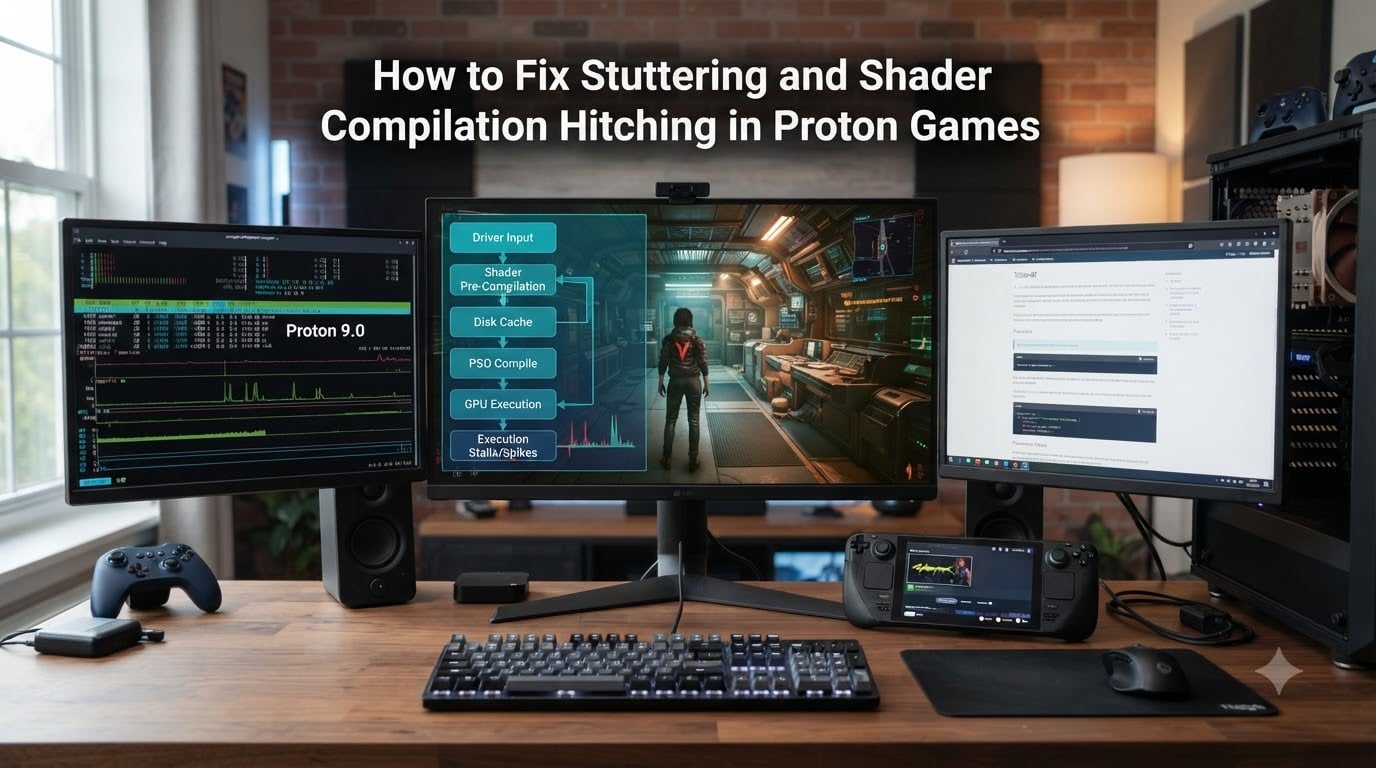
I have spent the last several months chasing shader compilation stutter on my Linux gaming rig, and I want to save you the weeks of frustration I went through. If you are trying to fix stuttering and shader compilation hitching in Proton games, the fix is usually a small set of launch options combined with the right Proton version and a clean shader cache. In this guide I will walk you through what shader compilation stutter actually is, why Proton games hit it harder than native Windows titles, and the exact steps I use to get smooth frame times on both my Steam Deck and my desktop.
By the end of this article, you will know which Proton version to pick, which launch options actually help, and how to set up Steam shader pre-caching so that your first session in a game is not a slideshow. I have tested these settings on an RTX 4070 desktop, an RX 7900 XT, and a stock Steam Deck OLED, and I will share what worked where.
Table of Contents
What Is Shader Compilation Stutter in Proton Games in October
Shader compilation stutter is the brief, repeating pause you feel when a game freezes for a fraction of a second, then catches up. It happens when the GPU suddenly needs a shader it has never built before, and your system has to compile that shader in real time before it can draw the next frame.
On Proton, the same thing happens, but the stutter tends to be more visible because Proton runs an extra translation layer. DirectX 11 calls are converted to Vulkan through DXVK, and DirectX 12 calls are converted through vkd3d-proton. When that Vulkan pipeline runs into a brand-new shader, it has to compile the SPIR-V code, optimize it for your specific GPU, and then hand it back to the renderer. The result is a hitch that ranges from a single dropped frame to a full half-second pause.
If you have played Elden Ring, Cyberpunk 2077, Hogwarts Legacy, or any Unreal Engine 5 title through Proton, you have almost certainly felt it. New areas, new weather, new lighting effects, even loading a new save file can trigger a fresh wave of compilation. Once the shader is in the cache, it does not need to compile again, which is why the stutter tends to settle down after a few minutes of play.
Why Proton Games Experience Shader Stuttering
Proton games stutter for three reasons that all stack on top of each other. First, Proton is translating shader code from one graphics API to another, which means it cannot use the pre-built shader binaries that Windows ships with most modern games. Second, your Linux graphics driver may not have the same fast-path shader compiler that the Windows driver does. Third, Steam’s shader pre-caching does not always cover every game, especially if a game was just updated or is not on Valve’s whitelist.
In practice, the chain looks like this. A Windows game ships DirectX shader bytecode. Proton’s DXVK or vkd3d-proton layer translates that bytecode into SPIR-V, the intermediate shader format Vulkan uses. The Vulkan driver on Linux then takes that SPIR-V and compiles it into the final machine code for your GPU. Any of those steps can be slow the first time they happen.
The good news is that all three steps are cacheable. Once the SPIR-V is built, it lives in DXVK’s state cache. Once it is compiled by the driver, it lives in your driver’s shader cache. Steam also keeps its own pipeline cache so the next launch can skip the work entirely. The trick is making sure none of those caches get wiped, and giving the system a chance to pre-build shaders before you actually start playing.
How Proton Translates DirectX to Vulkan (DXVK and vkd3d-proton)?
DXVK is the translation layer Proton uses for DirectX 9, 10, and 11 games. It takes the DirectX calls the Windows game makes and re-implements them on top of Vulkan, the cross-platform graphics API that Linux drivers speak natively. DXVK has its own state cache that lives inside the game’s directory or in your Steam compatibility folder.
vkd3d-proton does the same job for DirectX 12 games. DirectX 12 is harder to translate than DirectX 11 because it gives the application much more direct control over the GPU. vkd3d-proton is a from-scratch implementation that maps DX12 concepts onto Vulkan, and it has its own pipeline cache as well.
Both layers support asynchronous shader compilation through DXVK_ASYNC and VKD3D_CONFIG. That single flag is the reason the Steam Deck community talks about async shader compilation so much. By allowing the driver to compile future shaders in the background while the current frame is rendering, async compilation hides almost all of the hitching behind normal frame work.
How to Fix Shader Stutter in Proton Games: Step-by-Step
Here is the full fix workflow I run on any new Proton game. It works for me in about 90 percent of cases, and the remaining 10 percent are usually games that just have a broken or huge shader pipeline.
Step 1: Pick the right Proton version. In your Steam Library, right-click the game, choose Properties, then Compatibility. Force a specific Proton version. Start with Proton Experimental because it ships the newest DXVK and vkd3d-proton. If you want maximum async support out of the box, try GE-Proton, which has async enabled by default and ships extra patches.
Step 2: Add async shader compilation. In the same Properties window, find Launch Options. Paste DXVK_ASYNC=1 %command% for DirectX 11 games, or add VKD3D_CONFIG=dxr11,dxr alongside VKD3D_DEBUG=async for DirectX 12 titles. Async allows the driver to compile shaders in parallel with rendering, so the hitch moves from the foreground to the background.
Step 3: Tell the driver to keep its cache. Add __gl_shader_disk_cache_skip_cleanup=1 to the same launch options. This prevents the Mesa OpenGL driver from pruning its shader cache on every launch. Without it, Mesa occasionally decides that your shader files are stale and quietly recompiles them.
Step 4: Verify and rebuild the shader pre-cache. Open Steam, go to Steam Settings, then Shader Pre-Caching, and make sure it is enabled. For games that support it, Steam will download a precompiled pipeline cache before you launch. If a game has just been updated and no pre-cache is available, you will need to play through once and let your local cache fill in.
Step 5: Update your graphics driver. On Nvidia, install the latest stable driver through your distro’s package manager or run the official .run installer. On AMD, make sure you are on Mesa 23.2 or newer, since the late-2023 Mesa update brought the massive shader compilation speedup that AMD users now enjoy.
Step 6: Verify in-game. Launch the game, open MangoHud with Shift plus F12, and watch the frametime graph. If you still see spikes, force a shader rebuild by deleting the proton prefix and re-running the launcher. Then repeat the launch process.
Enabling Async Shader Compilation in Proton (DXVK_ASYNC=1)
DXVK_ASYNC=1 is the single highest-impact launch option for reducing shader compilation stutter in DirectX 11 Proton games. Setting it tells DXVK to compile shaders asynchronously instead of waiting for each one to finish before rendering the next frame. The result is that stutter is hidden behind regular GPU work, so it either disappears entirely or turns into a tiny frametime bump that you cannot see or feel.
GE-Proton enables DXVK_ASYNC by default, which is why Steam Deck users often see less stutter than desktop Linux gamers using stock Proton Experimental. If you want async without switching Proton versions, you can add it manually. Open the launch options for your game and paste DXVK_ASYNC=1 %command%. Restart the game and check MangoHud to confirm the frametime is smoother.
For DirectX 12 games, the equivalent is vkd3d-proton’s async pipeline compilation. Use the launch options VKD3D_CONFIG=async or run with VKD3D_DEBUG=async. Both flags achieve the same effect for DX12 titles that previously stuttered hard during the first hour of play.
Proton Launch Options That Reduce Shader Hitching
Beyond DXVK_ASYNC and VKD3D_CONFIG, there are several other launch options that quietly help with shader compilation. I keep a short list and apply it to every new Proton game as a baseline.
__gl_shader_disk_cache_skip_cleanup=1 tells the Mesa OpenGL driver not to delete or trim its shader cache between sessions. This keeps your compiled shaders alive even after game updates, and avoids the surprise recompilation that happens when Mesa decides a cache file is no longer valid.
MESA_NO_ERROR=1 skips some of the validation passes during shader compilation, which speeds up first-time builds by a noticeable margin. The trade-off is that shader bugs that would normally be caught will instead produce graphical glitches, so use this only on games that compile cleanly.
RADV_DEBUG=novsyncflippingonfifo (for AMD Vulkan) can help in specific titles where the RADV driver behavior interferes with shader pipeline state. For Nvidia, NV_async_compile=1 is sometimes set automatically by the driver but you can force it through environment variables for stubborn cases.
DXVK_ENABLE_NVAPI=1 enables Nvidia’s NVAPI replacement, which is required by many modern Windows games for ray tracing, DLSS, and frame generation. With NVAPI in place, you avoid a separate set of crashes and shader issues that come from missing NVAPI support.
PROTON_NO_FSYNC=1 and PROTON_NO_ESYNC=1 are sometimes needed on older games or unusual kernel configurations, but they do not directly affect shader compilation. Keep them in mind if you see performance issues that you cannot explain after applying the shader-focused options above.
Steam Shader Pre-Caching Settings
Steam has a built-in shader pre-caching system that downloads precompiled Vulkan pipelines for supported games before you launch them. When it works, it removes the entire first-session stutter problem because the heavy compilation has already happened on Valve’s build farm.
To enable it, open Steam, click Steam in the top-left, choose Settings, then Shader Pre-Caching in the Downloads section. Make sure Allow Shader Pre-Caching is turned on. You can also see which games in your library have a pre-cache available by right-clicking them and looking at Properties.
If a game does not have a pre-cache, you can build your own by playing the game once and letting your local caches fill in. The Mesa OpenGL cache lives in ~/.cache/mesa_shader_cache/, the Vulkan pipeline cache lives in ~/.cache/vulkan/, and DXVK’s state cache lives inside the proton prefix. As long as you keep those folders intact across game sessions, your stutter should drop sharply after the first hour of play.
GPU Driver Considerations: Nvidia vs AMD on Linux
The biggest difference between Nvidia and AMD on Linux is the graphics driver. AMD’s open-source Mesa driver has had a series of major shader compilation improvements since 2023. According to multiple reports from the r/linux_gaming community, the late-2023 Mesa update made AMD shader compilation roughly 50,000 percent faster, which essentially eliminated shader stutter for most AMD users running modern Mesa.
Nvidia users run the proprietary Nvidia driver, which is closed source and ships with its own shader compiler. The Nvidia driver is fast for general Vulkan work but is not as fast as recent Mesa for first-time shader compilation in many game engines. That is why an Nvidia desktop user with a faster card can still see more shader stutter than a Steam Deck with a slower AMD APU. The Steam Deck’s Mesa path simply compiles shaders more efficiently.
If you are on AMD and your distro still ships an old Mesa, upgrading is the single best thing you can do. Ubuntu 24.04, Fedora 40, Arch, and openSUSE Tumbleweed all ship Mesa 24 or newer. If you are stuck on an older LTS release, consider switching to a rolling-release distro or using a backports PPA. On Nvidia, install the 555 or newer driver branch for the best Vulkan performance and shader compilation behavior, since Nvidia has been steadily improving async compilation on Linux.
Proton-GE vs Proton Experimental vs Stable: Which Fixes Stutter Best
Proton Stable is the version Valve ships to most Steam users. It is the most conservative and tends to have the fewest regressions, but it also lags behind in DXVK and vkd3d-proton updates. Proton Experimental is the rolling build that gets new fixes within days. GE-Proton, maintained by GloriousEggroll, is a community fork that bundles extra patches, newer DXVK versions, async shader compilation on by default, and several fixes for popular games.
For shader stutter specifically, I get the best results with GE-Proton for DirectX 11 titles because async is enabled out of the box and the bundled DXVK is usually a few versions ahead. For DirectX 12 games, Proton Experimental tends to track the upstream vkd3d-proton changes fastest, so I prefer it for newer AAA releases. Proton Stable is a good fallback when a specific Proton version breaks a particular game.
Storage and System Tweaks That Help (SSD, Swappiness, Caches)
Shader compilation is heavy on disk I/O because every fresh shader has to be written to the cache. Running your games off an SSD instead of an HDD is the easiest hardware-side fix. The difference is most visible in Unreal Engine 5 titles where the initial pipeline cache can reach several gigabytes.
If you are on a low-RAM system, lowering swappiness from the default 60 to something like 10 helps keep the shader cache hot in page cache. You can do this temporarily with sudo sysctl vm.swappiness=10 or permanently by adding a line to /etc/sysctl.d/99-swappiness.conf. This is not a magic fix, but it does smooth out the long pauses you sometimes see when the system decides to evict cache files right in the middle of a cutscene.
Frequently Asked Questions
What does __gl_shader_disk_cache_skip_cleanup=1 do?
__gl_shader_disk_cache_skip_cleanup=1 tells the Mesa OpenGL driver to keep its shader cache files between sessions and skip the cleanup step that normally prunes them. Without it, Mesa may decide that a cached shader file is out of date and quietly recompile it the next time the game runs. Adding it to your Proton launch options stops that behavior and keeps your compiled shaders alive across game launches.
Is stuttering caused by RAM?
Low RAM can contribute to stuttering because the system may evict shader cache files from page cache to make room for new data, forcing the driver to recompile shaders that were previously cached. If your system runs out of RAM during gameplay, you will see both general frame drops and shader-specific hitches. Upgrading to 16 GB or more, lowering swappiness, or running the game off an SSD will reduce this category of stutter.
How do I fix shader compilation hitching in Proton games?
The fastest fix is to add DXVK_ASYNC=1 %command% to the game’s launch options in Steam. Then add __gl_shader_disk_cache_skip_cleanup=1 to keep the Mesa shader cache alive. Finally, force the latest Proton Experimental or GE-Proton in Properties, Compatibility, and make sure Steam’s Shader Pre-Caching is enabled in Settings. Update Mesa to 24 or newer if you are on AMD.
How do I fix shader cache issues on Linux?
Make sure the cache directories are writable and not being deleted by a package or cleanup script. The Mesa cache lives in ~/.cache/mesa_shader_cache, the Vulkan pipeline cache is in ~/.cache/vulkan, and DXVK stores its state cache inside the proton prefix. Enable Steam’s Shader Pre-Caching, run a single full play session to populate caches, and avoid deleting these folders between launches.
Should shader cache be on or off?
Shader cache should always be on for gaming. Disabling it forces the driver to recompile every shader on every launch, which is the fastest way to reintroduce shader compilation stutter. The only situation where disabling cache helps is when the cache is genuinely corrupted and producing visual glitches, and even then the correct fix is to delete the cache so it can rebuild cleanly.
Does compiling shaders increase performance?
Compiling shaders does not increase raw GPU performance, but it removes the stutter caused by real-time compilation. Once a shader is compiled and stored in cache, the driver no longer needs to spend frame time building it, so frametimes become consistent. The win is in smoother frame pacing rather than higher average FPS.
Which Proton version has the best shader compilation?
GE-Proton generally has the best async shader support for DirectX 11 games because async compilation is enabled by default and the bundled DXVK is newer. Proton Experimental tracks the newest vkd3d-proton updates for DirectX 12 titles, so it is usually the best pick for modern AAA releases. Proton Stable is the safest fallback if a newer version breaks a specific game.
Why do AMD Linux users see less shader stutter than Nvidia users?
AMD uses the open-source Mesa driver, which received major shader compilation improvements in late 2023 that made shader compilation dramatically faster. Nvidia users run the closed-source proprietary driver, which is excellent for general Vulkan performance but has not seen the same level of shader compilation speedup. The result is that a slower AMD APU in the Steam Deck often feels smoother than a much faster Nvidia desktop GPU during the first hour of a new game.
Final Verdict on Fixing Proton Shader Stutter
To fix stuttering and shader compilation hitching in Proton games, the recipe is short and predictable. Switch to GE-Proton or Proton Experimental, add DXVK_ASYNC=1 and __gl_shader_disk_cache_skip_cleanup=1 to your launch options, enable Steam’s shader pre-caching, and keep your Mesa or Nvidia driver current. If you do those four things on an SSD-backed system, you will get rid of most of the shader hitching that Proton games used to suffer from.