
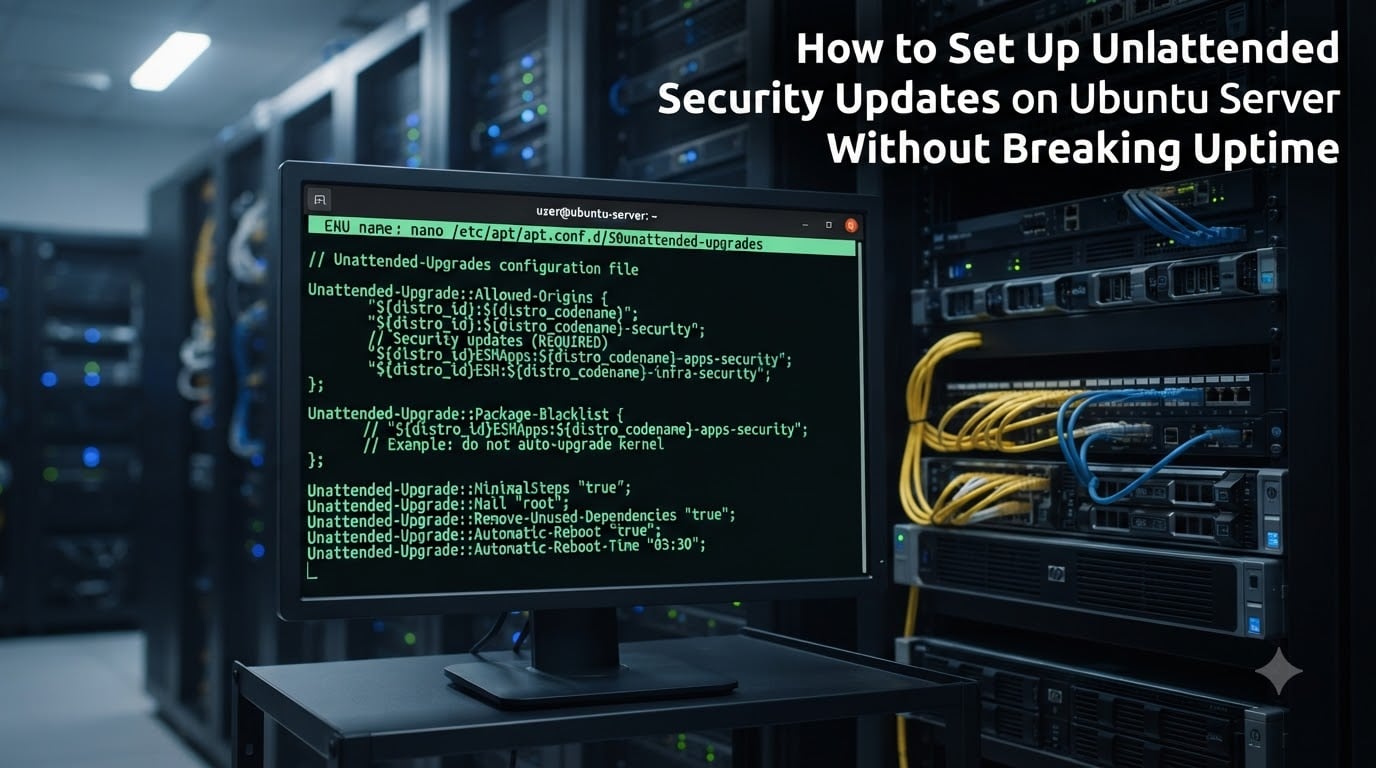
Running Ubuntu unattended security updates is one of the best ways to keep your servers patched against vulnerabilities. The catch is that an out-of-the-box configuration can trigger unexpected reboots during business hours, breaking services your team depends on.
I have managed Ubuntu servers in production for over a decade, and the single biggest mistake I see is treating unattended-upgrades as “fire and forget.” If you skip the uptime protection layer, you will eventually get paged at 2 a.m. because a kernel update rebooted a box running your checkout service.
In this guide, I will walk you through the exact configuration I deploy on production Ubuntu servers. You will learn how to install unattended-upgrades, restrict it to security-only patches, blacklist packages that can break your stack, schedule updates for off-peak hours, and protect uptime with notify-only mode and rolling update strategies.
Table of Contents
What Is Unattended-Upgrades and Why Use It?
Unattended-upgrades is the official Ubuntu tool that automatically downloads and installs security patches without manual intervention. It runs as a systemd timer, checks configured package origins like ${distro_id}:${distro_codename}-security, and applies updates in the background.
You need it because manual patching does not scale. A typical production fleet might run hundreds of packages, and new CVEs drop weekly. Missing a critical kernel or glibc patch for even a few days creates real exposure. Ubuntu unattended security updates close that window without requiring a human to ssh in every Tuesday.
The reason many admins hesitate is fear of breakage. I have seen posts on Reddit and AskUbuntu from operators who watched unattended-upgrades reboot a database server mid-query. That is a valid concern, and I will address it directly in the uptime protection section later in this guide.
Installing the Unattended-Upgrades Package
On modern Ubuntu releases (20.04 LTS, 22.04 LTS, 24.04 LTS), the unattended-upgrades package is usually preinstalled. Verify first, then install if missing.
Run this command to check whether it is already present:
dpkg -l | grep unattended-upgrades
If nothing comes back, install the package and its recommended dependencies:
sudo apt update
sudo apt install unattended-upgrades apt-listchanges bsd-mailx
The bsd-mailx package is optional but useful for email notifications. After installation, enable the systemd timer and the apt daily timer that drives scheduled runs:
sudo systemctl enable --now apt-daily.timer
sudo systemctl enable --now apt-daily-upgrade.timer
sudo dpkg-reconfigure --priority=low unattended-upgrades
The dpkg-reconfigure step pops up an interactive dialog asking whether you want automatic updates enabled. Choose “Yes.” This creates the symlink that activates the timer.
Configuring Allowed-Origins for Security Sources
The main configuration file lives at /etc/apt/apt.conf.d/50unattended-upgrades. Open it with sudo and your preferred editor. The most important directive is Unattended-Upgrade::Allowed-Origins.
For security-only updates on Ubuntu 24.04 LTS (Noble Numbat), the block looks like this:
Unattended-Upgrade::Allowed-Origins {
"${distro_id}:${distro_codename}-security";
"${distro_id}:${distro_codename}-esm";
};
The first line pulls from the standard Ubuntu security pocket. The second line covers ESM (Extended Security Maintenance) for users with an Ubuntu Pro subscription. If you want to be conservative, comment out ESM to avoid touching anything from the Pro repos.
Replace ${distro_codename} with the literal codename if you prefer explicit values. On 22.04, that means jammy-security and jammy-esm. On 20.04, use focal-security and focal-esm.
How to Blacklist Packages From Auto-Updates
Some packages should never be touched automatically. In my production environments I always blacklist database engines (PostgreSQL, MySQL, MongoDB), container runtimes, kernel meta-packages, and custom application packages. The directive Unattended-Upgrade::Package-Blacklist controls this.
Add a block like this to 50unattended-upgrades:
Unattended-Upgrade::Package-Blacklist {
"linux-generic";
"linux-image-generic";
"linux-headers-generic";
"postgresql";
"postgresql-1?";
"mysql-server";
"docker-ce";
"containerd.io";
};
Patterns are regex-based. The ? matches a single character, so postgresql-1? covers PostgreSQL 14, 15, 16, and so on. This is critical because a major database upgrade applied automatically is a recipe for downtime.
You can verify your blacklist with a dry-run before deploying it. I will cover that in the monitoring section.
Configuring Automatic Reboot After Kernel Updates
Kernel updates are the primary source of service disruption. Even if a reboot is “safe,” it still kills in-flight connections, drops caches, and triggers a brief outage window. By default, unattended-upgrades will not reboot your server. You have to opt in.
To allow reboots after kernel updates, add these directives to 50unattended-upgrades:
Unattended-Upgrade::Automatic-Reboot "true";
Unattended-Upgrade::Automatic-Reboot-Time "04:00";
Unattended-Upgrade::Automatic-Reboot-WithUsers "false";
The first line enables reboots. The second line schedules them for 4 a.m. server time. The third line prevents reboots when a human user is logged in, which protects against surprise reboots on jump hosts or developer VMs.
There is one more flag worth setting if you have services that should never be rebooted unsupervised:
Unattended-Upgrade::MinimalSteps "true";
This tells unattended-upgrades to apply updates in smaller batches and exit cleanly. The side effect is fewer simultaneous package operations, which means fewer restart collisions.
To check whether your server needs a reboot, run:
cat /var/run/reboot-required
If the file exists, a reboot is pending. You can also check whether specific services like sshd need a restart:
ls /var/run/reboot-required.pkgs 2>/dev/null
Setting Up Email Notifications for Updates
Silent patching is a problem. You want to know when something went wrong, especially on production. Unattended-upgrades supports two notification channels: an email summary after each run and a separate alert when something errors out.
Add the following lines to 50unattended-upgrades:
Unattended-Upgrade::Mail "[email protected]";
Unattended-Upgrade::MailReport "on-change";
The MailReport directive accepts three values. always sends an email after every run, even when nothing changed. only-on-error only sends mail when something fails. on-change sends mail only when packages were actually installed or removed, which is usually what you want.
For local mail delivery to work, ensure postfix or a compatible MTA is installed and configured to relay through your monitoring address. On systems without an MTA, the bsd-mailx package installed earlier falls back to /var/mail.
To test that notifications work, run unattended-upgrades manually with the dry-run flag:
sudo unattended-upgrade --dry-run --debug
This simulates a full run without modifying anything, and you can confirm whether your mail settings resolve correctly.
Uptime Protection Strategies for Production Servers
This is the section most guides skip, and it is the reason I wrote this one. Configuring unattended-upgrades without a protection layer is the difference between a safe rollout and a 3 a.m. page. Here are the strategies I deploy on every production Ubuntu server.
Strategy 1: Start with notify-only mode. Before you let unattended-upgrades install anything, run it in download-only mode for a week. Add this line to 50unattended-upgrades:
Unattended-Upgrade::DownloadOnly "true";
With this flag set, unattended-upgrades downloads new packages every day but installs nothing. Combined with email notifications, you get a daily report of what would have been installed, without any risk. After a week, audit the report, blacklist anything problematic, and switch to full install mode.
Strategy 2: Phase rollouts across your fleet. Never enable unattended-upgrades on every server at once. Start with one canary host, observe for 48 hours, then roll to the next batch. I tag my servers with descriptive hostnames like web-canary-01 and db-canary-01 so the canary tier is obvious in monitoring dashboards.
Strategy 3: Use Ubuntu Livepatch for kernel updates. Canonical’s livepatch service applies critical kernel security patches without rebooting. Install it with:
sudo snap install canonical-livepatch
sudo canonical-livepatch enable <your-token>
With livepatch active, most kernel CVEs never trigger a reboot at all. You still want unattended-upgrades to apply userspace patches, but livepatch removes the kernel as a reboot source.
Strategy 4: Coordinate with your load balancer. If your servers sit behind a load balancer, drain traffic before allowing any reboot. The simplest pattern is to run unattended-upgrades via a wrapper script that uses the load balancer API to mark the instance as draining, waits for active connections to finish, then allows the reboot. Many teams use AWS ELB health checks or HAProxy’s drain mode for this.
Strategy 5: Run updates during low-traffic windows. Even if you keep Automatic-Reboot enabled, restrict it to a known quiet window. Setting Automatic-Reboot-Time "04:00" is a start, but combine it with the systemd timer tweaks in the next section for tighter control.
Strategy 6: Keep containers and immutable infrastructure separate. If your workload runs in containers, manage patching through image rebuilds and rolling deployments rather than unattended-upgrades on the host. Unattended-upgrades is designed for long-lived VMs and bare metal, not for Kubernetes nodes where kubelet and containerd are managed by a different lifecycle.
Customizing the Systemd Timer for Off-Peak Updates
The schedule for unattended-upgrades lives in /etc/apt/apt.conf.d/20auto-upgrades. Open the file and look for the APT::Periodic directives.
A production-friendly baseline looks like this:
APT::Periodic::Update-Package-Lists "1";
APT::Periodic::Unattended-Upgrade "1";
APT::Periodic::Download-Upgradeable-Packages "1";
APT::Periodic::AutocleanInterval "7";
These four lines tell the system to refresh package lists daily, run unattended-upgrades daily, prefetch upgradeable packages, and clean the apt cache weekly. That is the safe default.
For tighter control over when updates apply, override the systemd timer directly. The timer unit is apt-daily-upgrade.timer. Create a drop-in override:
sudo systemctl edit apt-daily-upgrade.timer
Add the following:
[Timer]
OnCalendar=
OnCalendar=Sun 03:00
RandomizedDelaySec=30m
Persistent=true
This restricts unattended-upgrades to Sunday at 3 a.m., with a randomized 30-minute delay so multiple servers in your fleet do not hit the mirror at the exact same second. The empty OnCalendar= line clears the default schedule, which is critical because OnCalendar is additive.
Reload systemd and verify the timer picked up the change:
sudo systemctl daemon-reload
sudo systemctl list-timers apt-daily-upgrade.timer
Monitoring Logs and Verifying Update Activity
You cannot protect uptime if you cannot see what happened. Unattended-upgrades writes detailed logs to /var/log/unattended-upgrades/. Each run creates a dated log file with the full transcript.
To view the most recent run:
ls -lt /var/log/unattended-upgrades/ | head -5
sudo tail -100 /var/log/unattended-upgrades/unattended-upgrades.log
For a quick summary of packages installed today:
grep "Packages that will be upgraded" /var/log/unattended-upgrades/unattended-upgrades.log | tail -1
Before rolling any new configuration to production, always dry-run. This is the single most useful habit I have developed over the years:
sudo unattended-upgrade --dry-run --debug
The debug flag prints every decision the tool makes, including which packages would be installed, which would be blacklisted, and which origins matched. Read through the output line by line on your canary server before promoting the config.
Finally, set up a basic monitoring check. Most monitoring agents like Datadog, Prometheus node-exporter, or Zabbix can parse the unattended-upgrades log and alert on the string ERROR. Treat any error in that log as a paging event, not a warning.
Frequently Asked Questions
How do I enable automatic updates on Ubuntu?
Install the unattended-upgrades package with sudo apt install unattended-upgrades, then run sudo dpkg-reconfigure u002du002dpriority=low unattended-upgrades and choose Yes. Finally, ensure the apt-daily.timer and apt-daily-upgrade.timer units are enabled with sudo systemctl enable u002du002dnow apt-daily.timer apt-daily-upgrade.timer.
Should I be scared of unattended-upgrades breaking things?
Not if you follow three rules. Start with DownloadOnly u0022trueu0022 for one week to observe what would change, blacklist sensitive packages like databases and kernel meta-packages, and use Automatic-Reboot-Time to schedule reboots for known off-peak windows. With those controls in place, unattended-upgrades is safer than manual patching because it removes human delay.
How do I configure unattended-upgrades for security only?
In /etc/apt/apt.conf.d/50unattended-upgrades, set Unattended-Upgrade::Allowed-Origins to include only ${distro_id}:${distro_codename}-security and optionally ${distro_id}:${distro_codename}-esm. Do not add the standard updates pocket. This restricts automatic installation to security and ESM patches only.
How do I view unattended upgrades logs on Ubuntu?
Logs are stored in /var/log/unattended-upgrades/ with one file per run. Use sudo ls -lt /var/log/unattended-upgrades/ to list recent runs and sudo tail -100 /var/log/unattended-upgrades/unattended-upgrades.log to inspect details. For real-time monitoring, set up an alert on the string ERROR in your log aggregator.
How do I set automatic reboot after kernel updates?
Add Unattended-Upgrade::Automatic-Reboot u0022trueu0022 and Unattended-Upgrade::Automatic-Reboot-Time u002204:00u0022 to /etc/apt/apt.conf.d/50unattended-upgrades. Also set Unattended-Upgrade::Automatic-Reboot-WithUsers u0022falseu0022 so reboots never interrupt logged-in users. Combine with canonical-livepatch to avoid most reboots entirely.
How do I blacklist packages from auto-updates?
Add the package names as regex patterns inside the Unattended-Upgrade::Package-Blacklist block in /etc/apt/apt.conf.d/50unattended-upgrades. For example, u0022linux-genericu0022 blocks kernel upgrades and u0022postgresql-1?u0022 blocks PostgreSQL 14 through 19. Always test the blacklist with unattended-upgrade u002du002ddry-run u002du002ddebug before deploying to production.
Conclusion
Ubuntu unattended security updates are only as safe as the protection layer around them. Install the package, restrict Allowed-Origins to security sources, blacklist the packages that move state, schedule reboots for off-peak windows, and add Canonical Livepatch for kernel coverage.
Run the dry-run flag on every canary host before promoting the configuration, and you will have automatic patching that closes CVE windows without surprising your on-call rotation. That is how you keep both uptime and security intact in 2026 and beyond.