
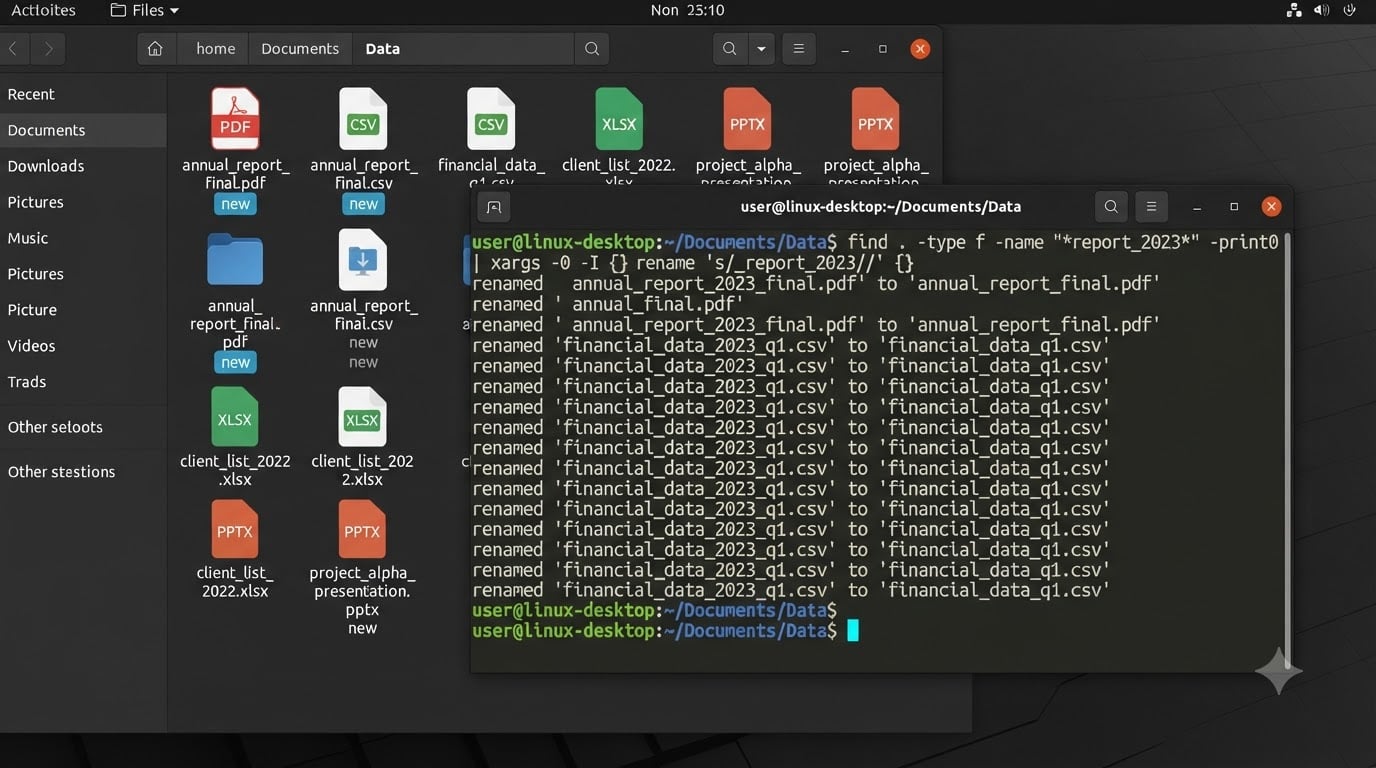
If you have ever opened a downloads folder and found 3,000 files with names like document.txt.txt, image (1).jpeg, and [DOWNLOADER]_vacation_photo.JPG, you already know why people search for ways to batch rename files on Linux. Renaming them one by one is not realistic. The good news is that two tools already installed on nearly every Linux system can handle this job in seconds.
In this guide, I will walk you through using find and xargs to batch-rename and clean up thousands of files on Linux. We will cover the basics of how xargs works, then move into real scenarios like fixing double extensions, standardizing file types, handling filenames with spaces, and processing massive directories without hitting command-line length limits.
By the end, you will have a set of copy-paste commands and script patterns you can adapt to your own messy directories. Every command includes a dry-run step so you can preview changes before anything actually gets renamed.
Table of Contents
Quick-Start Command Cheatsheet
Here are the most common find and xargs rename patterns in one place. Copy what you need, then read the detailed sections below to understand each part.
Fix double extensions (.txt.txt to .txt):find . -name "*.txt.txt" -print0 | xargs -0 -I {} sh -c 'mv "$1" "${1%.txt}"' _ {}
Change extension (.jpeg to .jpg):find . -name "*.jpeg" -print0 | xargs -0 -I {} sh -c 'mv "$1" "${1%.jpeg}.jpg"' _ {}
Add a prefix to all .log files:find . -name "*.log" -print0 | xargs -0 -I {} sh -c 'mv "$1" "$(dirname "$1")/archive_$(basename "$1")"' _ {}
Preview changes safely (dry run with echo):find . -name "*.txt.txt" -print0 | xargs -0 -I {} echo mv "$1" "${1%.txt}"
Process in parallel for large sets:find . -name "*.jpeg" -print0 | xargs -0 -P 4 -I {} sh -c 'mv "$1" "${1%.jpeg}.jpg"' _ {}
What Is xargs and Why Use It for Batch Operations
xargs is a Linux command that reads items from standard input (usually piped from another command like find) and turns them into arguments for a second command. That second command is typically mv, cp, rm, or any other tool that expects file paths as arguments.
The reason xargs exists is simple. Commands like mv do not accept filenames through a pipe. If you run ls | mv, nothing useful happens because mv does not read from standard input. xargs bridges that gap by collecting the piped input and feeding it to mv as proper arguments.
For batch operations on thousands of files, xargs matters for two big reasons. First, it groups arguments efficiently so you stay under the system’s maximum command-line length (the ARG_MAX limit). Second, it gives you a placeholder ({} by default with the -I flag) that lets you construct complex commands where each filename appears exactly where you need it.
The -I flag is the one you will use most for renaming. It defines a custom placeholder and tells xargs to run the target command once per input item. This is what makes per-file renaming possible without writing a shell loop.
Finding Files with the find Command
Before xargs can rename anything, find has to locate the right files. The find command searches a directory tree and outputs matching file paths, one per line.
The most common search patterns use -name for filename matching and -type f to restrict results to regular files (excluding directories):
find . -type f -name "*.jpeg"
This finds every .jpeg file in the current directory and all subdirectories.
The . argument means “start from the current directory.” You can replace it with any path, like find /home/user/downloads -type f -name "*.txt.txt".
For batch renaming, you will almost always pair find with -print0 instead of the default -print. The -print0 option separates filenames with a null character instead of a newline, which is essential when filenames contain spaces or special characters. I cover this in detail in the spaces section below.
How to Batch Rename Files with find and xargs?
The core pattern for batch renaming combines find, xargs, mv, and a small inline shell command. Here is the general structure broken into its parts.
Step 1: Find the target files.find . -name "*.old" -print0
Step 2: Pipe to xargs with null delimiter and placeholder.... | xargs -0 -I {}
Step 3: Run a shell command that renames each file.... sh -c 'mv "$1" "${1%.old}.new"' _ {}
The full one-liner looks like this:
find . -name "*.old" -print0 | xargs -0 -I {} sh -c 'mv "$1" "${1%.old}.new"' _ {}
Let me break down what each piece does. The -print0 and -0 pair keeps filenames with spaces intact. The -I {} flag creates a placeholder. The sh -c '...' wrapper runs a mini shell script so we can use parameter expansion. The _ {} at the end passes the placeholder as $1 into that shell script, and the ${1%.old} syntax strips the old extension from the end of the filename.
Parameter expansion is the magic ingredient here. The pattern ${1%.old} means “take the value of $1 and remove .old from the end.” You then append .new to produce the target name. This is what lets you rename files without resorting to external tools like sed or basename.
Use Case 1: Fixing Double Extension Files
Double extensions happen more often than you might think. A download script appends .txt to a file that already ends in .txt, or a conversion tool adds .jpg to photo.jpg. Suddenly you have report.txt.txt and photo.jpg.jpg scattered across your system.
Step 1: Identify the affected files.find . -name "*.txt.txt" -print
Review the output to make sure you are only targeting the files you want to fix.
Step 2: Test with echo (dry run).find . -name "*.txt.txt" -print0 | xargs -0 -I {} sh -c 'echo mv "$1" "${1%.txt}"' _ {}
This prints the mv command that would run, without executing it. You should see output like mv ./report.txt.txt ./report.txt. Verify the target names look correct.
Step 3: Execute the rename.find . -name "*.txt.txt" -print0 | xargs -0 -I {} sh -c 'mv "$1" "${1%.txt}"' _ {}
For a generic double-extension fixer that works with any extension, use this pattern with sed:
find . -name "*.*.*" -print0 | xargs -0 -I {} sh -c 'mv "$1" "$(echo "$1" | sed "s/.([^.]*).1$/.1/")"' _ {}
This finds files with two dots, checks if the last two extensions match, and removes the duplicate. Always dry-run it first with echo.
Use Case 2: Changing File Extensions in Bulk
Extension standardization is one of the most common batch rename tasks. Cameras produce .jpeg, but your workflow expects .jpg. Markdown files use .md in one project and .markdown in another.
Step 1: Find files with the old extension.find . -name "*.jpeg" -print
Step 2: Dry-run the rename.find . -name "*.jpeg" -print0 | xargs -0 -I {} sh -c 'echo mv "$1" "${1%.jpeg}.jpg"' _ {}
Check that each line shows the correct old-to-new mapping.
Step 3: Execute.find . -name "*.jpeg" -print0 | xargs -0 -I {} sh -c 'mv "$1" "${1%.jpeg}.jpg"' _ {}
You can adapt this for any extension swap. To change .md to .markdown:
find . -name "*.md" -print0 | xargs -0 -I {} sh -c 'mv "$1" "${1%.md}.markdown"' _ {}
One thing to watch for: if the target filename already exists, mv will overwrite it silently. If you want to be safe, add the -n flag (mv -n) to skip existing files instead of clobbering them.
Handling Filenames with Spaces and Special Characters
This is where most people break their first batch rename. A filename like my vacation photo.jpeg contains spaces, and xargs by default splits on whitespace. Without protection, it would try to rename my, vacation, and photo.jpeg as three separate files.
The solution is the -print0 and -0 combination. find -print0 separates output with null bytes instead of newlines, and xargs -0 reads null-delimited input. Together they treat each entire filename as one unit, spaces and all.
Always use this pattern:
find . -name "*.jpeg" -print0 | xargs -0 -I {} sh -c 'mv "$1" "${1%.jpeg}.jpg"' _ {}
Notice the double quotes around $1 inside the shell command. Those quotes are mandatory even with null delimiters because the shell command itself needs to treat the path as a single argument when it runs mv.
For filenames with truly exotic characters (newlines, tabs, leading dashes), the null-delimiter approach handles them all. The only edge case to watch for is filenames starting with a dash, which mv might interpret as an option flag. Use mv -- "$1" (with the double-dash separator) if you suspect this could be an issue.
Renaming Files Recursively Across Subdirectories
The find command searches recursively by default, so every pattern we have covered already handles subdirectories. If you have .jpeg files nested five levels deep, a single command reaches all of them.
To limit the search depth, use the -maxdepth flag. For example, to rename files only in the current directory and one level of subdirectories:
find . -maxdepth 2 -name "*.jpeg" -print0 | xargs -0 -I {} sh -c 'mv "$1" "${1%.jpeg}.jpg"' _ {}
One subtlety with recursive renaming: when you use ${1%.jpeg}.jpg, the parameter expansion works on the full path, not just the basename. This is actually correct behavior, because ${1%.jpeg} strips .jpeg from the end of the path string while preserving the directory portion. The result is the right new path in the same directory.
If you need to move files to a different directory while renaming, use dirname and basename to split the path:
find . -name "*.log" -print0 | xargs -0 -I {} sh -c 'mv "$1" "/target/dir/$(basename "$1")"' _ {}
Processing Thousands of Files Efficiently
This is the scenario the title promises, and it is the one no competitor covers well. When you have 50,000 files, two performance problems emerge: the system’s ARG_MAX limit and single-threaded execution.
The ARG_MAX limit caps how many bytes of arguments a single command can receive. On most Linux systems it is around 2 million bytes. If xargs tried to pass all 50,000 filenames to one mv call, it would fail with “Argument list too long.”
The good news is that xargs handles this automatically. When you use the -I flag, xargs runs the command once per file, so each invocation stays well under the limit. Even without -I, xargs batches arguments into multiple command runs to respect ARG_MAX.
For speed, the -P flag runs multiple commands in parallel. This is where the real performance gain lives:
find . -name "*.jpeg" -print0 | xargs -0 -P 4 -I {} sh -c 'mv "$1" "${1%.jpeg}.jpg"' _ {}
The -P 4 tells xargs to keep four processes running at once. On a multi-core machine, this can cut rename time significantly for large file sets. For purely CPU-bound operations (like image conversion, not simple renames), the speedup is even more noticeable.
I recommend starting with -P 4 and increasing to -P 8 if your system has the cores. For simple mv operations on local storage, you may not see much improvement past -P 4 because disk I/O becomes the bottleneck. For network-mounted filesystems, keep -P low to avoid overwhelming the server.
If you are dealing with a truly massive directory and want to see progress, add -t to print each command as it runs, or use pv (pipe viewer) to monitor throughput.
xargs vs rename vs find -exec: Which Should You Use
Three approaches dominate batch renaming on Linux. Here is how they compare so you can pick the right tool.
xargs is available on every Linux system with zero dependencies. It handles large file sets well with batching and parallel execution. The downside is that constructing the rename logic requires a sh -c wrapper and parameter expansion, which looks intimidating until you memorize the pattern.
The rename command (specifically the Perl version, sometimes called prename or file-rename) uses Perl regular expressions for pattern matching. A double-extension fix becomes rename 's/.txt$//' *.txt.txt, which is cleaner than the xargs equivalent. The catch is that rename is not installed by default on all distributions, and there are two incompatible versions (Perl and C) with different syntax.
find -exec runs a command for each matched file without needing xargs at all. For example: find . -name "*.jpeg" -exec sh -c 'mv "$1" "${1%.jpeg}.jpg"' _ {} ;. It works everywhere and handles spaces natively. The limitation is that -exec with the trailing semicolon runs one process per file with no batching or parallelism, making it slower than xargs for large sets.
My recommendation: use rename when it is available and your patterns are simple. Use xargs when you need maximum portability, parallel processing, or complex per-file logic. Use find -exec for quick one-off tasks on small file sets where simplicity matters more than speed.
Testing Safely with echo Before Execution
I cannot stress this enough: always dry-run your rename commands before executing them. A single typo in a parameter expansion pattern can rename 10,000 files incorrectly in under a second, and undoing that damage is painful.
The safe testing workflow is simple. Take your full command and insert echo before mv. This prints every command that would run without actually moving anything:
find . -name "*.jpeg" -print0 | xargs -0 -I {} sh -c 'echo mv "$1" "${1%.jpeg}.jpg"' _ {}
Review the printed output carefully. Check that source and destination paths look right. Look for files you did not expect to match. Watch for destination names that collide with existing files.
Once the dry run looks correct, remove echo and run the real command. Some people also recommend making a backup first. For a large operation, you can copy the directory to a temporary location and run the rename there as a full test:
cp -r /messy/dir /tmp/test-rename && cd /tmp/test-rename && [your rename command]
If the results look right in the test copy, run the same command on the real directory.
Troubleshooting Common Errors
“Argument list too long” – This means a single command received too many arguments. It should not happen with -I flag (one file per invocation), but if it does, make sure you are using xargs rather than a shell glob like * that expands all filenames at once.
“Permission denied” – You lack write access to the file or its directory. Check ownership with ls -la and use chmod or chown to fix permissions, or run the command with sudo if appropriate.
“No such file or directory” – A file was deleted or moved between when find located it and when mv tried to rename it. This is rare but can happen if another process is modifying the same directory. Re-run the command and it will skip the missing files.
“command not found” – If you see this for sh or mv, your PATH variable may be incorrect in the current shell. Run which mv and which sh to verify they are accessible.
Placeholder not replacing – If {} appears literally in your output, you may have forgotten the -I {} flag on xargs, or you placed the placeholder inside single quotes where the shell cannot expand it. Make sure {} appears in the arguments after sh -c '...', passed as $1.
Frequently Asked Questions
How do I batch rename files in Linux using find and xargs?
Pipe find output to xargs with a placeholder and an inline shell command. The pattern is: find . -name u0022*.oldu0022 -print0 | xargs -0 -I {} sh -c ‘mv u0022$1u0022 u0022${1%.old}.newu0022’ _ {}. This finds matching files, passes them one at a time to xargs, and uses parameter expansion to construct the new filename. Always test with echo first.
How do I rename multiple files at once in Linux?
You have three main options: use xargs with find for portability and parallel processing, use the Perl rename command for simple regex-based renames, or use find -exec for quick tasks on small file sets. The xargs approach works on every Linux system and handles thousands of files efficiently.
What is the difference between mv and rename in Linux?
mv renames or moves one file at a time and is available on every system. The rename command (specifically the Perl version) applies a regular expression to multiple filenames at once, making it ideal for bulk pattern-based renames. rename is not installed by default on all distributions, while mv is always present.
How do I use xargs to move files in Linux?
Use find to locate files, pipe to xargs with the -I flag for a placeholder, and run mv as the target command. For example: find . -name u0022*.logu0022 -print0 | xargs -0 -I {} mv {} /target/dir/ moves all log files to a target directory. Use -print0 and -0 to handle filenames with spaces.
How do I rename file extensions using command line?
Use parameter expansion to strip the old extension and append the new one. For example, to change .jpeg to .jpg: find . -name u0022*.jpegu0022 -print0 | xargs -0 -I {} sh -c ‘mv u0022$1u0022 u0022${1%.jpeg}.jpgu0022’ _ {}. The ${1%.jpeg} syntax removes .jpeg from the end, then .jpg is appended to form the new name.
Conclusion
Using find and xargs to batch-rename and clean up thousands of files on Linux comes down to a few core patterns. Find your target files with find -name, pipe them through xargs -0 -I {} with null delimiters, and use sh -c with parameter expansion to construct new filenames. Test every command with echo before running it for real, and use -P for parallel processing when you are working with massive directories.
The commands in this guide are intentionally copy-paste ready. Start with the quick-start cheatsheet, adapt the patterns to your specific files, and always dry-run first. If you want even more control, the Perl rename command is worth installing for its cleaner regex syntax on simple jobs.
Your next step: pick the messiest directory on your system, run a find command to see what is there, and work through one of the use cases above. Once you have done it once, the pattern sticks and you will never rename files by hand again.