
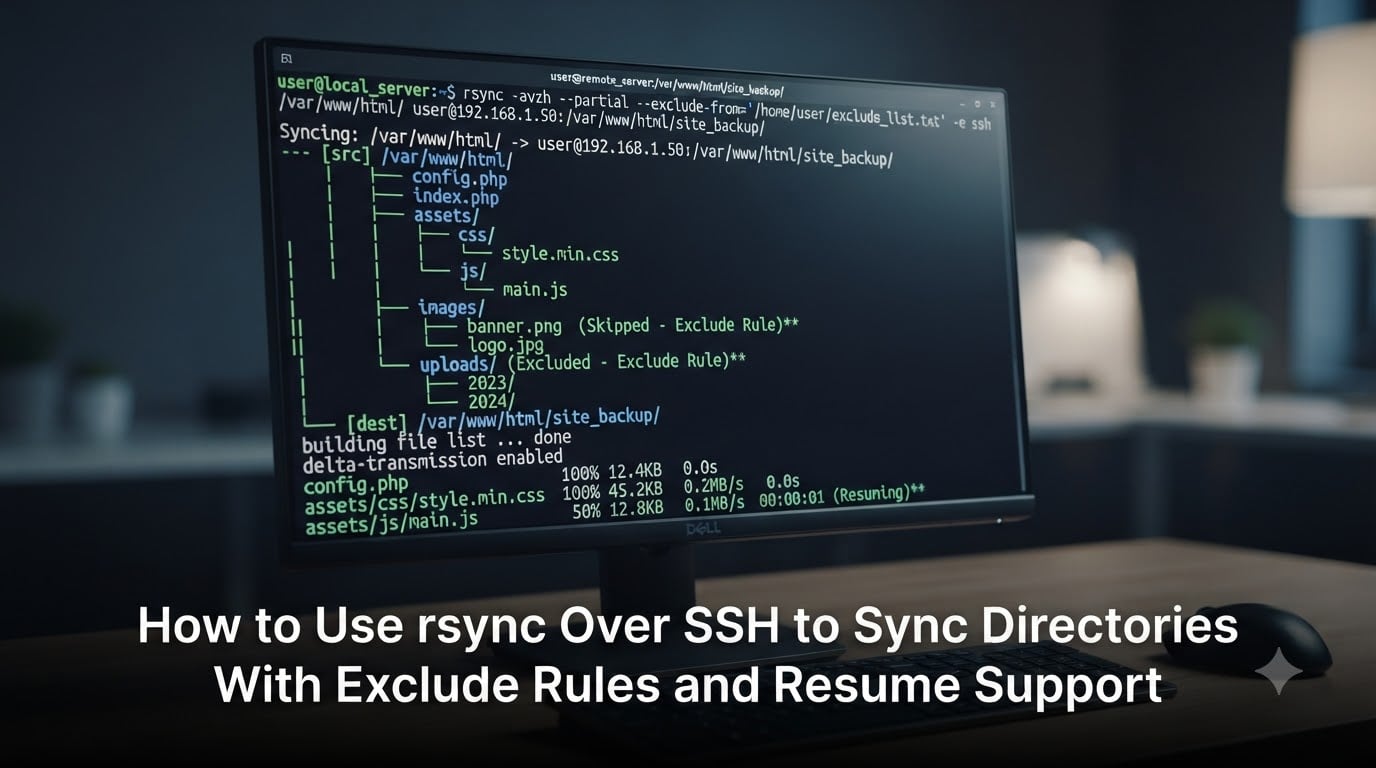
Syncing directories between servers is a daily task for most system administrators, and few tools handle it better than rsync combined with SSH. If you have ever lost hours to a stalled transfer or accidentally synced files you meant to skip, this guide is for you. I will walk you through how to use rsync over SSH to sync directories with exclude rules and resume support, with copy-pasteable commands for every scenario.
rsync over SSH gives you encrypted, efficient file synchronization using a delta-transfer algorithm that only sends the changed portions of files. With exclude patterns you can filter out unwanted files, and with the --partial flag you can resume an interrupted transfer instead of starting over. Together these features make rsync the go-to tool for backups, deployments, and large file moves.
Our team has used rsync over SSH in production environments ranging from small VPS migrations to multi-terabyte backup jobs. The patterns below come from real experience, forum discussions on r/sysadmin and r/linuxadmin, and the official rsync man page. Every command has been tested and annotated with the gotchas that trip people up.
Table of Contents
What Is rsync and How Does It Work Over SSH?
rsync is a Linux and Unix command-line utility that synchronizes files and directories between two locations. Its key advantage is the delta-transfer algorithm, which compares the source and destination and sends only the blocks that differ. For a 10 GB log file that changes by a few megabytes per day, rsync transfers only those megabytes, not the entire file again.
When rsync operates over SSH, all traffic flows through an encrypted SSH tunnel on port 22 by default. This means your data, credentials, and file names are protected during transfer. SSH also handles authentication, so rsync inherits your existing SSH key setup without any extra configuration.
Why Use SSH Instead of the rsync Daemon
rsync supports two transport modes: a remote-shell transport (typically SSH) and a direct rsync daemon connection on port 873. The SSH mode is preferred for ad-hoc syncs because it requires no daemon setup, uses your existing SSH keys, and encrypts everything by default.
The daemon mode is useful when you need anonymous read access, chrooted modules, or transfers on non-standard ports with pre-shared credentials. For most directory sync and backup workflows, SSH is simpler and more secure.
What the -e ssh Flag Does?
The -e ssh flag tells rsync to use SSH as the remote shell transport. Modern rsync versions default to SSH automatically, so the flag is often optional. You still need it when you want to pass custom SSH options, like a non-standard port or a specific identity file:
rsync -avz -e "ssh -p 2222 -i ~/.ssh/id_backup" ./data/ user@host:/backups/data/
In this command the -e value is a quoted SSH command string. rsync passes that entire string through, so any valid SSH option works here.
Basic rsync Syntax You Need to Know
The general rsync syntax follows a simple pattern: options, source, destination. The source or destination can be local or remote, and remote locations are identified by the user@host:path format with a colon.
The Standard rsync Command Format
A basic local rsync looks like this:
rsync -av /source/dir/ /dest/dir/
The -a flag is archive mode, which enables recursive copy and preserves permissions, ownership, timestamps, symlinks, and special files. The -v flag enables verbose output so you can see what rsync is doing.
Local to Remote and Remote to Local Examples
To sync a local directory to a remote server over SSH:
rsync -avz ./project/ deploy@web01:/var/www/project/
To pull a remote directory down to your local machine:
rsync -avz deploy@web01:/var/www/project/ ./project/
The trailing slash on the source matters. With a trailing slash, rsync copies the contents of the directory. Without it, rsync copies the directory itself into the destination. This is one of the most common mistakes I see people make.
Rsync Over SSH: The Full Command
The canonical rsync over SSH command combines archive mode, verbose output, compression, and the SSH transport into a single line. Here is the command you will use most often:
rsync -avz -e ssh ./local-dir/ user@remote-host:/remote/dir/
The -avz Combination Explained
The -avz flags are the workhorse combination for most rsync over SSH operations:
-a (archive): Recursively copies files and preserves permissions, timestamps, ownership, group, symlinks, and device files. Equivalent to
-rlptgoD.-v (verbose): Prints each file as it transfers so you can monitor progress.
-z (compress): Compresses file data during transfer to save bandwidth on slow connections.
For text-heavy transfers over slow links, -z can cut transfer time significantly. For already-compressed files like ZIP archives or MP4 videos, compression provides little benefit and adds CPU overhead.
Setting Up SSH Key Authentication for rsync
To run rsync over SSH without typing a password each time, set up SSH key authentication. Generate a key pair if you do not have one:
ssh-keygen -t ed25519 -f ~/.ssh/rsync_key
Copy the public key to the remote server:
ssh-copy-id -i ~/.ssh/rsync_key.pub user@remote-host
Now rsync will authenticate using the key automatically. For automated backup scripts, use a dedicated key with a restricted authorized_keys entry that limits the key to rsync commands only. This is a security best practice that many admins skip.
How to Exclude Files and Directories With rsync?
Excluding files from an rsync transfer is one of the most common and most confusing features. The --exclude flag lets you skip files and directories matching a pattern. You can also load multiple patterns from a file with --exclude-from.
Single Exclude Patterns With –exclude
To exclude a single file or directory, add --exclude followed by the pattern:
rsync -avz --exclude 'node_modules' ./project/ user@host:/deploy/project/
This skips any file or directory named node_modules at any level in the source tree. The pattern is relative to the source root, and rsync evaluates it against each path component.
Multiple Excludes in One Command
You can chain multiple --exclude flags to skip several patterns:
rsync -avz --exclude 'node_modules' --exclude '.git' --exclude '*.log' --exclude 'tmp/' ./project/ user@host:/deploy/project/
rsync evaluates exclude rules in the order you provide them. The first matching rule wins, so order your patterns from most specific to least specific when combining with --include.
Using –exclude-from to Load a Pattern File
For projects with many exclusion rules, maintain a text file and reference it with --exclude-from:
rsync -avz --exclude-from='exclude-list.txt' ./project/ user@host:/deploy/project/
The exclude list file contains one pattern per line:
node_modules
.git
*.log
*.tmp
cache/
.env
Comments starting with # and blank lines are ignored. This approach is cleaner than long command lines and lets you version-control your exclusion rules alongside your project.
Pattern Wildcards: * and ?
rsync supports shell-style wildcards in exclude patterns:
* matches any sequence of characters, but does not cross directory boundaries.
** matches any sequence of characters including directory separators.
? matches any single character.
[abc] matches any one of the characters a, b, or c.
For example, --exclude '*.tmp' skips all temporary files in any directory. To exclude everything under a cache directory but keep the directory itself, use --exclude 'cache/*'.
Include and Exclude Rule Precedence
The interaction between --include and --exclude confuses almost everyone at first. rsync processes filter rules in the order you specify them on the command line. The first rule that matches a given file determines whether it is included or excluded.
Why Rule Order Matters
If you want to exclude everything except .html files, you must include the HTML files first and then exclude everything else:
rsync -avz --include '*/' --include '*.html' --exclude '*' ./site/ user@host:/deploy/site/
The --include '*/' rule ensures rsync descends into every directory. The --include '*.html' rule includes HTML files. The final --exclude '*' rule excludes everything else. If you reversed the order and put --exclude '*' first, nothing would transfer because the first match would exclude every file.
Anchoring Patterns With / and **
By default, patterns match against the final component of a path. To anchor a pattern to the root of the transfer, start it with /:
--exclude '/large-files'
This excludes large-files only at the top level of the source, not nested copies. To match a pattern at any depth across directories, use **:
--exclude '**/temp/'
This excludes any directory named temp anywhere in the tree. Understanding anchoring is the difference between precise exclusions and unintended file skipping.
How to Resume an Interrupted rsync Transfer?
Large transfers get interrupted. SSH connections drop, networks fail, and servers restart. Without the right flags, rsync restarts interrupted files from scratch. With --partial, rsync keeps the partially transferred file and resumes from where it left off on the next run.
Using –partial to Keep Partial Files
Add --partial to your rsync command to enable resume support:
rsync -avz --partial --progress ./backup.tar user@host:/backups/
When a transfer is interrupted, rsync leaves the partial file at the destination. On the next rsync run with --partial, rsync appends to that file instead of starting from zero. Combined with --progress or --info=progress2, you can watch the resume happen in real time.
A useful companion is --partial-dir=DIR, which stores partial files in a specific directory rather than alongside the destination file. This keeps the destination clean:
rsync -avz --partial --partial-dir=.rsync-partial ./backup.tar user@host:/backups/
–partial vs –append vs –ignore-existing
These three flags are related but behave differently. Choosing the wrong one leads to silent data issues or failed resumes.
–partial: Keeps partially transferred files and resumes them on the next run. The safest option for most resume scenarios.
–append: Assumes the destination file is a truncated version of the source and appends the missing data without verifying. Fast but risky if the existing data is corrupted.
–ignore-existing: Skips any file that already exists at the destination, regardless of whether it is complete. Useful for one-way backups where you never want to overwrite existing files.
For resuming interrupted transfers, --partial is the right choice. Use --append only when you are certain the destination is an exact truncated copy of the source. Use --ignore-existing when you want to add new files without touching existing ones.
Running rsync in Background With nohup
For transfers that may take hours, running rsync in the foreground ties up your terminal and risks interruption if your SSH session to the source machine drops. Forum users on r/sysadmin frequently recommend wrapping rsync with nohup:
nohup rsync -avz --partial ./backup.tar user@host:/backups/ &
The nohup command detaches the process from your terminal so it survives logout. Output goes to nohup.out unless you redirect it. For even better control, use tmux or screen so you can reattach and monitor the transfer interactively.
You can also combine nohup with a loop to automatically retry on failure:
nohup sh -c 'until rsync -avz --partial ./backup.tar user@host:/backups/; do sleep 60; done' &
This retries every 60 seconds until the transfer succeeds, which is handy for flaky network connections.
Dry-Run Testing and Progress Indicators
Before running an rsync command that could modify or delete files on the destination, always test with --dry-run. This shows exactly what rsync would do without actually transferring or changing anything.
Always Test With –dry-run First
Add -n or --dry-run to your command:
rsync -avzn --exclude 'node_modules' --exclude '.git' ./project/ user@host:/deploy/project/
The output lists every file rsync would transfer, create, or delete. Review this list before removing -n and running for real. This is especially important when using --delete, which removes files at the destination that no longer exist at the source.
Real Progress With –info=progress2
The standard --progress flag prints a line per file, which is noisy for directories with thousands of files. Reddit users consistently recommend --info=progress2 instead:
rsync -avz --partial --info=progress2 ./backup.tar user@host:/backups/
This shows a single overall progress bar with percentage, transfer speed, and estimated time remaining. It is the best option for monitoring large transfers. Combine it with --no-inc-recursive if you want the total file count calculated up front rather than incrementally.
Common rsync Errors and Troubleshooting
Even with the right flags, rsync over SSH can hit errors. Here are the ones forum users ask about most often.
Permission Denied Errors
Permission denied usually means the SSH user lacks read access to the source files or write access to the destination directory. Check that the user running rsync owns or can read the source, and that the remote user has write permissions on the destination path.
If you see failed: Permission denied (publickey), the SSH key is not being accepted. Verify the key is in the remote authorized_keys file and that the remote SSH config allows public key authentication.
SSH Connection Drops and Stalled Transfers
SSH connections can drop during long transfers due to idle timeouts on firewalls or NAT devices. Add keep-alive options to your SSH command string:
rsync -avz -e "ssh -o ServerAliveInterval=60 -o ServerAliveCountMax=3" --partial ./backup.tar user@host:/backups/
This sends a keep-alive packet every 60 seconds and drops the connection only after 3 missed responses. Combined with --partial, even a dropped connection is recoverable on the next run.
Frequently Asked Questions
How do I use rsync with SSH for secure file transfer?
Use the -e ssh flag (or rely on the default) with the standard rsync syntax: rsync -avz -e ssh ./local-dir/ user@remote-host:/remote/dir/. The -a flag preserves permissions and recurses, -v gives verbose output, and -z compresses data during transfer.
How do I exclude files and directories with rsync using u002du002dexclude?
Add u002du002dexclude followed by a pattern. For example: rsync -avz u002du002dexclude ‘node_modules’ u002du002dexclude ‘*.log’ ./project/ user@host:/deploy/. You can chain multiple u002du002dexclude flags or load patterns from a file with u002du002dexclude-from=’exclude-list.txt’.
Can rsync resume after being interrupted?
Yes. Use the u002du002dpartial flag to keep partially transferred files at the destination. On the next rsync run, rsync resumes the file from where it left off instead of restarting. Combine with u002du002dinfo=progress2 to monitor the resume in real time.
What is the difference between u002du002dignore-existing and u002du002dpartial in rsync?
u002du002dpartial keeps partially transferred files and resumes them on the next run. u002du002dignore-existing skips any file that already exists at the destination, regardless of completeness. Use u002du002dpartial for resume support and u002du002dignore-existing for one-way backups where existing files should never be overwritten.
How do I use rsync include and exclude options to include directory and file by pattern?
List u002du002dinclude rules before u002du002dexclude rules, since rsync processes rules in order and the first match wins. To include only HTML files while syncing directory structure: rsync -avz u002du002dinclude ‘*/’ u002du002dinclude ‘*.html’ u002du002dexclude ‘*’ ./site/ user@host:/site/. The u002du002dinclude ‘*/’ rule lets rsync descend into directories so it can reach nested HTML files.
Conclusion
Mastering rsync over SSH comes down to four building blocks: SSH for secure transport, the -avz flags for efficient recursive sync, exclude and include patterns for filtering, and --partial for resuming interrupted transfers. Once you understand how to use rsync over SSH to sync directories with exclude rules and resume support, you can handle backups, deployments, and migrations with confidence.
Always test new commands with --dry-run first, use --partial for any transfer you cannot afford to restart, and keep your exclude patterns in a versioned file for complex projects. These habits will save you time and prevent data loss.