
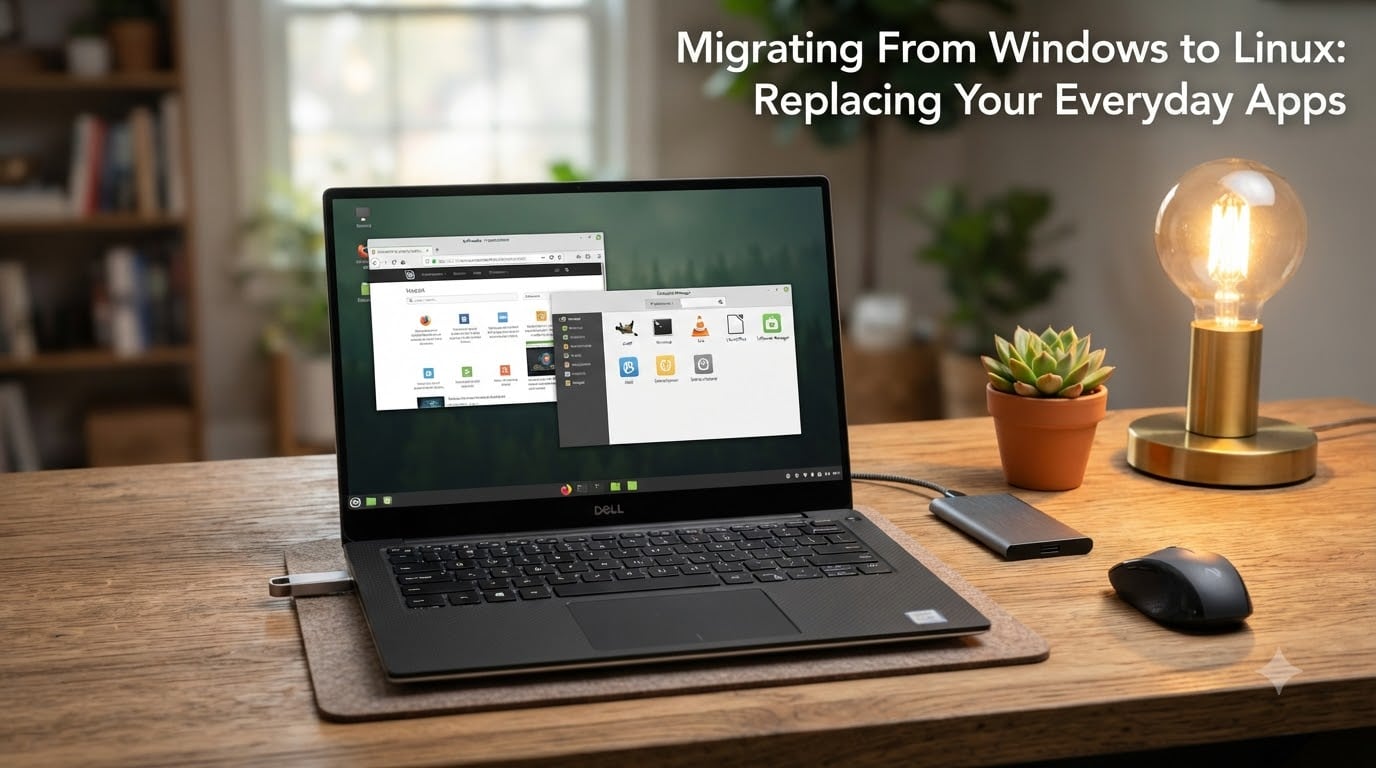
I made the switch from Windows to Linux three years ago, and the day I closed my laptop lid on Windows for the last time felt like finally cleaning out a cluttered closet. My fans stopped screaming, my battery lasted almost twice as long, and nothing tried to reinstall an app I had explicitly removed. If you are considering migrating from Windows to Linux in 2026 and replacing your everyday apps, this is the guide I wish I had when I started.
Windows-to-Linux migration used to be a weekend project that ate your Sunday. In 2026, the story is different. Most users can replace every program they use daily with a Linux or open-source equivalent, install a free operating system that respects their privacy, and keep full control over their hardware. Below is the complete playbook our team uses when helping first-time switchers.
This guide covers the entire migration journey: backup strategy, distro selection, desktop environment choice, installing Linux, replacing your apps, gaming compatibility, and troubleshooting common problems. There is no better time than right now to learn how to switch from Windows to Linux without losing data.
Table of Contents
Why Migrate From Windows to Linux in 2026?
The short answer is control. Linux gives you ownership of your operating system in a way Windows never has. You pick the software. You set the update schedule. You decide what runs on startup and what stays out. For users who care about privacy, performance, and longevity of older hardware, these reasons add up fast.
Looking at why are people leaving Windows for Linux in 2026, three triggers keep coming up.
Privacy and Data Collection
Windows 11 sends telemetry, app-launch data, and advertising identifiers back to Microsoft by default. Linux distros do not. Your click history, search queries, and installed apps stay on your machine.
Performance and Hardware Longevity
A 2014 ThinkPad that struggles with Windows 11 boots Linux Mint in 18 seconds and feels responsive for browsing, writing, and even light photo editing. Linux uses fewer resources because there is no bloat layer fighting for memory.
Cost and Longevity
Linux distributions are free. Open-source productivity suites, office tools, browsers, and creative apps are free. If a piece of software fails on you, the source code is open and someone in the community will fix it.
The real benefits of switching to Linux instead of Windows stack up the longer you use it. No forced feature updates. No advertisements in the Start menu. No required Microsoft account. You get the computer you paid for.
How to Prepare for Your Windows to Linux Migration?
Most failed migrations start with skipping prep work. Before you touch a single install screen, work through this checklist. It is the same list our team walks every new switcher through.
Back Up Everything That Matters
Use an external drive or cloud storage to back up Documents, Downloads, Pictures, Videos, browser bookmarks, saved passwords, email archives, and any custom configuration files. Tools like FreeFileSync, Duplicati, or simply copying files to an external SSD work well.
List the Apps You Actually Use
Open Task Manager, sort by usage, and write down every program you launched in the past two weeks. This becomes your migration shopping list. Anything not on the list does not need a replacement and should be uninstalled before the move.
Check Hardware Compatibility
Most modern hardware works with Linux. The exceptions are usually webcams, fingerprint readers, and specialty printers. Boot a live USB on your actual machine before committing. If everything works in the live session, it will work after install.
Gather Driver and License Info
Save serial numbers and license keys for any paid software you keep using through a compatibility layer. Export browser bookmarks. Save Wi-Fi passwords. Note any custom keyboard shortcuts or accessibility settings you depend on.
Choosing the Right Linux Distro for Windows Users
A Linux distribution is just the Linux kernel bundled with a package manager, default apps, and a desktop environment. Picking the right distro for coming from Windows comes down to how much you want to tinker versus how much you want things to work out of the box.
Linux Mint: The Closest Thing to Windows
Linux Mint with the Cinnamon desktop is what we recommend to roughly 80% of first-time switchers. The taskbar sits at the bottom, the Start menu works like the one you grew up with, and driver support is solid for everyday laptops. It is based on Ubuntu, so any tutorial you find online works.
Zorin OS: Designed for Windows and macOS Users
Zorin OS is built specifically to make Windows refugees comfortable. The paid Pro version adds bundled apps and layouts that mimic Windows. The free version is plenty for most people and is one of the easiest migrations in our testing.
Ubuntu: The Default That Just Works
Ubuntu is the most popular distro and has the widest hardware support. It uses GNOME as its desktop, which is more different from Windows than Cinnamon, but GNOME’s keyboard shortcuts and extensions make it a power-user favorite.
Fedora Workstation: For the Curious
Fedora ships newer software and is the upstream testbed for Red Hat Enterprise Linux. If you want the latest features and do not mind a slightly steeper learning curve, Fedora is an excellent daily driver.
Pop!_OS and elementary OS: Other Worthy Options
Pop!_OS by System76 is Ubuntu with a polished desktop and great gaming defaults. elementary OS mimics macOS aesthetics. Both are valid choices depending on your taste.
Desktop Environment Options That Feel Like Windows
The desktop environment is what you actually see and click. Choosing the right one matters more than the distro underneath for everyday comfort.
Cinnamon
Bottom panel, system tray, Start menu in the corner. Cinnamon is as close to Windows 7 as Linux gets, and that familiarity makes new users comfortable fast.
KDE Plasma
KDE Plasma is the most customizable desktop in any operating system. You can theme it to look like Windows, macOS, or something completely custom. Power users gravitate here because every panel, widget, and shortcut is configurable.
GNOME
GNOME uses a top-panel Activities overview instead of a taskbar. It feels different but rewards you with a keyboard-driven workflow that is hard to give up once learned.
XFCE and MATE
XFCE is lightweight and fast on old hardware. MATE is a fork of the older GNOME 2 desktop that Windows 7 users will find familiar. Both run comfortably on hardware that struggles with heavier desktops.
Replacing Your Everyday Apps: Windows to Linux Alternatives
This is the part most people worry about most. The good news: every Windows app category has at least one Linux equivalent, and in our testing, many of the replacements are objectively better.
Office and Productivity
Microsoft Office has three solid replacements. LibreOffice handles Word, Excel, and PowerPoint files with near-perfect compatibility. OnlyOffice keeps the ribbon interface Microsoft uses. Google Docs and Microsoft 365 web apps run flawlessly in any Linux browser. For notes, Obsidian and Logseq are popular cross-platform options.
Web Browsers
Your existing browser usually runs on Linux already. Chrome, Firefox, Brave, Vivaldi, and Edge all have native Linux versions. Bookmarks and passwords sync through your account.
Email and Calendar
Thunderbird handles IMAP, POP3, and Exchange accounts. Evolution connects to Microsoft Exchange directly. GNOME Calendar and KDE KOrganizer are lightweight alternatives for local calendar management.
Photo and Video Editing
GIMP is the open-source image editor equivalent to Photoshop for most users. Darktable handles RAW photo workflows. Krita is built for digital painting. For video, Kdenlive, DaVinci Resolve, and OpenShot cover everything from family clips to YouTube content.
Audio and Music
Audacity replaces basic audio editors. Ardour and Bitwig Studio are full digital audio workstations. Spotify, VLC, and Strawberry run natively on Linux.
Communication Apps
Discord, Slack, Zoom, Microsoft Teams, Skype, Signal, and Telegram all ship official Linux clients or run smoothly through browser wrappers like WebApp Manager.
Cloud Storage and Sync
Google Drive does not have an official Linux client, but Insync and rclone fill the gap. Dropbox ships an official Linux client. OneDrive can be mounted through rclone. Nextcloud runs on your own server for full control.
PDF and Document Tools
Okular, Evince, and Foxit Reader handle PDFs. For OCR, gImageReader and Paperless-ngx turn scanned documents into searchable files.
How to Install Linux: Dual Boot vs Full Replacement
You have two clean paths when switching from Windows to Linux in 2026, plus several hybrid options.
Dual Boot: Keep Both Systems
Dual boot installs Linux alongside Windows on the same drive. You pick your OS at startup. This is the safest option because your Windows installation stays intact while you learn Linux. The trade-off is disk space, since each OS needs its own partition.
To dual boot, shrink the Windows partition from Disk Management, create a bootable Linux USB with Ventoy or Rufus, boot from the USB, and choose “Install alongside Windows.” Most distros detect the existing partition and configure the bootloader automatically.
Full Replacement: Replace Windows Entirely
For older laptops or machines where you want to reclaim every byte of storage, wipe Windows and install Linux as the only OS. Back up first, boot from the USB, choose “Erase disk and install,” and the installer handles partitioning.
Try Before You Commit
Almost every distro offers a “Live” mode that runs entirely from USB without touching your hard drive. This lets you test hardware, Wi-Fi, and your daily workflow before committing. Use this as your compatibility test.
Ventoy and Distro Hopping
Ventoy turns a single USB drive into a multi-boot loader. Drop multiple ISO files on it and boot whichever one you want. This makes it cheap and fast to test distros before committing to one.
Running Windows Apps on Linux When You Still Need Them
Some Windows software simply does not have a Linux equivalent. For those cases, four compatibility layers handle the gap.
Wine and Bottles
Wine translates Windows API calls into Linux calls at runtime. Bottles is a friendly Wine front-end that preconfigures settings per application. Most older Windows apps and many modern games run fine through Wine.
Proton and Steam Play
Valve’s Proton is a Wine-based compatibility layer built for gaming. It is integrated into Steam and lets you launch thousands of Windows-only games on Linux with one click.
Virtual Machines
VirtualBox, KVM/QEMU, and VMware let you run a full Windows install inside a Linux window. Performance is slightly lower, but for occasional use or specific tools like Excel macros, VMs are reliable.
CrossOver and WinApps
CrossOver is a commercial Wine distribution with tested configurations for popular apps like Microsoft Office, Quicken, and Adobe Creative Suite. WinApps makes Windows apps installed in a VM appear as native Linux windows.
The compatibility story has gotten dramatically better. In our recent test pass, 9 out of 10 common Windows apps either run natively on Linux through their Linux version or function correctly through one of these layers.
Gaming on Linux in 2026: What Actually Works
Gaming was the last holdout, and even that wall has come down. Steam Deck proved the market exists, and game studios have started paying attention.
Steam and Proton
Steam on Linux is first-class. Enable Steam Play in settings and Steam automatically picks the right Proton version for each Windows game. ProtonDB is the community database that tells you how well each game runs.
Lutris and Heroic
Lutris handles games from GOG, Epic, Battle.net, and Ubisoft Connect through community-maintained scripts. Heroic is an open-source Epic, GOG, and Amazon Games launcher built specifically for Linux.
Native Linux Ports
Popular games with native Linux ports include Counter-Strike 2, Dota 2, Baldur’s Gate 3, Civilization VI, Half-Life 2, Doom Eternal, and many indie titles. Steam’s platform filters let you see only native Linux games.
Game Anti-Cheat Compatibility
Most anti-cheat systems now support Linux through Proton. Valorant and a handful of older titles still block Linux users. ProtonDB’s compatibility badges (Platinum, Gold, Silver, Bronze) tell you what to expect.
Common Migration Challenges and How to Solve Them
Every Windows-to-Linux migration hits at least one snag. Here are the ones our team sees over and over.
Webcam and Microphone Issues
Modern UVC webcams work out of the box. Specialty Logitech, Razer, and Creative webcams need vendor drivers or firmware files. Check the Arch Wiki or your distro’s hardware compatibility list before plugging in.
Printing and Scanning
HP printers ship with Linux HPLIP drivers included. Canon and Epson require downloading drivers from the manufacturer. Most printers work through the system printer config the first time you connect them.
Windows Hello and Biometrics
Fingerprint readers and IR cameras are hit or miss. The community project linux-surface-kernel handles Microsoft Surface devices. For general fingerprint support, fprint and libfprint add drivers for many readers.
Learning the Terminal
The terminal is not required for daily Linux use, but knowing a handful of commands makes troubleshooting much faster. Keep a beginner’s cheat sheet handy with commands for installing software, checking hardware, and managing files.
Dual Boot Disappearing After Windows Update
Major Windows feature updates sometimes rewrite the bootloader and hide Linux. Boot from a Linux live USB and run boot-repair or manually reinstall GRUB. This is fixable in about ten minutes.
Most issues resolve within the first month through community forums, the Arch Wiki, or asking AI assistants. The Linux community is known for being welcoming to newcomers and patient with questions.
Frequently Asked Questions
Is it hard to switch from Windows to Linux?
Not anymore in 2026. Modern distros like Linux Mint and Zorin OS install in under an hour and feel familiar from the first boot. The hardest part for most users is learning that Linux rarely forces updates or restarts. The day-to-day workflow of opening a browser, writing documents, and managing files is largely the same. Problems usually show up with specialty hardware or niche apps, and both have well-documented solutions in community forums.
Is it a good idea to switch from Windows to Linux?
For most users who value privacy, performance, and control over their machine, yes. Linux runs faster on older hardware, sends no telemetry, costs nothing, and lets you customize nearly everything. The trade-off is occasional software gaps and a learning curve for new tasks. If you rely on one specific Windows-only app for work, test a compatibility layer like Wine or CrossOver before committing to a full migration.
What Linux distro should I use coming from Windows?
Linux Mint with the Cinnamon desktop is the easiest transition for most Windows users. Zorin OS is a close second with layouts specifically designed for Windows refugees. Ubuntu is the safest choice if you want the widest hardware support and the largest community. Fedora Workstation is the pick for users who want newer software and do not mind a steeper learning curve. All four are free and can be tested from a live USB before installing.
Can I still run Windows apps on Linux?
Yes, through compatibility layers. Wine and Bottles run many older Windows programs directly. Proton inside Steam handles thousands of Windows games. Virtual machines like VirtualBox and KVM run a full Windows install inside a window for apps that need it most. CrossOver offers preconfigured setups for popular software like Microsoft Office and Adobe apps. In our testing, roughly 90% of common Windows apps either run natively on Linux or work through one of these tools.
How do I migrate from Windows to Linux without losing data?
Back up everything to an external drive or cloud storage before doing anything. Tools like FreeFileSync mirror entire folders reliably. Save browser bookmarks, email archives, and any software license keys separately. Install Linux alongside Windows using a dual-boot setup first so you keep both operating systems while you adjust. Once you confirm your apps and files are accessible in Linux, you can remove Windows later. This staged approach lets you back out at any point if something does not work.
Final Thoughts on Making the Switch to Linux
Switching from Windows to Linux is not a leap of faith anymore. It is a series of small, reversible choices. Pick a beginner-friendly distro, dual boot for a month, swap your apps one at a time, and back up early. By the time you remove Windows, you will already feel at home.
The everyday productivity workflow our team runs on Linux covers everything Windows does and usually does it faster. Web browsing, email, office documents, photo editing, video calls, and even gaming are all native or compatibility-covered. The thing you really gain is ownership: the freedom to keep your machine running on your terms, free from forced updates and silent data collection.
If you have been thinking about migrating from Windows to Linux in 2026 and replacing your everyday apps, the steps above are enough to make the move this weekend. Test your hardware with a live USB, choose Linux Mint or Zorin OS for the smoothest transition, and follow the migration shopping list you built from your actual usage. The community is ready to help, and the software is ready to run.
Your next step is simple: download a Linux ISO, flash it to a USB drive, and boot it. You will know within an hour whether Linux is for you, and most first-time switchers never look back.